
Getting Started As A Producer / Production Manager
A Producer needs a comprehensive overview of the entire production process.
Kitsu offers various tools to help you stay informed and manage production efficiently without getting overwhelmed by notifications or losing focus.
1. Production Overview
As a Producer, having a comprehensive overview of the entire production process is essential.
Kitsu offers various tools to help you stay informed and manage production efficiently without getting overwhelmed by notifications or losing focus.
News Feed Features
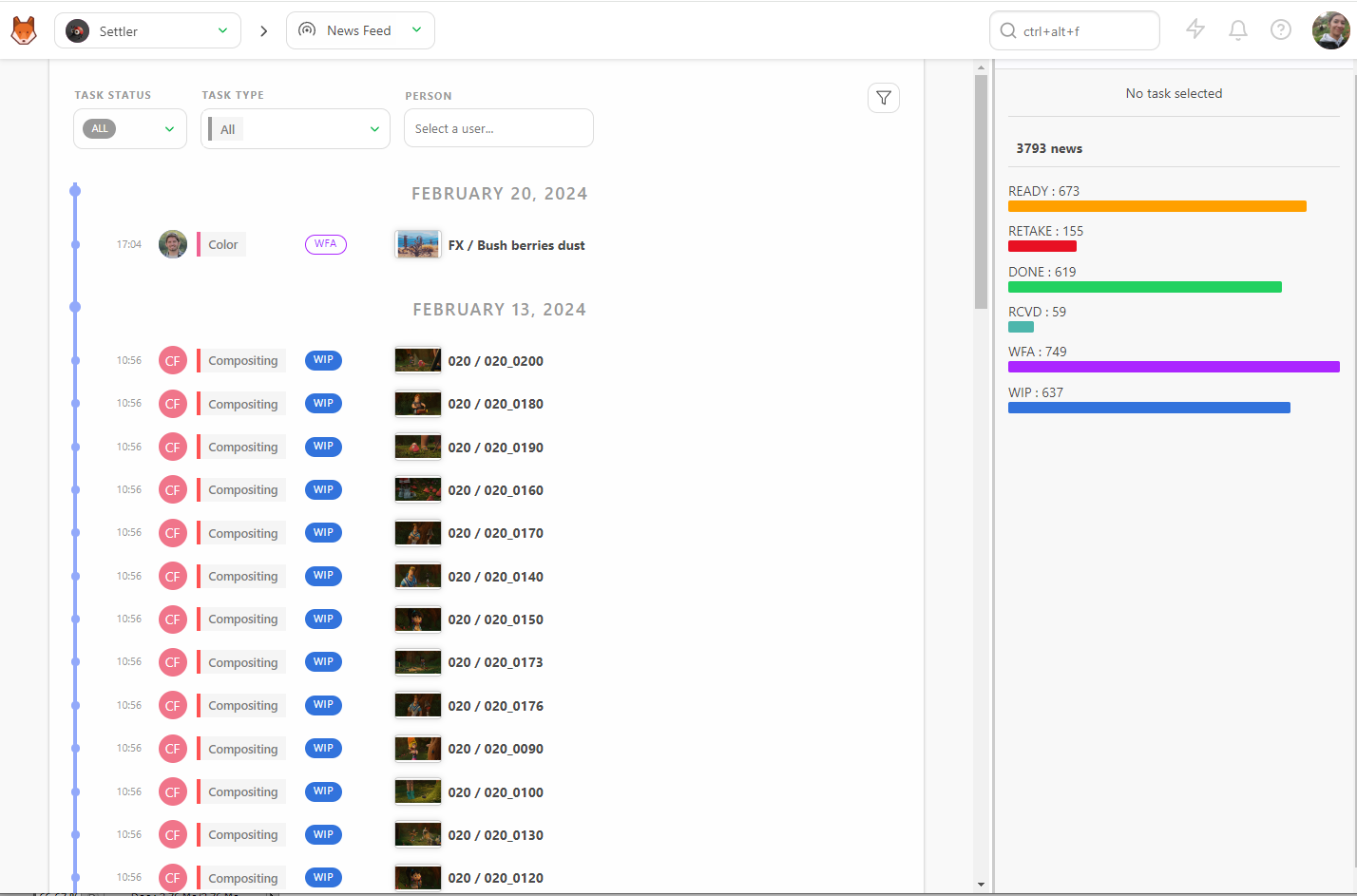
The news feed section show real-time updates relating to your production, including:
- Real-Time Updates: View all status changes as they happen, minute by minute.
- Summarized View: The right part of the screen displays the total number of news items and a breakdown by status.
- Filtering Options: Filter the list by Task Status, Task Type, and Person to focus on specific areas.
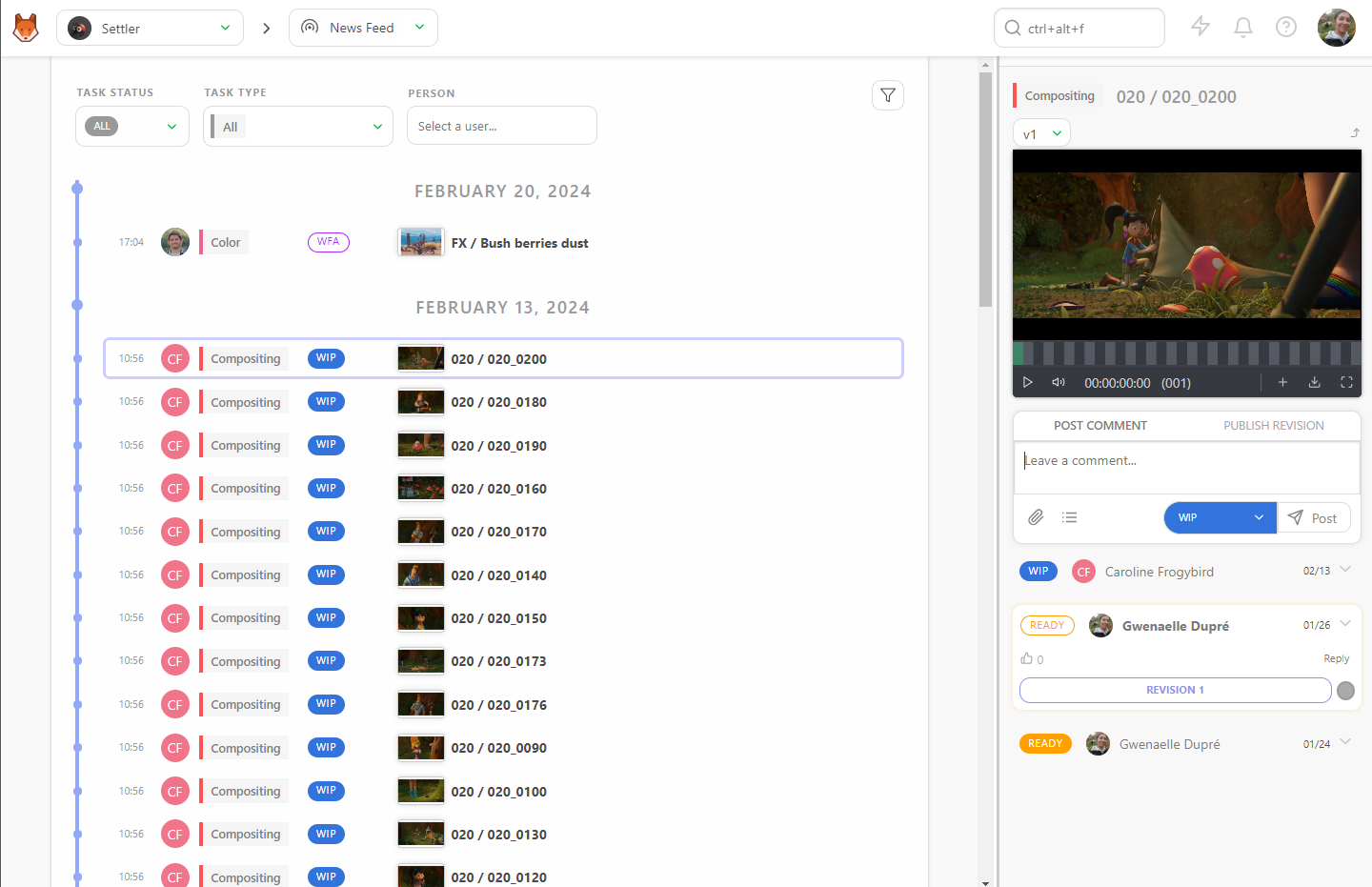
- Comment Panel: Clicking on a line opens the comment panel on the right, providing all necessary details.
Using Filters
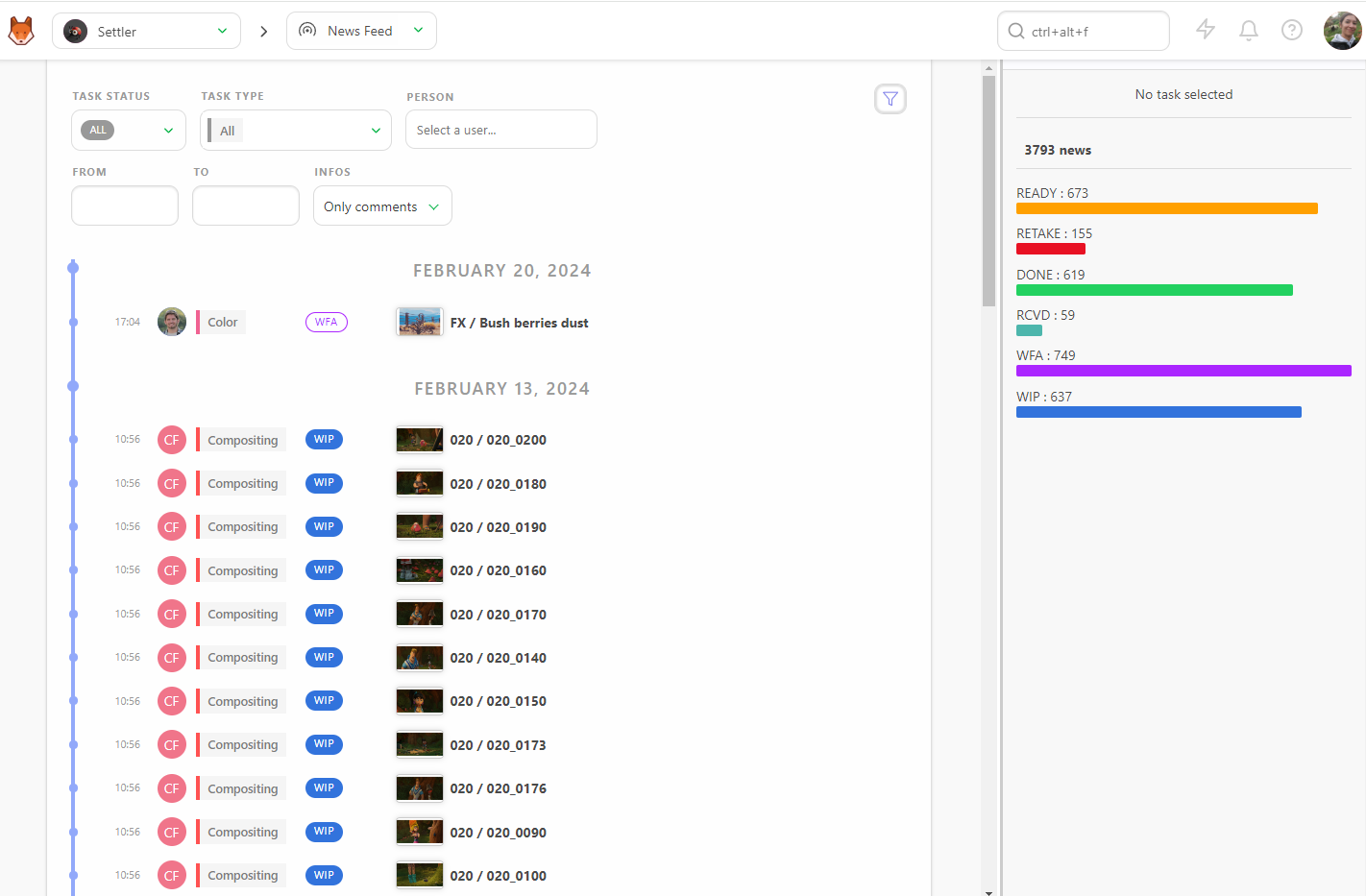
You can customize the time frame for displaying information using the Filters Builder button. This is useful for focusing on specific supervisors or time periods.
Example
If you want to focus on a supervisor for a specific month, select their name and pick a date in the From box.
Know the Current State of the Production
Understanding the current state of your production is crucial. Kitsu provides detailed statistics and visualizations to help you track progress effectively.
Short / Feature Specific
We're going to look at some features that are specific to Short / Feature Film workflows.
Sequence Stats
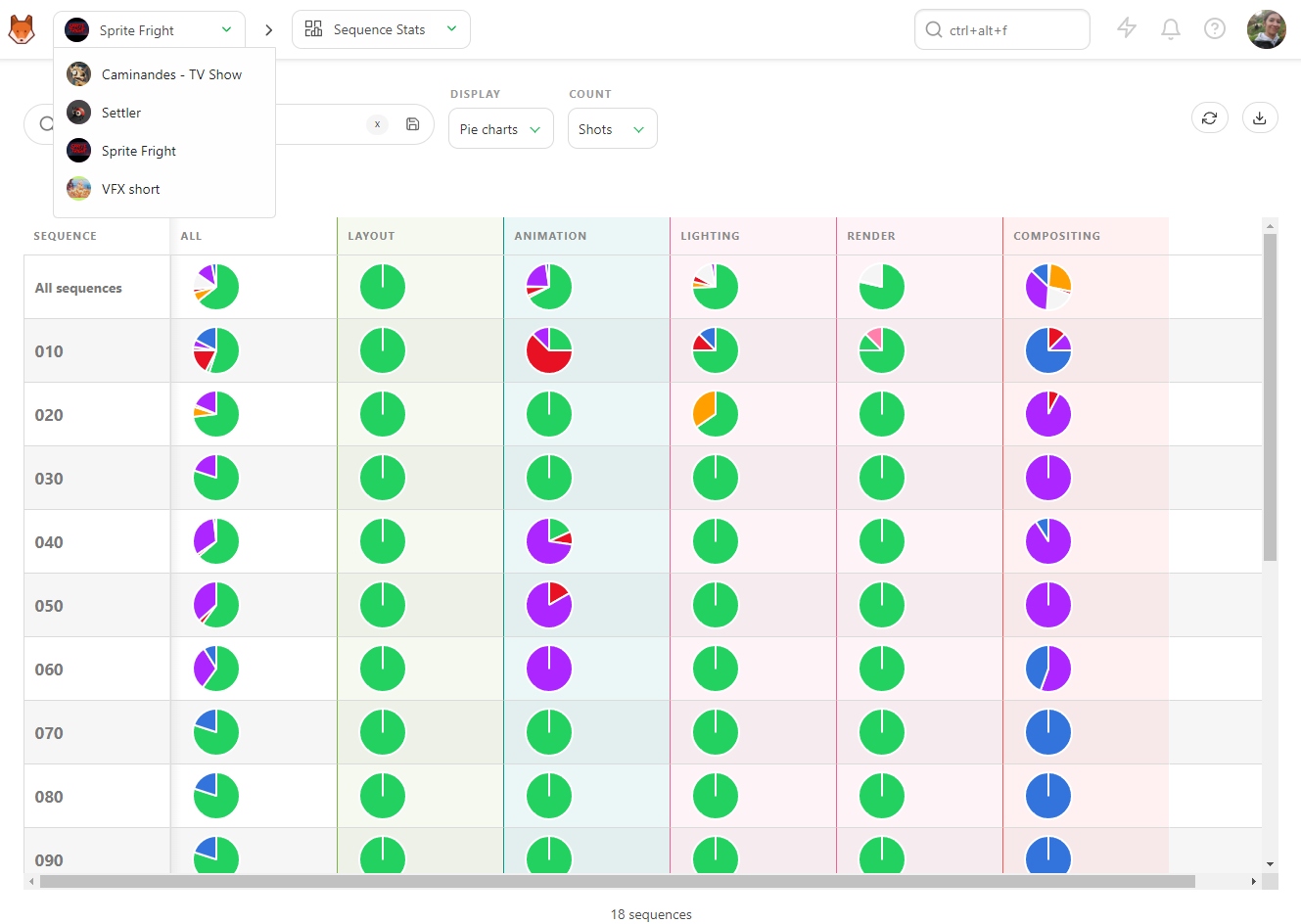
The Sequence Stats page offers pie charts that depict the status of your production, sequence by sequence. The color scheme of the pie charts corresponds to the status, allowing you to quickly understand the state of your production.
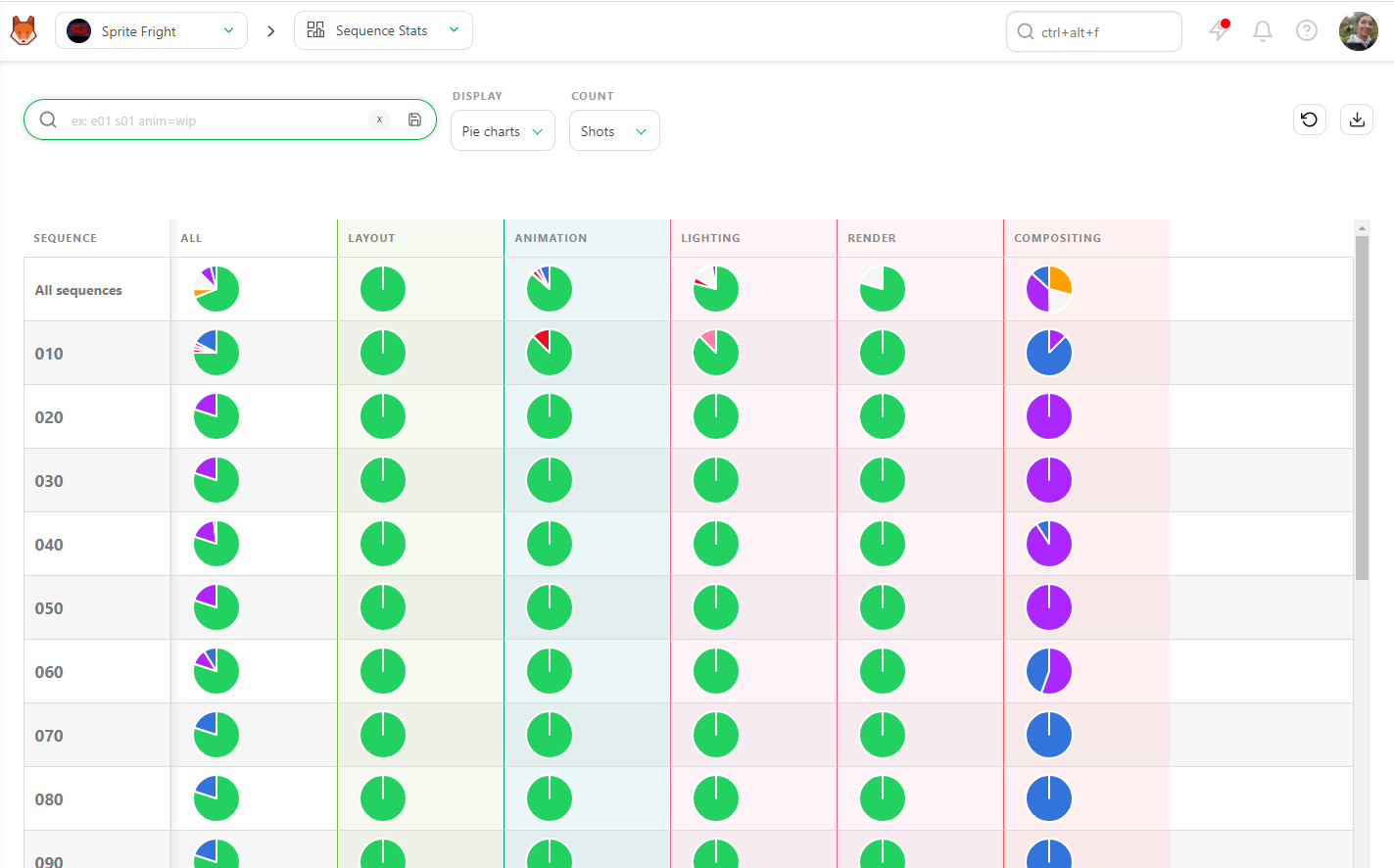
- All Sequences: The first line represents the whole production.
- All Tasks: The first column includes all tasks simultaneously.
By focusing on the first pie chart, you can see the exact state of your production. For more details, look at the rest of the line to get a global view of each task type's state.
Asset Types Stats
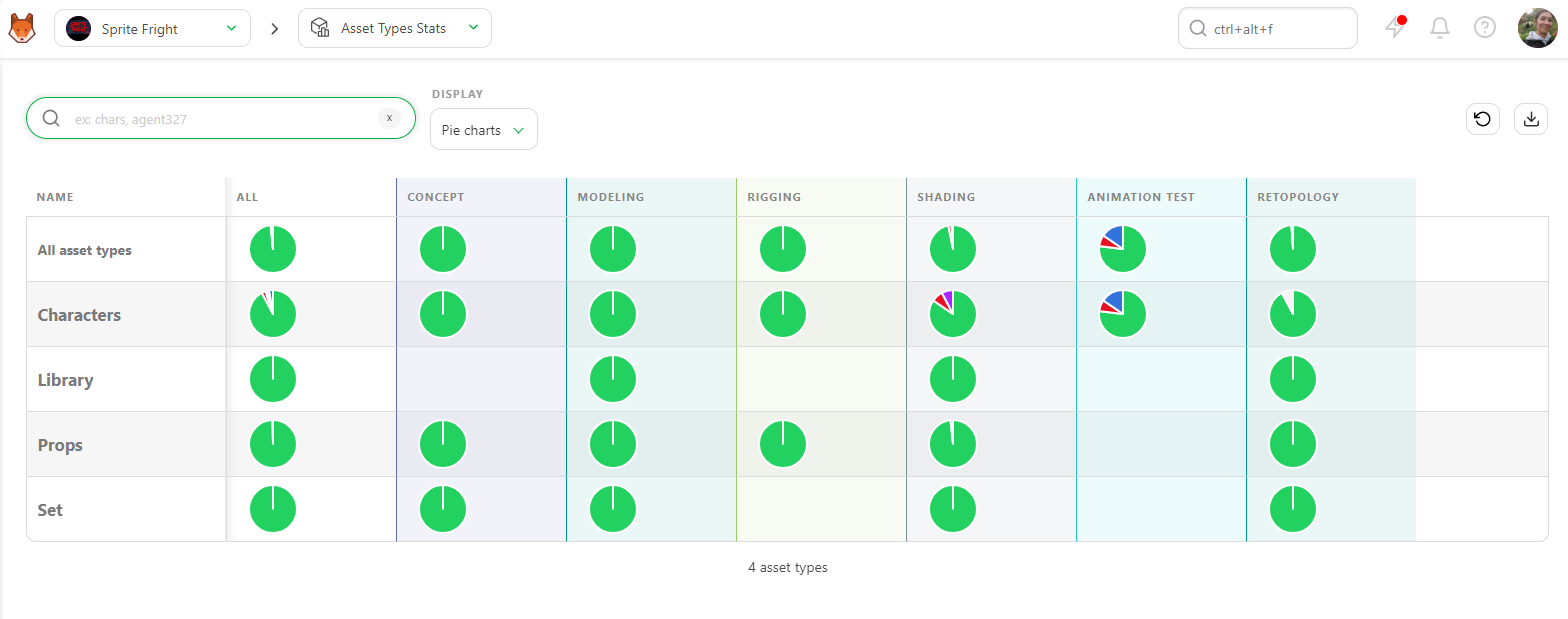
Similar to Sequence Stats, the Asset Types Stats page provides pie charts for asset types, giving you a clear view of the asset status across the production.
Count View
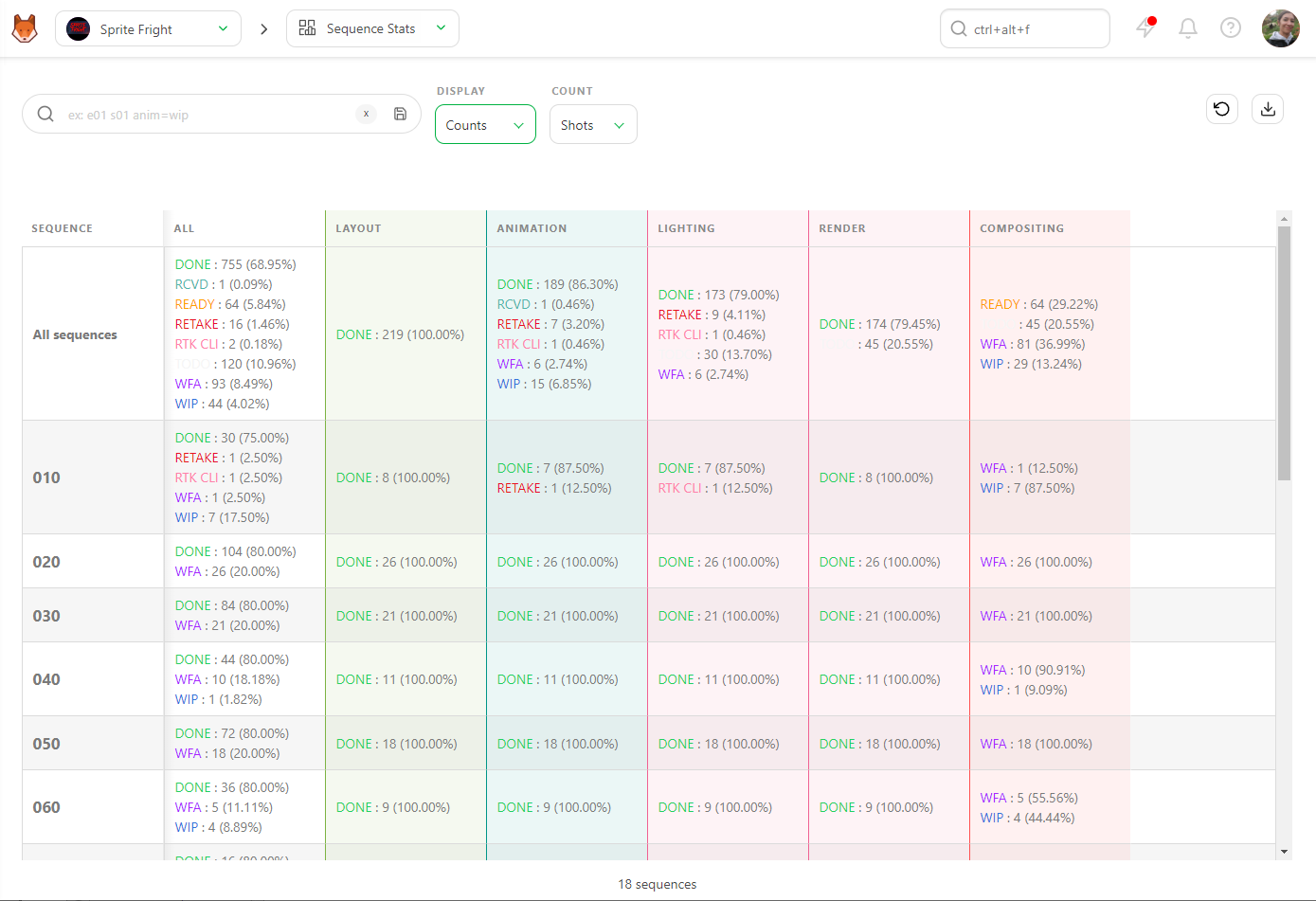
You can also display data as Counts to see the exact number of assets, shots, or frames, along with their percentage per status.
Exporting Data
You can export this page as a .csv text file and import it into spreadsheet software for further analysis and reporting.
By leveraging these tools, you can stay on top of the production process, ensuring everything runs smoothly and on schedule.
TV Show Specific
You can access an extra information level on a TV show through the Episodes Stats Page.
Retakes Display
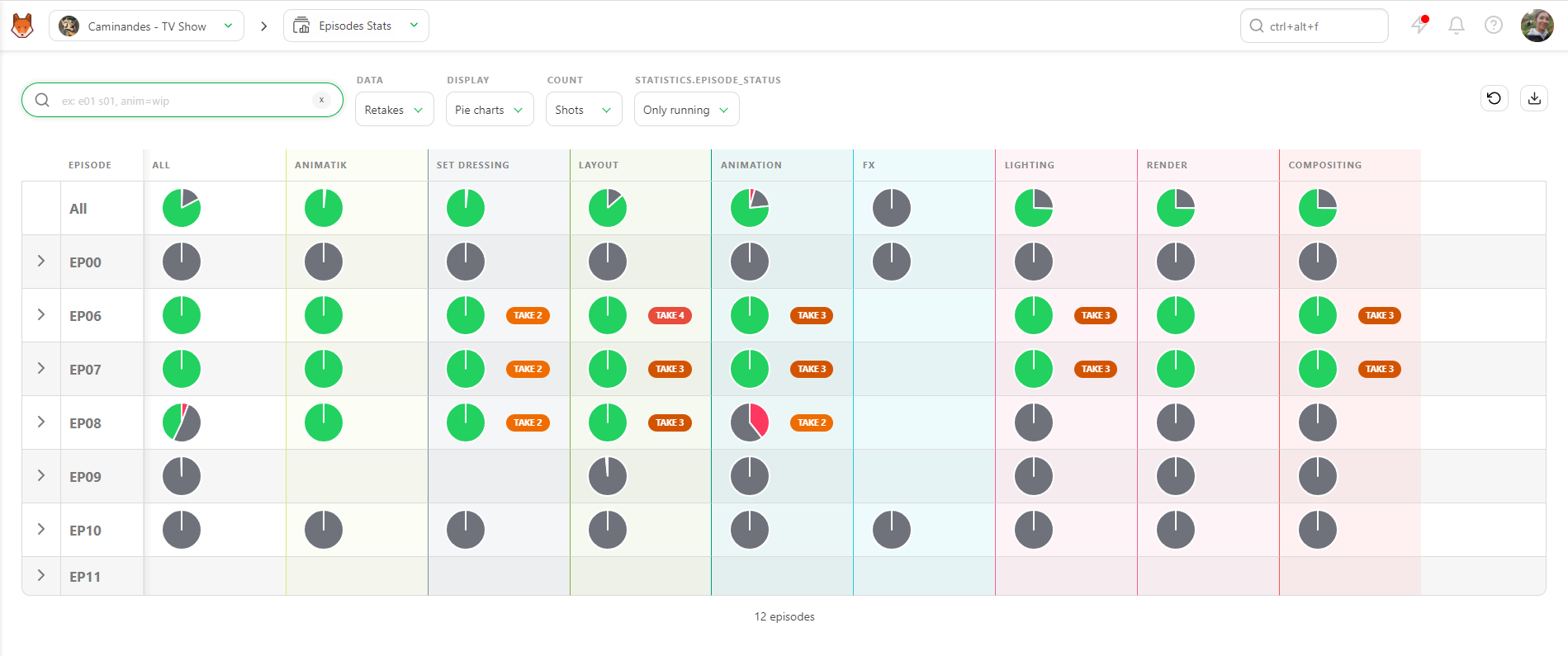
The default setting for the Episodes Stats page is Retakes. This display lets you see the number of retakes (back and forth) for each episode on each task type. Only three colors are displayed:
- Validated as Green
- Retakes as Red
- In progress as Grey
If you unfold an episode, you will see the percentage of each take and the evolution of the retakes versus approval. This helps you see the progress of each episode per task.
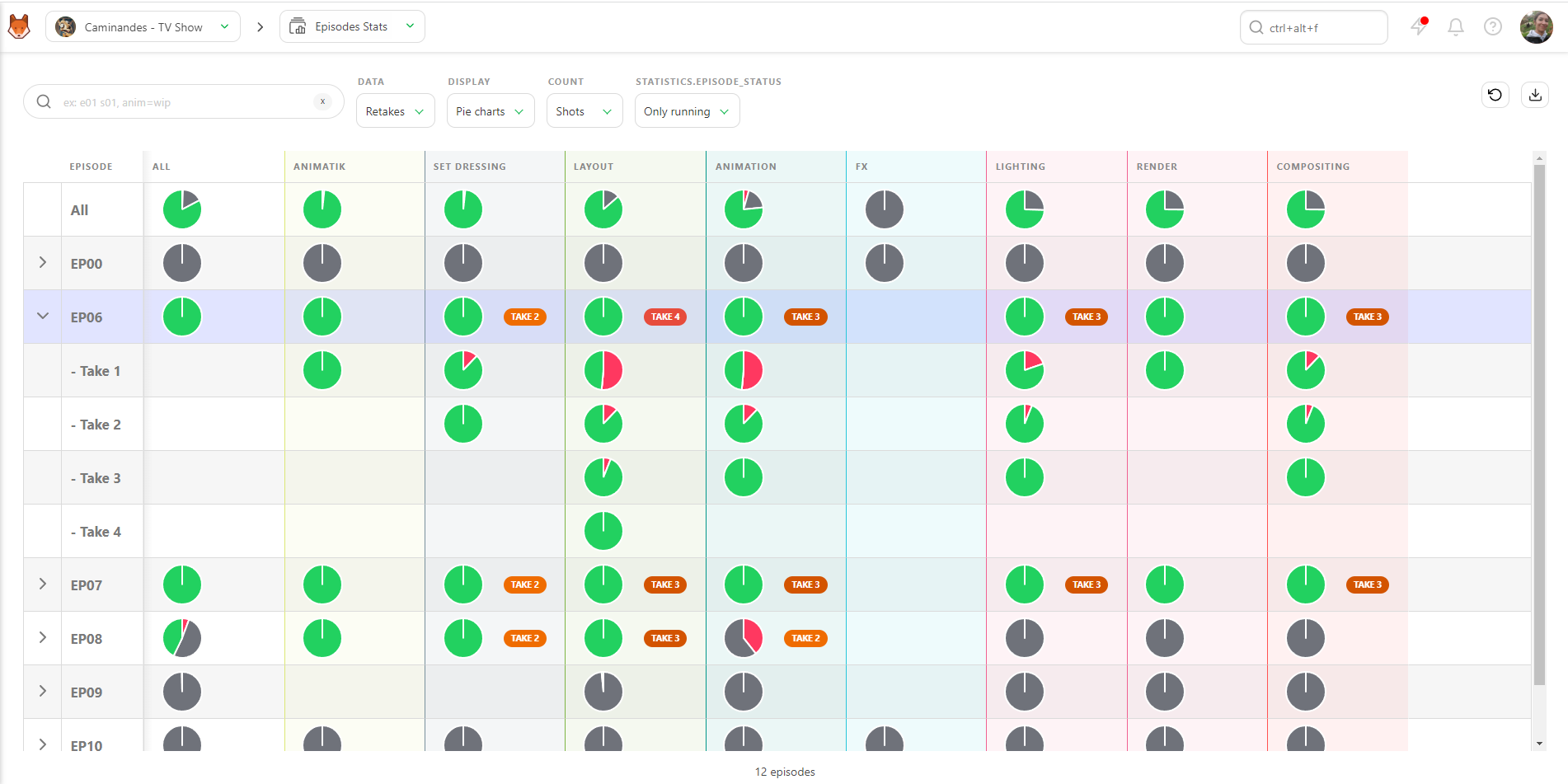
Usually, the first episodes have many back-and-forths, but it should get better over time. However, if late episodes still have many retakes, something must be fixed. It's time to discuss the issue with the director and the supervisor.
Status Display
The second option for data display is Status. This status display works like the Sequence / Asset Type Stats page.
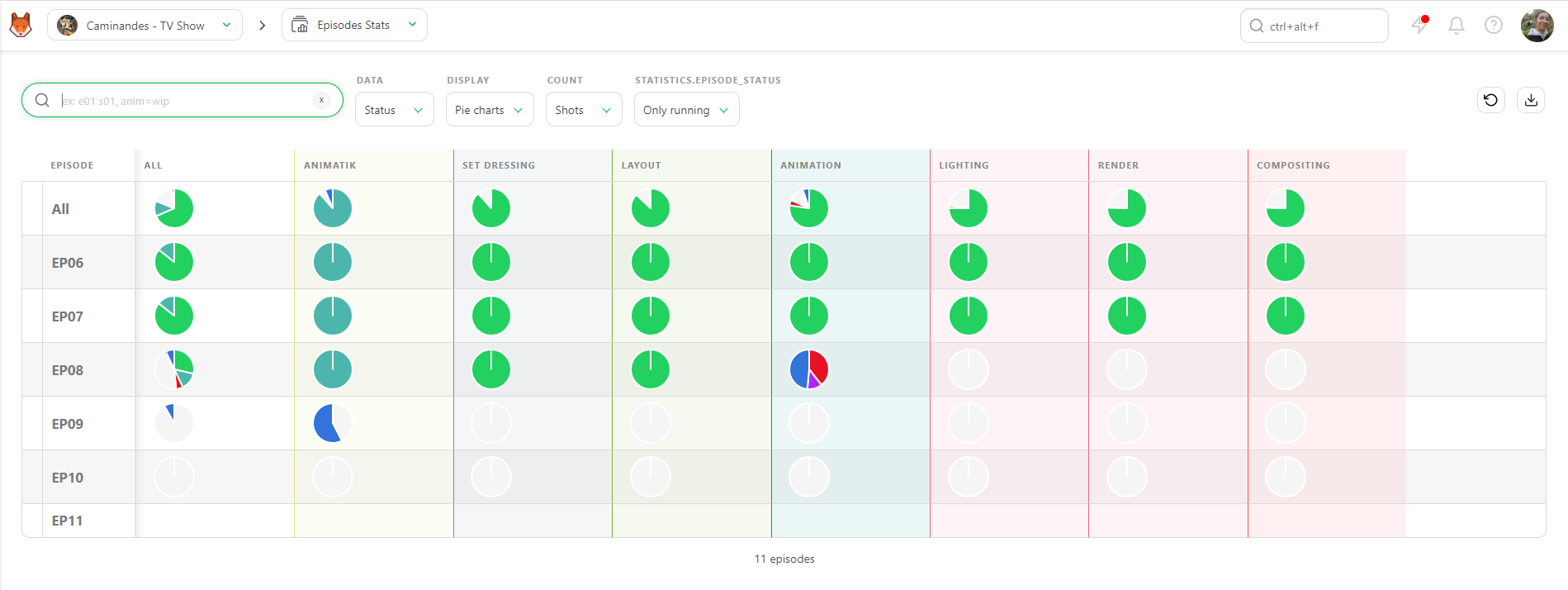
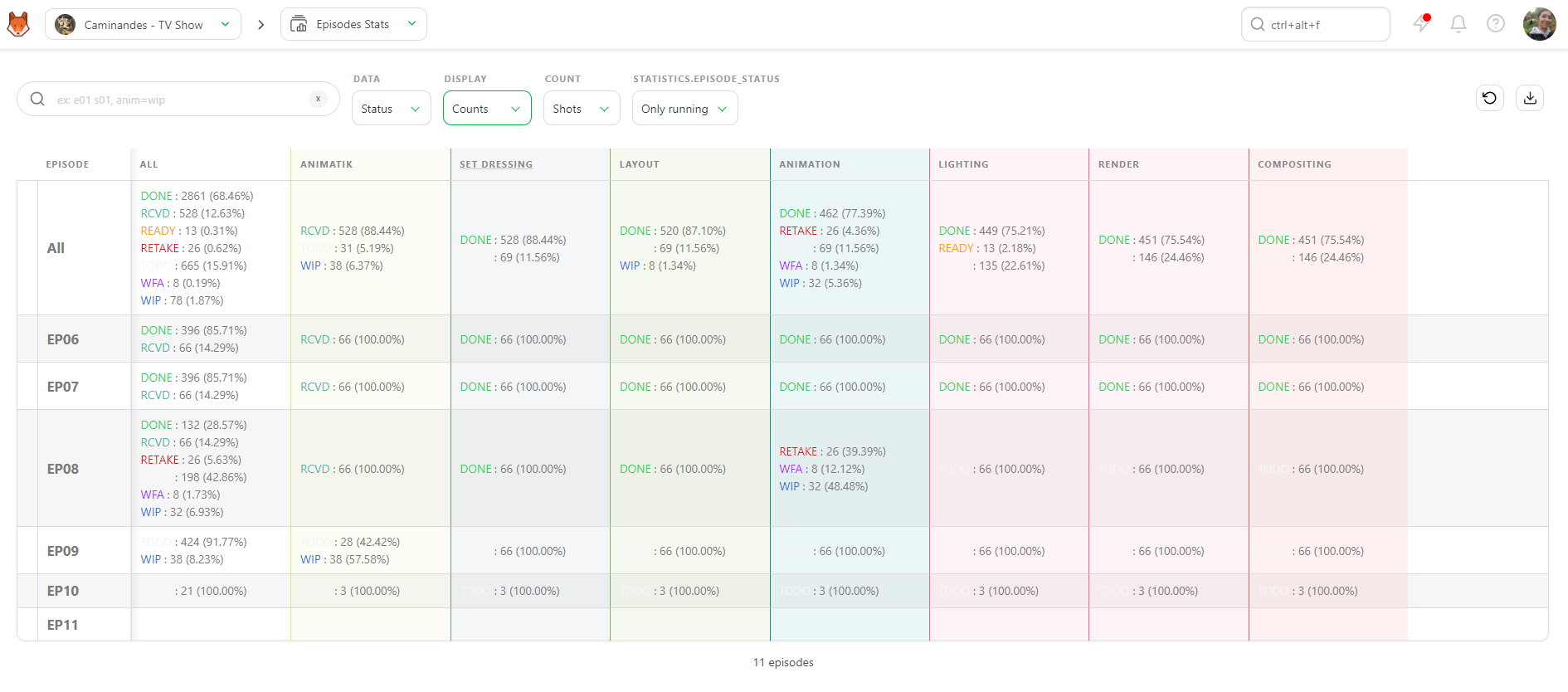
You can also display data as Counts. This way, you'll see the exact number of shots/frames with the percentage per status.
You can export this page as a .csv text file and import it into spreadsheet software.
Production Report
To ease the communication with the studio, you have direct access to the production report, separated into two parts: the Sequence Stats and the Asset Types Stats
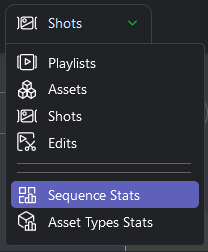
The Sequence Stats page is updated in real-time. Every time you look at this page, you are sure to have updated information.
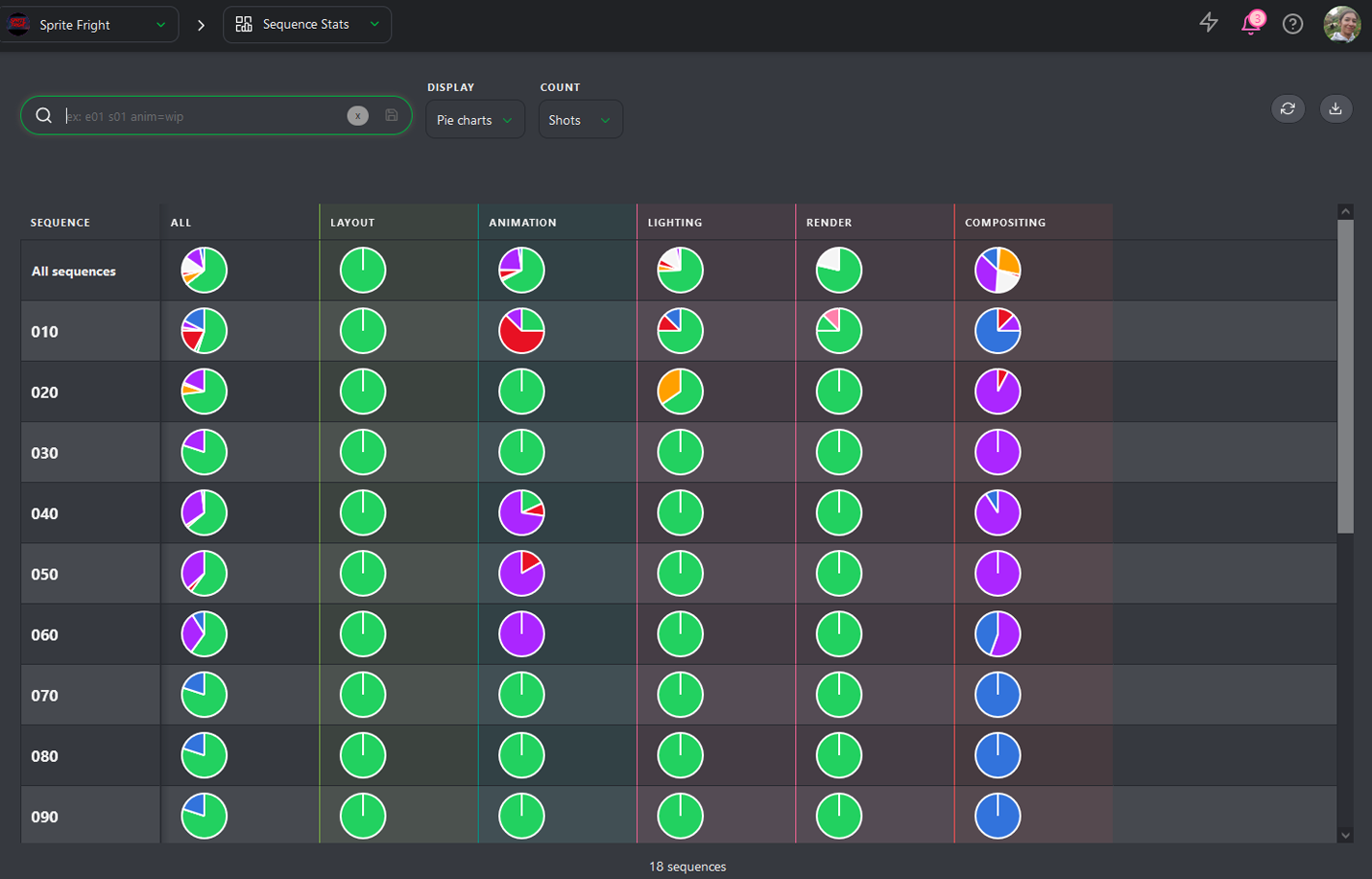
You can choose to display the stats per number of shots or number of frames.
You can also change the Display Mode; you can switch from the Pie charts View to the Counts view.
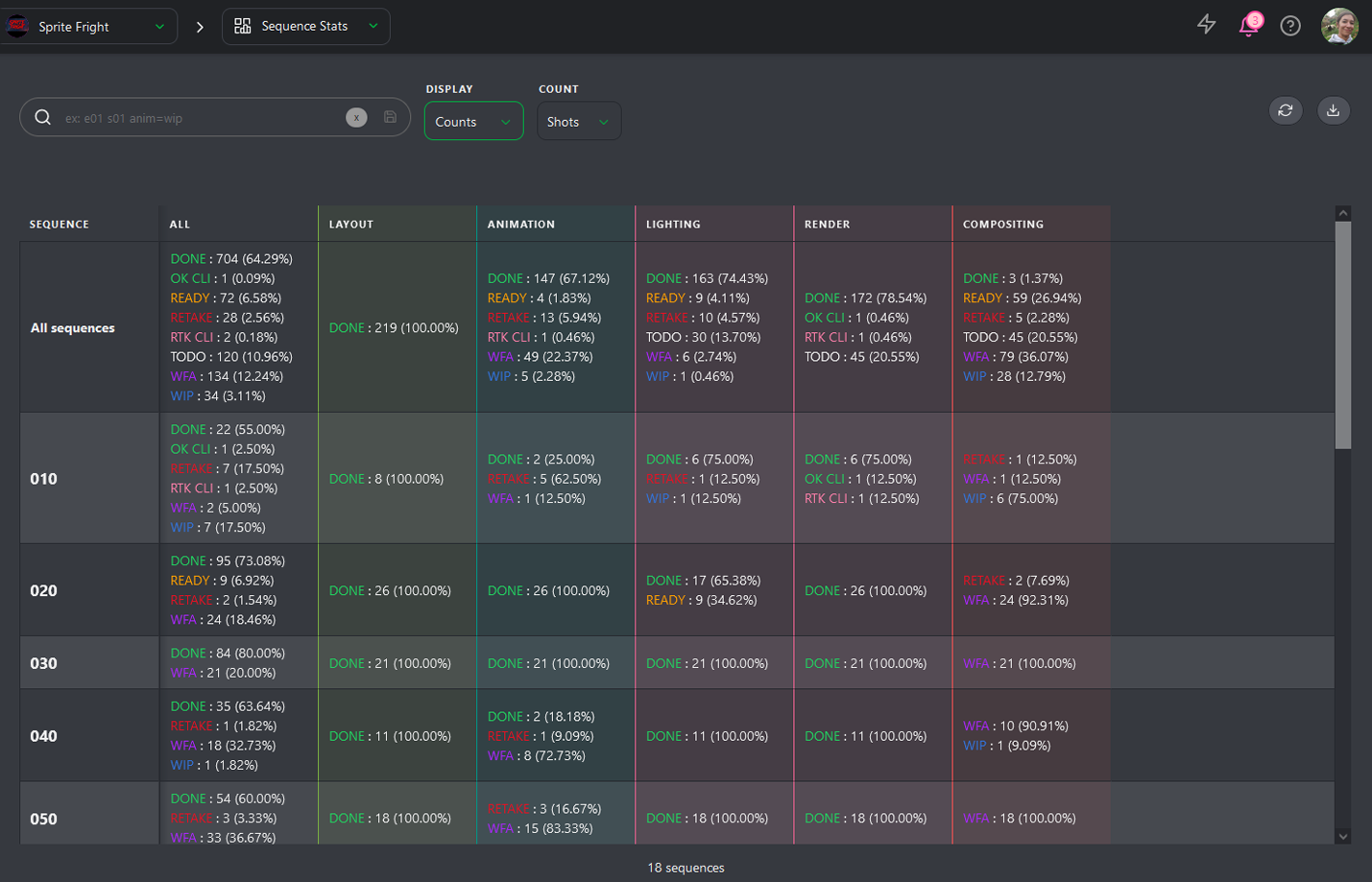
It's this presentation that you can download to keep track of the production progress.
2. Ensure Tasks are On Time
To know if a task is on time, you need two things:
- The Task Type of the task
- An Estimation (Bid) in days, along with an estimated Start date and Due date for the task.
Once this information is entered, you can compare estimation to reality on the Task Type page.
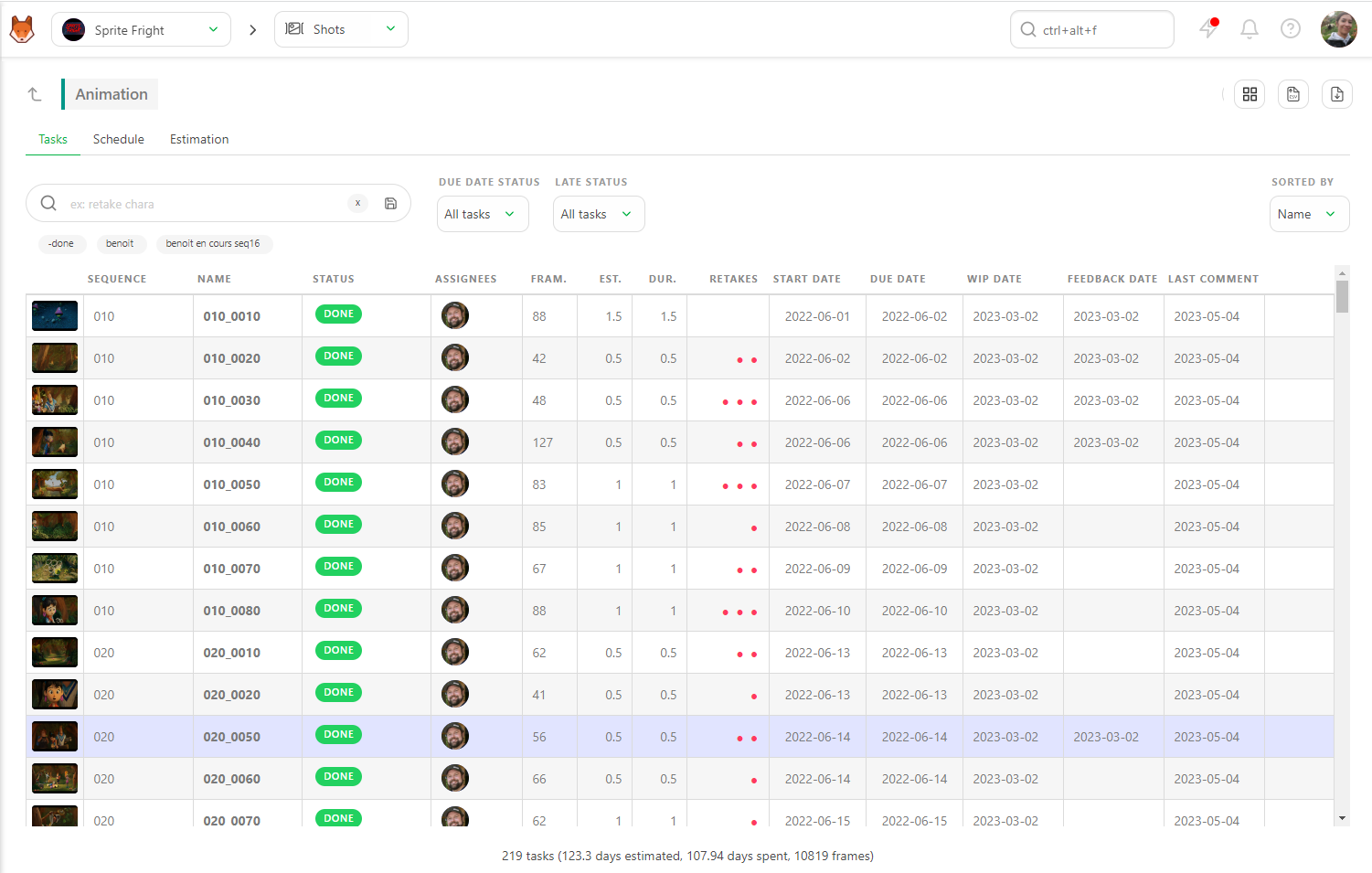
Methods to Compare Estimations and Actuals
There are two main ways to do this:
- Filtering by Due Date Status
- Using the Gantt Diagram
TIP
Kitsu automatically grabs the date and status of WIP (Work in Progress) and WFA (Waiting for Approval). You can compare your estimated start date versus when the Artist really starts, and compare the estimated due date to when the Artist asks for approval.
Filtering by Due Date Status
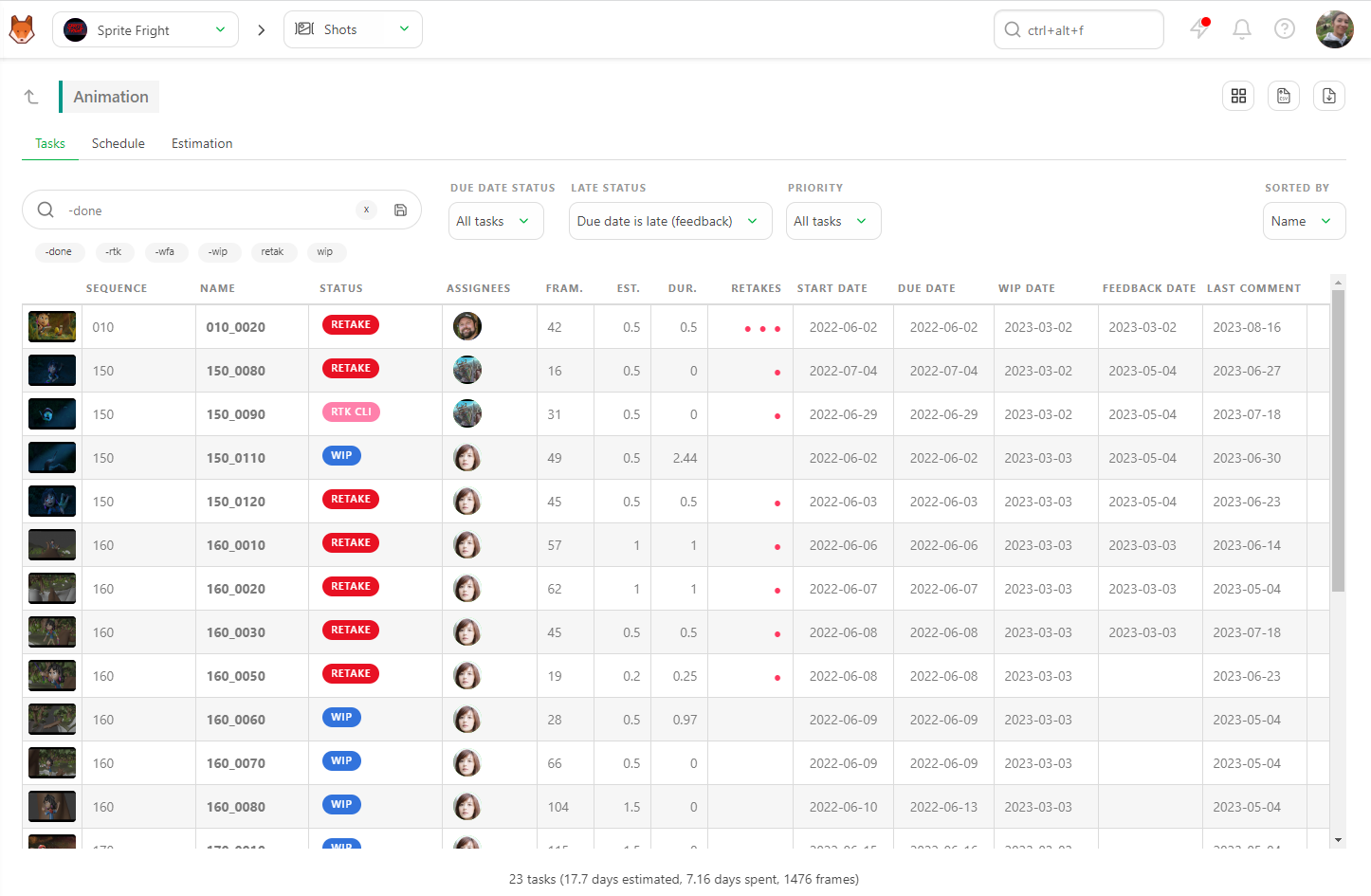
On the Tasks tab, the first filter you see is Due Date Status. Set it to Due before today to display all tasks with a Due date set Due Before Today.
Next, to determine what is finished and what still needs to be finished. Use the -Done filter to exclude completed tasks.
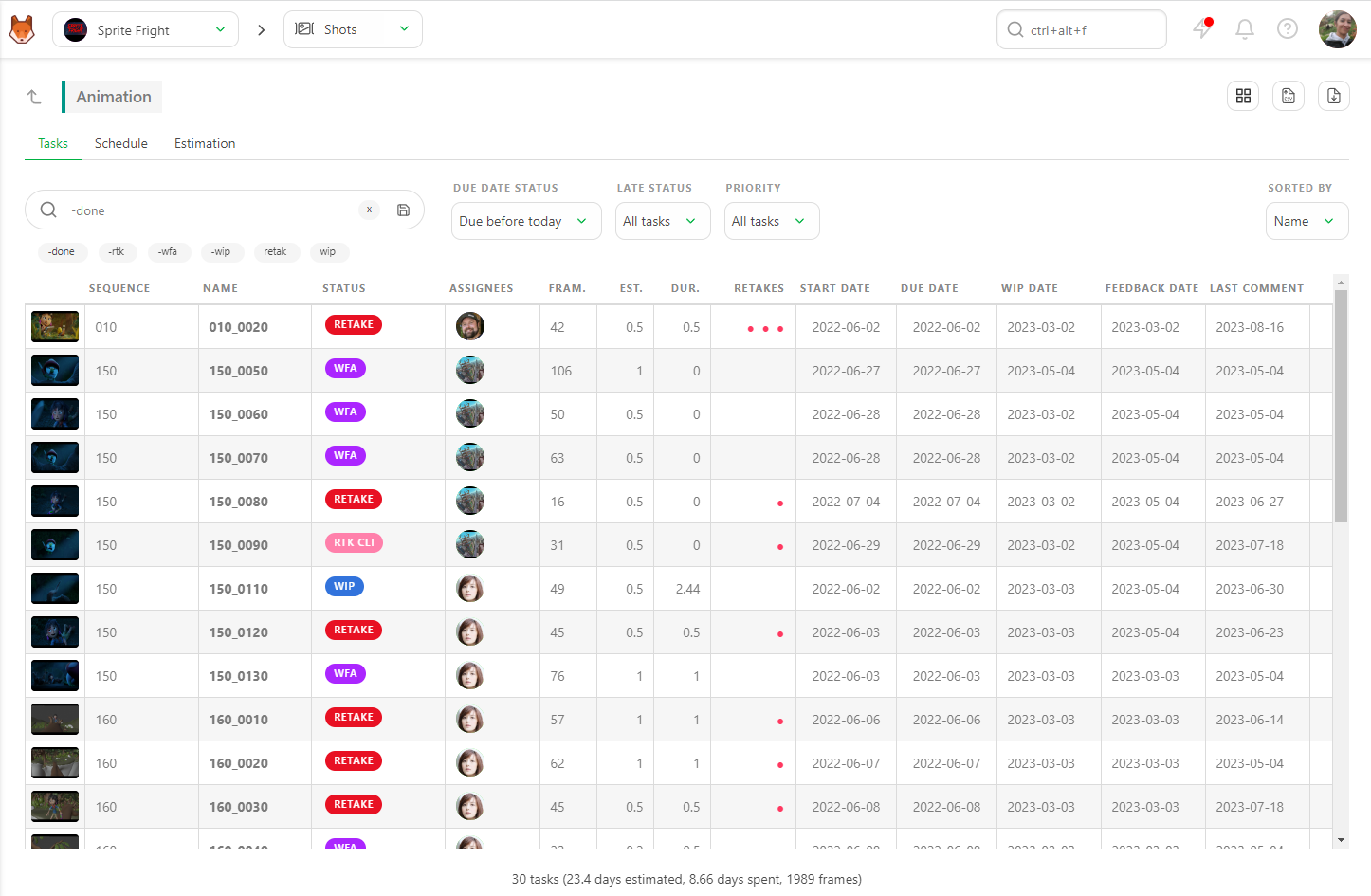
This will show you all the late tasks with the two filters applied, meaning they are only validated after the Estimated Due Date. The summary at the bottom of the page updates in real time based on the applied filters.
You can export this page as a CSV file and open it with spreadsheet software.
Using the Late Status Filter
The Late Status filter built into the page helps you immediately see which tasks took more time than estimated (Estimation over Duration).
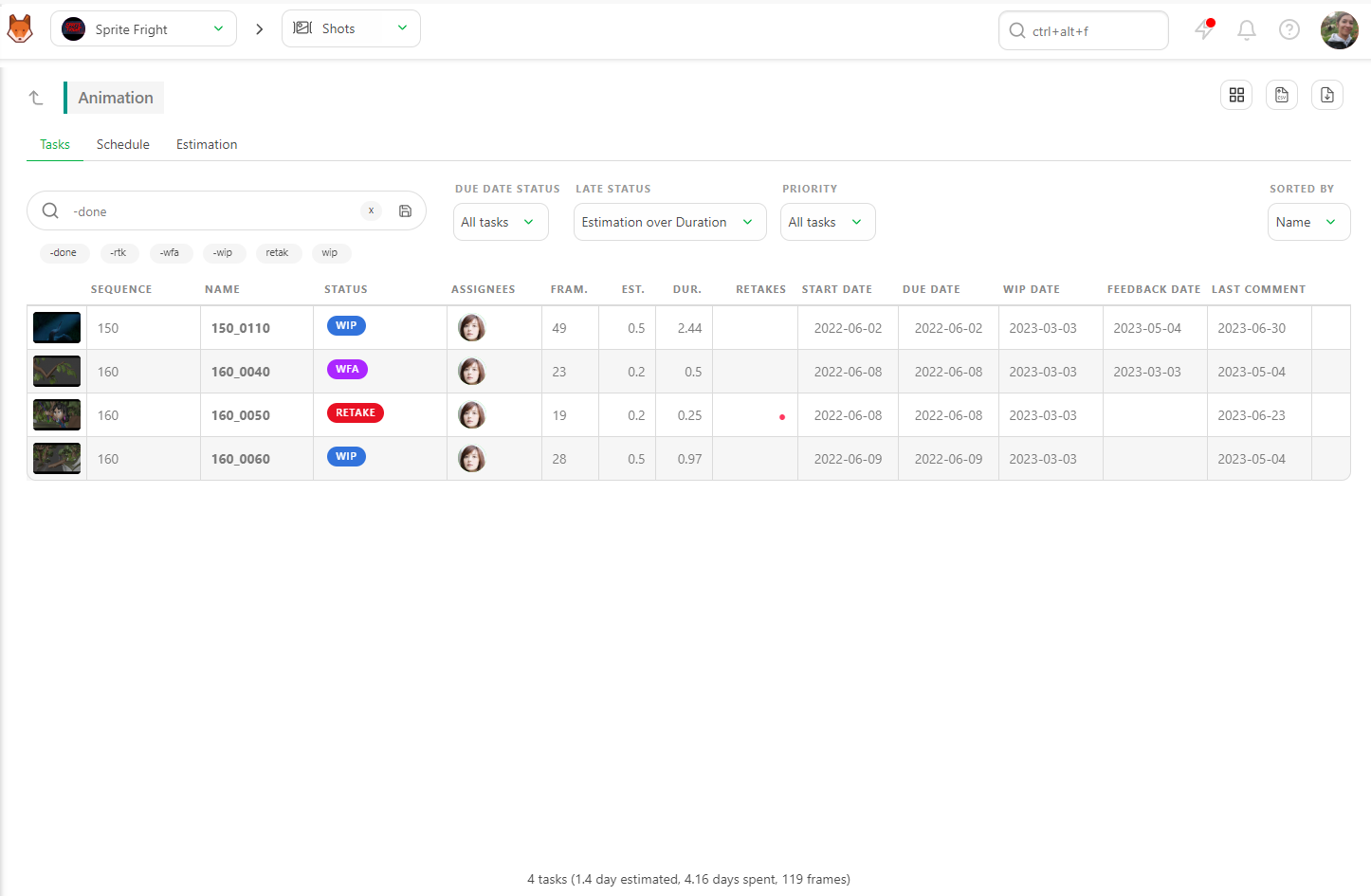
Filter the late tasks using the Due date late option. There are two ways to calculate if a task is late:
- Estimated due date versus Feedback
- Estimated due date versus Done
Depending on your studio's calculation method, Kitsu will provide the answer.
Using the Gantt Diagram
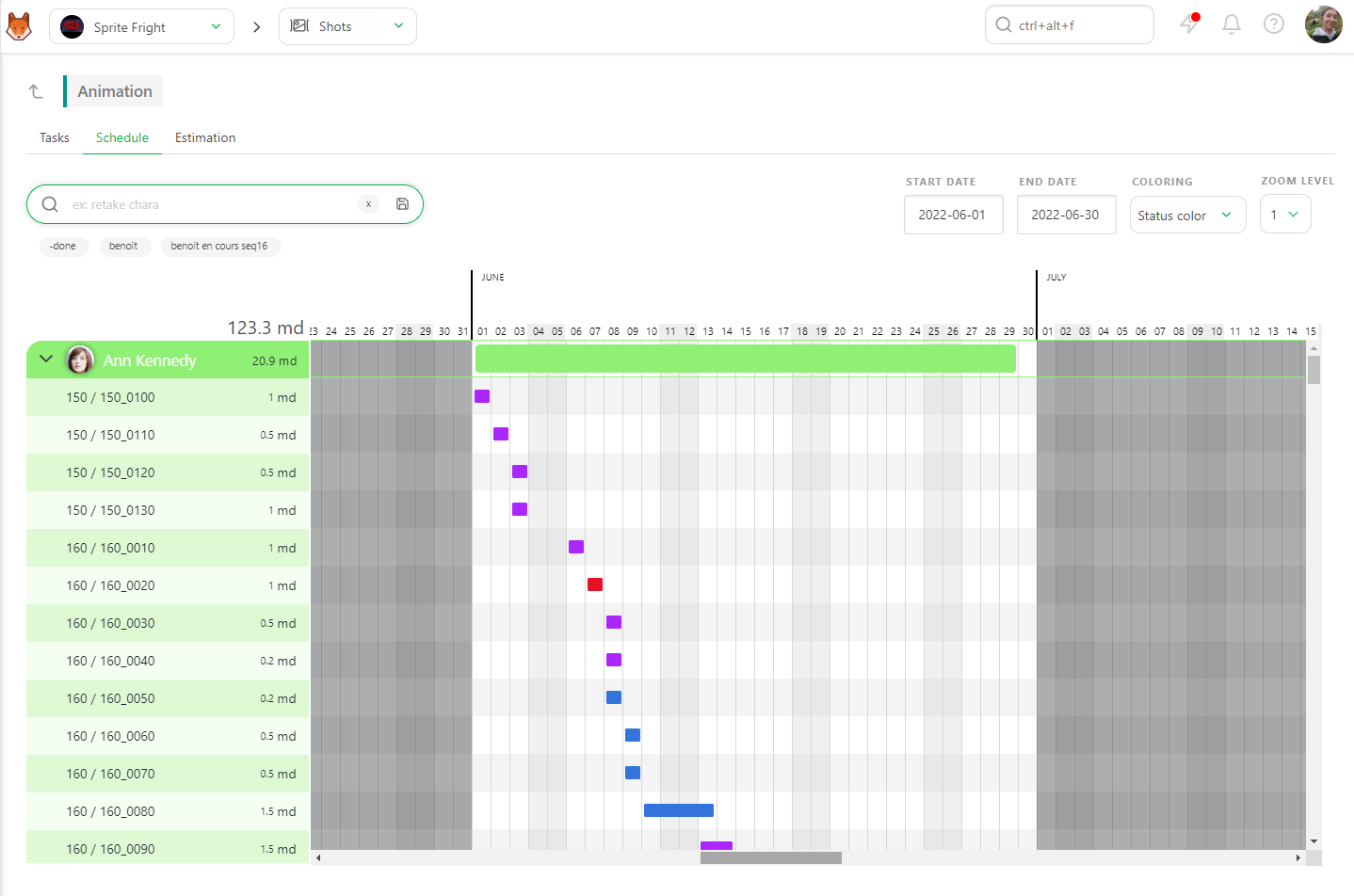
On the Task Type Page, go to the Schedule tab. The Start and End dates of this task type, as set on the production schedule, are visible at the top of the screen.
The Gantt Diagram will be dark grey before and after these dates, providing a visual cue for task timing.
Change the Coloring from Status color to Late in Red. This will show tasks in Grey if they are on time and Red if they are late.
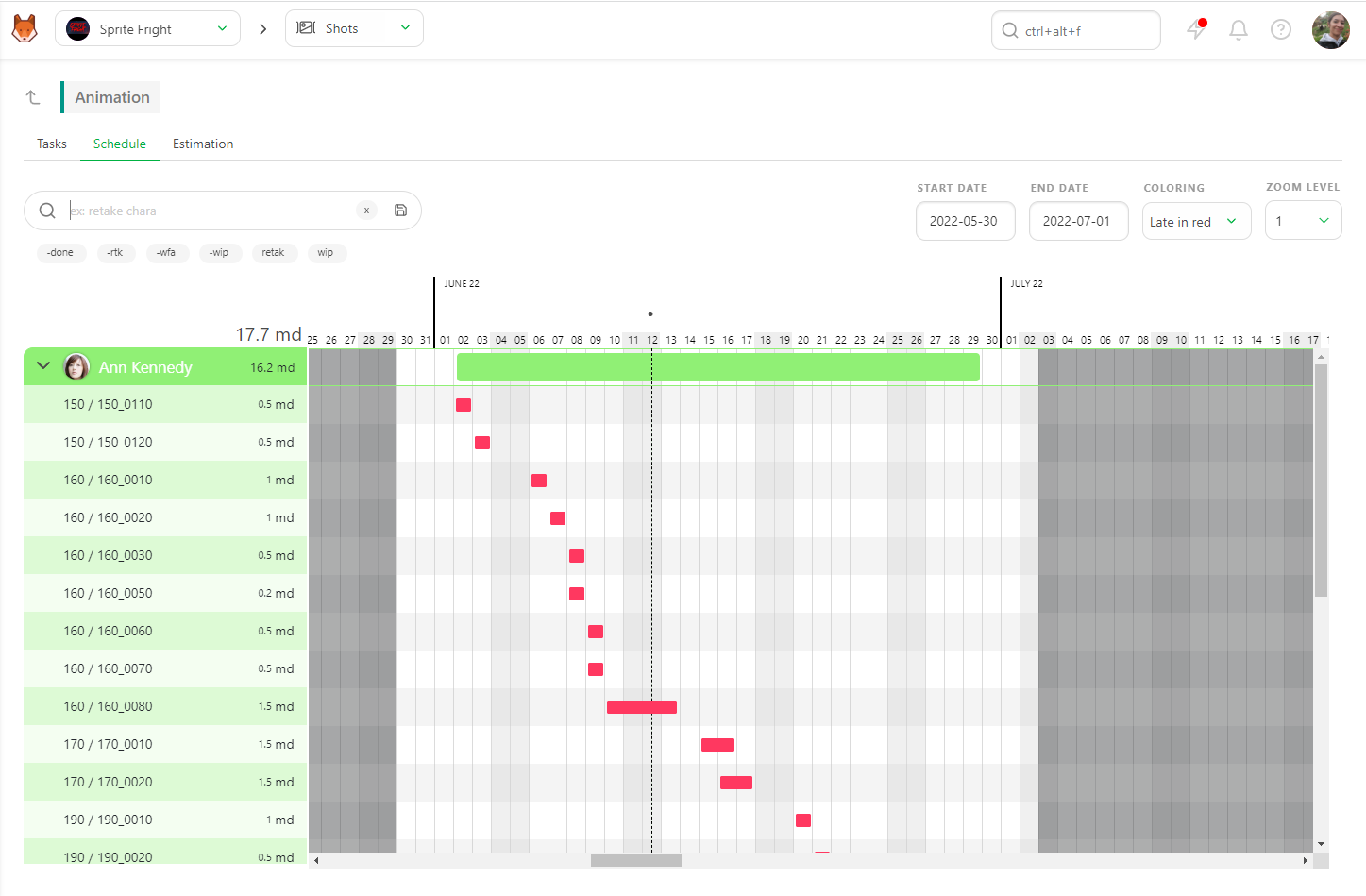
You can return to the Tasks tab for more details, and Kitsu will retain your filters from tab to tab.
3. Understanding Why a Task is Late
Now that you know which tasks are late or will be late, you need to understand why. There are several reasons why a task might be late:
- The artist is overwhelmed with too many tasks.
- There is too much back-and-forth on the task.
- The task might be underestimated, making it difficult to finish on time.
- The previous task was already late.
Checking an Artist's Workload
To check an artist's number of tasks, filter the Task Type page by the artist's name under the Task tab.
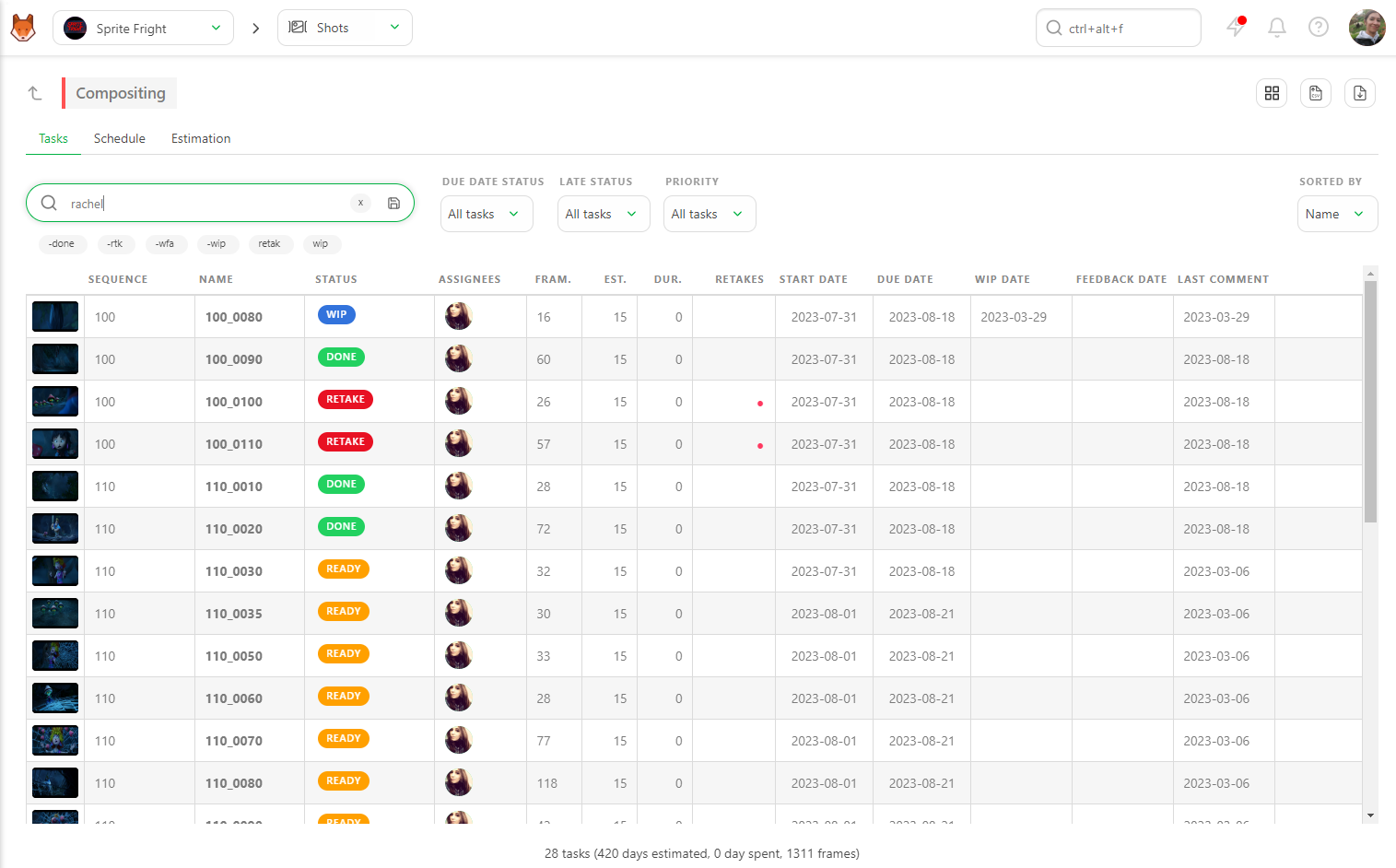
You can also add the -done filter to see what the artist has left to do. Then add the Due Date Status filter to Due previous week or Due this week, depending on what you are looking for.
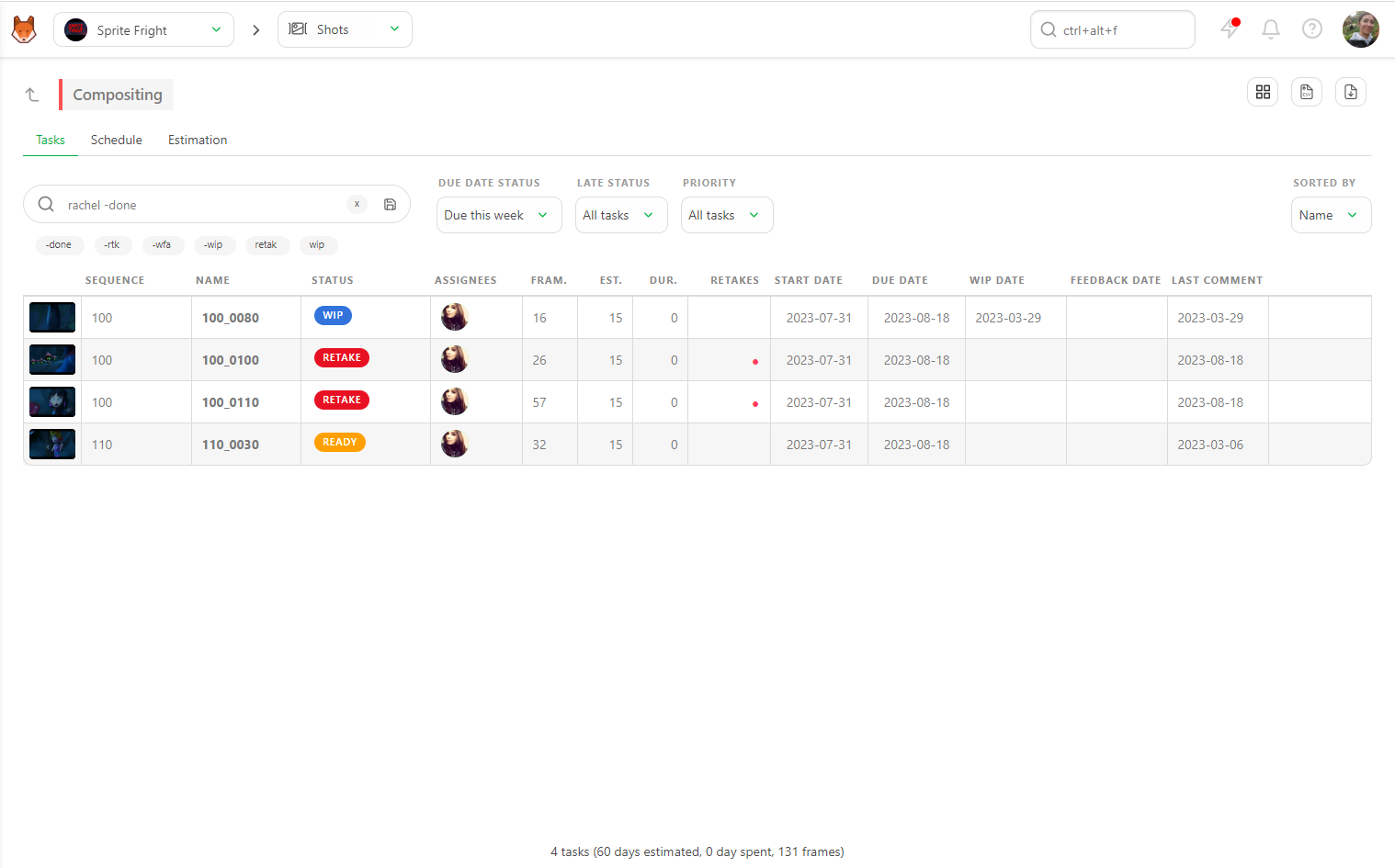
This will show you how many tasks your artist has to complete.
Identifying Back-and-Forth
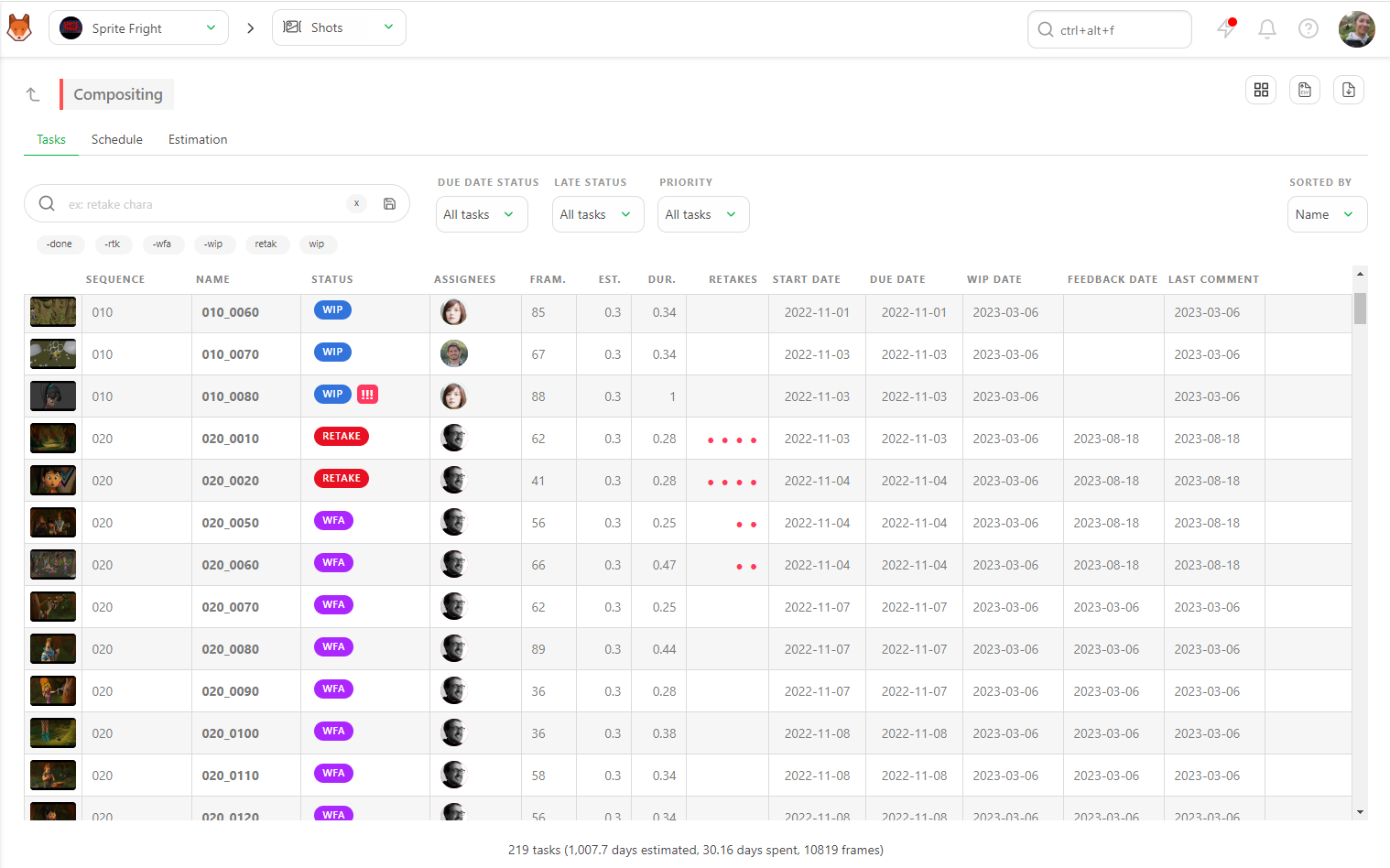
To identify the number of back-and-forths, look at the Retakes column on the Tasks tab. Each Red Dot represents a retake. Click on the line to open the Comment panel and read the entire task history. This is the best way to understand what is happening—whether the artist misunderstood the brief or if the brief changed with each version.
Checking if the Task is Underestimated
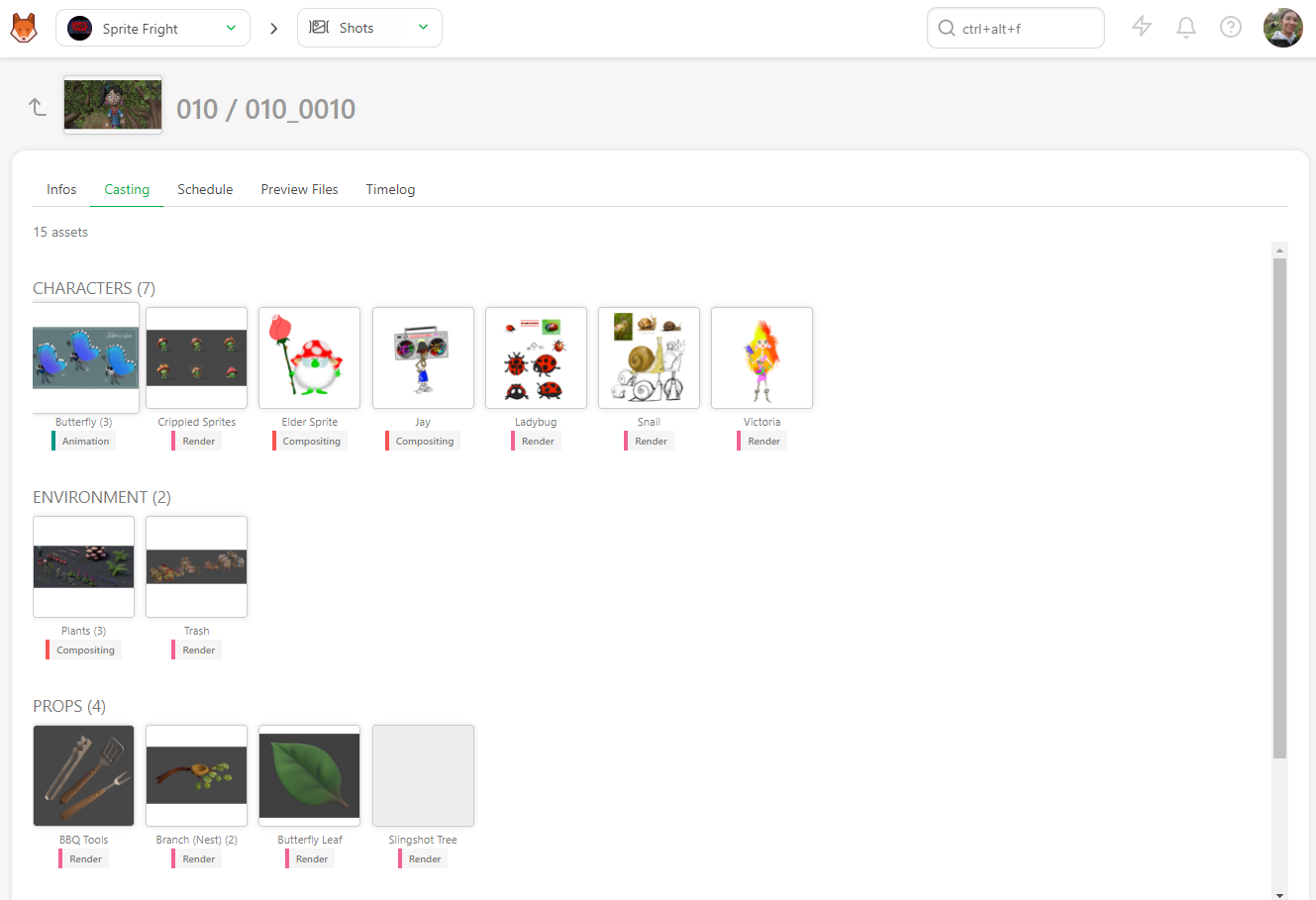
To check if the task is underestimated, go back to the global page, click on the name of the shot or asset, and see the casting and all the extra information. For example, there might be too many characters in the scene, or it might be a big action scene.
Checking the Previous Task
Lastly, you can check the previous task while viewing the asset/shot in detail. Click on it to go to the dedicated Task Type page, where you can find detailed information about what was happening before. This can help you understand if delays in earlier tasks are affecting the current one.
4. Durations over Estimates
To focus on the big picture and have a global view of the Bid, you can compare the estimated Person days versus the reality Days Spent on various pages.
Estimation Summary
On the shots' global page, you can see the sum-up of all the estimations versus duration. You can also apply filters for more specific insights.
For example, to focus on a specific sequence, filter your global page by the sequence's name. The sum-up at the bottom will update accordingly.
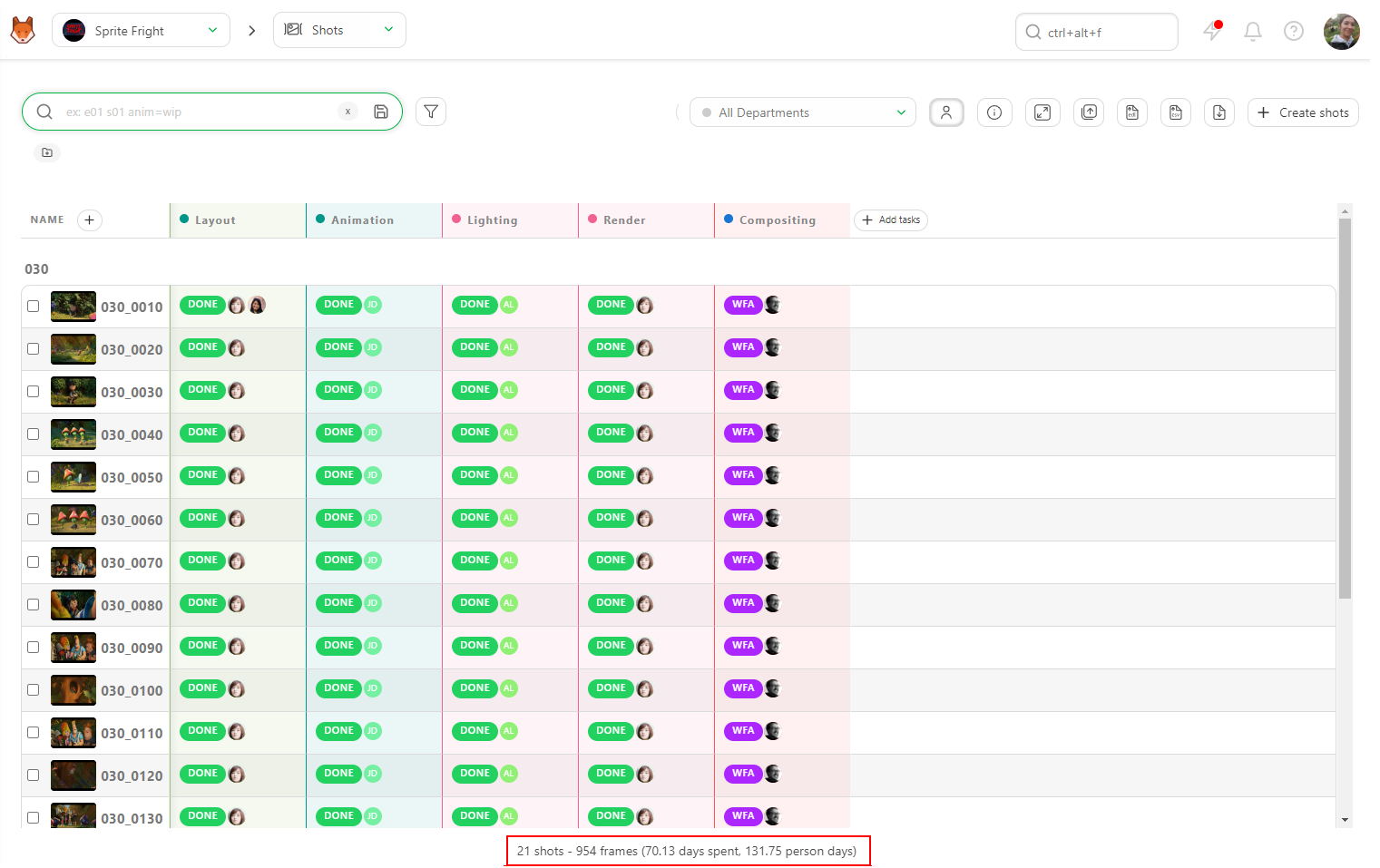
This allows you to know the Duration versus Estimation for that particular Sequence.
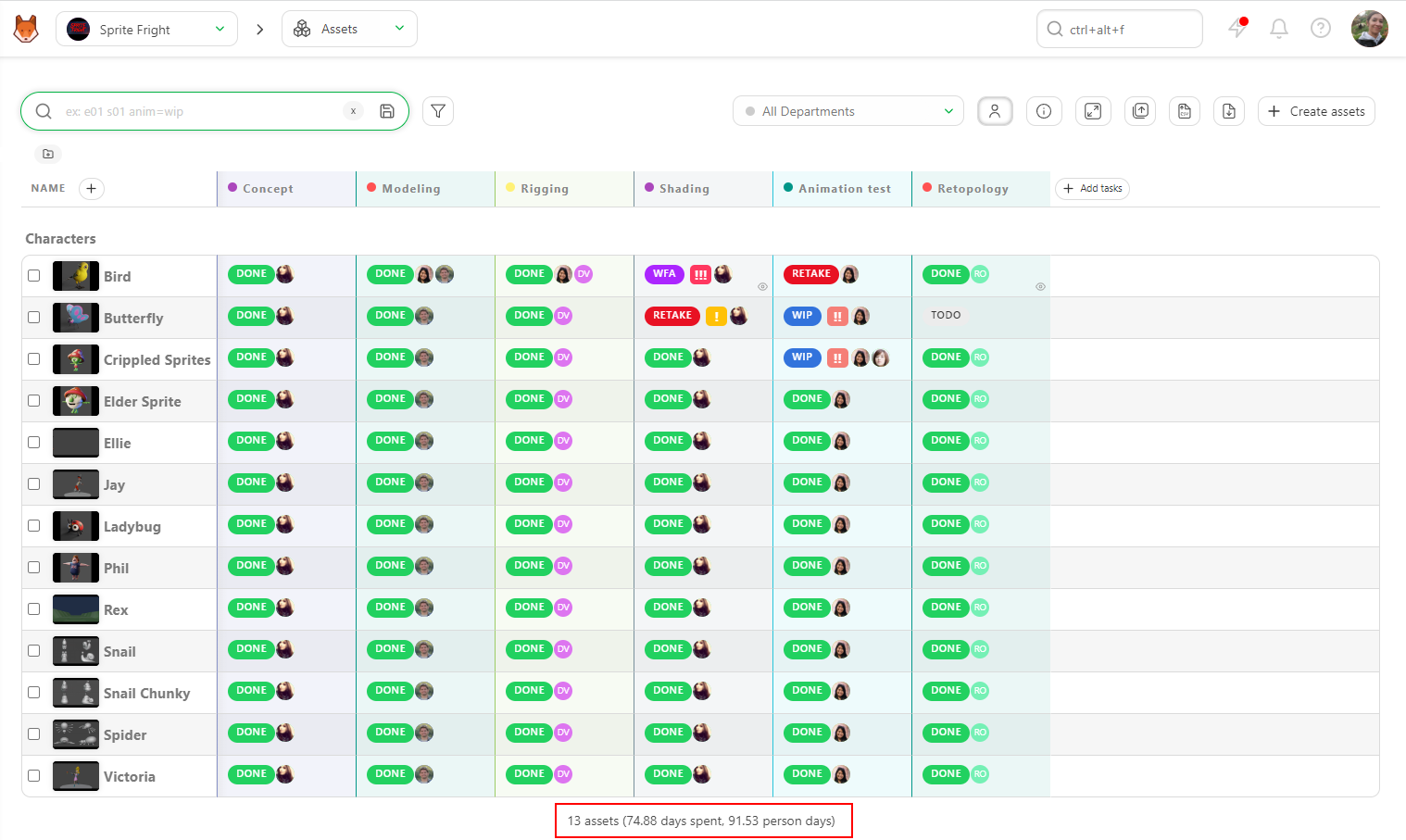
Similarly, you can filter the global asset page.
For example, you can filter by a specific Asset Type such as Character. The sum-up at the bottom will update to show the estimation versus duration for that asset type.
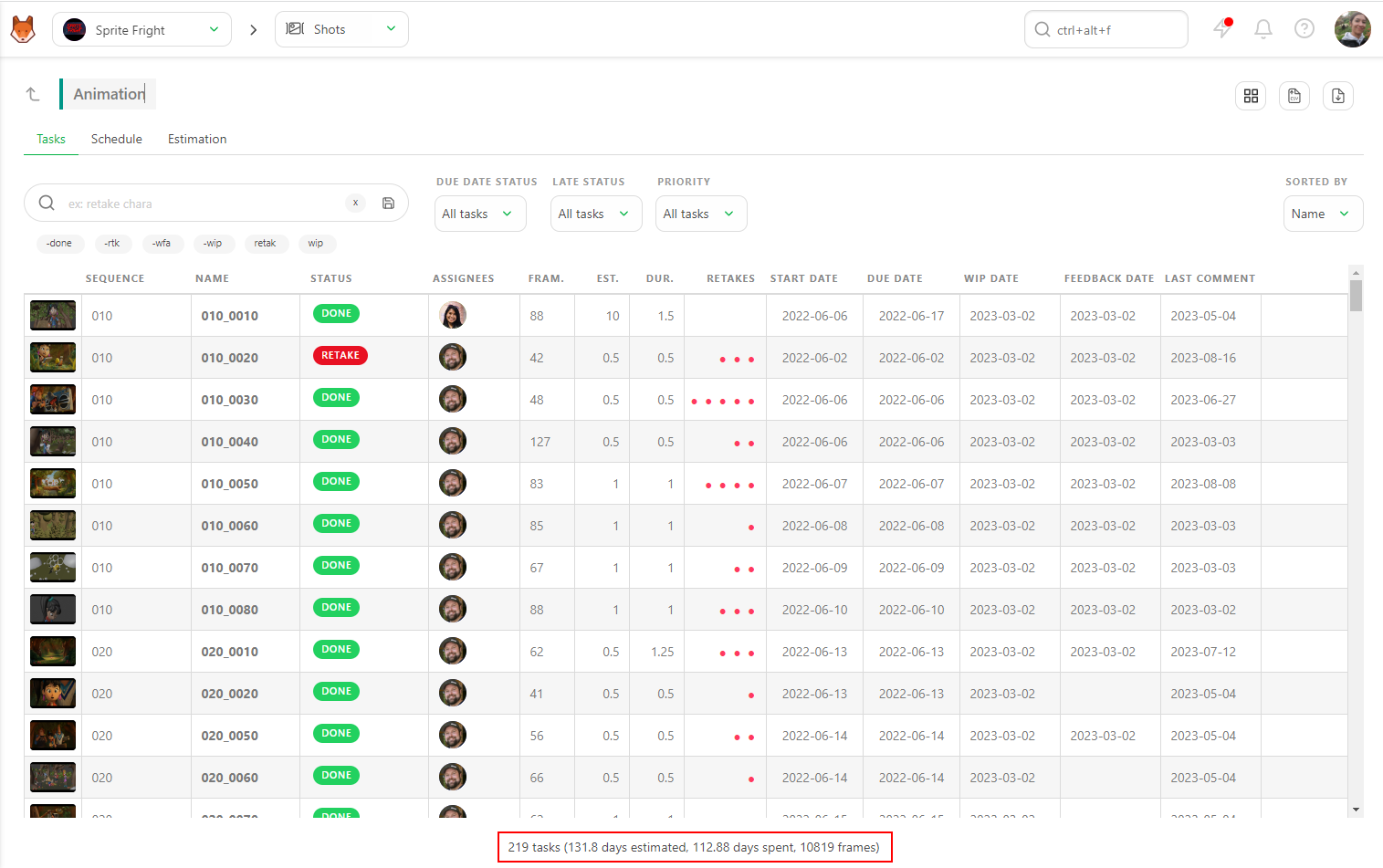
Task Type Duration over Estimation
To delve into details, click on the name of a task type. The sum-up at the bottom of the screen will show Duration versus Estimation for this specific task type.
You can get a global view or focus on a specific status or Artist's name. As on the global page, the sum-up will update with each filter applied.
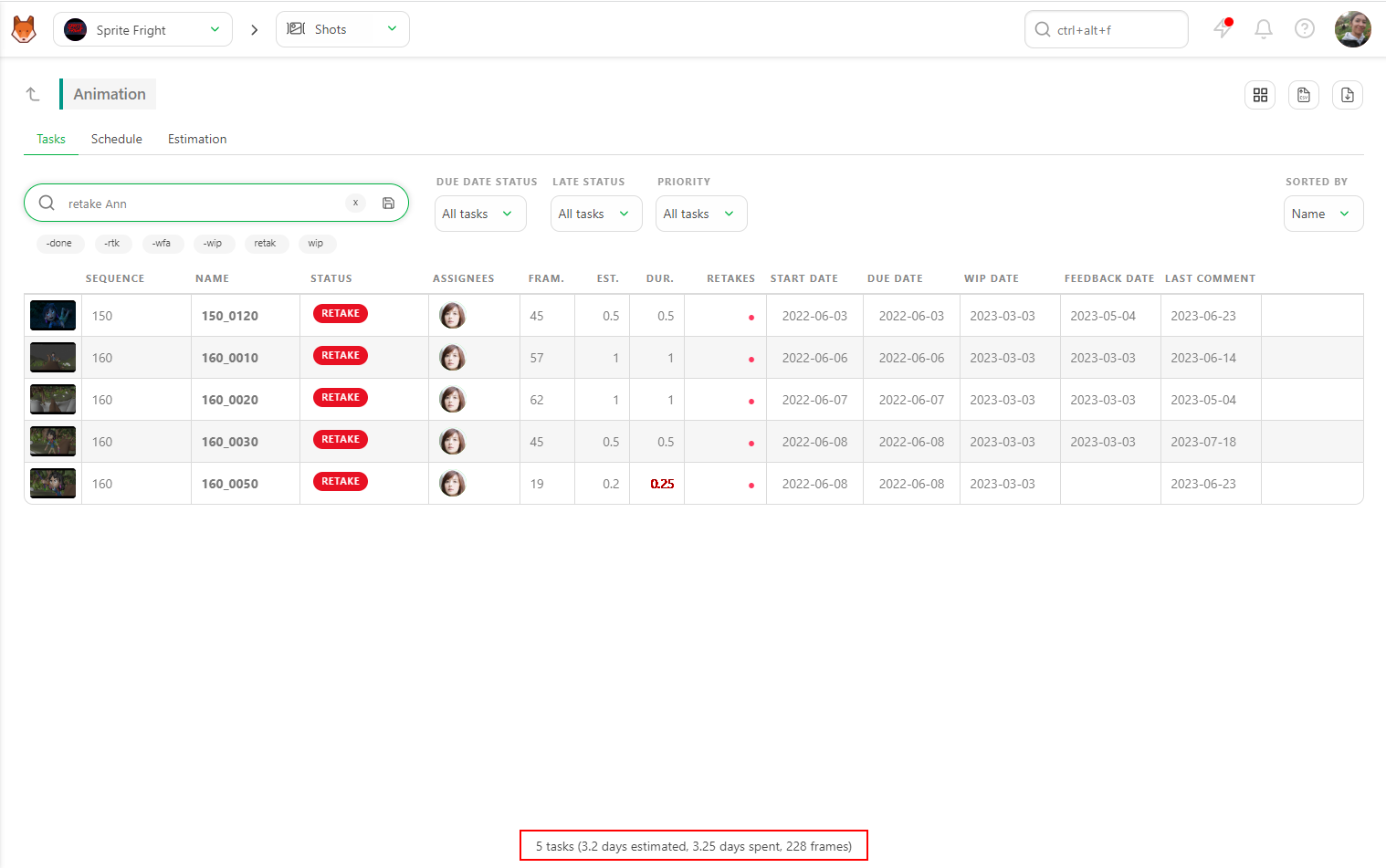
This way, you can closely monitor the performance and efficiency of specific tasks and artists, ensuring that estimations align with actual durations and making adjustments as necessary.
Durations over Estimations for an Asset / Shot
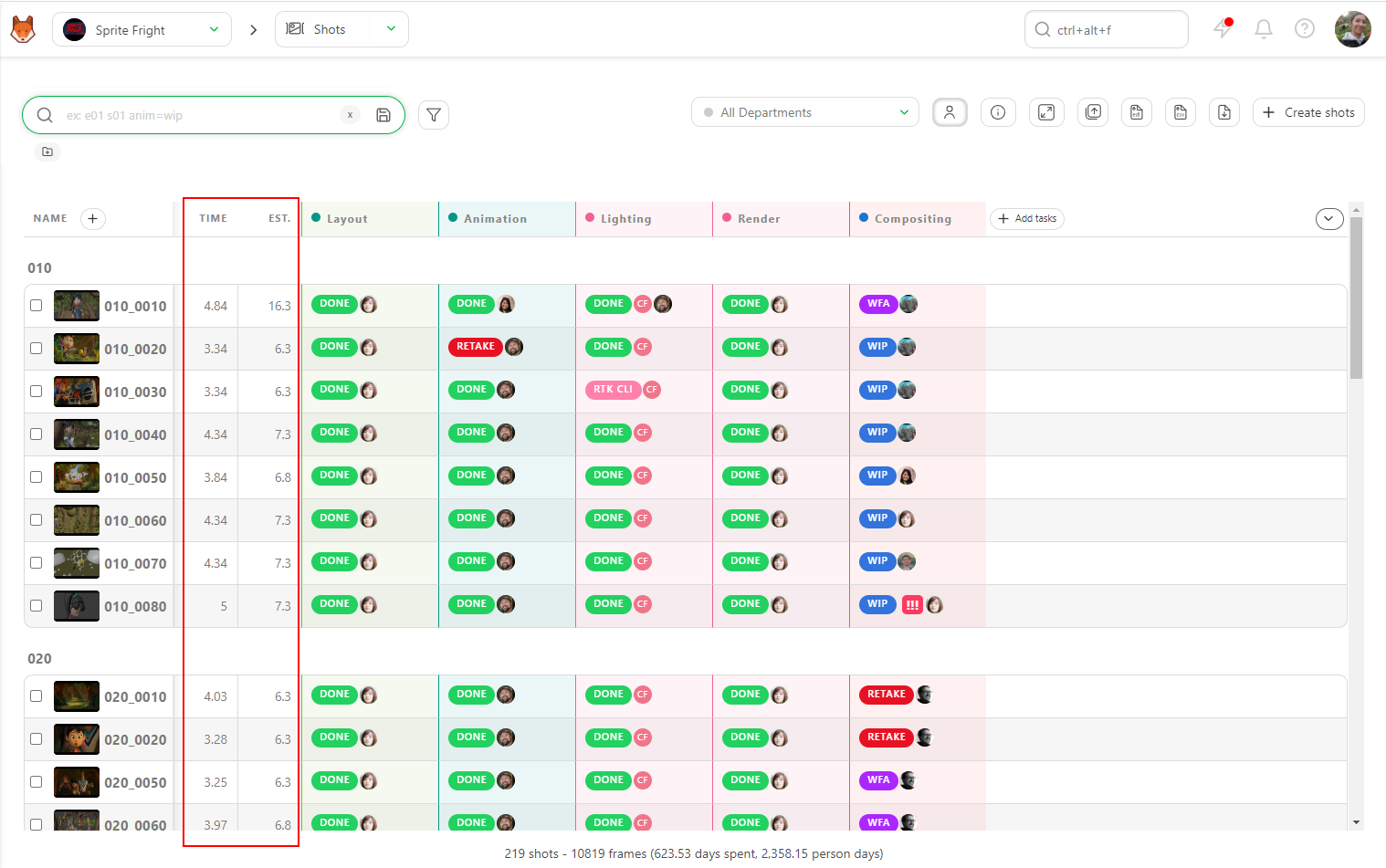
To closely examine the details, you can display Estimation and Time Spent columns (duration) for each asset and shot in Kitsu.
On the global page for shots or assets, you can see the sum-up of each task's Estimation and Duration. This allows you to quickly identify discrepancies or issues.
Detailed Analysis
If something appears wrong or needs further investigation, click on the asset or shot name to go to the detail page.
On the detail page, at the top left of the screen, you'll find a summary of the asset's or shot's lifecycle. This includes details of each task's Status, Estimation, Duration, Start and Due Date, and Assignation.
This comprehensive view helps you understand where the discrepancies lie and take corrective actions if necessary. By closely monitoring these details, you can ensure better alignment between estimations and actual durations, leading to more accurate future planning and resource allocation.
5. Checking Quotas
Using Quotas to Understand Your Teams Speed
Kitsu has two ways to calculate quotas per task type.
Quotas Based on Timesheets
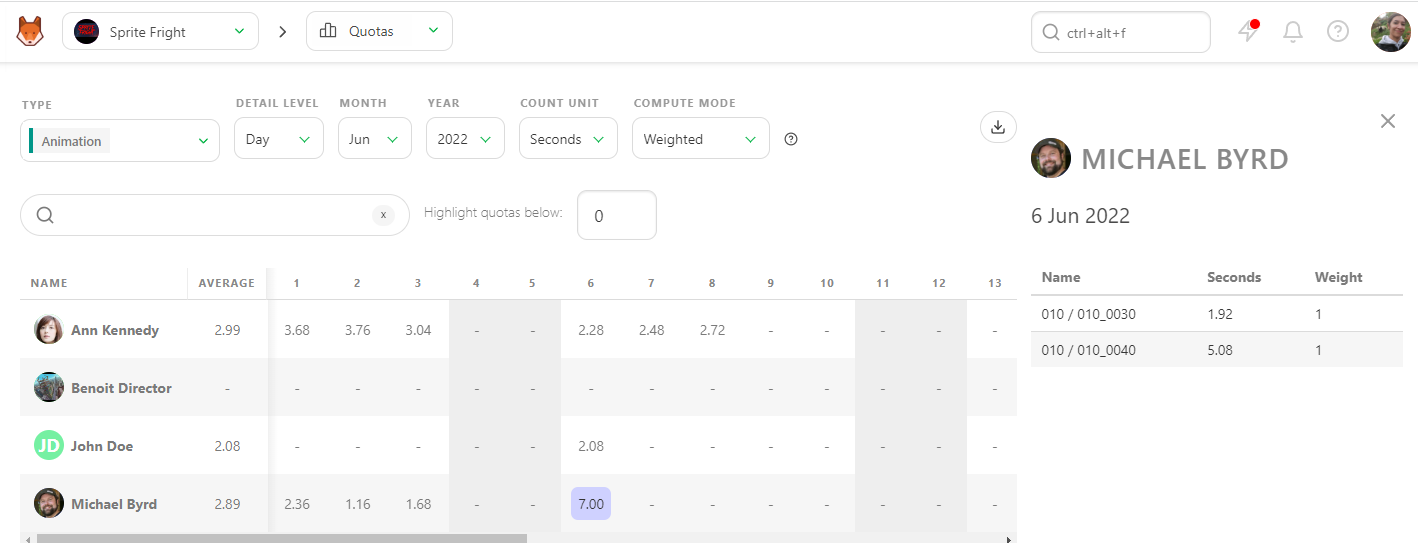
The first method is linked to the timesheet: Shots are considered complete when the first feedback request is made. Quotas are then weighted according to the time spent on the task, as recorded in the timesheet by the artist.
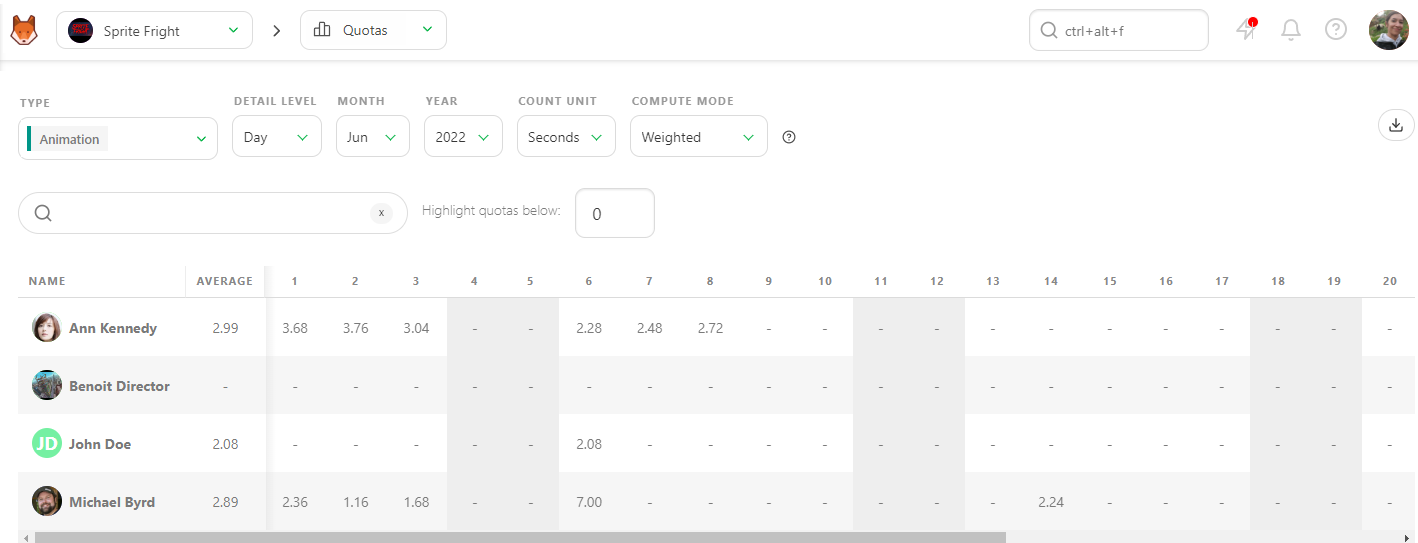
In this example, Kitsu weights the daily quota based on the timesheet entries.
Quotas Based on Status Changes
If no timesheet is filled out, Kitsu uses status changes to estimate the duration:
- The task is considered started when the first status change to WIP occurs.
- The task is considered completed on the day the feedback request is made.
Kitsu then distributes the completed frames across all business days between the start and end dates. It calculates the number of frames (or seconds, or tasks) completed per day/week/month per artist.
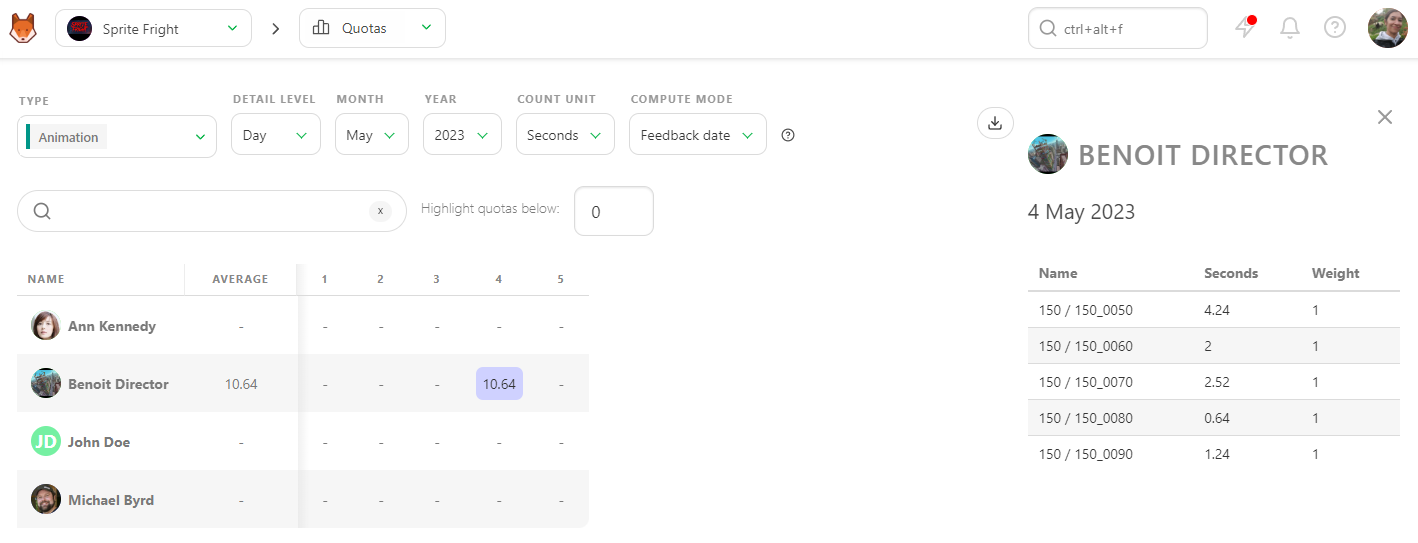
You can click on a number at any time to see its details in the right panel.
Checking Quotas
Kitsu provides two methods for calculating quotas per shot Task Type.
Method 1: Timesheet-Based Calculation
This method weights quotas according to the time spent on tasks as recorded in the timesheets.
- Task Completion: Shots are considered completed upon the first feedback request. The quotas are then weighted based on the time recorded in the timesheet.
In this example, Kitsu calculates the daily quota using timesheet data.
Method 2: Status-Based Calculation
If no timesheet data is available, Kitsu uses status changes to calculate quotas.
- Task Start: The task is considered to have started when its status changes to WIP.
- Task Completion: The task is considered completed on the day the feedback request is made.
Detailed Quota Calculation
Kitsu splits the completed frames among all business days between the task's start and end dates, attributing the number of frames (or seconds, or tasks) submitted per day/week/month to each artist.
At any point, you can click on a number to see detailed information in the right panel.
DANGER
Note: If no timesheet is filled, Kitsu defaults to considering:
- The task started with the first status change to WIP.
- The task was completed on the day the feedback request was made.
This method ensures that even in the absence of detailed timesheet data, there is a reliable way to track task progress and calculate quotas accurately.
Managing Department Quotas
A quota refers to the specific amount of work or number of tasks an artist is expected to complete within a given timeframe, ensuring that the project progresses according to schedule and meets production deadlines.
At the beginning of production, while setting estimates for each task, you can also define estimated quotas for each of your artists. Once a task is approved, the remaining line on the Estimation tab of the Task Type page will update and display the remaining number of tasks and the updated estimated quotas.
You can monitor each team member to see if their estimated quotas stay within the initially established range.
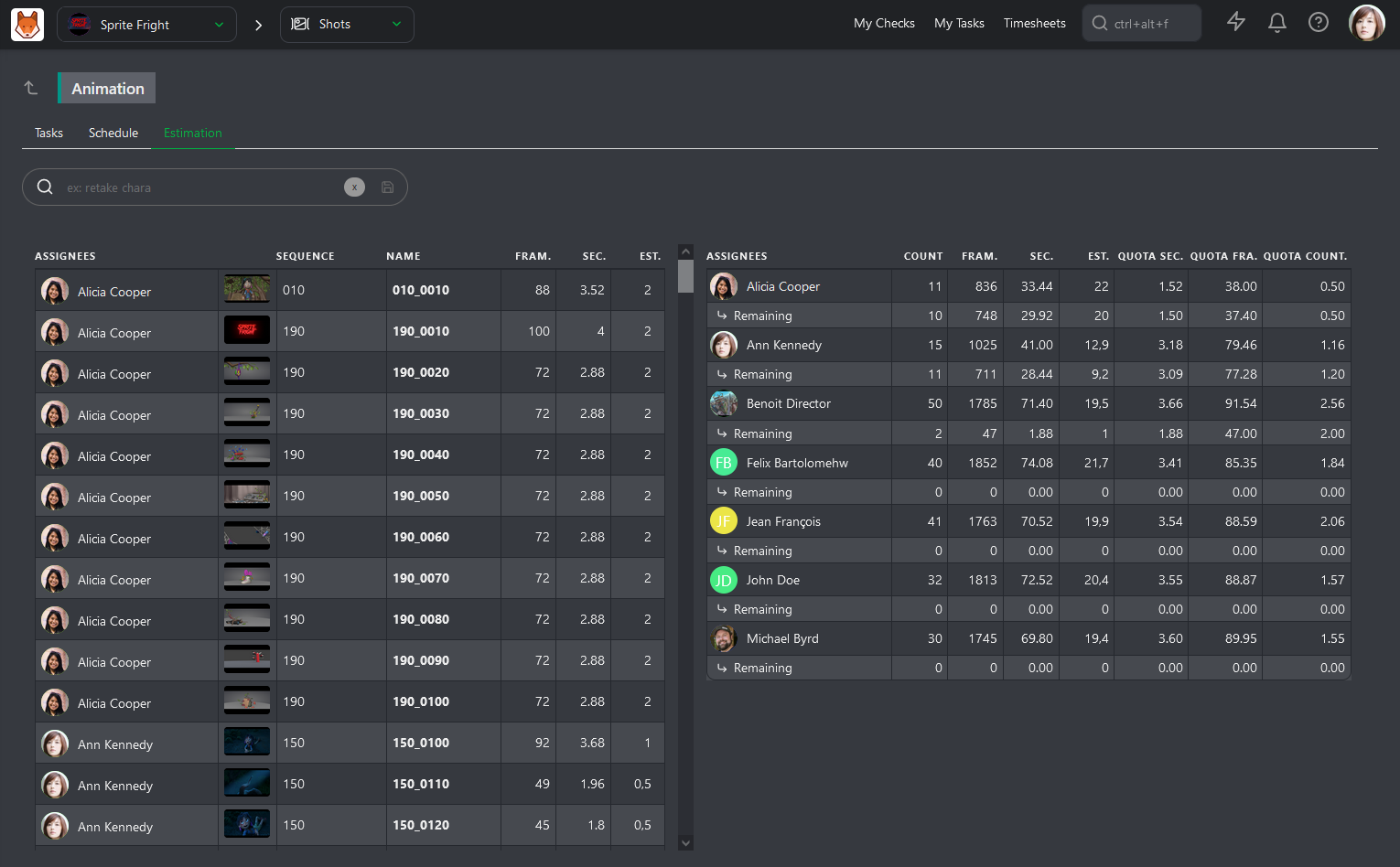
To check their Actual Quotas, go to the Quotas page.
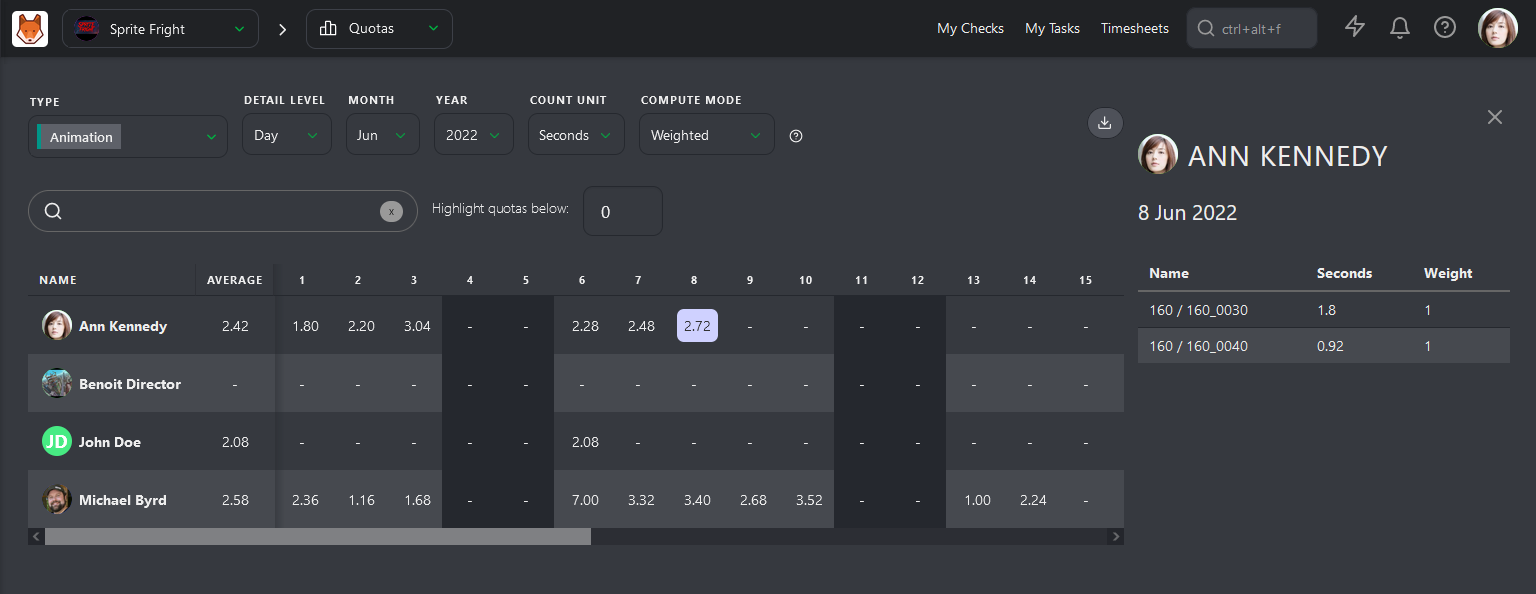
Kitsu has two ways to calculate quotas. The first is based on daily timesheets filled out by the artists. Quotas are calculated from when the artist fills out their first timesheet on a task until they stop.
The second way is based on status. The calculation starts with the WIP status and ends with the WFA status. This is First Take quotas, meaning that back-and-forth comments are not included in the calculation.
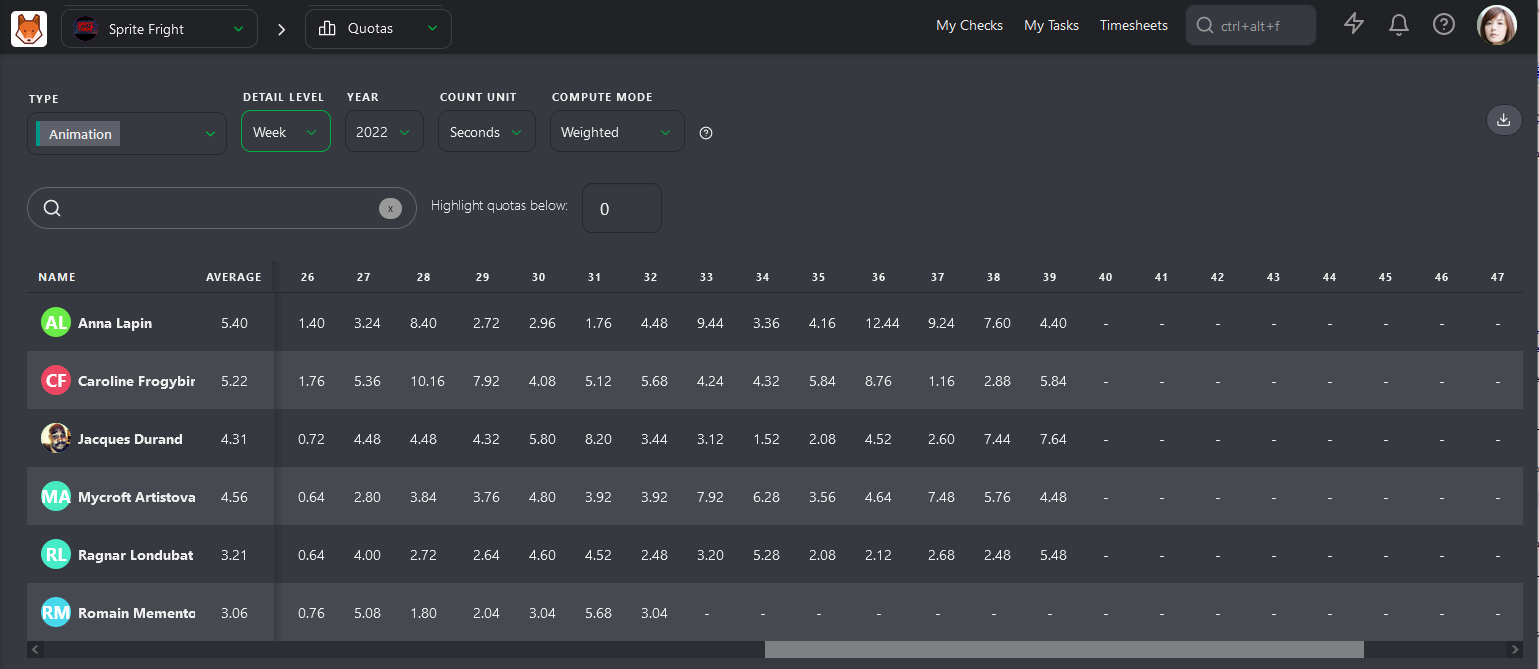
The first column, Average, is the most important. Kitsu calculates the average quotas for each artist per Day, Week, or Month.
6. Team Timesheets
WARNING
All of the previous chapters are based on the fact that Estimation and Duration are filled for each task.
Everybody has to do their part. You and the supervisor will handle the estimation, while your team will fill out their timesheets.
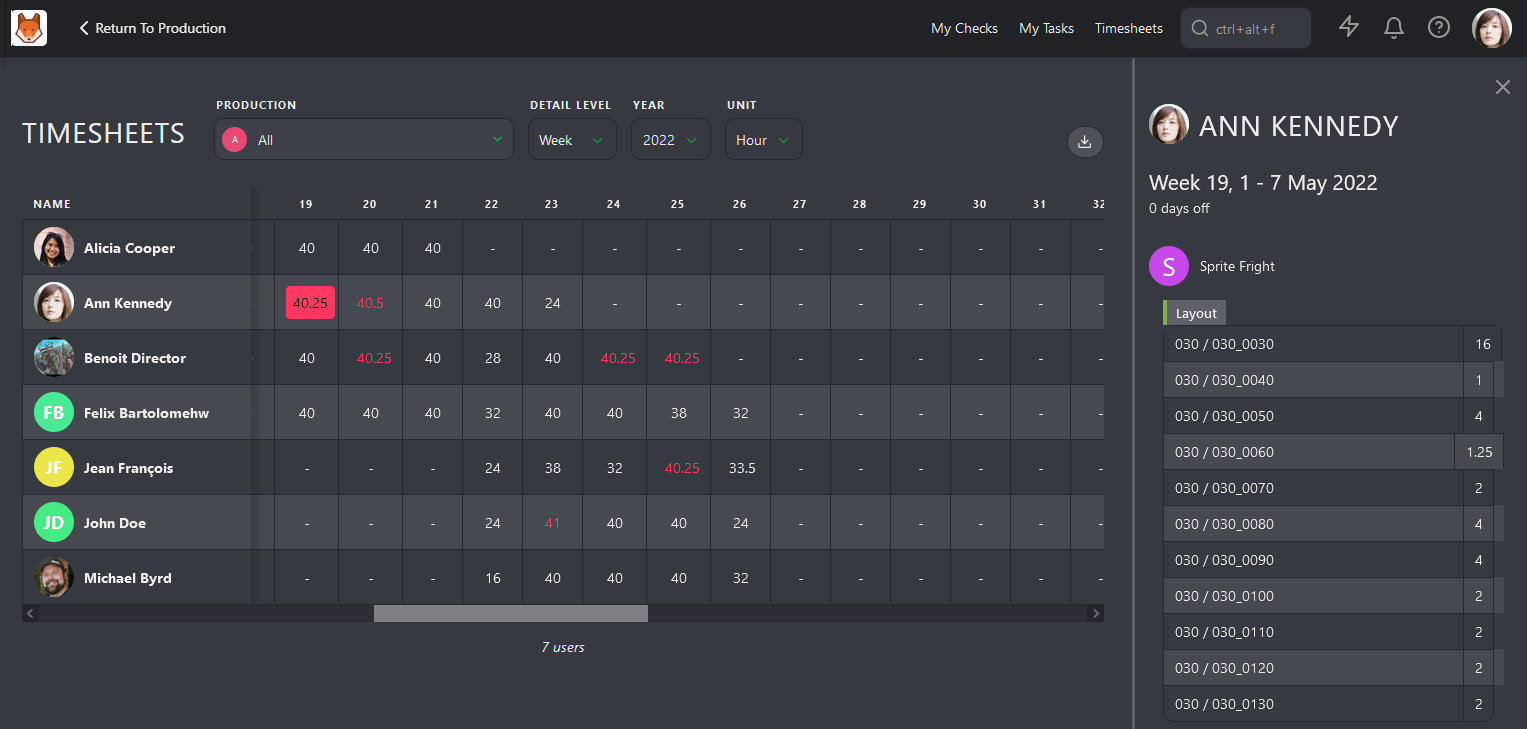
Navigate to the main menu and select the Timesheet page.
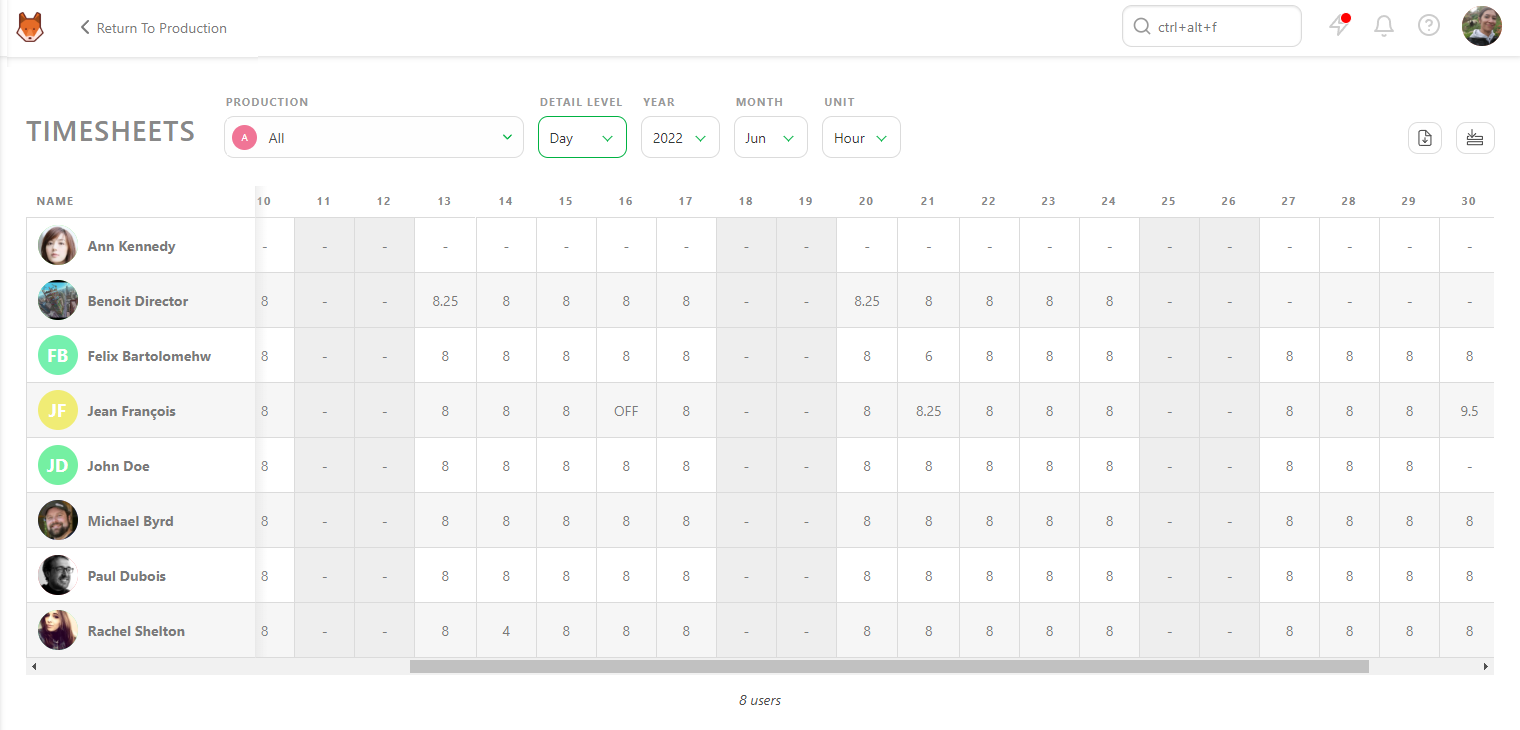
Viewing Timesheets
On this page, you can view each team member's timesheet by day. This allows you to check whether they fill it out daily, took a day off, or worked extra hours.
If you have a question about a timesheet entry, click on it to see the details of the production, task type, and specific task.
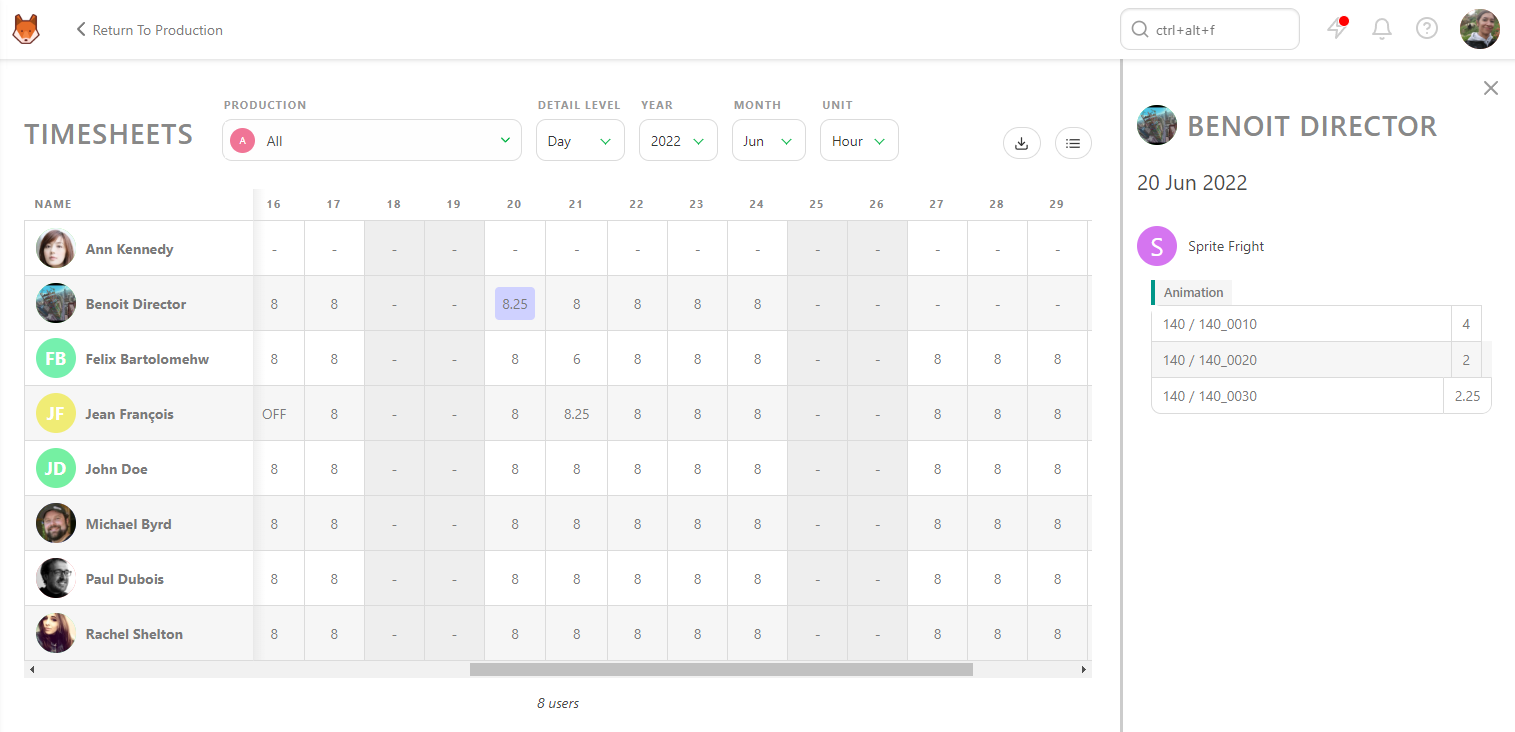
Once everything looks good at the day level, you can change the Detail Level from Day to Week, Month, or Year.
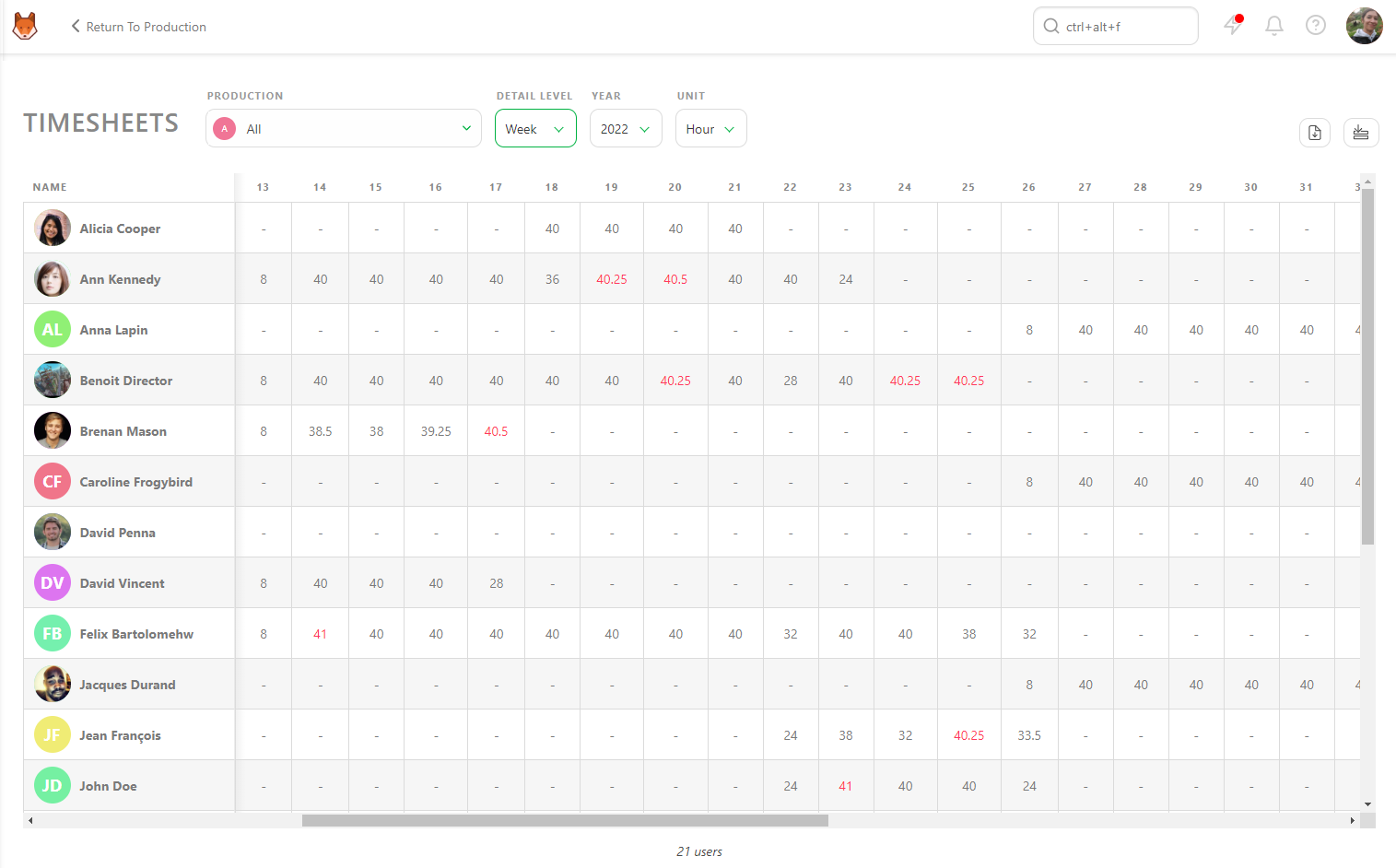
You can view all the productions you manage simultaneously or look at each production individually.
Exporting Timesheets
As with all other pages in Kitsu, you can export the timesheet data as a CSV file and open it in spreadsheet software for further analysis.
Complete Your Timesheet
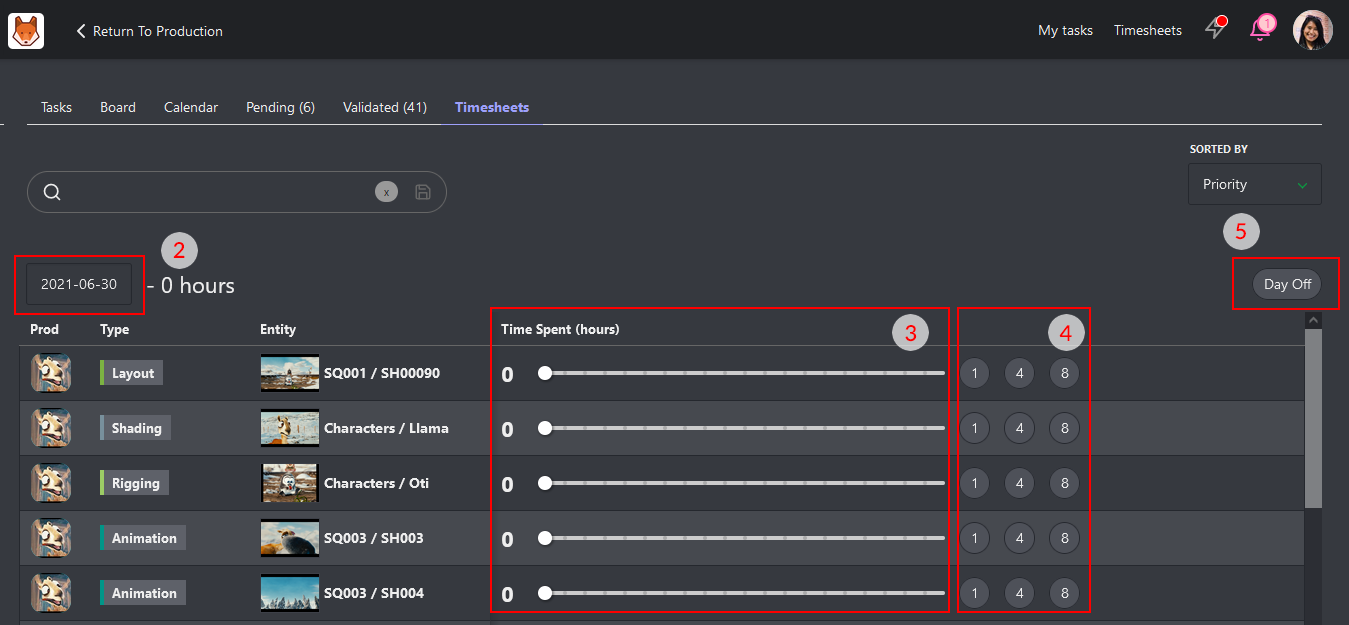
If your production requires it, you can log your time spent using the Timesheets tab or the Timesheets shortcut button at the top of the screen.
How to Log Time:
- Use the slider next to each task to record hours spent.
- For quick input, use the 1, 4, or 8 hours buttons.
Missed a Day?
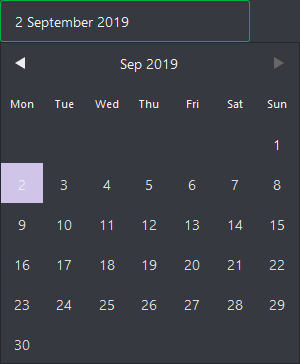
Click the date picker to backfill entries. You can also mark days as Day Off if you weren't working on that day.
Department Timesheets
As a Supervisor, you may also be responsible for monitoring your team's hours. The Timesheet page shows how many hours they work daily, weekly, and monthly.
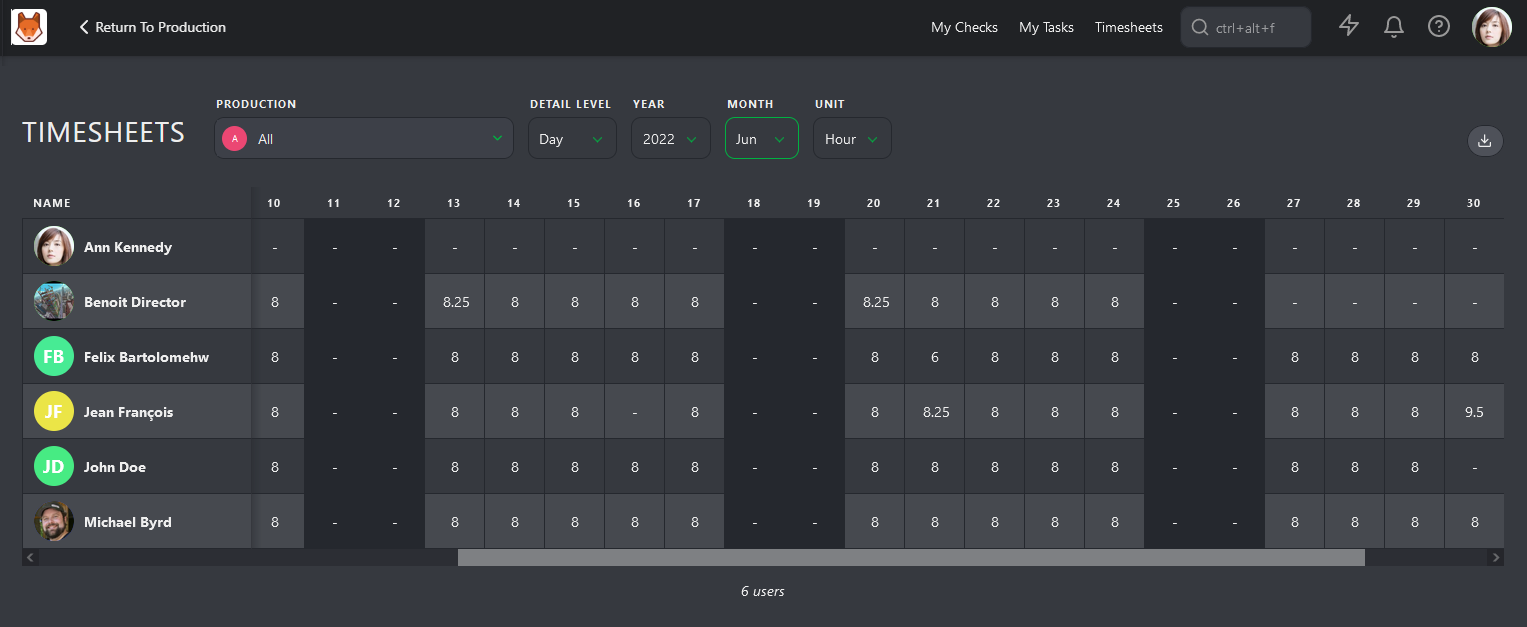
It's important to highlight abnormal patterns such as extra hours, sick days, or lack of vacation. The timesheet view can provide a high-level overview of where artists are spending their time, which can help you take care of your team to ensure they are not burning out.
7. Studio Resource Overview
As a Producer, you need to know everything.
Usually, this involves keeping track of numerous details, attending multiple meetings with your production team, and constantly verifying everything yourself. Alternatively, you could subscribe to all the tasks and be overwhelmed by notifications, which disrupt your focus every time you stop to read them.
The perfect solution is to have all the production stats on one page, always up-to-date.
Welcome to the All Tasks page.
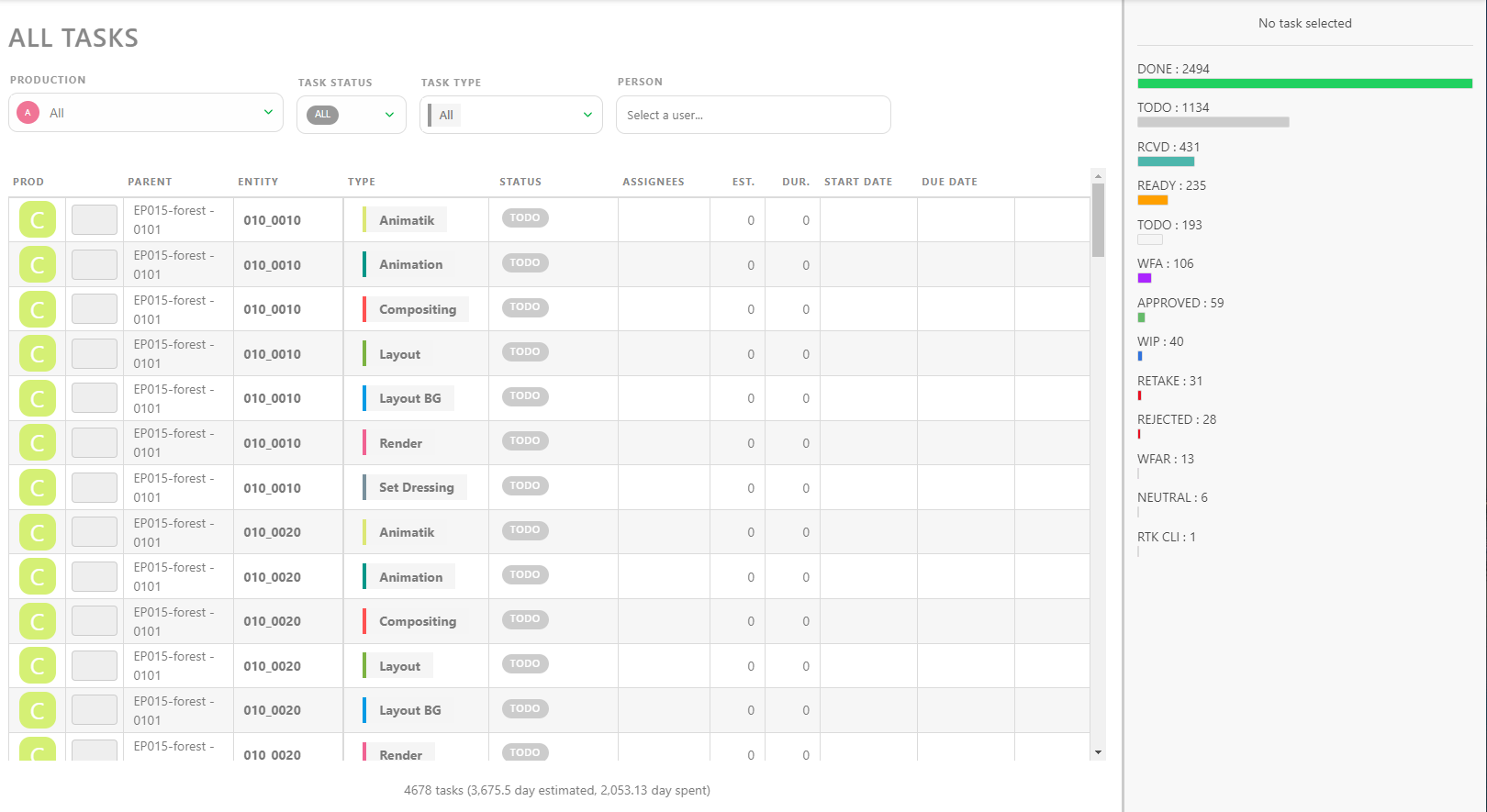
Here, you can see the status of all productions at once. You can filter the list by Production, Task Status, Task Type, and Person. Clicking on a line opens the comment panel on the right, providing all the information you need.
If you need more detailed information, especially about a specific timeframe, you can use the Studio > News Feed page.
With the Filters Builder button, you can define a specific time frame.
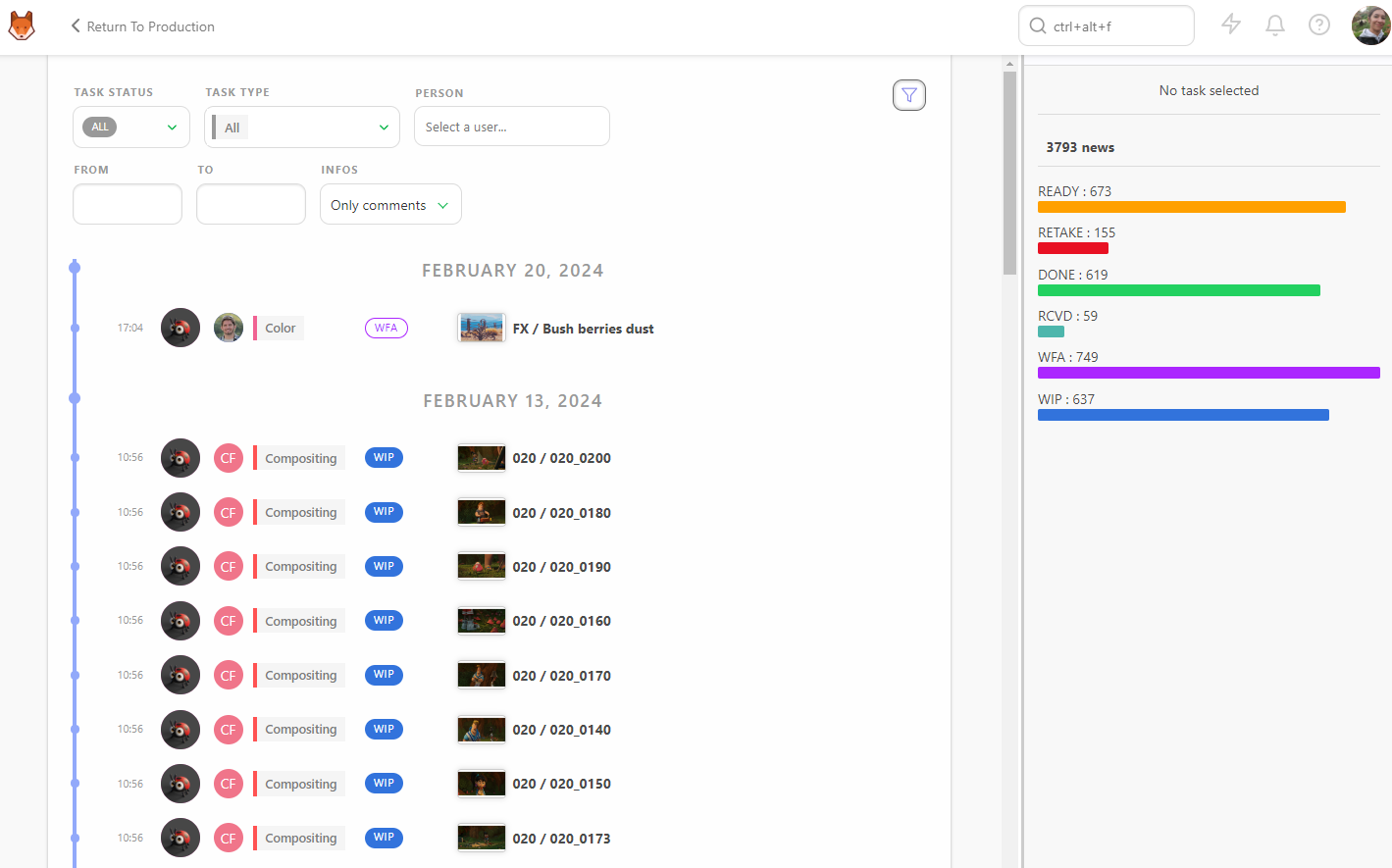
For example, if you want to focus on the workload a supervisor for a specific month, select their name and then pick a date in the From box.
Current State of All Productions
To ensure your studio functions smoothly, you need to stay on top of all ongoing productions. This is where the Productions section can help. Access it from the global menu under the Studio section.
From there, click on the Load stats button to see the current state of your productions.
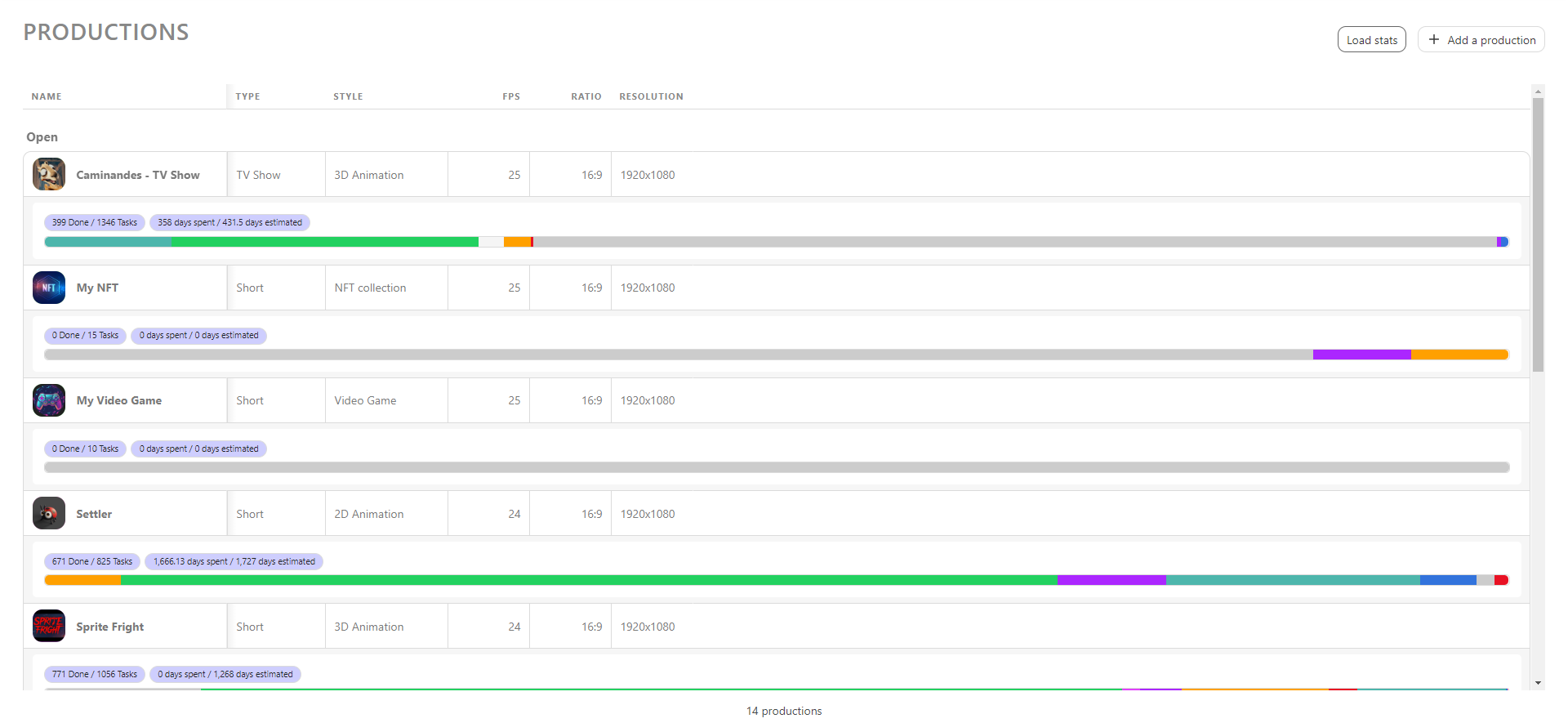
For more detailed information, visit the Sequence Stats and Asset Types Stats pages of all the productions.
Stats Pages
The Sequence Stats page provides pie charts of the entire production on a single page, broken down by sequence. The color scheme of the pie charts matches the status, allowing you to quickly understand the state of your production.
The first line is all sequences, representing the whole production, and the first column, All, includes all the tasks simultaneously.
By focusing on this first pie chart, you can see the exact state of your production. For more details, look at the rest of the line for a global view of each task type's state.
The Asset Types Stats page provides the same level of detail for assets.
You can also display data as Counts, showing the exact number of shots/frames with the percentage per status.
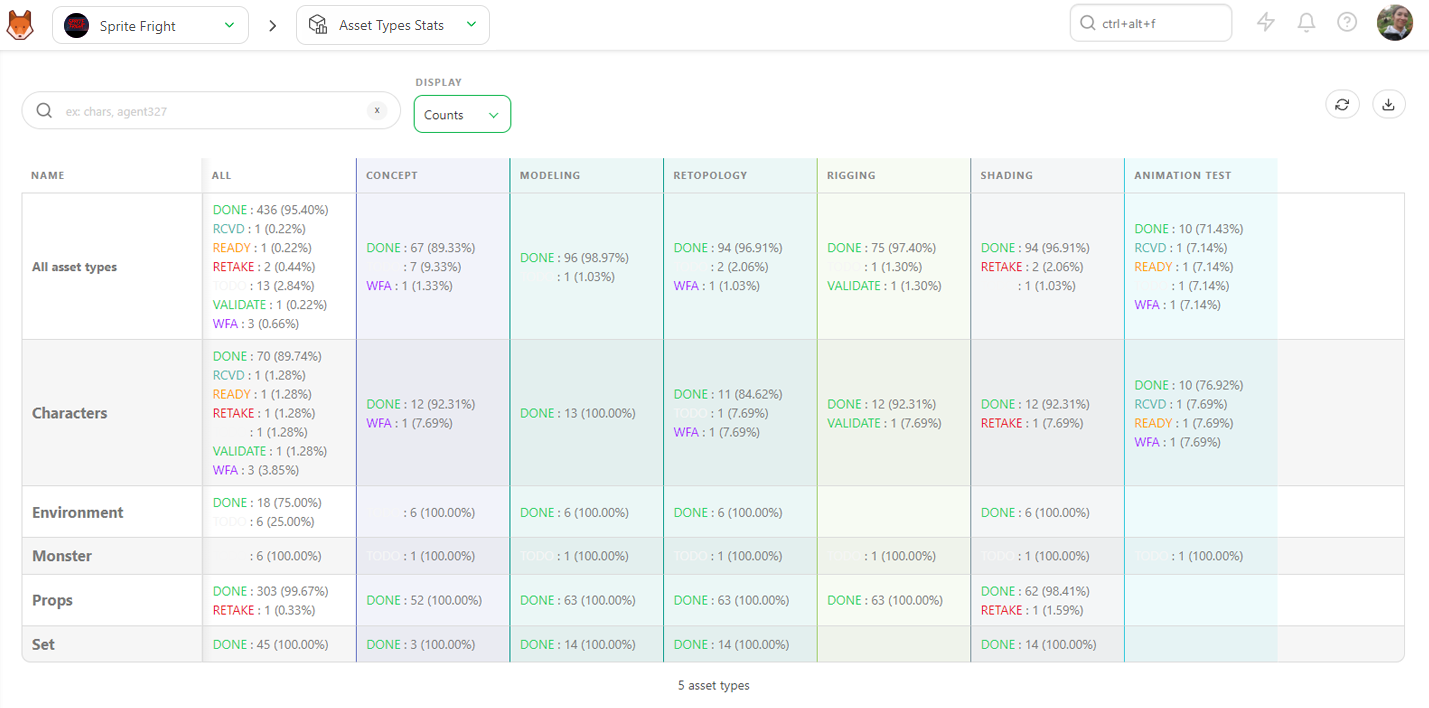
You can also export this page as a .csv text file to import it into spreadsheet software.
Navigate from production to production using the Navigation menu at the top of the screen. You will stay on the same page, allowing you to check all the production stats by selecting each production.
8. Studio Occupancy Rate
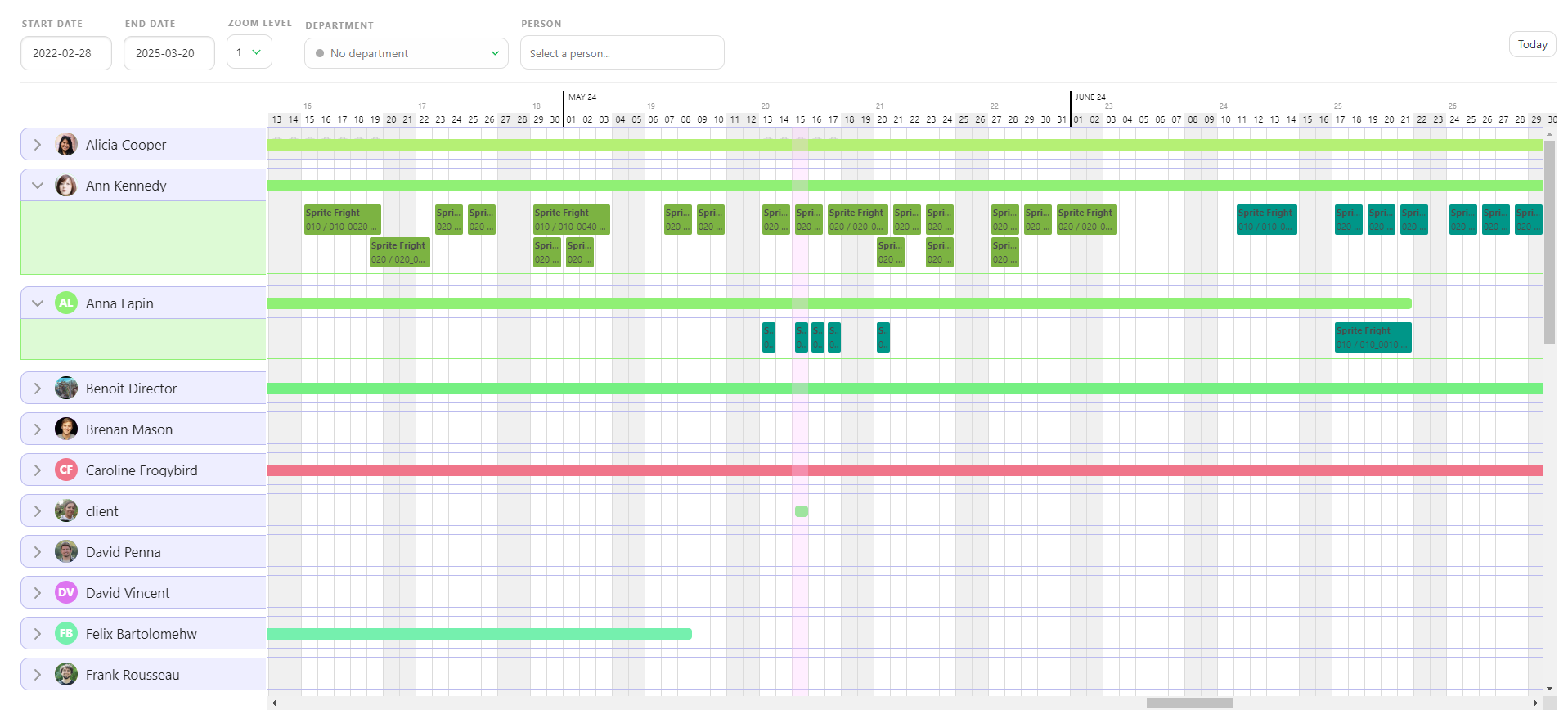
The Team Schedule allows you to see all artists with assigned tasks. Each row represents an artist, and unfolding an artist's row will show the details of their tasks.
Focusing on Specific Timeframes
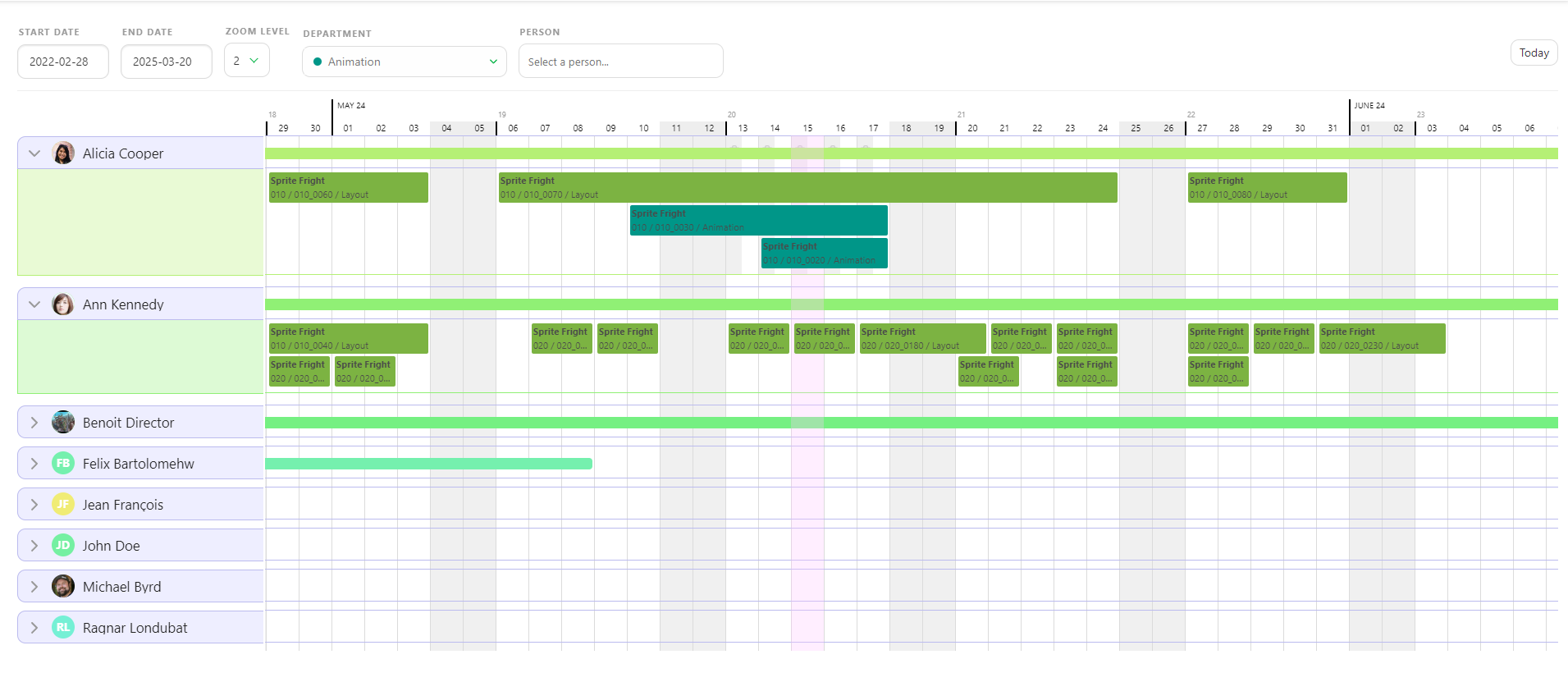
You can focus on a specific timeframe by setting the Start and End Date. Adjust the zoom level to get more detailed information on the assigned tasks. You can choose to see all Departments or only a specific one and focus on a single Person.
If an artist has several tasks on the same day, the tasks will be piled up, with one line for each task.
Modifying the Schedule
You can move tasks around by grabbing them and placing them on another day. Any changes you make on the Team Schedule will be applied to the task type schedule.
If an artist has a break between two tasks, the sum-up line will not break to show it. Instead, it shows the first and last tasks assigned to the artist.
9. Main Schedule
With the Main Schedule, you can access all the Production Schedules at once.
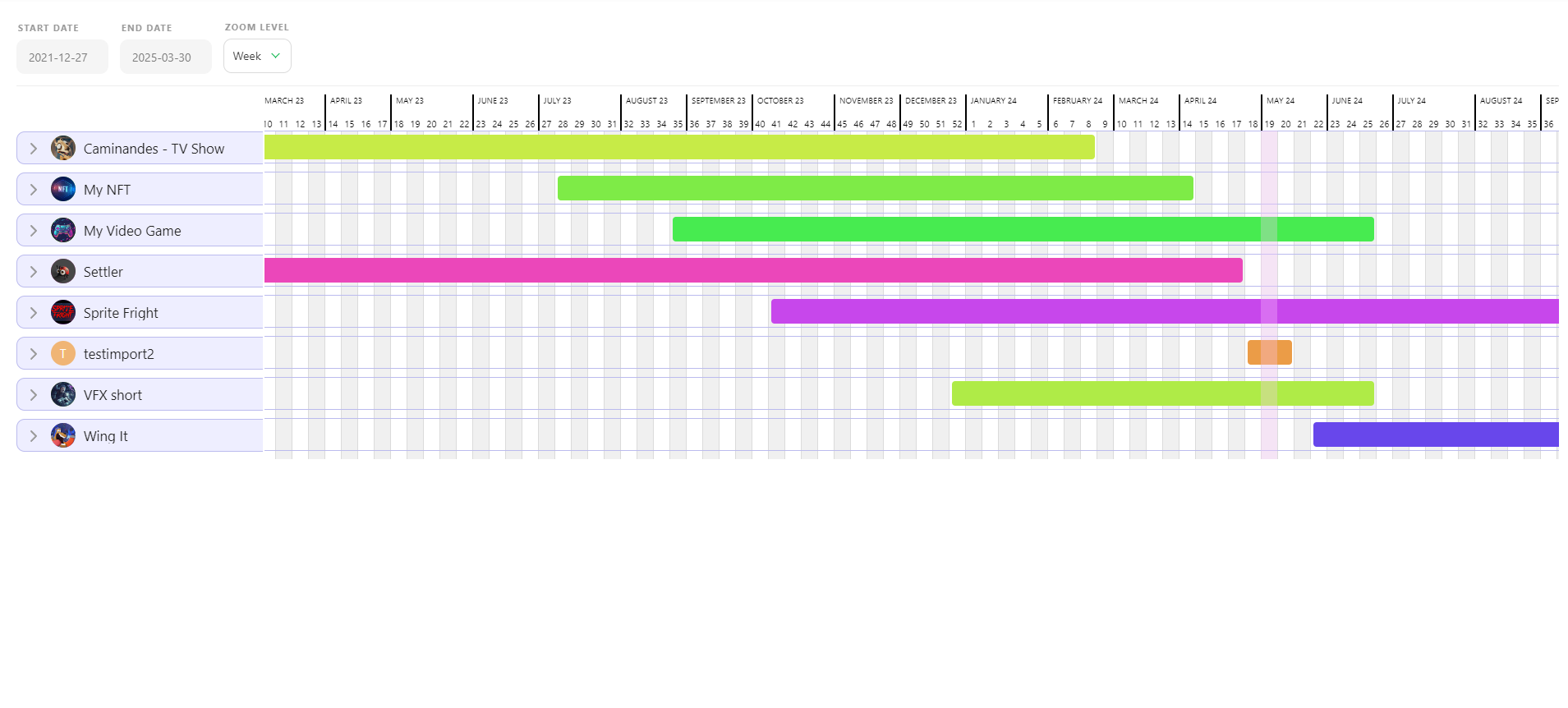
If you unfold a production, you will see the details of each Task Type used in that production. By unfolding multiple productions, you can which teams are being utilized simultaneously.
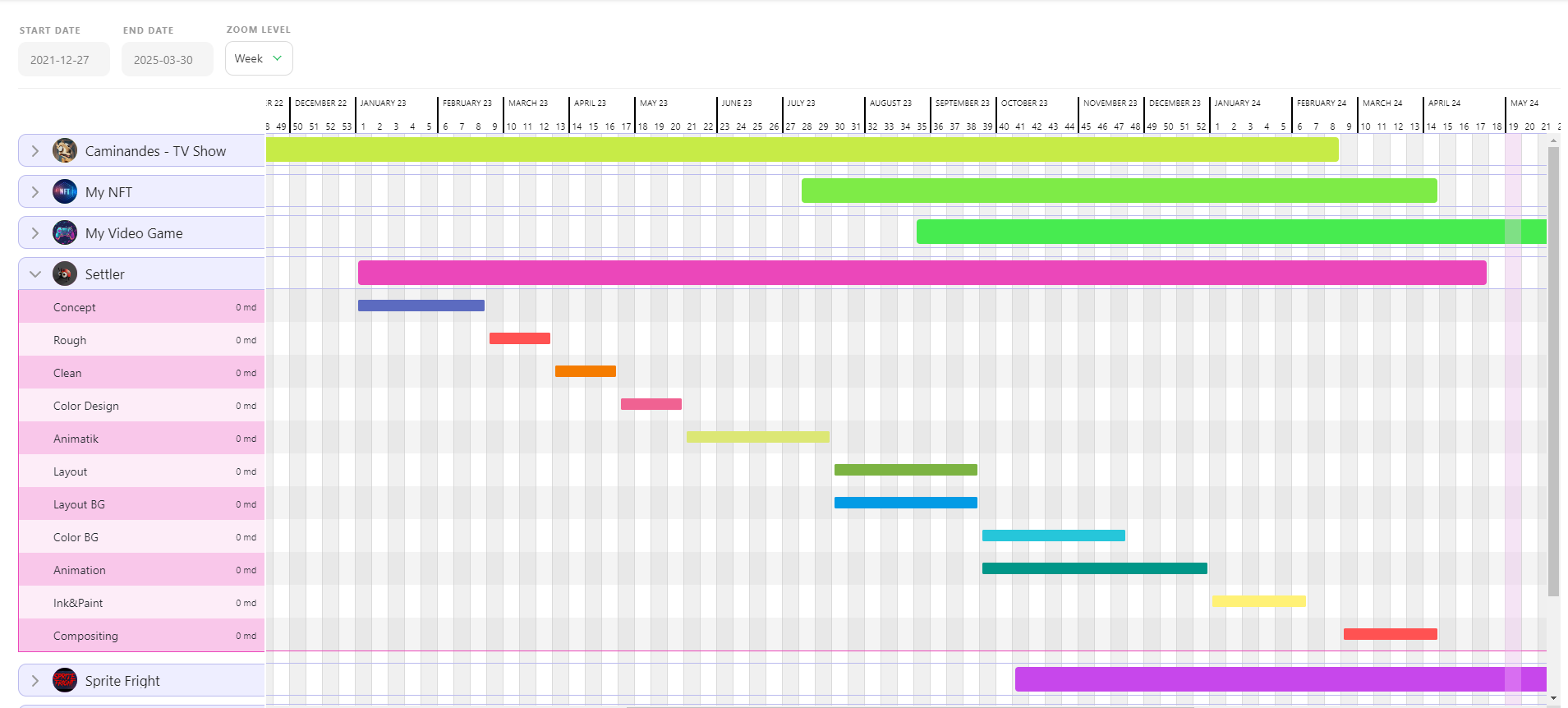
You can move each Task Type Bar to adjust the schedule to fit the studio's needs.
WARNING
Each change you make will be applied to the Production Schedule.