Managing Task Statuses
Define Your Approval Workflow
Let's create the statuses we intend to use during our Approval Workflow.
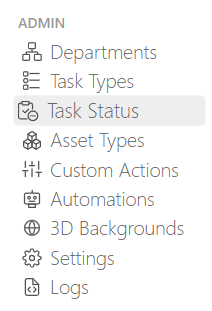
On the main menu  select the Task Status page under the Admin section.
TIP
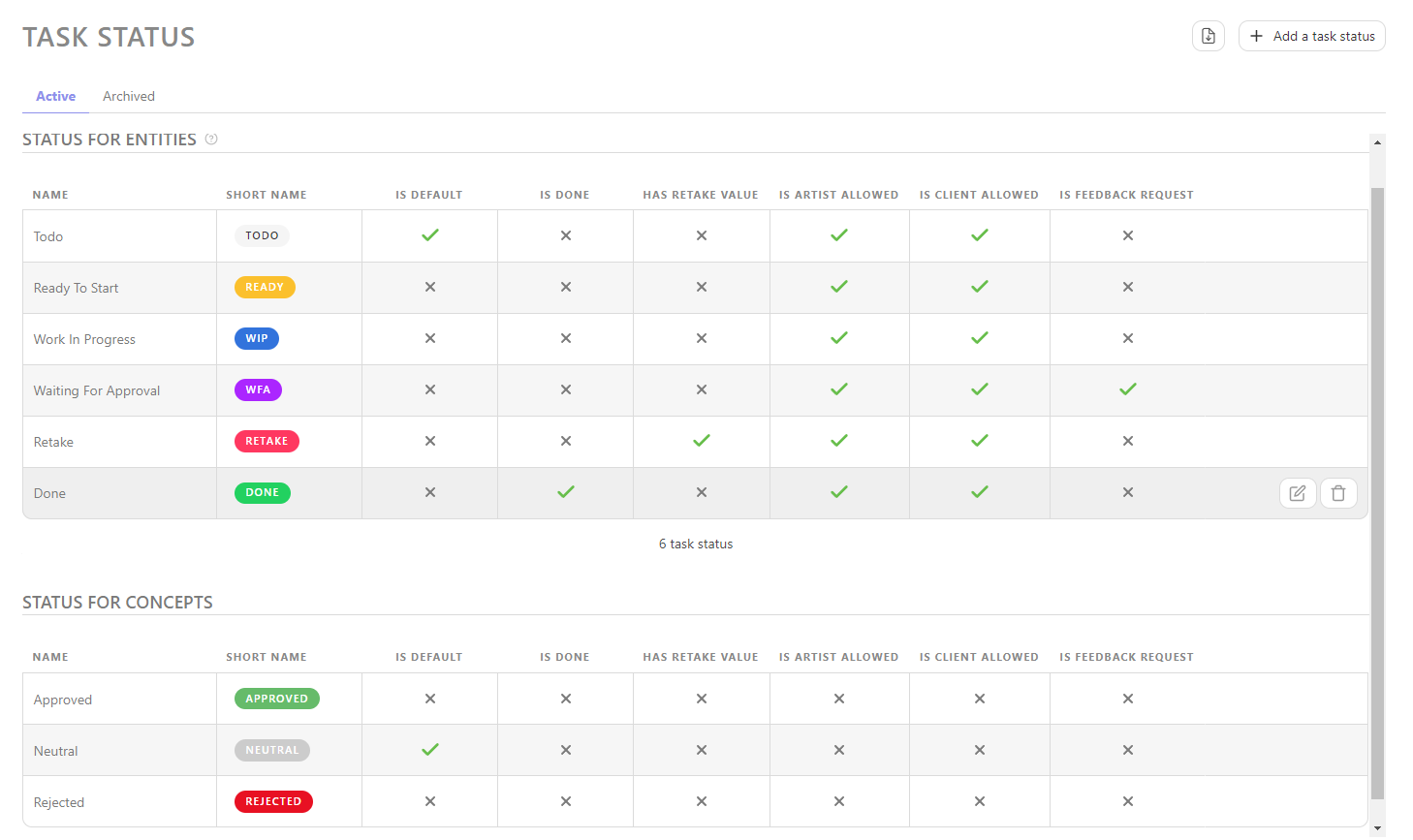
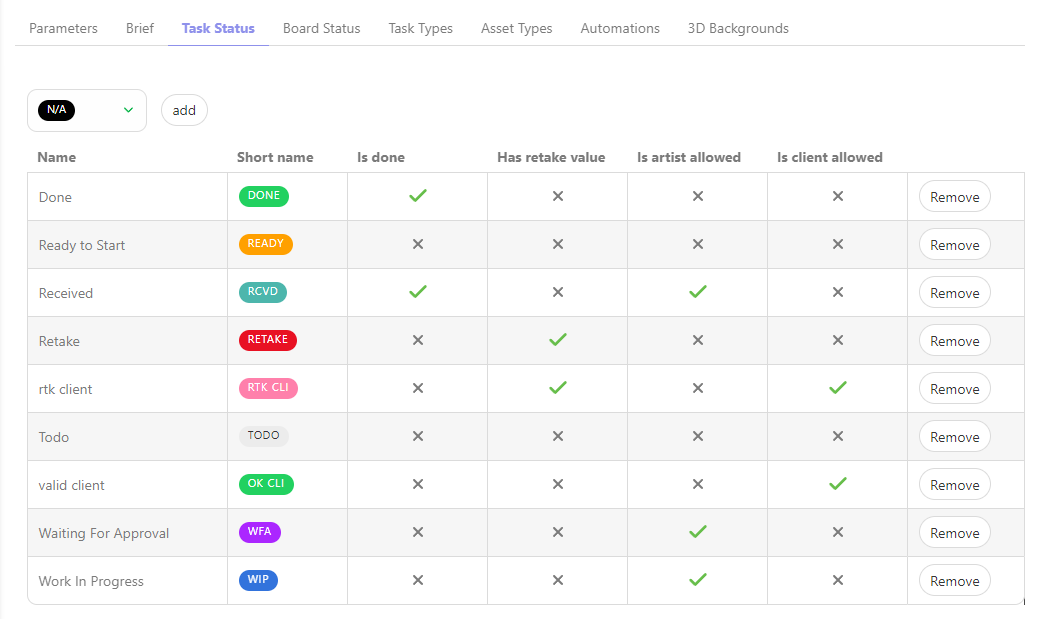
By default, Kitsu already provides some examples Statuses.
A status represents a specific stage or condition that a task or must pass through as part of the review and approval process.
For example, the Ready  status indicates that the artists have everything they need to start working and should not begin their tasks without reaching this status.
WIP  : The Work in Progress status is used by artists to inform their team that they are actively working on the task, indicating that there is no need to assign it to someone else.
WFA : The Waiting-For-Approval status is used by artists to notify their supervisors that they have completed their work and are awaiting review. Supervisors can also use a similar status to inform directors that work is ready for review.
Done  : The Done status indicates that all work has been completed & approved. This indicates that the current task is complete and the next step in the process can commence.
Retake  : The Retake status indicates that a comment has been made, prompting the artists to continue working on their task and publish a new version until validation is achieved.
These statuses are just examples of what is achievable in Kitsu. You are free to create your own as needed.
To do this, from the main page, click on the  button.
You'll then need to define some details about you Task Status, including:
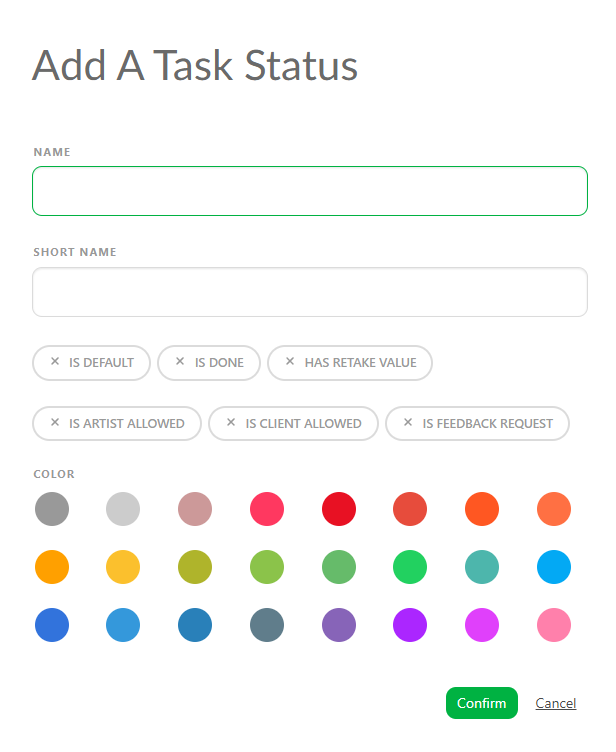
- NAME, the explicit name of the status that will be displayed when you hover your mouse over it in the.
- SHORT NAME, what will be displayed in Kitsu.
- IS DEFAULT, the first status that Kitsu will display by default on all tasks. You can only have ONE default status in Kitsu.
- IS DONE, if this status is utilized to validate a task (which is beneficial for quota management, organizing the to-do list, and updating episode statistics).
- HAS RETAKE VALUE, if this status is used for commenting on a task (helpful for tracking the back-and-forth discussions on the task type page and for the episode stats page).
- IS ARTIST ALLOWED, are artists allowed to set tasks to this status? If No, the artist won't see this status in their list of available statuses. However, they can still post comments on it.
- IS CLIENT ALLOWED, Can the client use this Status? If No, the client won't see this status in their list of available statuses.
- IS FEEDBACK REQUEST, if this status is used to request a review (helpful for quota tracking if you don't use a timesheet, it will appear in the Pending tab of the to-do list, and all these statuses will be grouped on the My Check page. Kitsu will prompt you to publish a preview each time you use this status).
- Finally, choose a background color you prefer for this status.
Click on Confirm to save your changes.
Your Status is now created in your Global Library and will be available to use in your production.
TIP
At any point during the production, you can return here and create more Task Status if needed, and then add them to your production.
WARNING
You'll notice a few tasks statuses listed under the category of Concept Status. These are used by the system and while you can modify them here, you cannot create new ones.
Configuring Specific Task Statuses for a Production
On the Navigation Menu, choose on the dropdown menu the Setting.
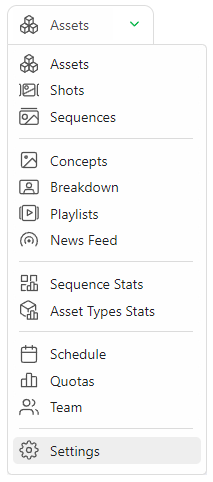
Per default, Kitsu will load the Task Status you have defined when creating the production.
However, you can add or remove specific statuses during production if they are created on the Global Library first.
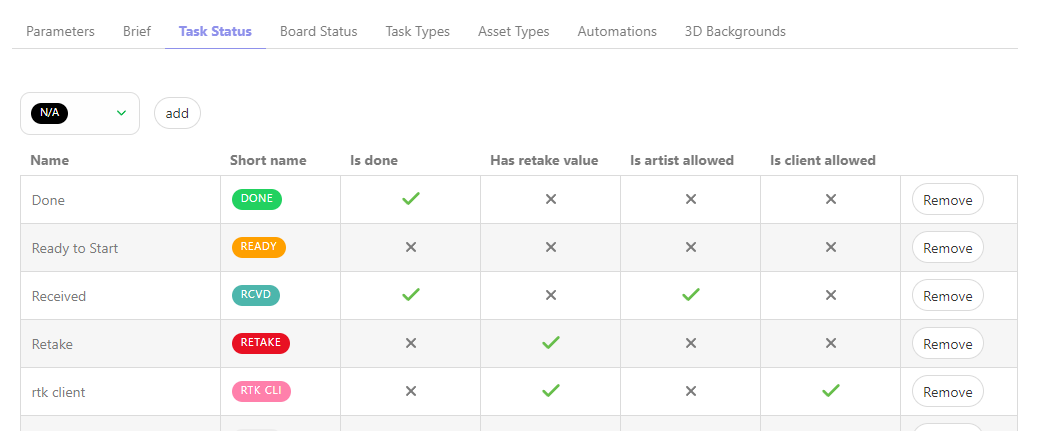
On the Task Status tab, you can choose which status you want to add or remove on this production, validate your choice with the add button.
Update a Task Status
TODO
Remove a task Status
TODO
Status Automation
Create a New Status Automation
A Status Automation defines rules or conditions that automatically trigger changes in the status of tasks based on predefined criteria. You can set up Status Automation for both asset and shot tasks.
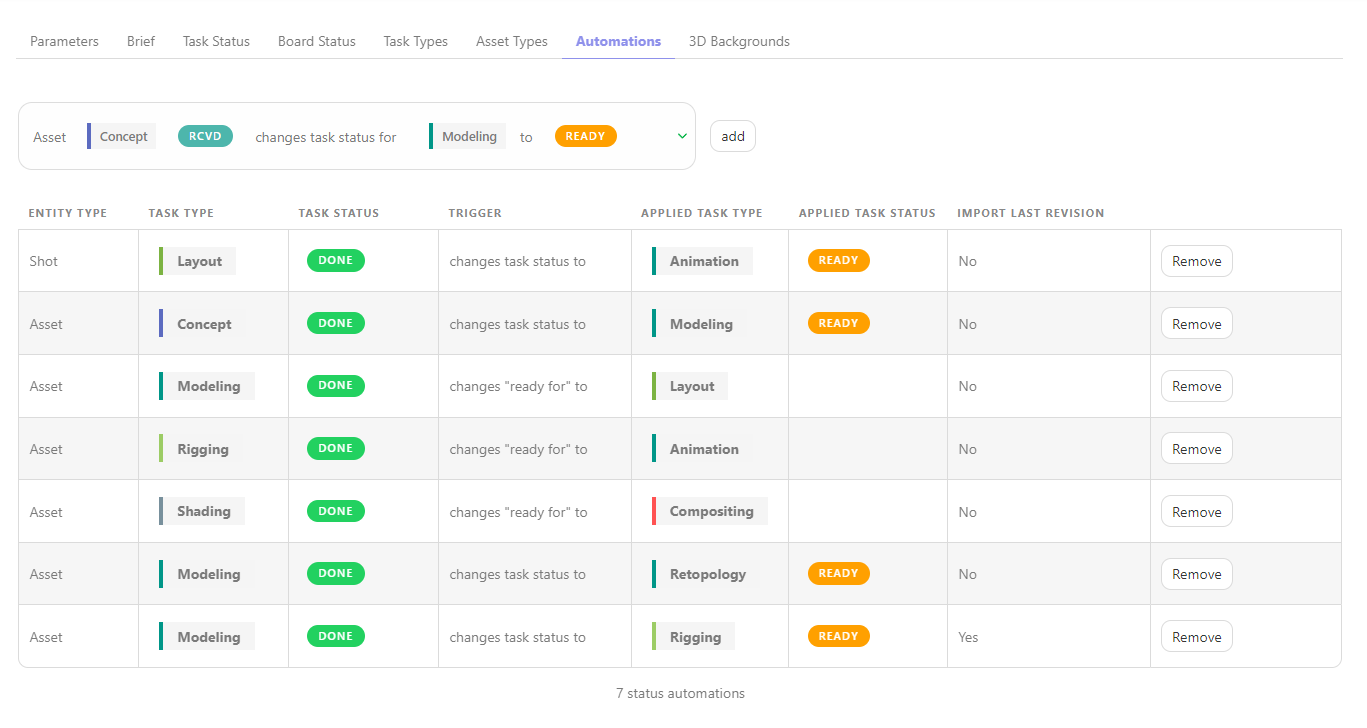
For assets, you can establish Status Automations between tasks. For example, when the concept task status is set to done, the downstream modelling task status is automatically changed to ready.
Additionally, you can create Status Automations that update the Asset Status based on task statuses. For example, when the concept task is set to done , then the linked asset status is set to layout.
TIP
You can also ask Kitsu to copy the latest preview with the Automation.
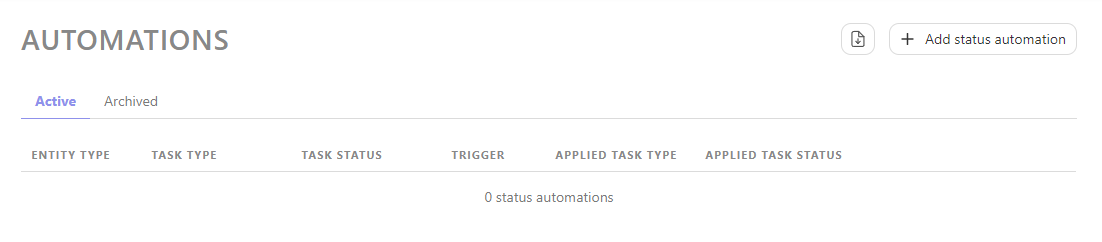
Go to the main menu and select Automation.
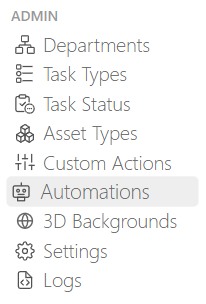
From this page, you can create Status Automations by clicking the +Add status automation button.
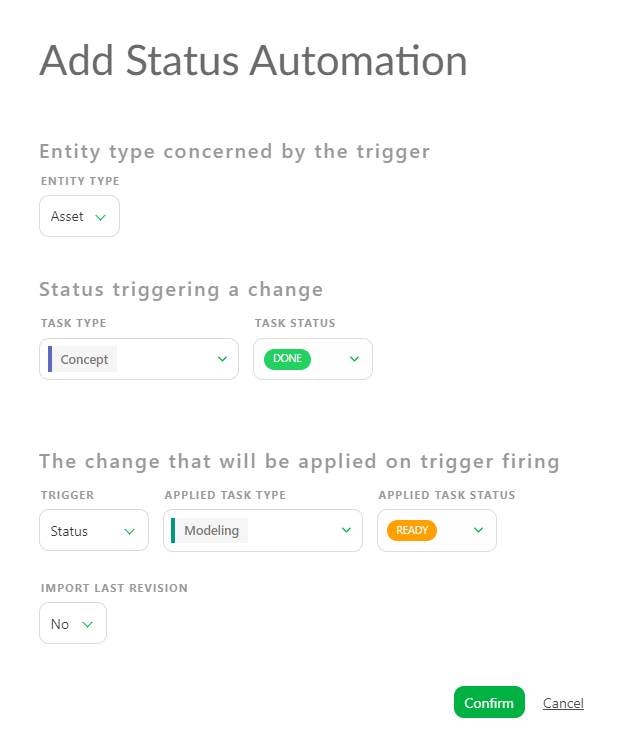
You have the option to create Status Automation for either the asset or the shot.
Next, you can select the task type and the status that will trigger the Automation.
You can specify which Task Type will respond to the Automation and select the Status that will be changed.
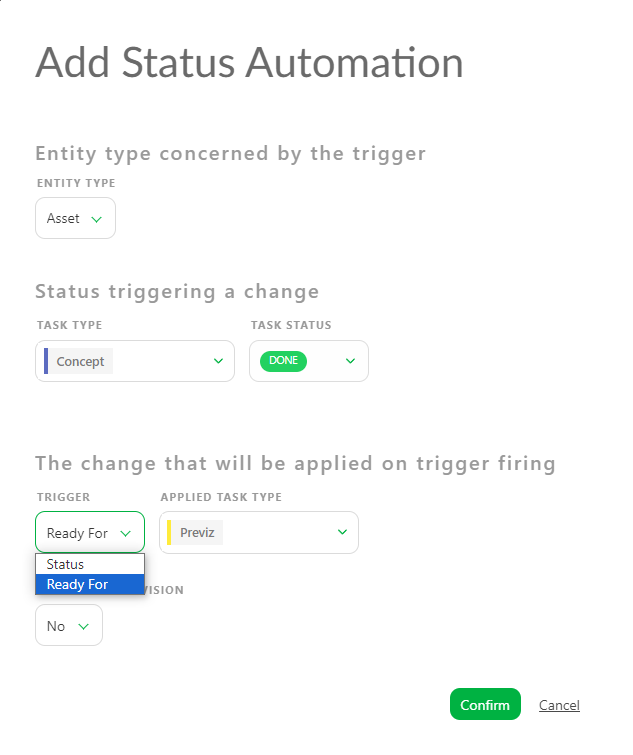
You need to change the trigger from "Status" to Ready For in order to initiate the change in Ready For status.
You will notice the Applied Task Type will now display Shot task type.
To create a Status Automation for shots, you must change the Entity Type to shots.
Your new Status Automation is now created in your Global Library.
WARNING
You must add status automations to your Production Library once you have created your production.
TIP
At any point during the production, you can return here and create more Status Automations if needed, and then add them to your production.
Configuring Status Automation for a Production
On the Navigation Menu, choose on the dropdown menu the Setting.
Per default, Kitsu will load no status automation of your status automation Global Library into your Production Library.
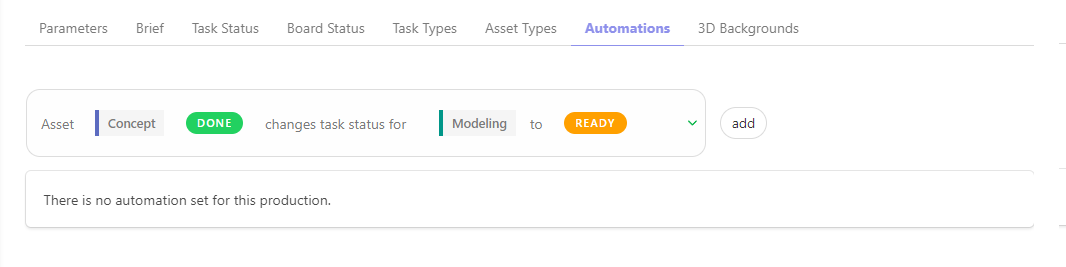
But you can use only specific Status Automation, depending on your production type.
On the Status Automation tab, you can choose which automation you want to use on this production, validate your choice with the add button.