
Reviews
Request a Review
When you complete a task, you can submit it for review:
- Change the task status to Waiting for Approval (WFA).
- Attach a preview file by dragging it into the upload area or clicking Attach Preview.
- Click Post to finalize your submission.
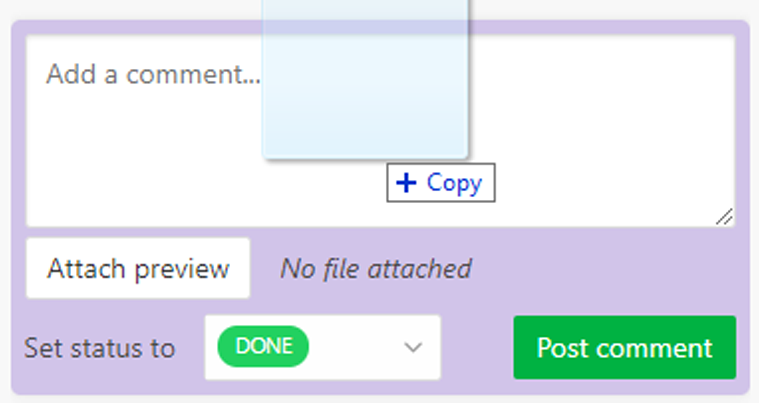
People assigned to the task will receive a notification. You can also mention additional team members in a comment using the @ operator.
Previous revisions are saved and remain accessible for reference.
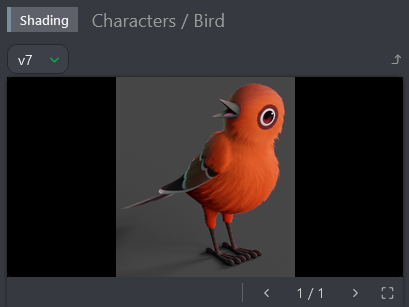
Reviewing Tasks
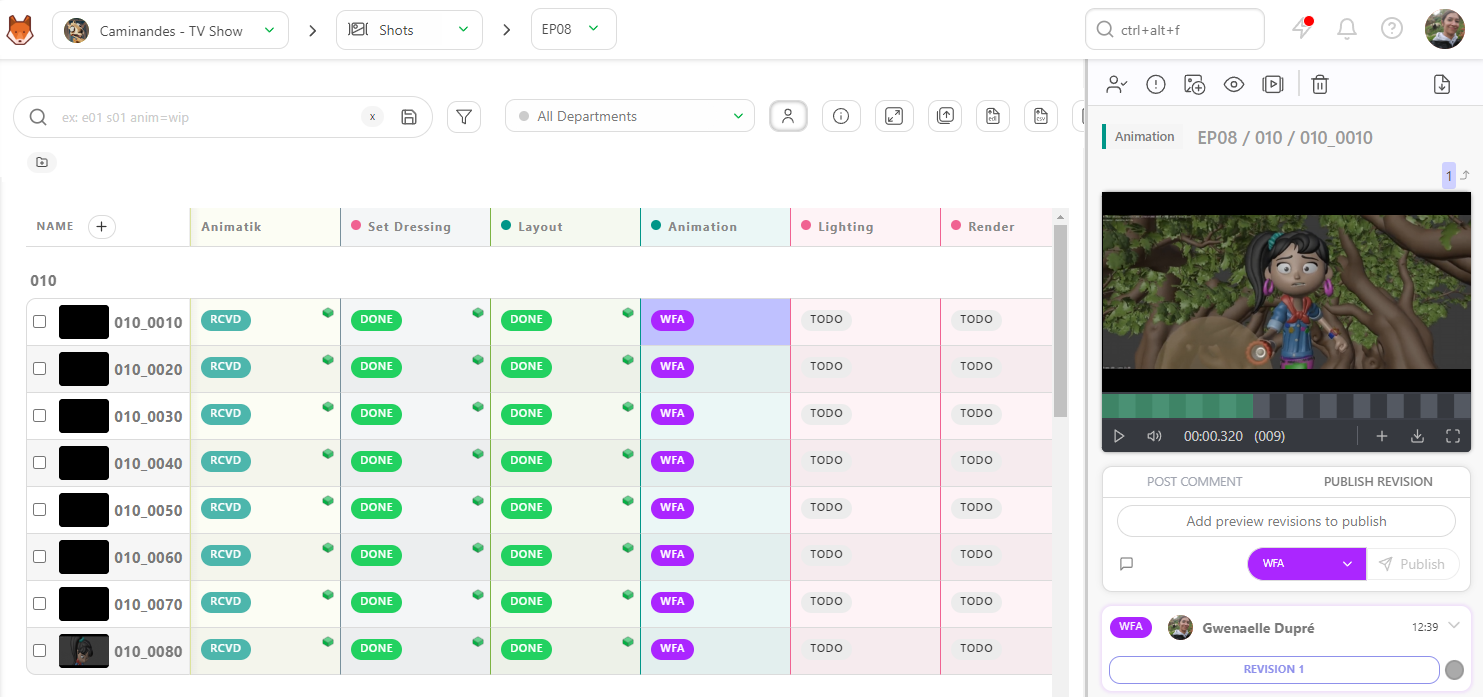
Click on a task status to open the right hand panel and start the review.
You can watch the version from the right panel, enlarge it by grabbing the side of the panel, or even enter fullscreen by clicking this icon  .
.
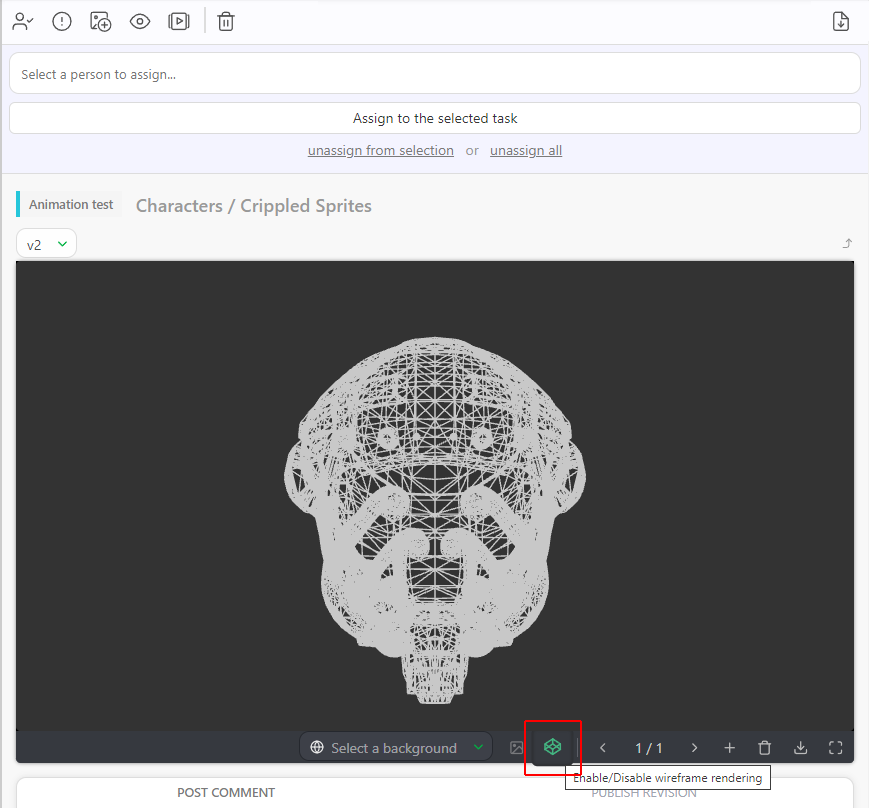
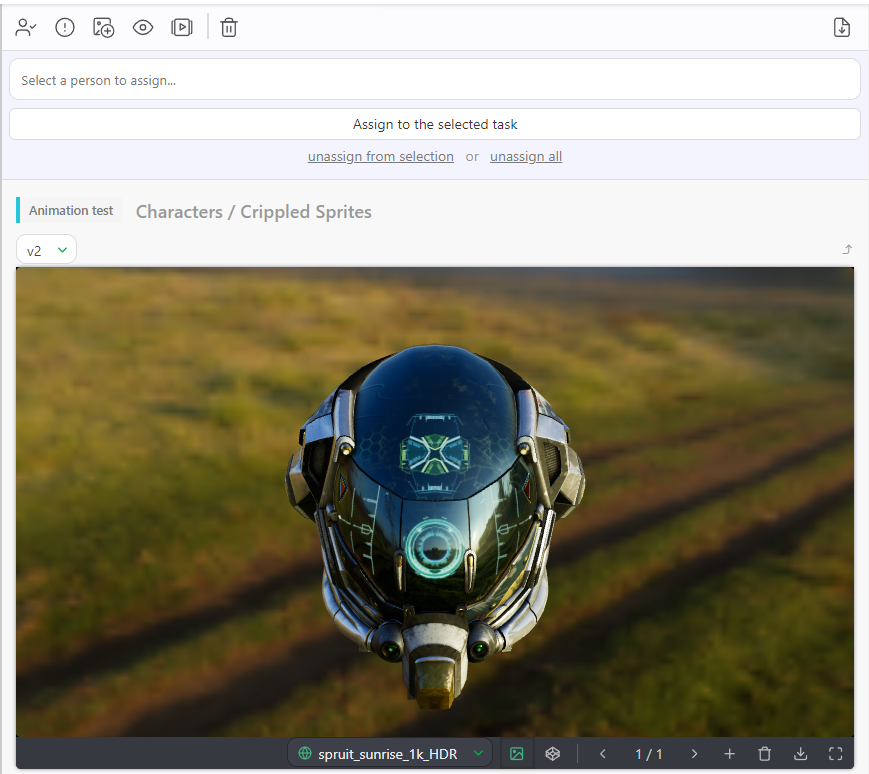
In the same way, you can also review 3D files (.glb file) as a wireframe or add a .HDR file to check the lighting.
You can move around the 3D file by dragging and dropping your cursor and zooming in or out with the scroll wheel.
See the Customization section for more details. Pipeline Customization
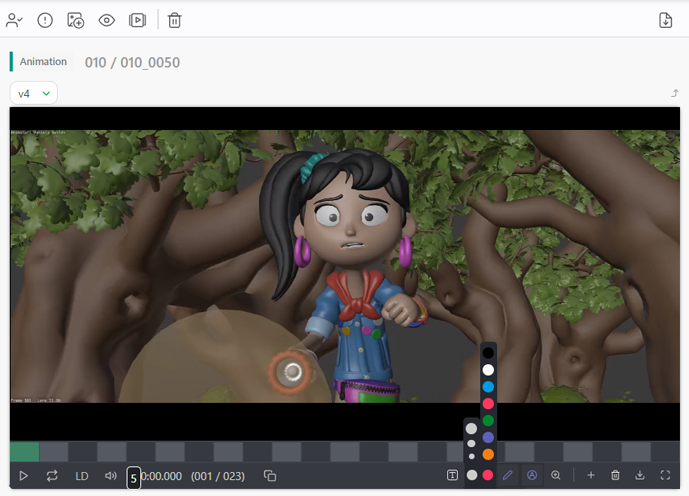
You can select a color to use and then draw directly on the preview with the Pencil tool  .
.
Adding a Comment
For general feedback, you can leave a written comment on the task from the right-hand panel.
Type your feedback in the comment box and leave the task status unchanged if you want to let other teammate jump in or switch it to Approved to end the review.
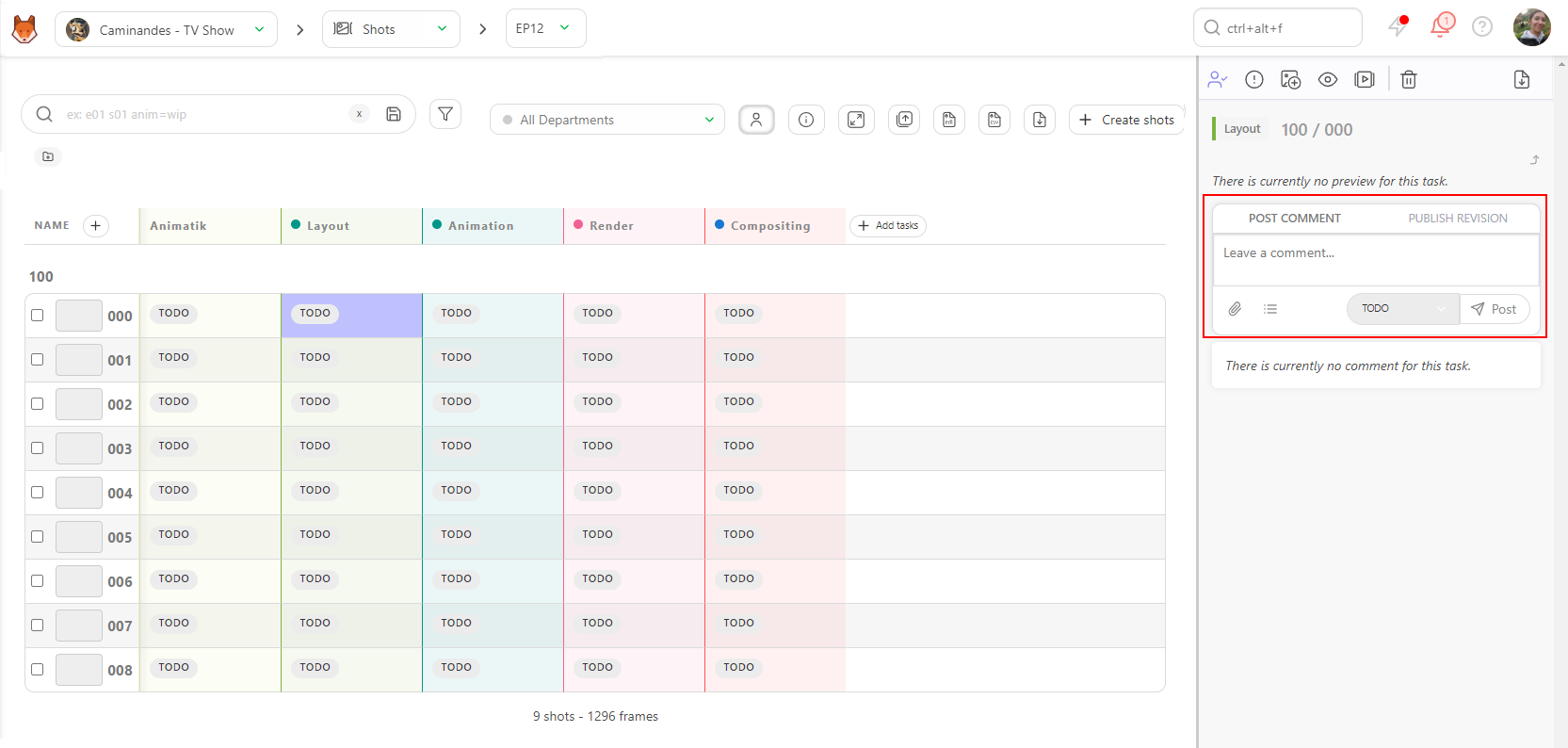
Click Post to publish your comment. It will appear in the task's comment history, along with a timestamp and your name, so the artist can see exactly what feedback was given and when.
You can mention teammates in your comment using the @ operator to notify them directly, or attach files (see Exporting Annotations below) alongside your written feedback.
Once posted, comments can't be edited, but you can delete them if needed by clicking the trash icon next to your comment.
Drawing Annotations
You can also annotate the frame with text.
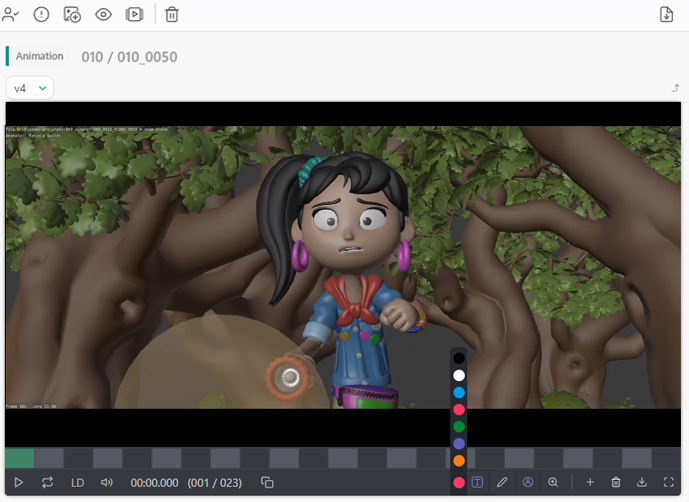
If you'd like to temporarily hide annotations, click the Fountain Pen button. 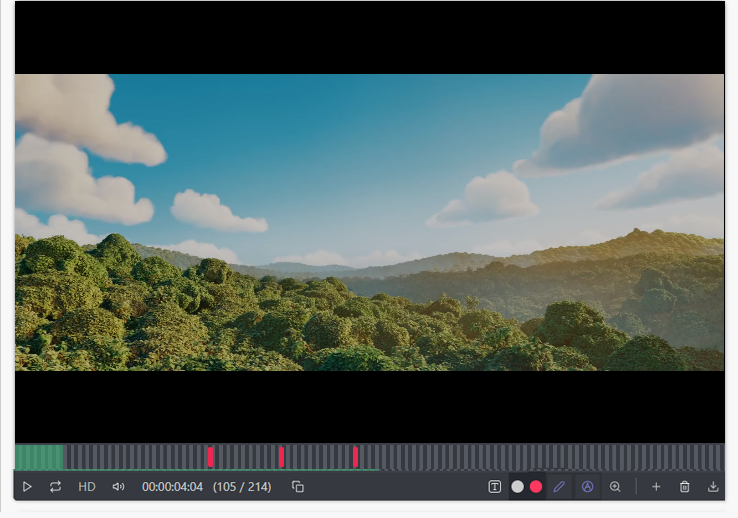
Shape Annotations
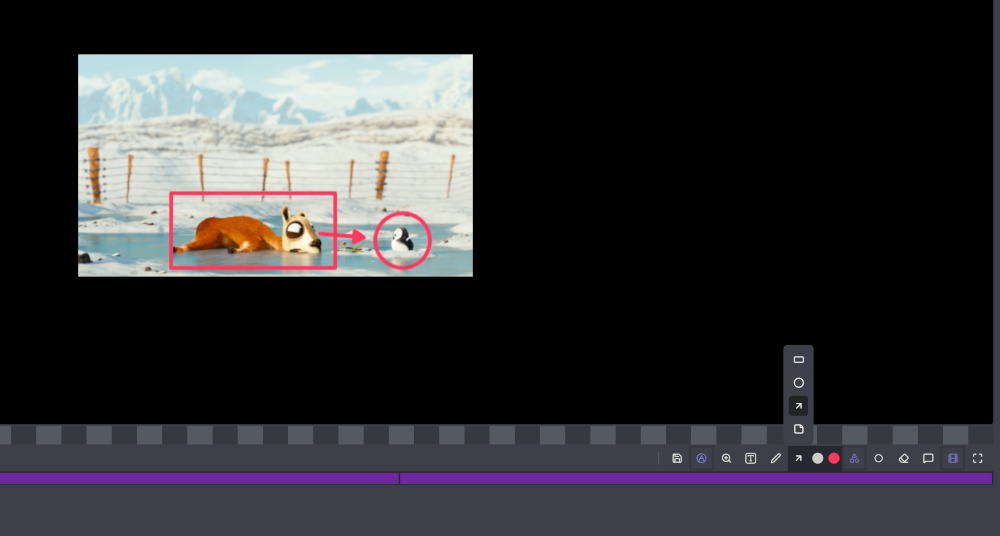
Reviewers can draw squares, circles, and arrows instead of being limited to freehand sketching alone.
Tagging Frames
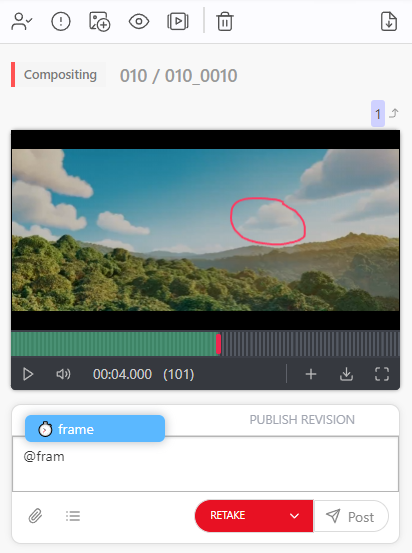
If you would like to refer back to a specific frame in your comments, you can easily tag a frame by typing @, which opens a sub-menu with the team list, and then start typing frame.
This will then add a timestamp of the current frame to this comment, and clicking on that timestamp will jump to said frame.
Exporting Annotations
You can also export your drawings on each frame by attaching the screenshots as attachments.
Click on the Add attachment button.
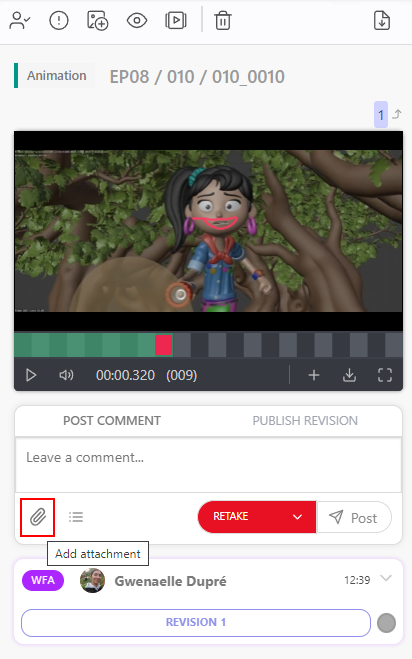
You can also choose to Attach snapshots from your annotation in the attachment options. This lets you take annotated frames and add them as attachments of the comment, which can be useful if you want to highlight specific annotations in your feedback.
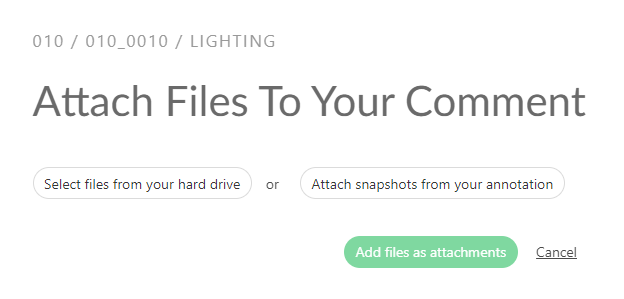
Once you click the button, Kitsu will grab all the frames with annotations and display the result. You can publish them with Confirm.
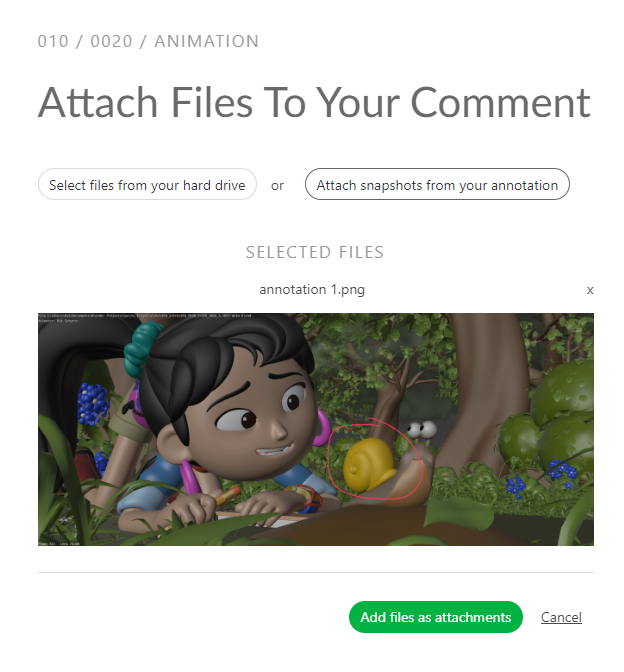
Deleting Annotations & Eraser
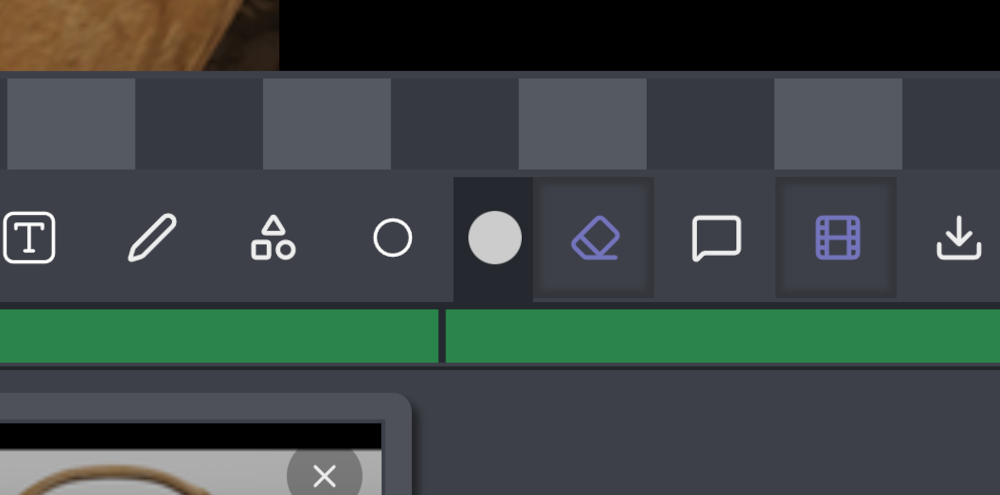
If you need to delete an annotation, click the Eraser icon:
Comparing Images
By entering Full-Screen, you can compare two task types or versions side by side by clicking on the Compare button  .
.
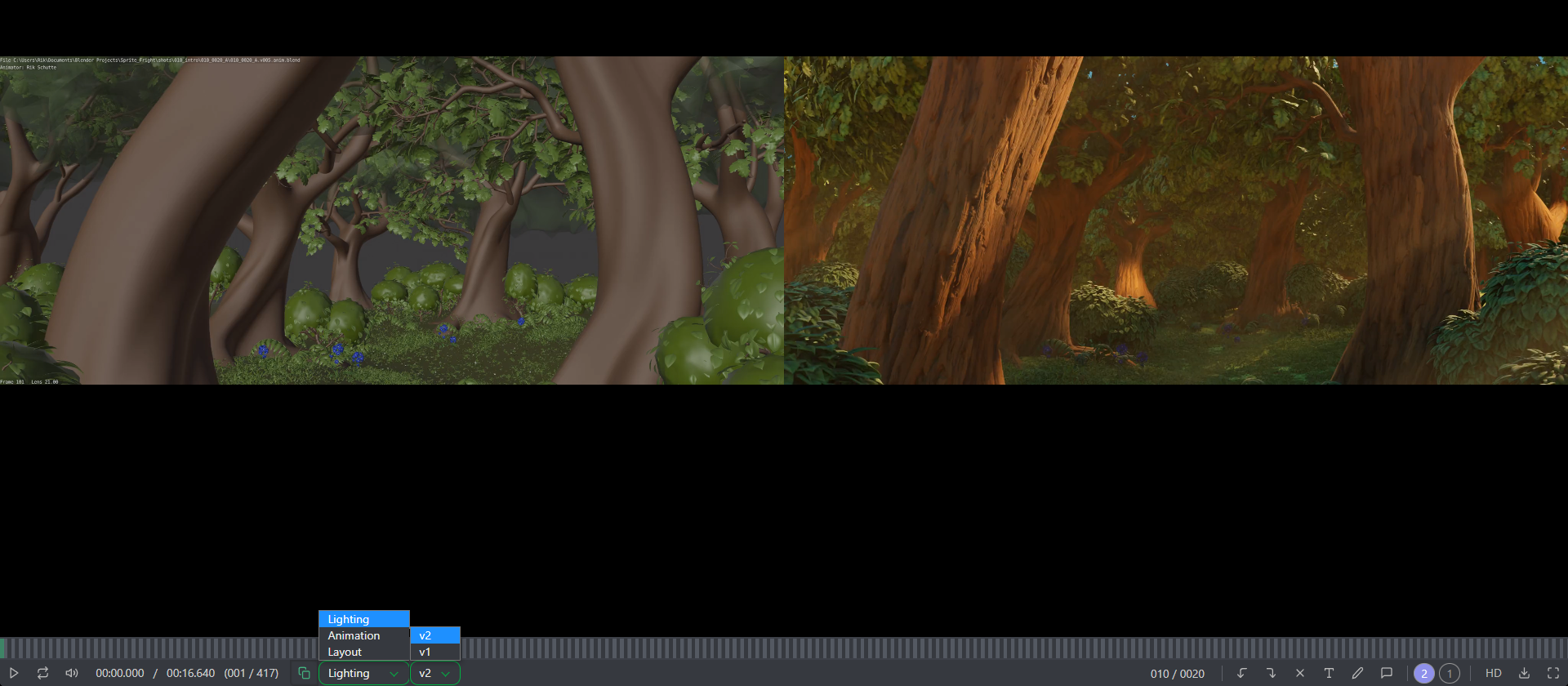
From here, you can change the status to  if you want the artist to make changes.
Alternatively, you can change it to  to notify the artist that their work is approved.
Onion Skinning
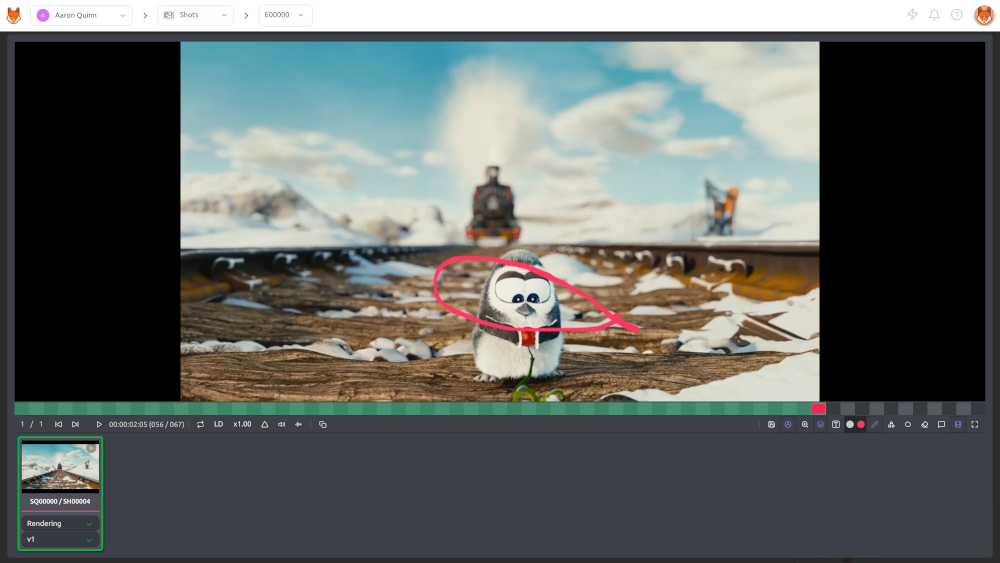
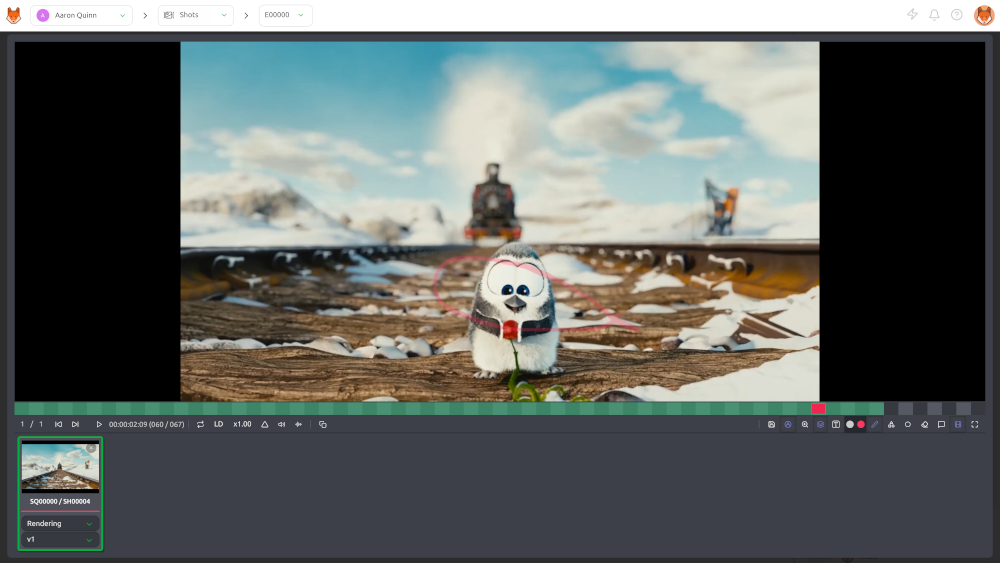
If you need to check frame-to-frame consistency while reviewing animation in Kitsu, you can use onion skinning for annotations.
Onion skinning overlays nearby annotation frames (up to 5 frames before and/or after the current frame) so you can see motion, spacing, and timing issues in one go without scrubbing back and forth.
Here is the annotated frame N:
And here is how the overlay looks in frame N + 4:
Supervisor Reviews
Typically, when an artist finishes a task, they call the supervisor for a review. But frequent interruptions can be unproductive and make it difficult to maintain focus.
To avoid this, set a specific timeframe for reviews. This approach benefits both you and your team by providing a structured schedule. Artists will know when they can expect feedback and can plan their work accordingly, while you can dedicate uninterrupted time to your own tasks.
Click the My Checks button at the top of the screen to see a list of all your department's WFA tasks.
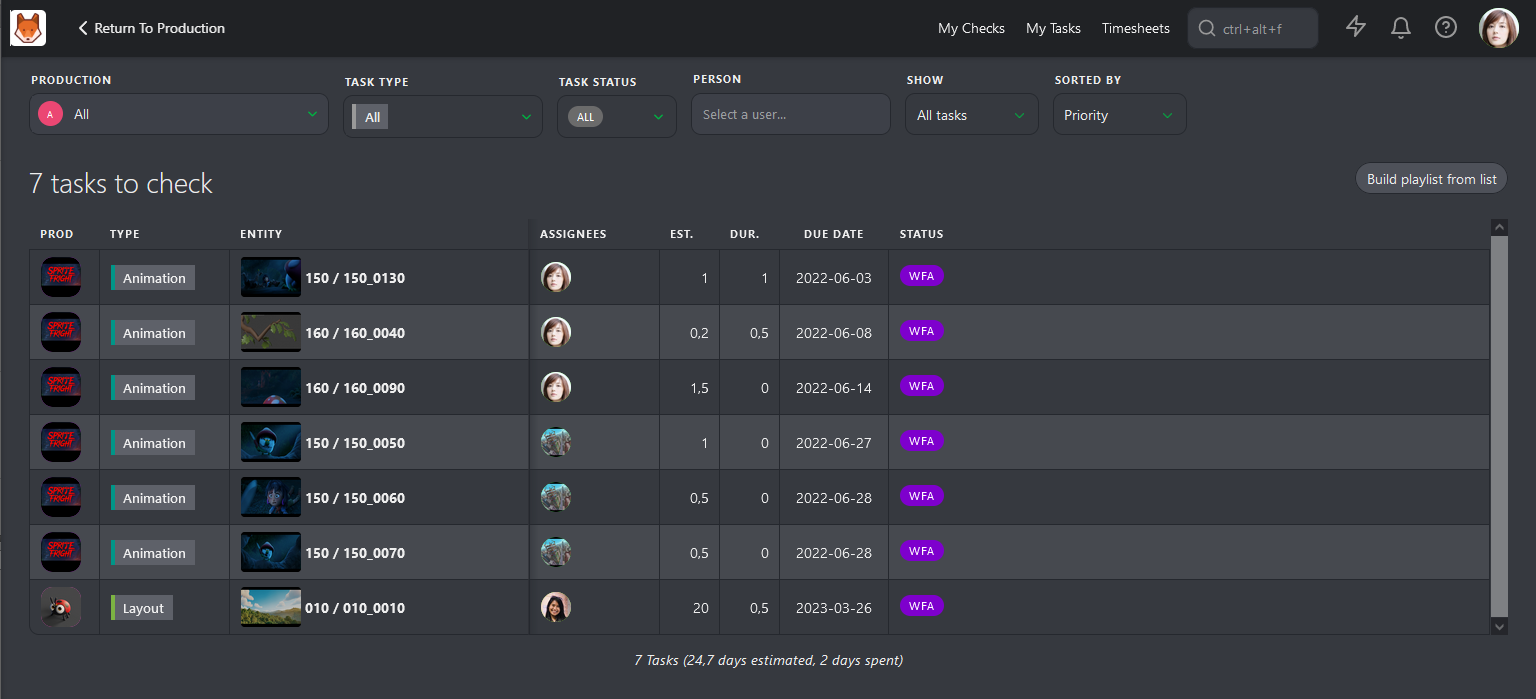
This list covers all relevant Productions, Task Types, and Task Statuses. As with other pages in Kitsu, you can click on a Status to open the Comment Panel on the right and review tasks one by one.
Alternatively, you can use the Build playlist from list button to create a playlist with all the tasks on the list. This playlist has the same options as other views, allowing you to open the comment panel, compare versions and task types, and add annotations.
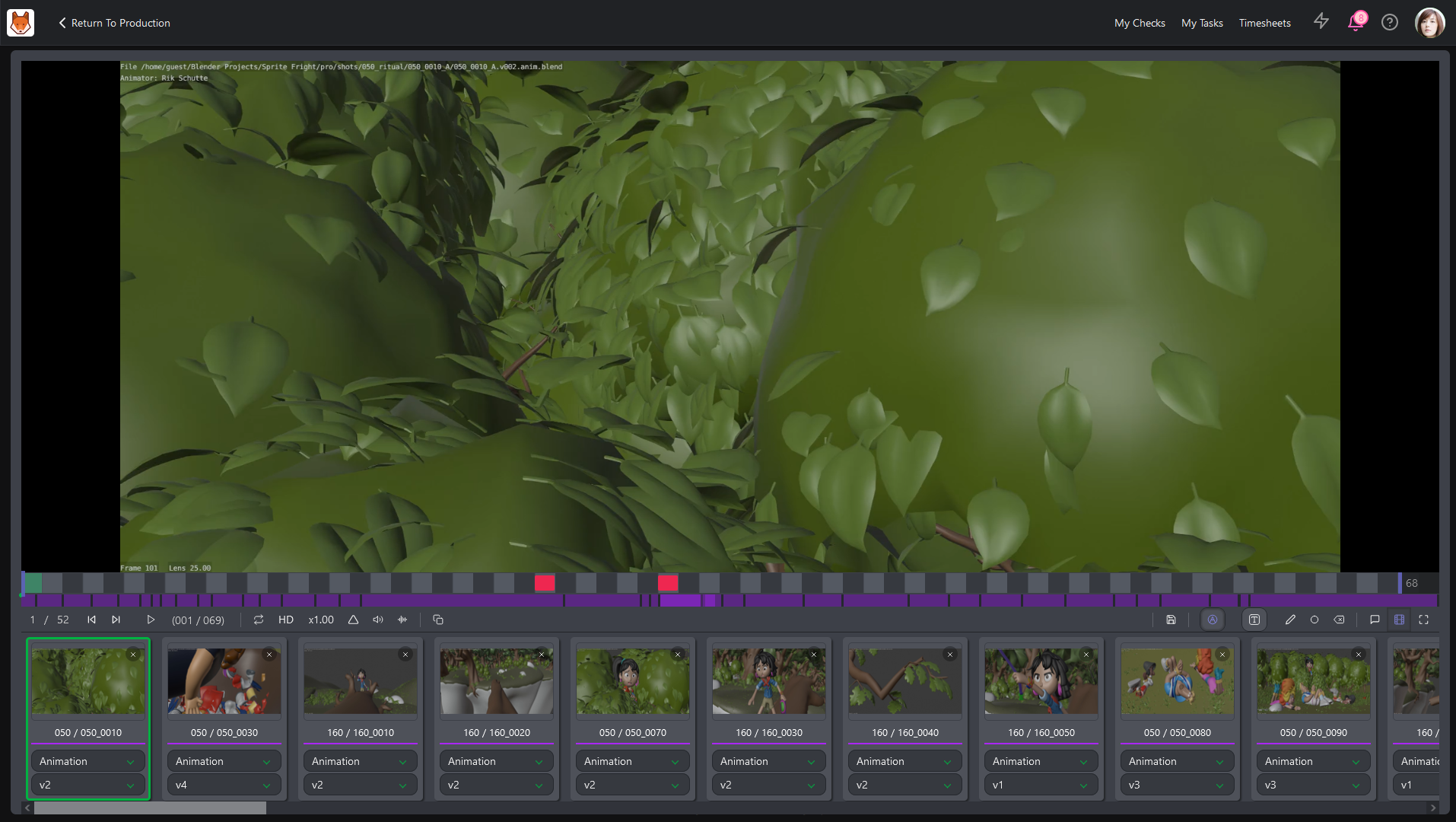
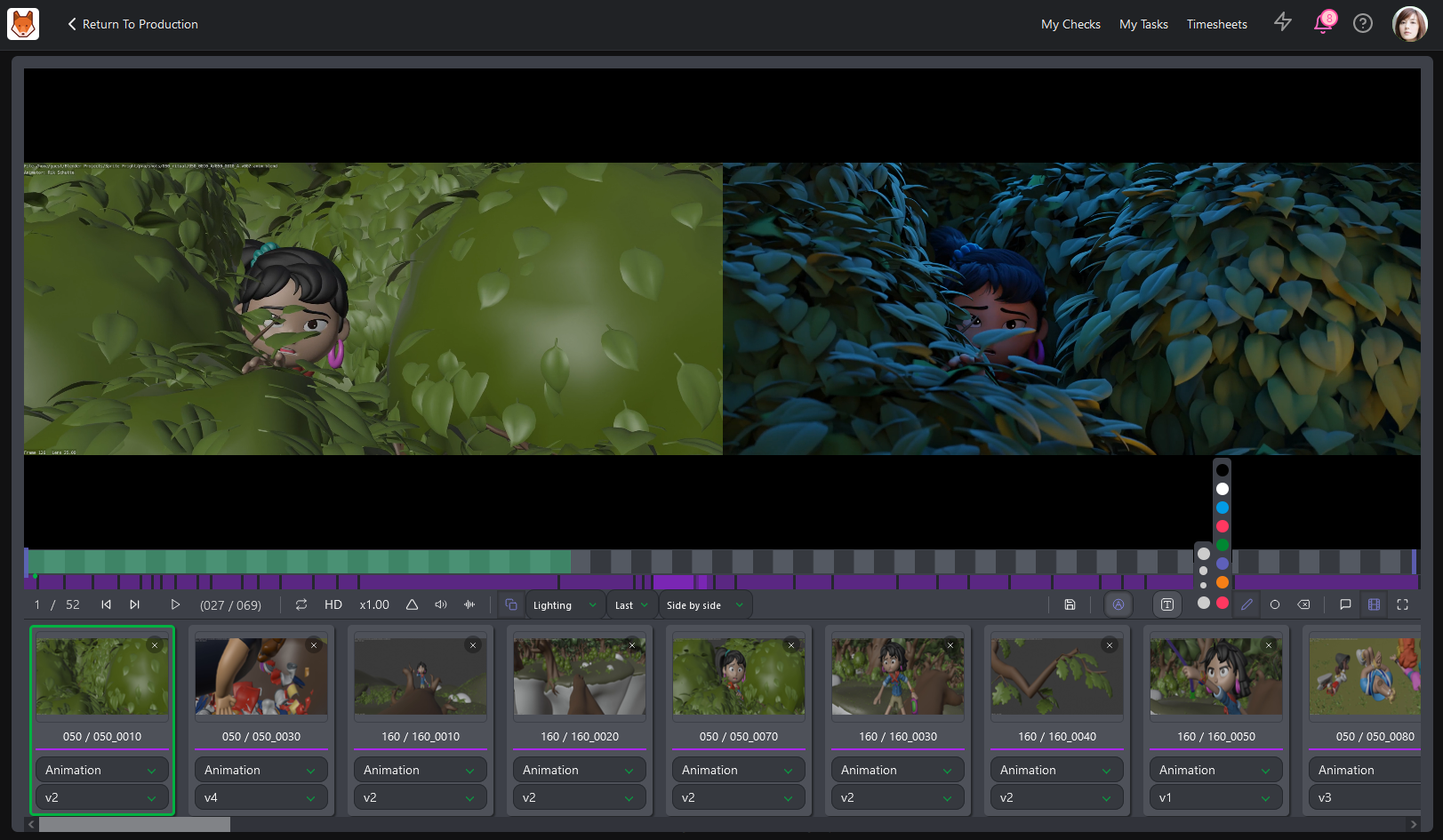
Another option is to go to the Task Type Page and change the Display as contact sheet. For example, you can filter by Due Date Status and select Due this week.
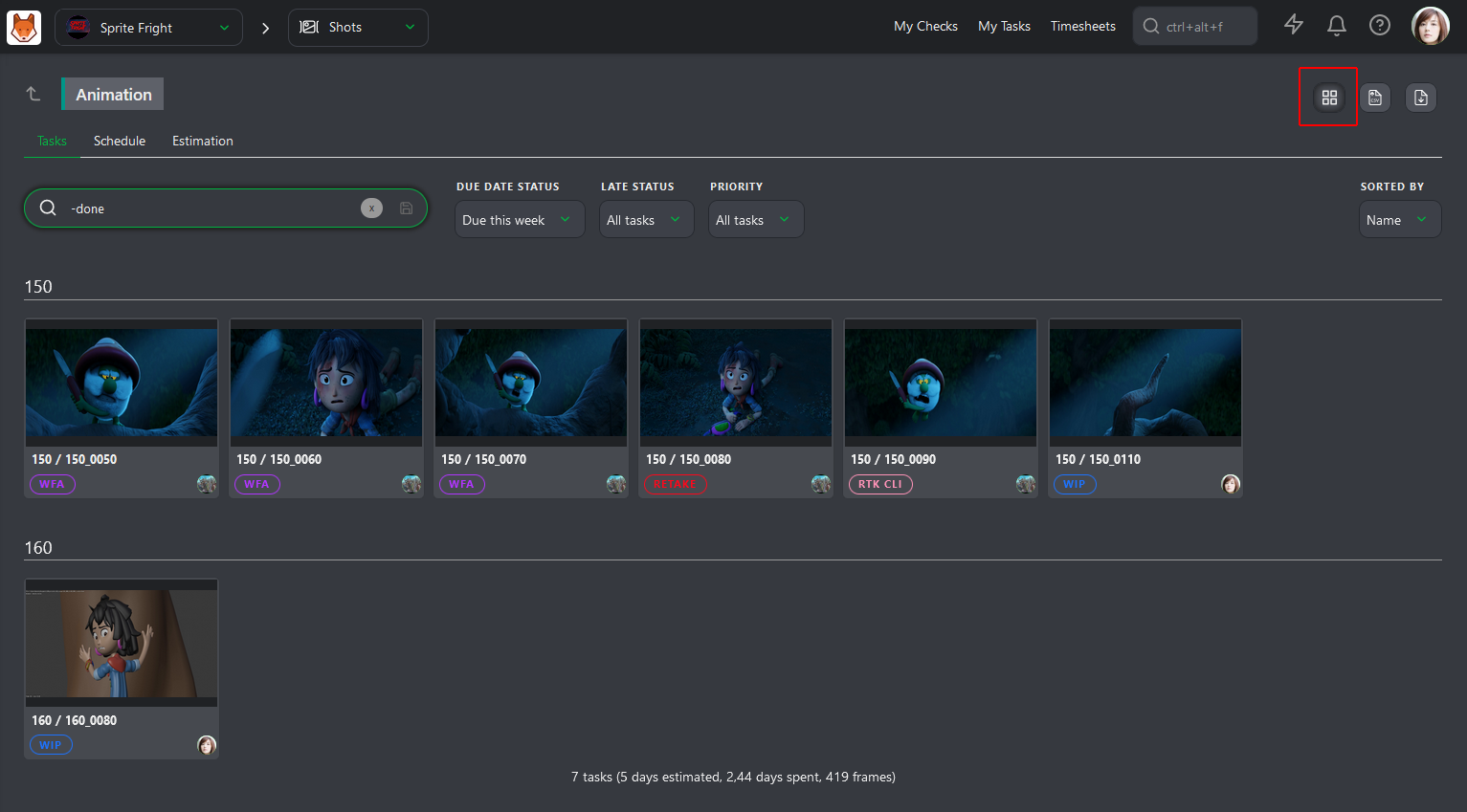
From here, you can click on the contact sheet to open the comment panel or select several tasks to create a playlist.
Reviewing Concepts
If you're a Concept Artist, you can upload and share concepts for review. Once your artists upload a concept, the supervisor or director can review it.
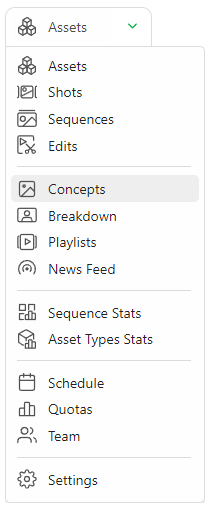
When your artists upload a concept, you can review it through the navigation menu at the top of the screen by selecting the Concepts page.
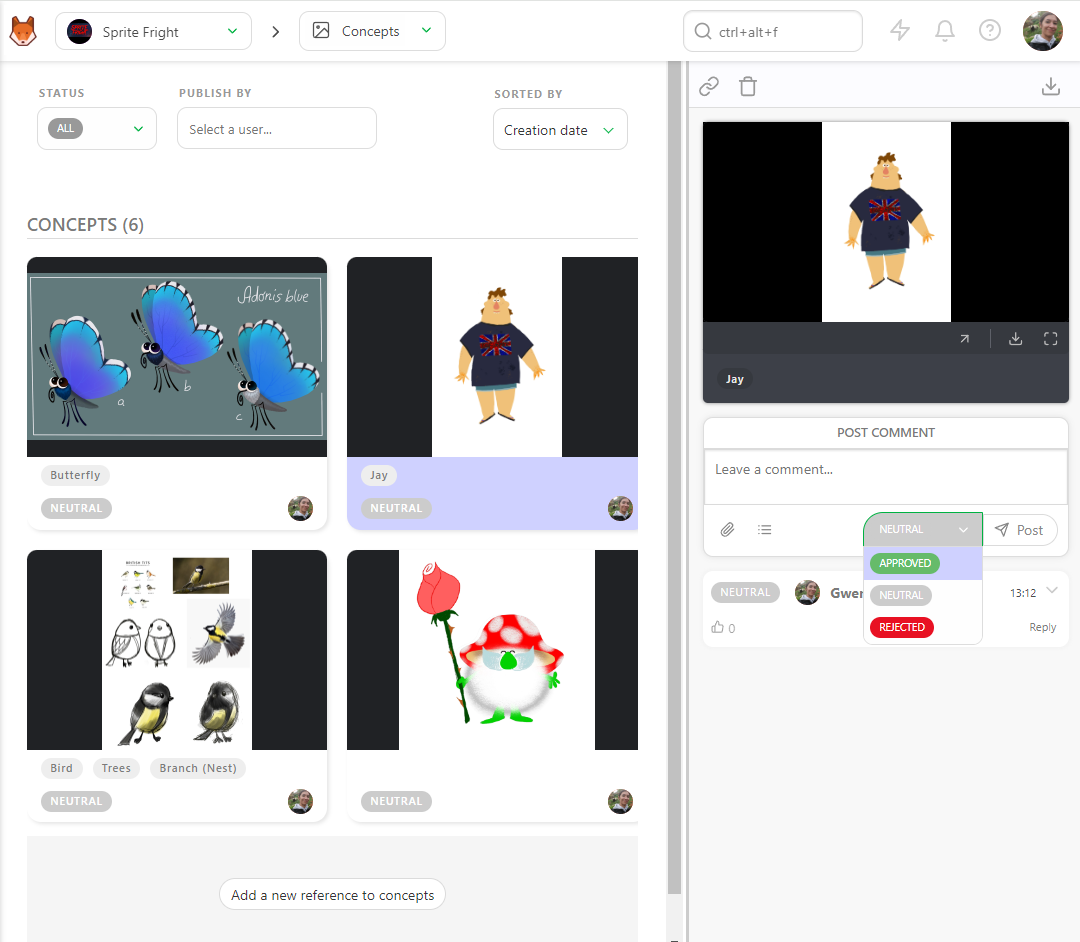
On this page, you can see all uploaded concepts along with their status, assignment, and linked assets.
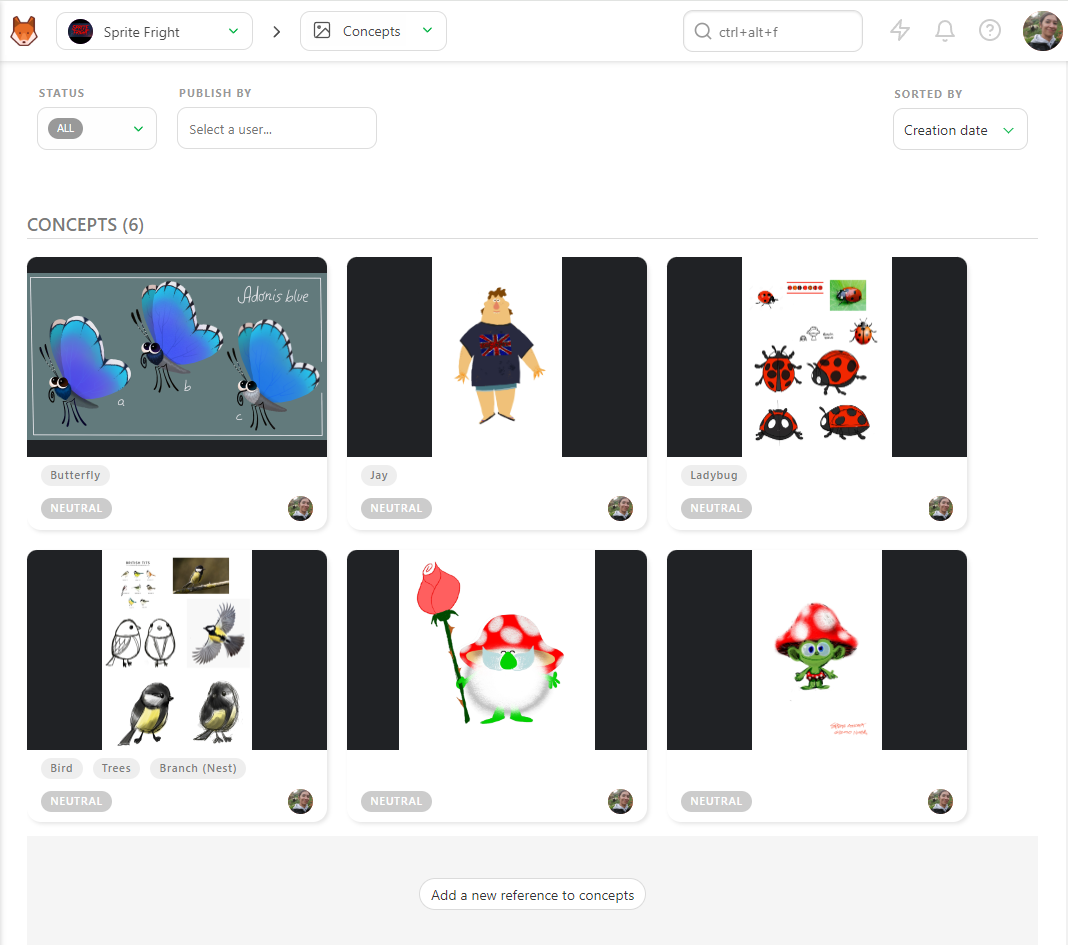
To review a concept, click on its status to open the comment panel. You can enlarge the comment panel or enter fullscreen. You can then write a comment, set the status as Approved or Rejected, and confirm your changes with the Post button.
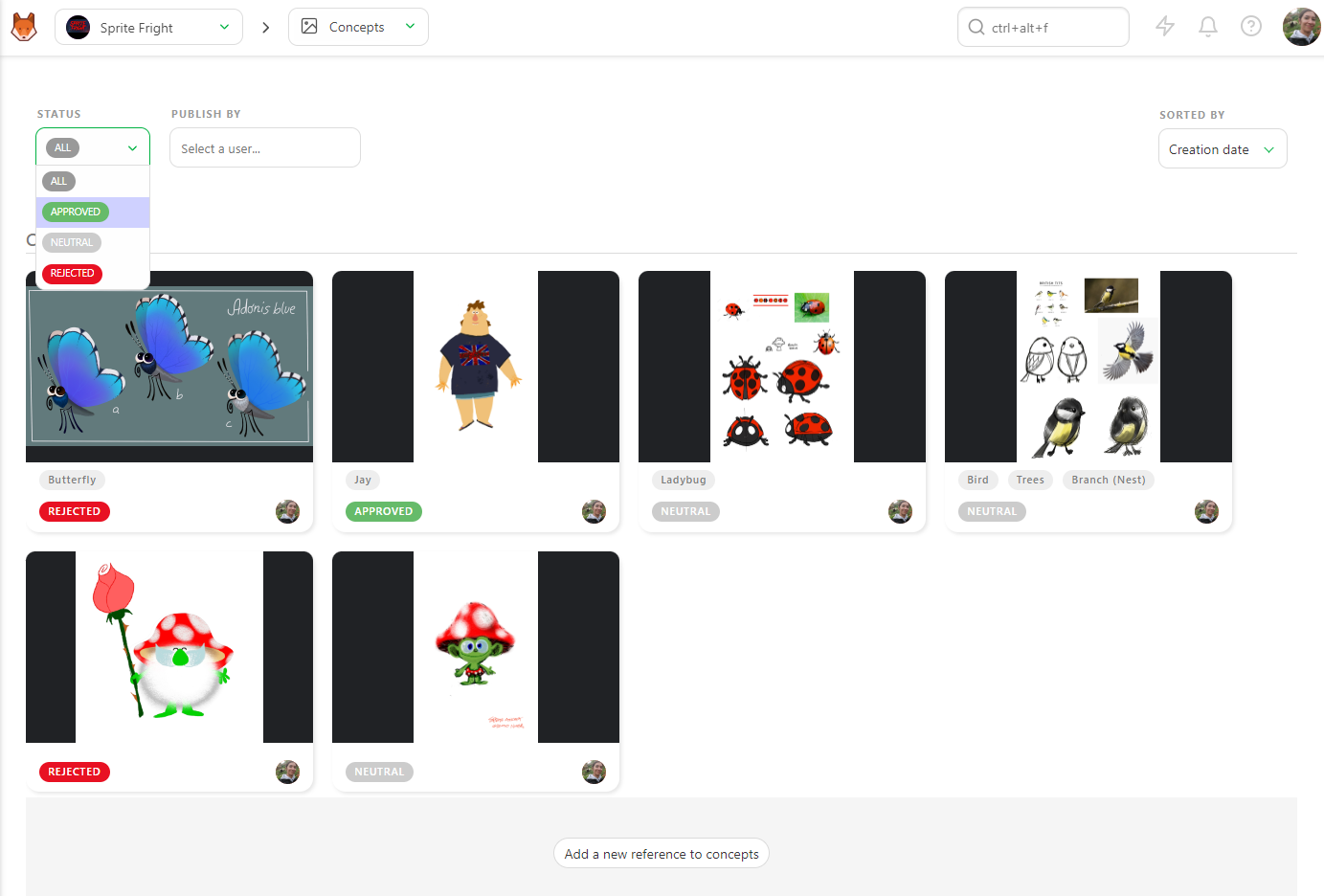
You can narrow down the page using the Status filter to display all concepts with a Neutral status. Additionally, you can filter by artist and change the sort order to better hone in on the data you need to review.
Bulk Review
Sometimes, you want to review multiple shots in a focused way, or together with your team in real-time.
For this use case, you can leverage playlists.