Playlists
A playlist is a list of curated versions / previews compiled for review and approval.
Accessing your Playlists
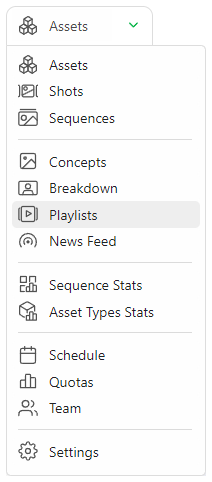
Production team members can find the Playlists page in the drop-down menu.
The Playlist page is separated into two parts:
- (1) A list of your playlists where you can create a new one or load an existing one.
- (2) The last created playlists and the last modified playlists.
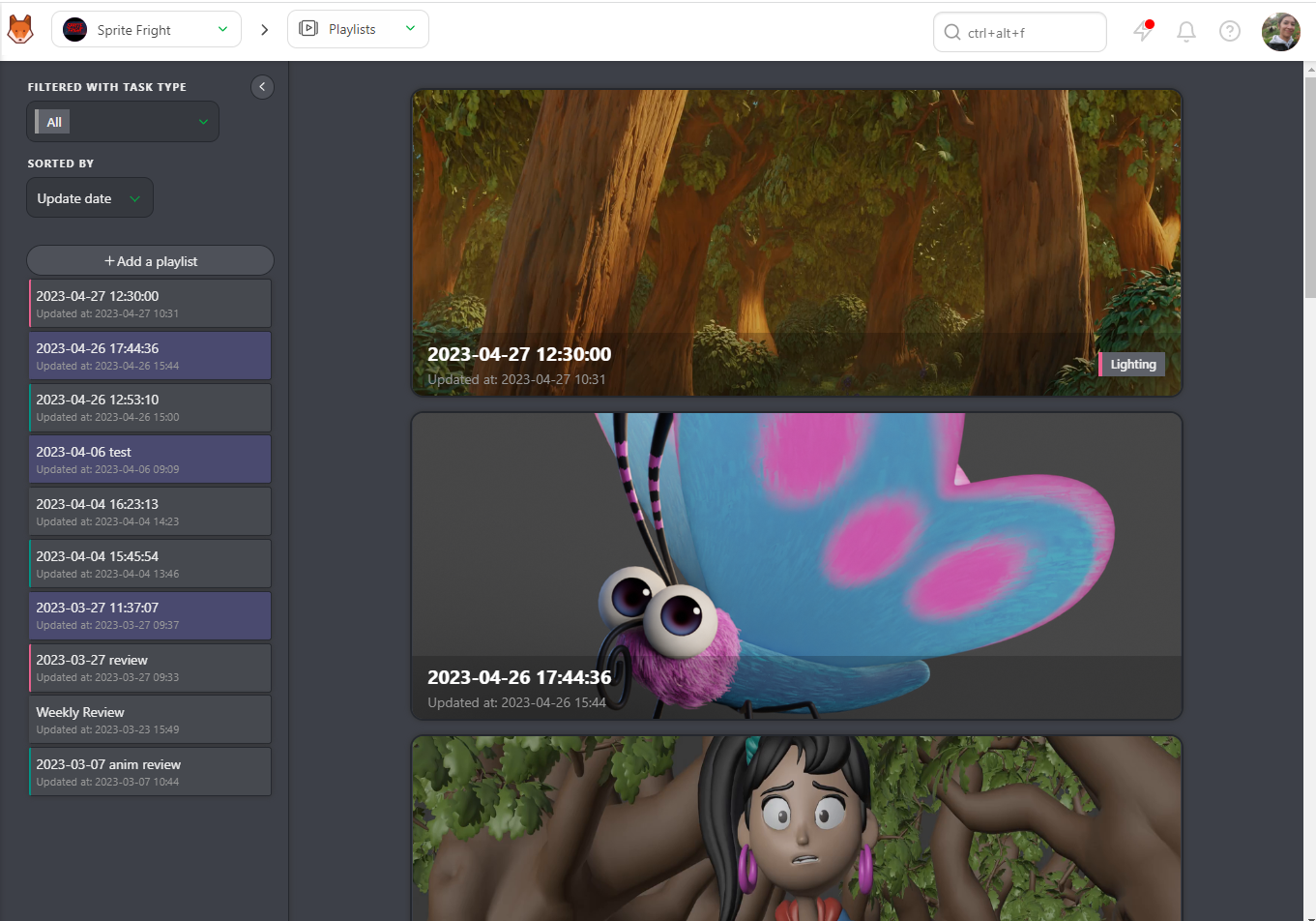
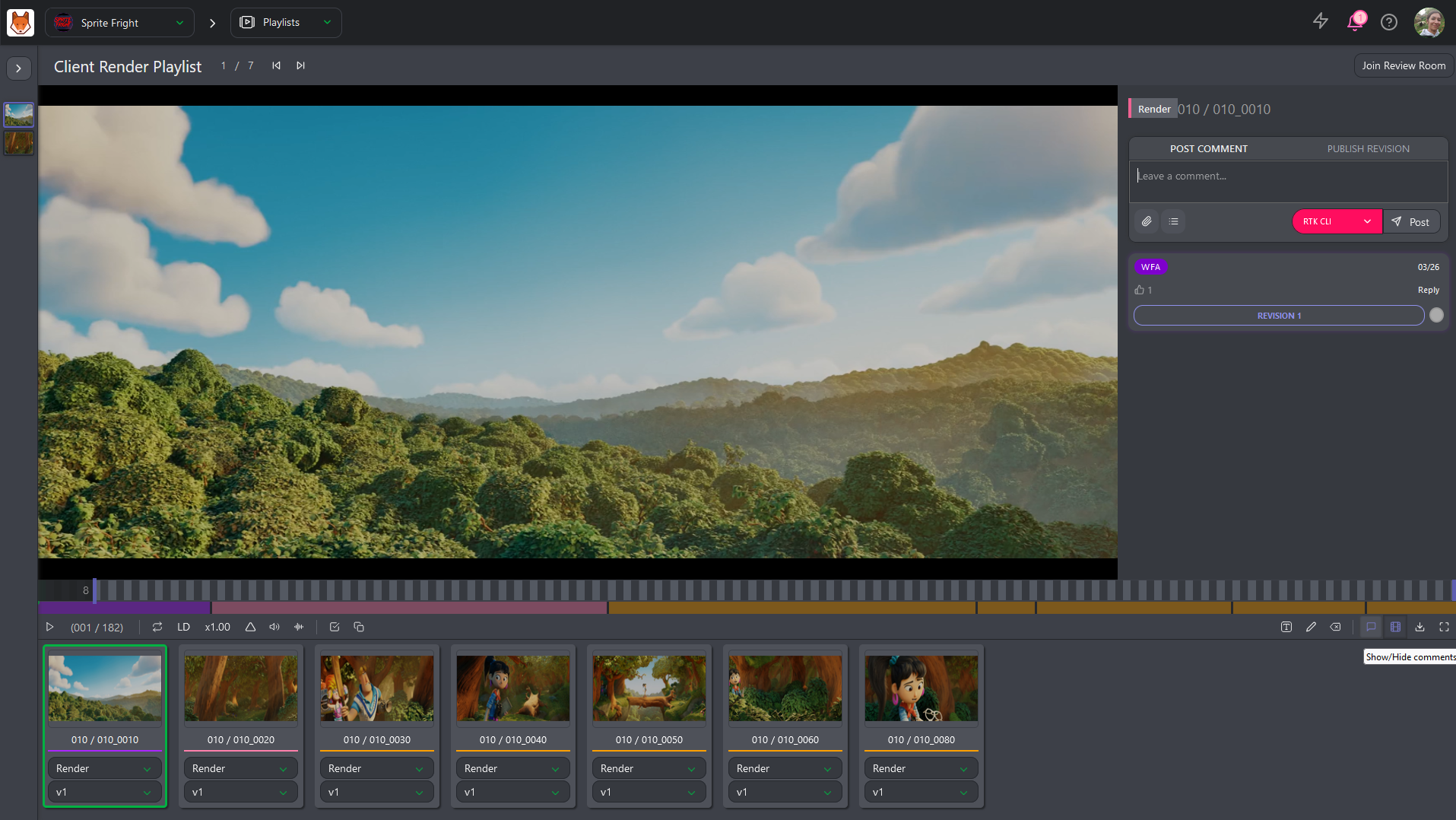
Clients access playlists differently: click on the production avatar to reach the Playlist page, which gathers all the assets and shots they have to comment on.
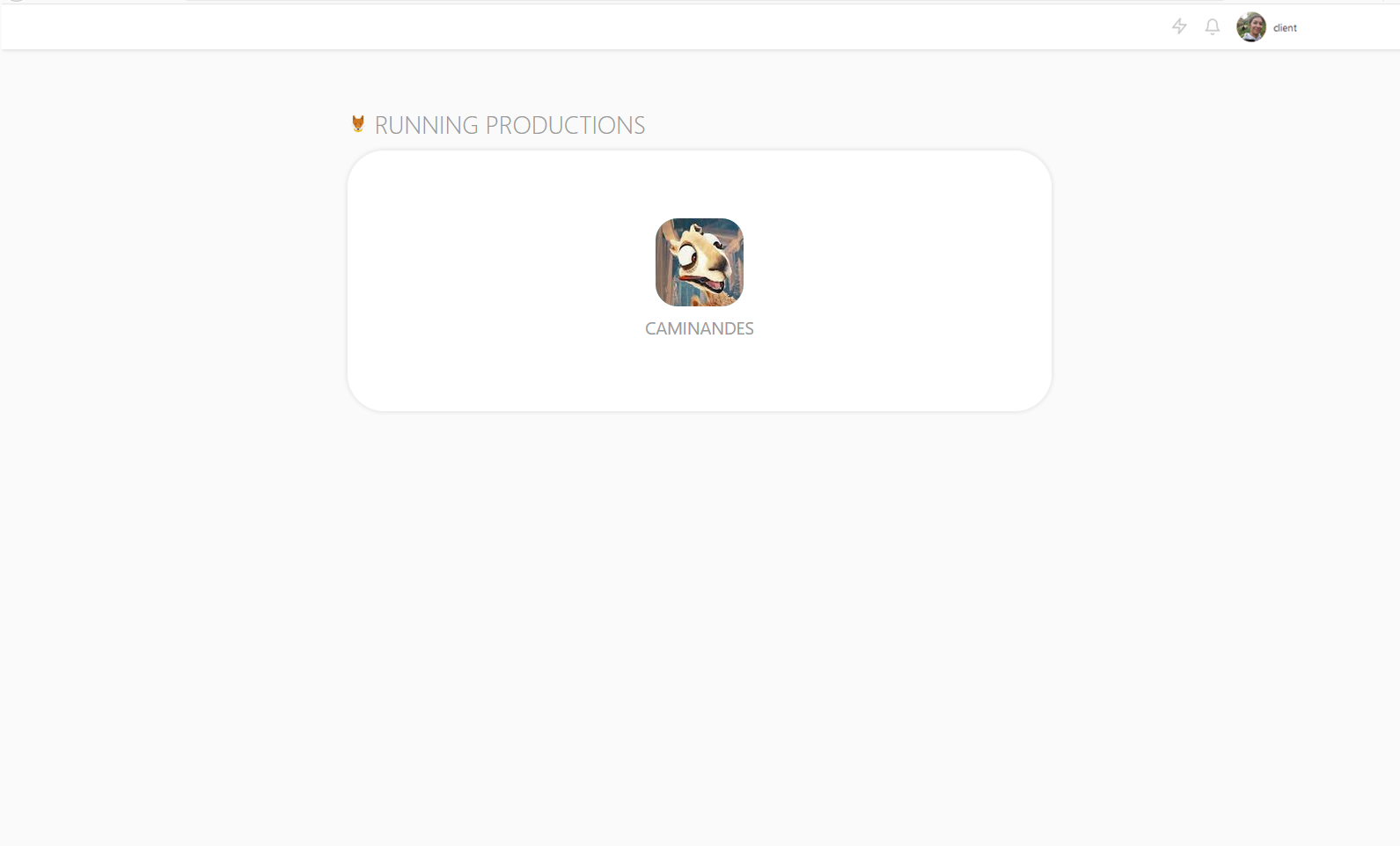
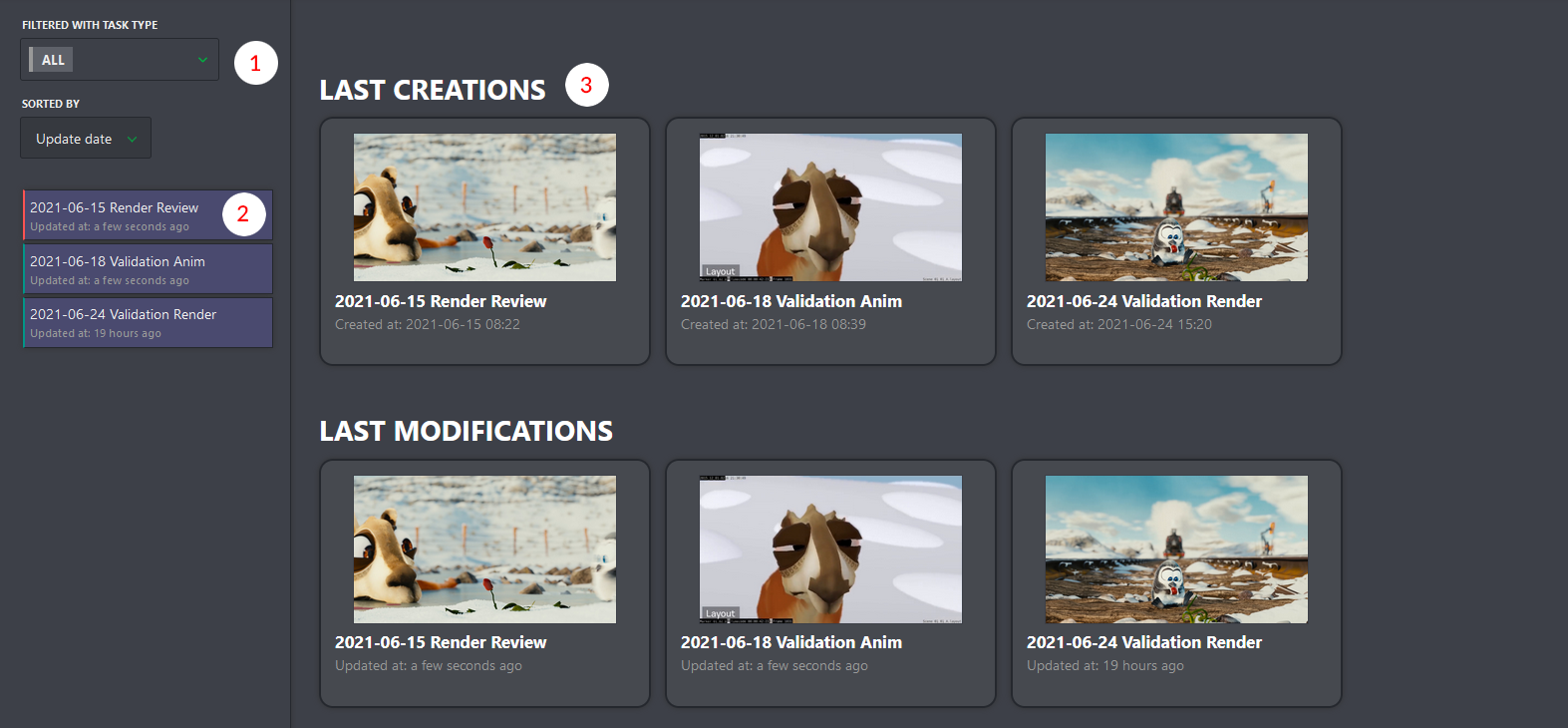
On the left, clients can sort the playlist per Task Type, date, or name (1), followed by the list of playlists created for them (2). The center part gives fast access to the recent playlists (3).
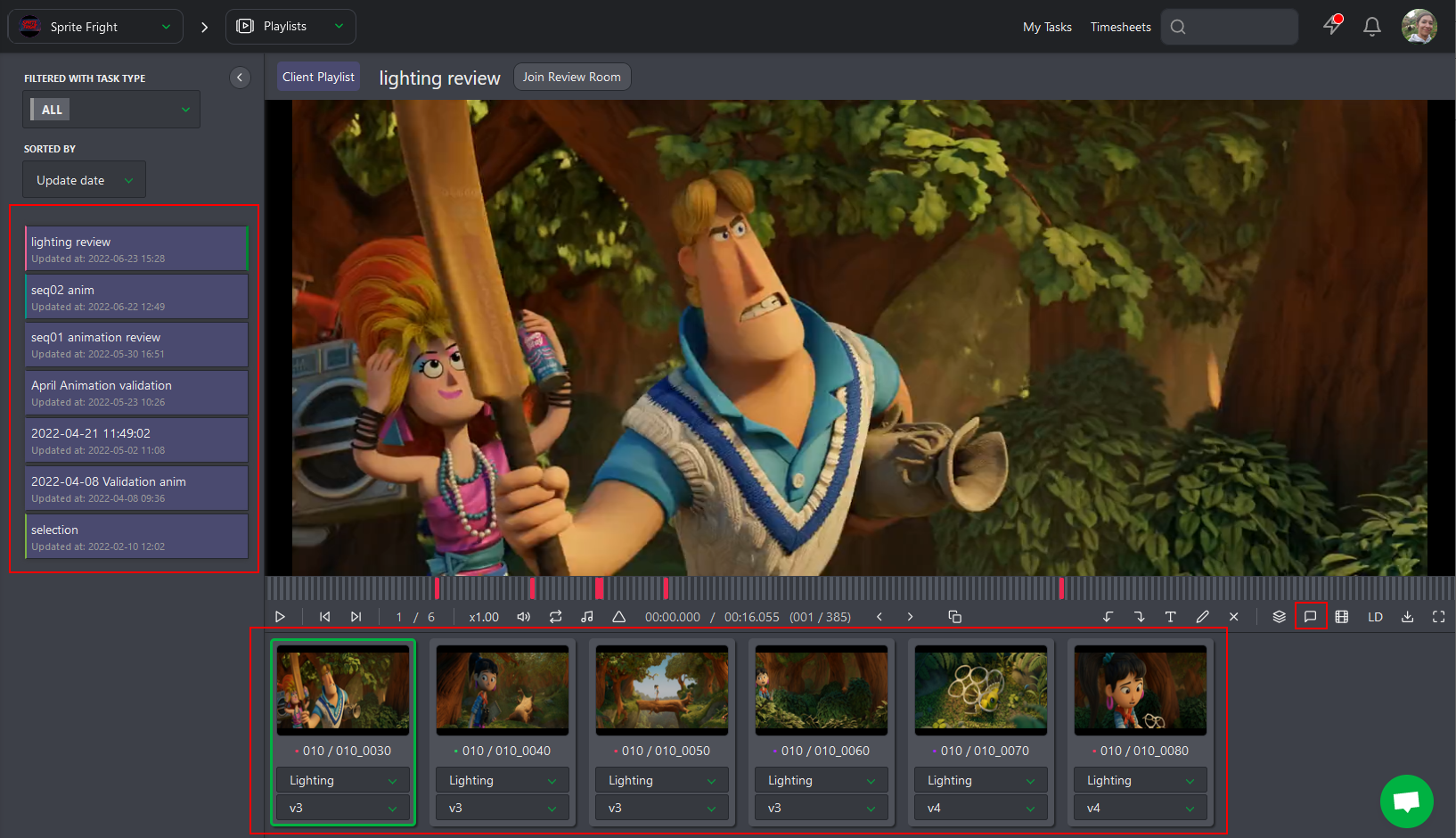
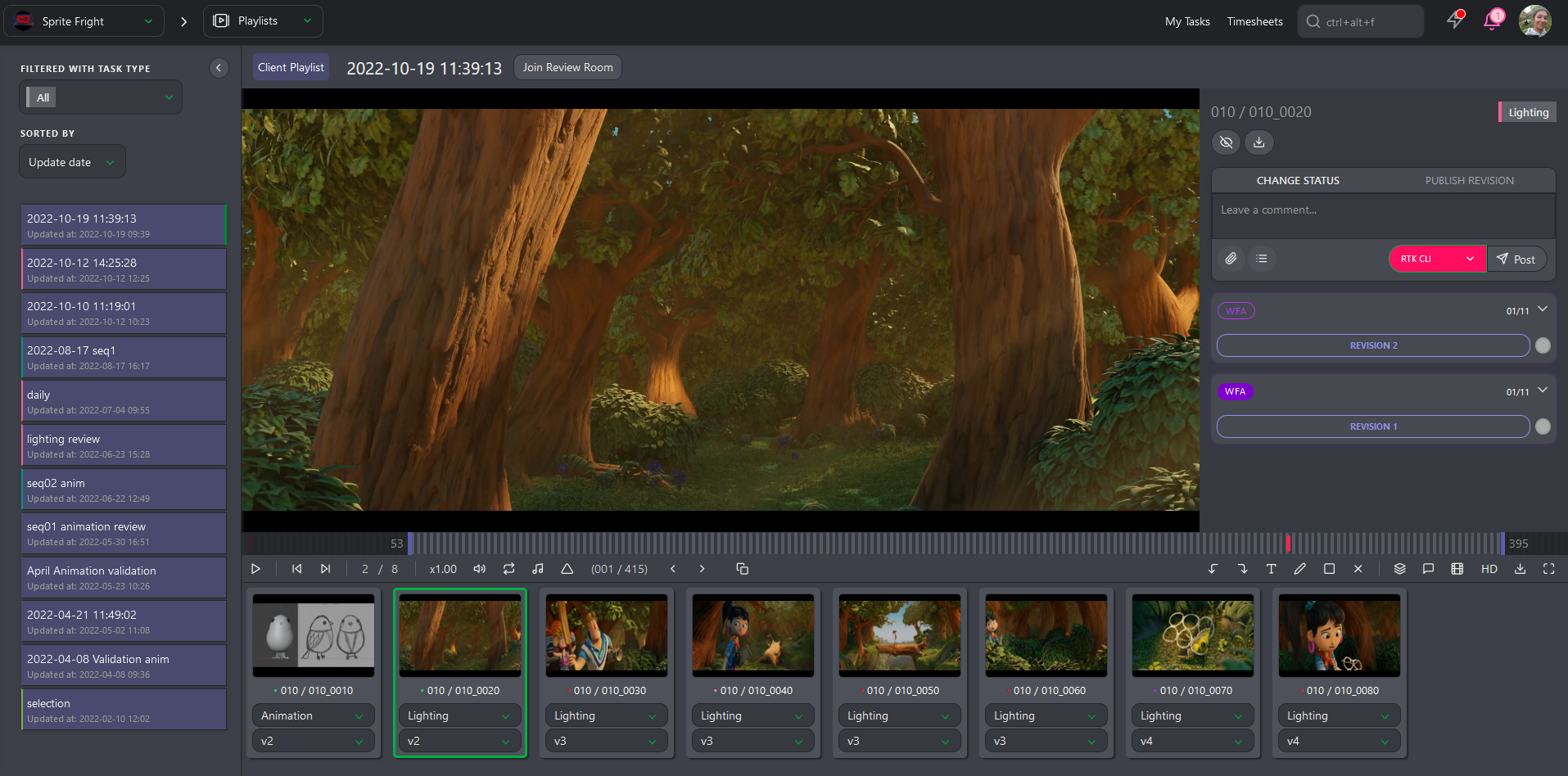
In the detail view, the left part keeps access to the different playlists, the center part shows the elements of the selected playlist (assets or shots), and the right part gives access to the comment section, where clients can write a comment to approve the preview.
Create a Playlist
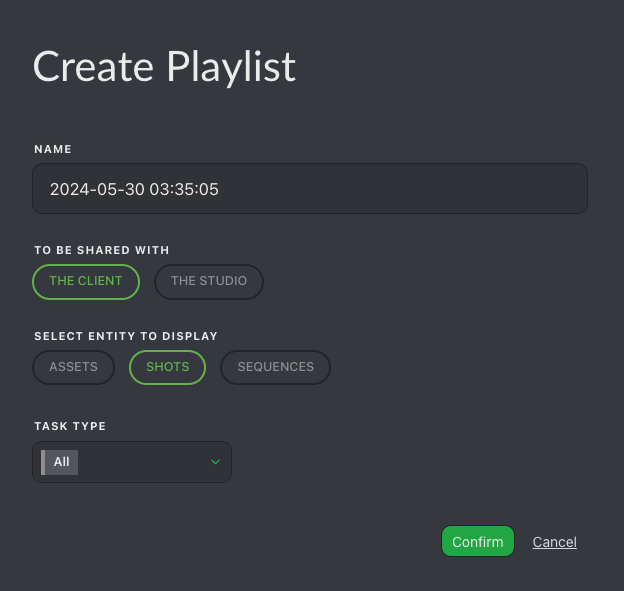
Start by creating a Playlist using the  button. The playlist name defaults to the current date & time, but you can change this. You can choose if the playlist will be shared with the studio or the client and if it's a shot or asset playlist. You can also add a Task Type tag to the playlist.
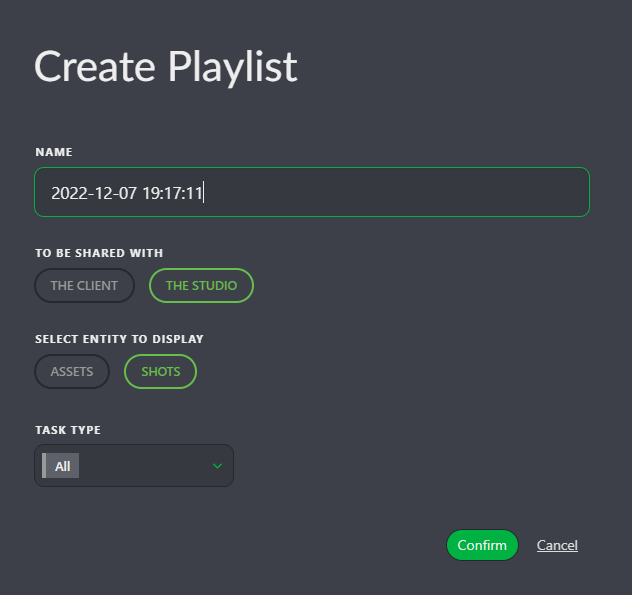
For client playlists: the process is the same, but make sure to select The Client under To Be Shared With. This ensures the proper permissions and gives the client access to only this specific playlist.
Populating a Playlist
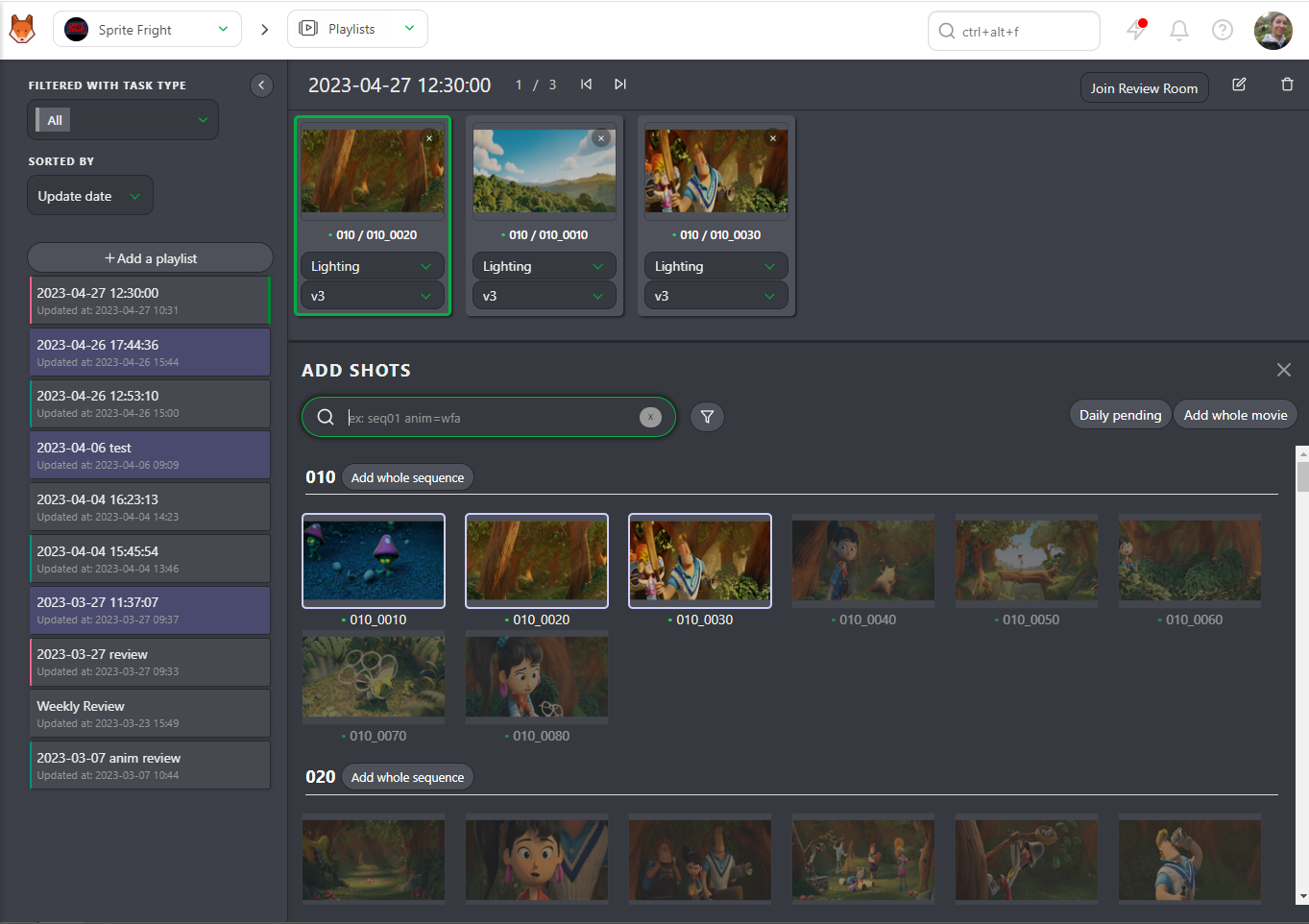
Once the playlist is created, use the search/filter bar to select which shots to add to your playlist.
You will also see options for adding:
- An entire episode or entire sequence if you want to add large chunks of the project at once.
- The whole movie, which will add all the shots of the movie.
- Daily pending, which will add all the WFA tasks of the day.
You can use the same filters as the global shot/asset page. For example, you can select all the WFA (short for "work for animation") tasks at the Animation stage by typing animation=wfa in the search bar. Validate your selection with the Add selection button. Kitsu will select the shots with the WFA status at the Animation stage and automatically load the latest uploaded version.
The shots appear in the top part of the screen. Every change is automatically saved.
Review Controls
Once you have created a playlist, you have several options:
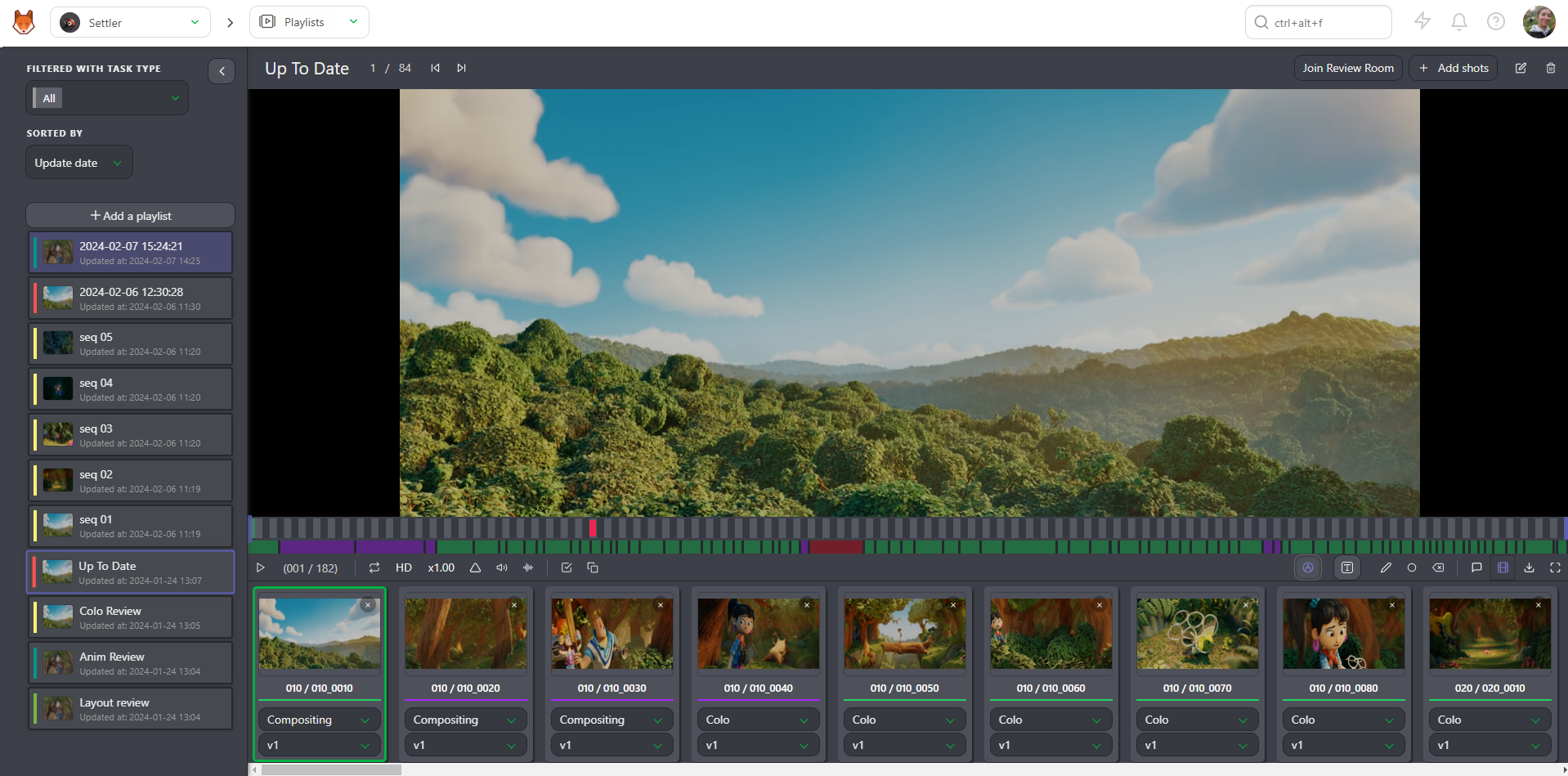
- Play or Pause
- Jump between elements in your playlist
- See the position of the selected element compared to the total number of elements
- Mute or unmute the audio
- Change the speed: double speed (x2), full speed (x1), half speed (x0.50), or quarter speed (x0.25)
- Continuously loop a single element
- Display audio waveforms
- Display annotations during playback
- Show the timecode (TC) of the element compared to the TC of the whole playlist
- Display the number of frames
- Navigate frame by frame on the preview (you can also use the left & right arrow keys on the keyboard)
- Access the compare tool
- Undo and redo options for annotations
- Text and drawing options (including delete selection)
- Change the task type of all the elements in the playlist
- Display the comments section
- Hide elements in the playlist
- Switch between LD (low definition) and HD (high definition)
- Download the playlist as a Zip file with all the separate elements, a .csv text file, or Build .mp4 to create the whole movie (only for shots)
- Enter fullscreen mode
Clients see this same set of controls, laid out as follows:

- (1) Previous shot / asset, (2) Next shot / asset, (3) position of the element
- (4) Play/pause, (5) speed (x1, x0.50, x0.25), (6) loop the selected shot
- (7) Time code of the shot vs. the global time code, (8) actual frame, (9) previous frame, (10) next frame
- (11) Split screen (compare two task types side by side)
- (12) Undo annotation, (13) Redo annotation
- (14) Write a comment on the picture and change the text color
- (15) Draw a comment on the picture and change the color/size of the line
- (16) Select a drawing and click the cross to delete it
- (17) Change the task type of all elements, (18) Open the comment/status panel, (19) Hide the element list, (20) Download the playlist, (21) Fullscreen
Clients can also navigate from element to element by clicking on it, see the color status and length of each element compared to the total, and see the position of the selected element with a green dot.
TIP
Frame-by-frame navigation with the left/right arrow keys works the same way for clients.
Client Permissions
- Clients can see all versions of all task types.
- Clients can only see comments they have made and any replies to these comments. They cannot see your internal comments.
- Clients can only see when a revision has been published, but cannot see who published it.
- Clients can only see and use statuses with the Is client allowed tag.
WARNING
A client will only have access to a production if they are part of the team, and they will only see the client playlist. There is currently no way to segregate clients within the same production.
Task, Version & Compare
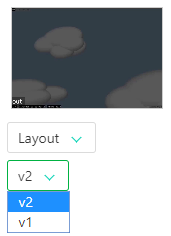
For each shot/asset in the playlist, you (or the client) can choose the task and the version to view.
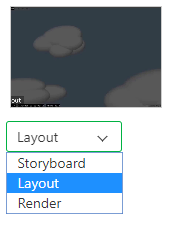
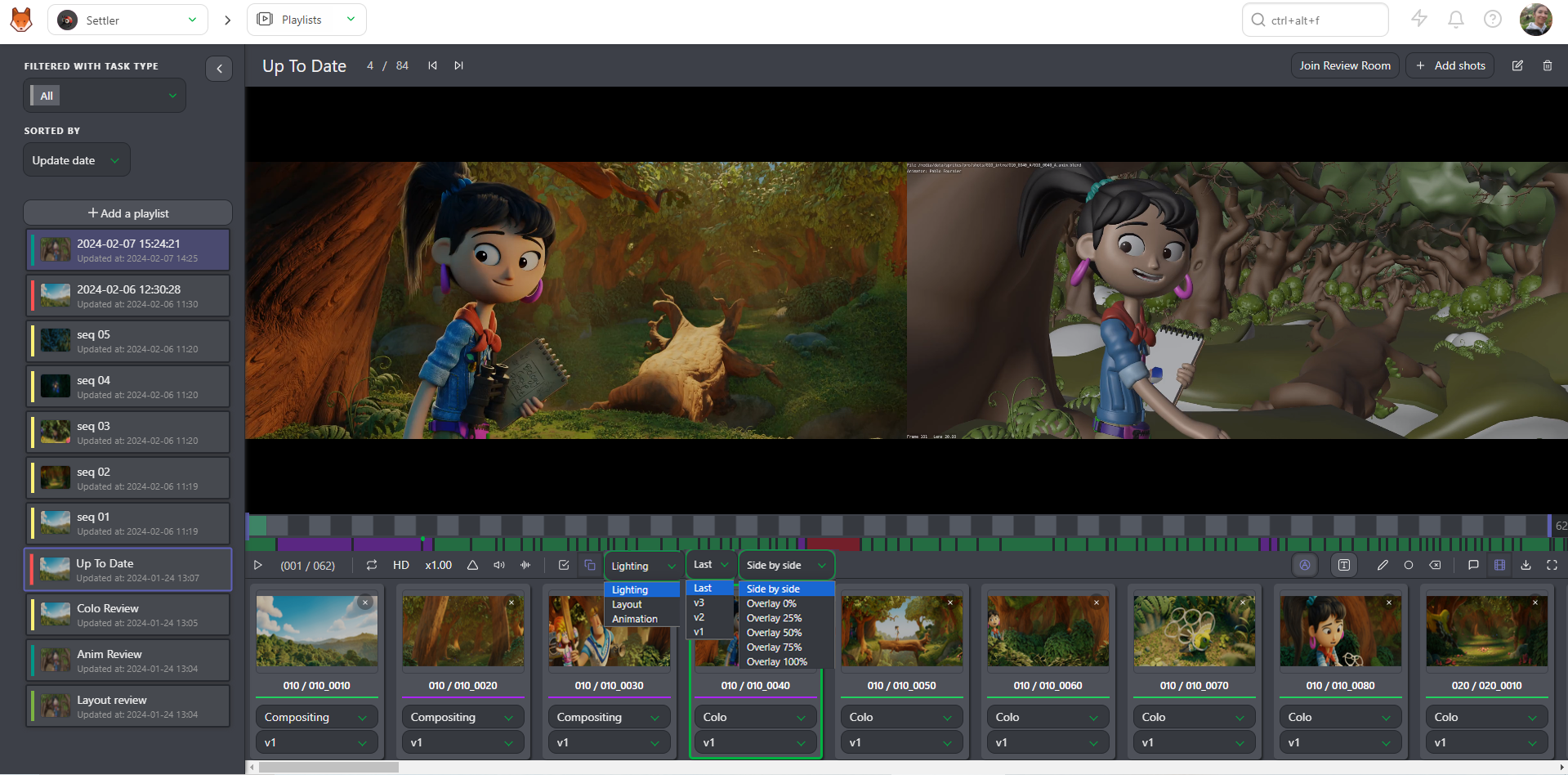
You can also play two tasks of a shot side by side. Click on the Compare button  and choose the second task type.
Commenting
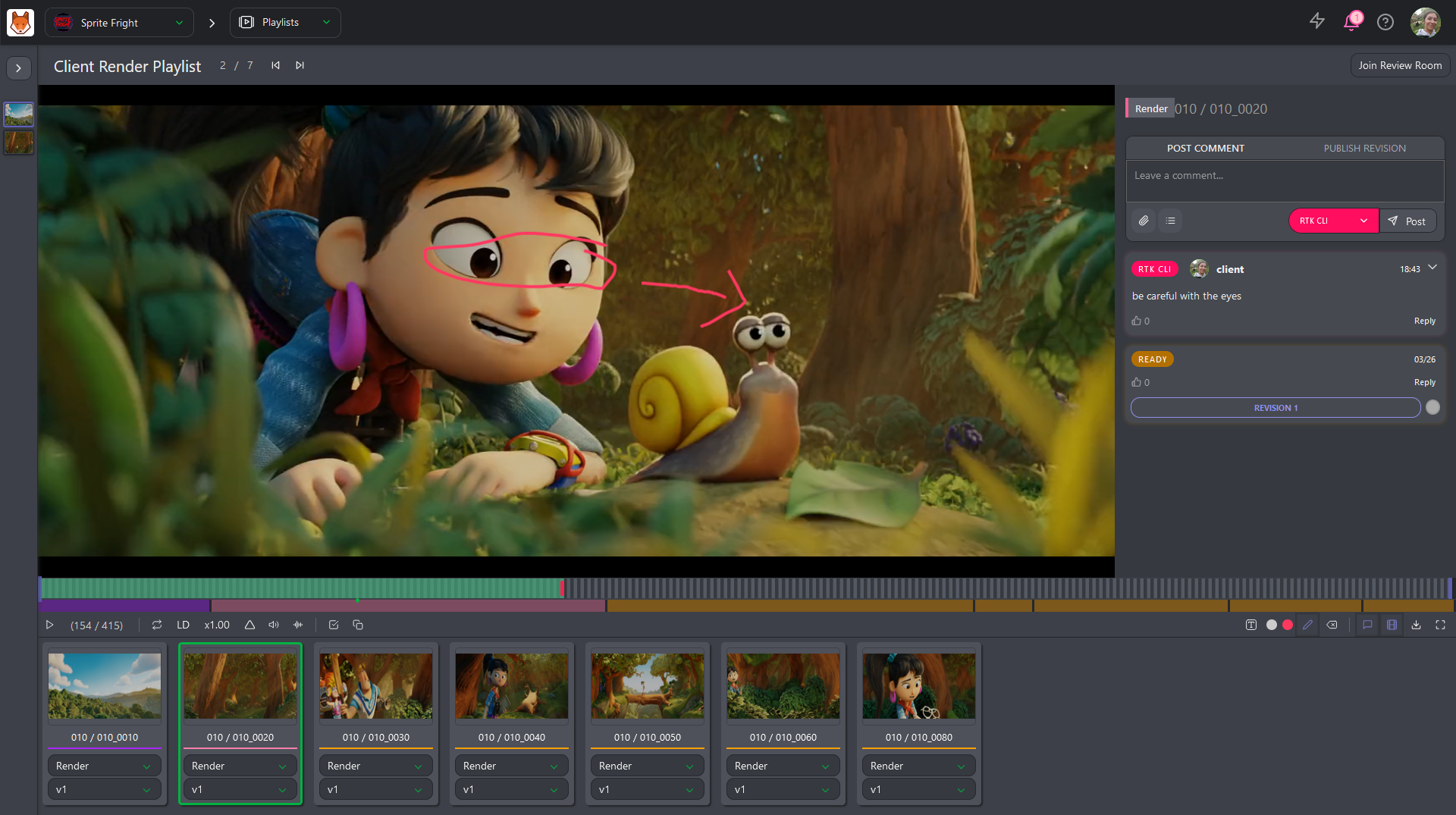
The primary purpose of the playlist is to help review the shots and assets. You can comment directly from the preview by clicking the comment button.
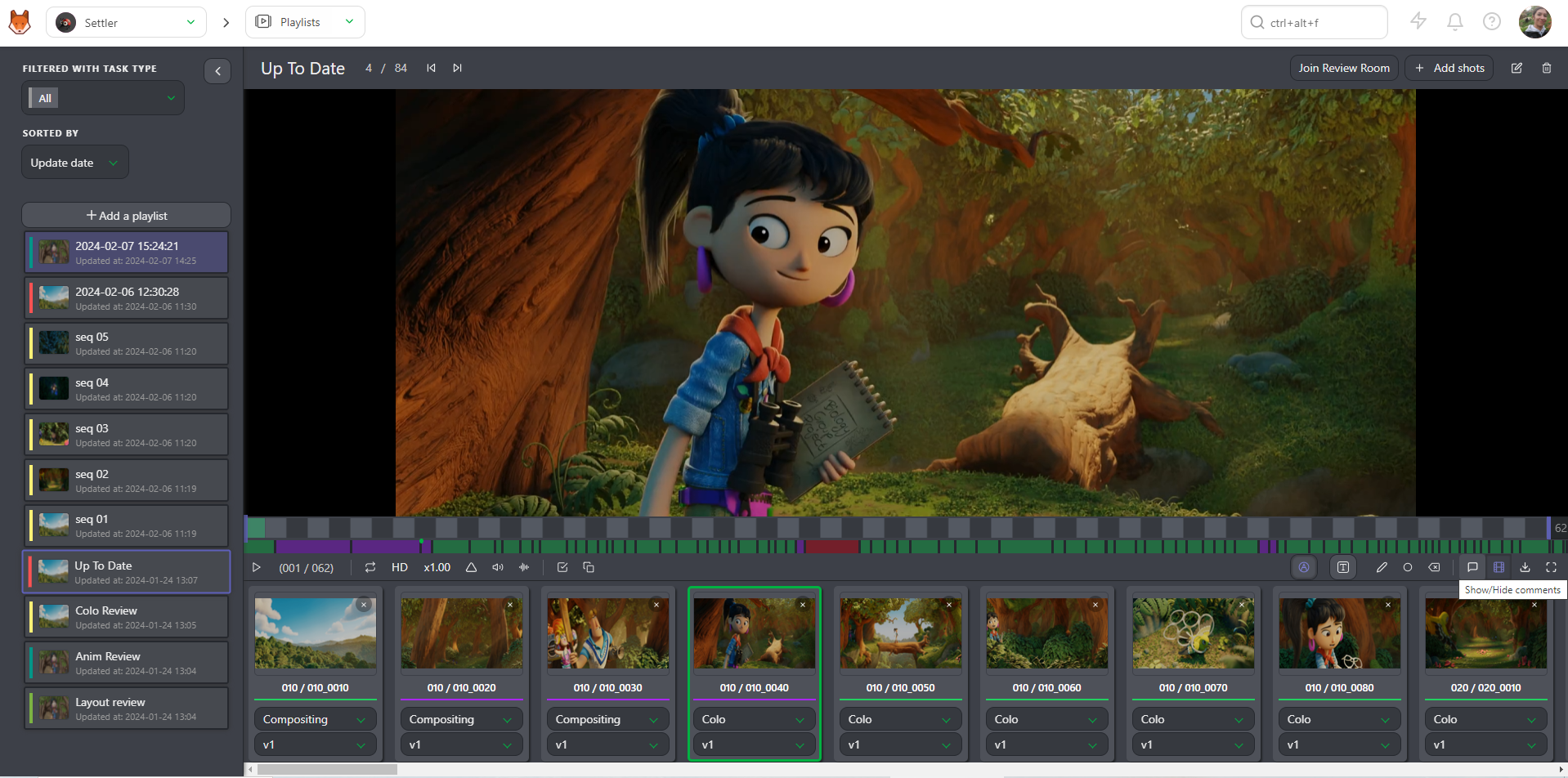
This opens the right panel, which shows a history of the comments and their status. You can see drawing comments on the video (the red dot below the timeline).
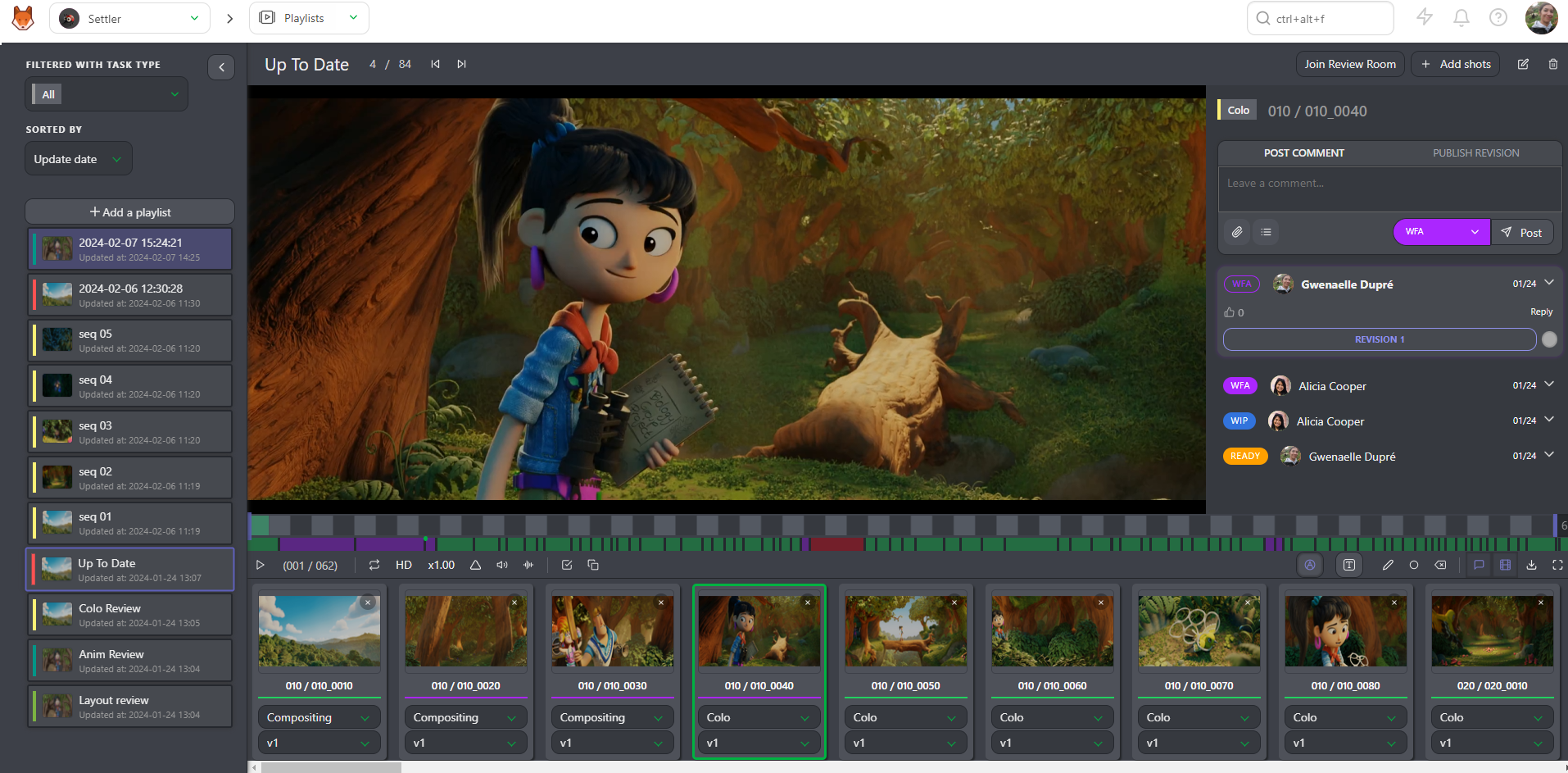
You can draw or type on the video with the draw button  (similar to Perform a review).
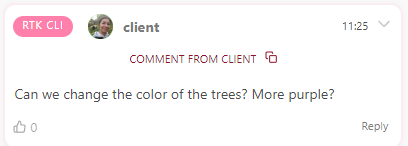
For clients, the comment button opens the same kind of panel, but showing only their own comments and status history, without access to internal comments or statuses.
WARNING
Only the supervisor and production manager can see the client's comments — artists will only see the status. The supervisor and production manager can copy the client's comments, modify them if necessary, and publish them for the team.
Share your Comments
First open the comment section. 
From there, you can change the status to  if you want the artist to perform some changes.
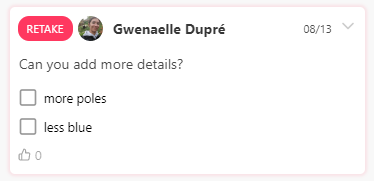
You can add a checklist to your comments. Click the Add checklist button, and the first item of the checklist appears.
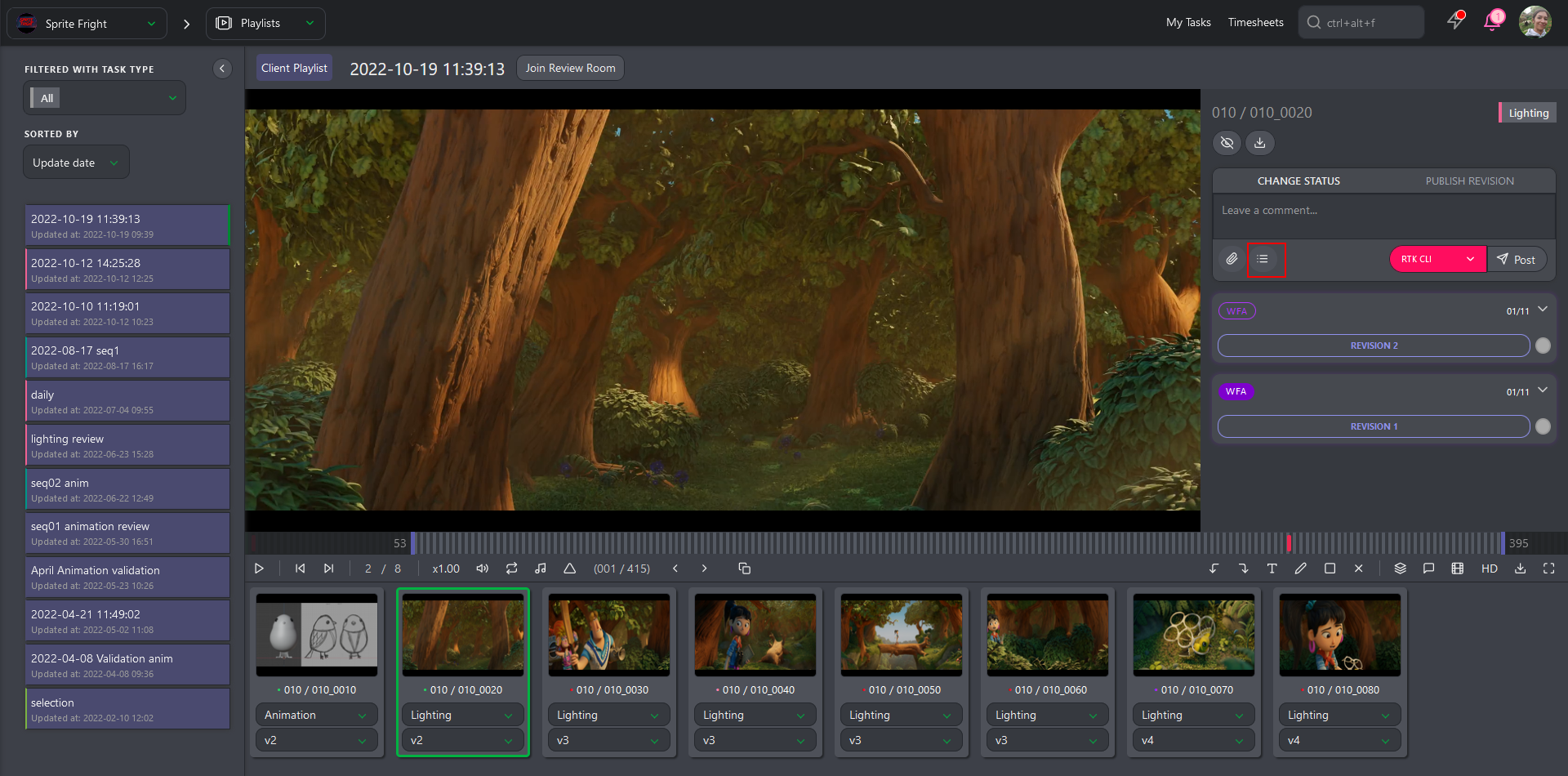
Type your comment, and hit Enter to add another line to your checklist, or click again on the Add Checklist button.
Review Room
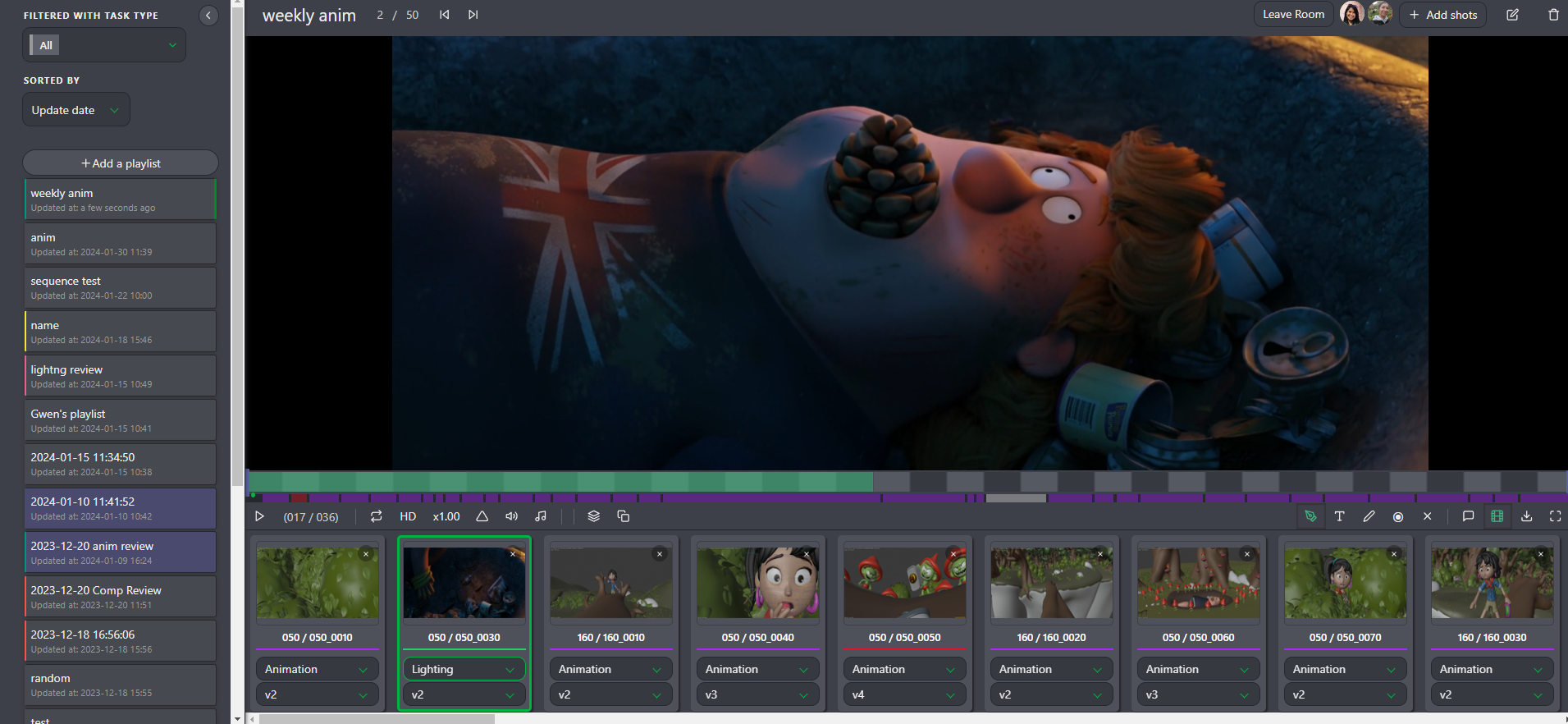
The Review Room is a collaborative space designed for efficient and synchronized dailies review sessions, for both internal teams and clients. It ensures that all participants are viewing the same content simultaneously, facilitating real-time feedback and discussion.
You can join the Review Room by clicking the button at the top of the playlist. Everyone in the room will see the play, pause, shot, and frame selections in real-time.
The Review Room also supports synchronized drawing annotations: participants can draw directly on the frames being reviewed, with all annotations visible to everyone in the session. This makes it easier to point out specific details, suggest changes, and highlight important aspects of the work.
Share Playlist
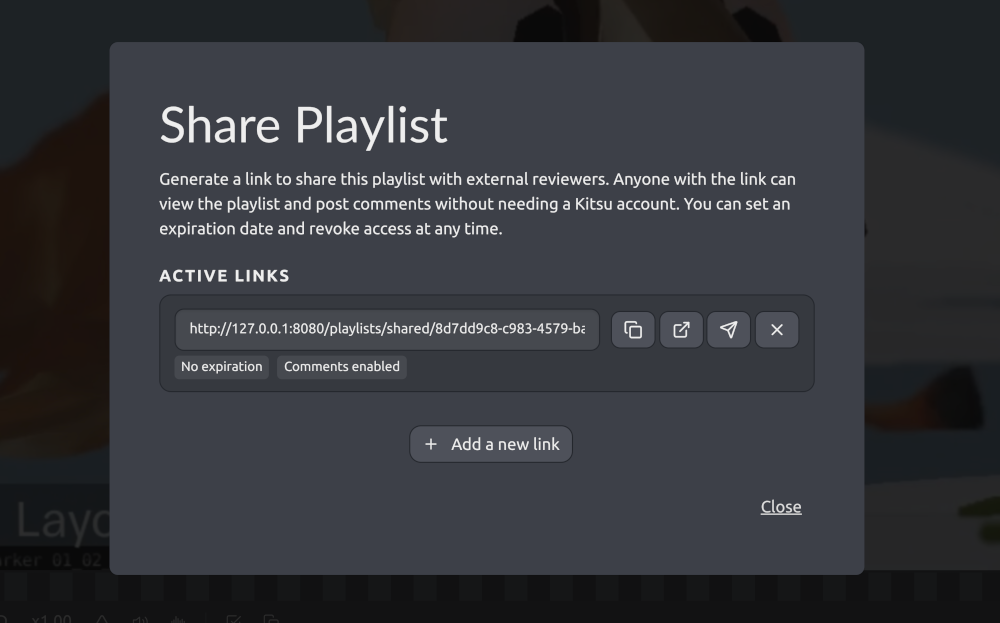
There are two ways to share playlists depending on if the reviewer has access to your Kitsu instance (internal review) or not (guest review).
1. Invite Internal Reviewers
Simply assign a shot or sequence to a team member for them to be added to the corresponding playlist.
2. Guest Review Experience
Getting feedback from temporary clients or external partners shouldn't require creating accounts. With Kitsu's public link sharing, you can send a playlist with a single link and let guests access a dedicated review player where they can:
- Leave comments
- Make drawing annotations
- Update statuses
- Manage checklists on their own feedback
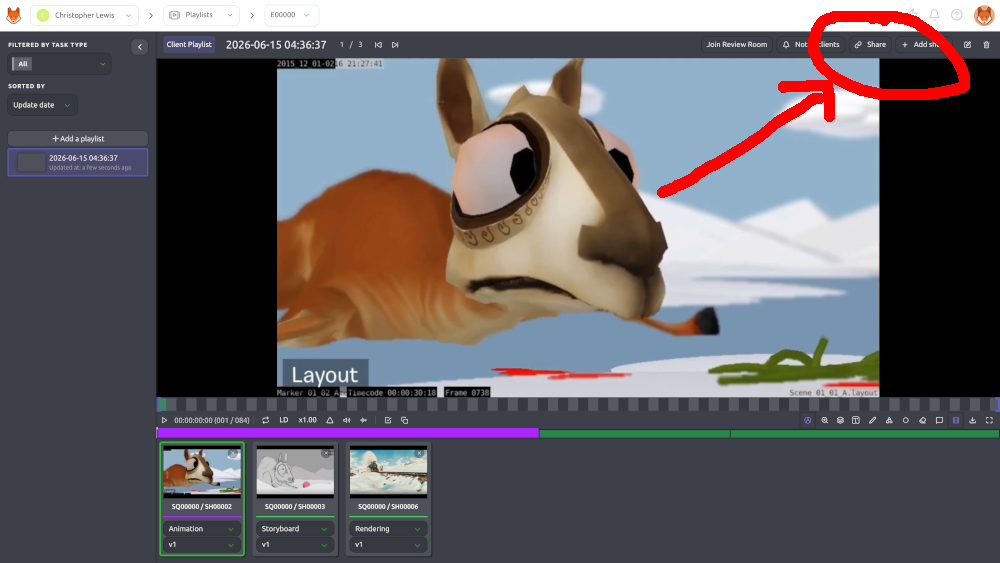
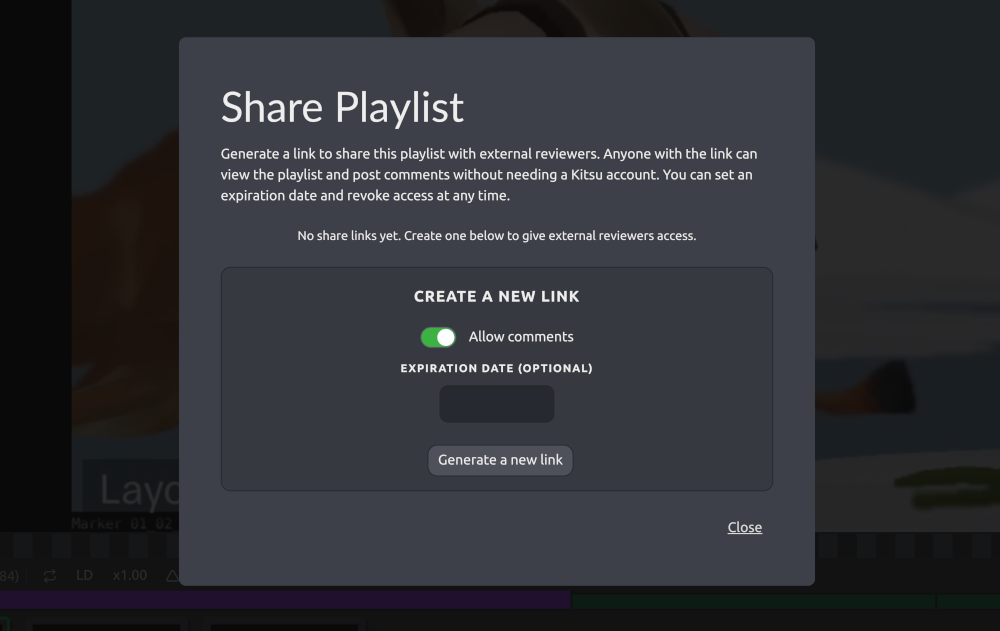
- In your playlist, click the
Sharebutton in the top right corner:
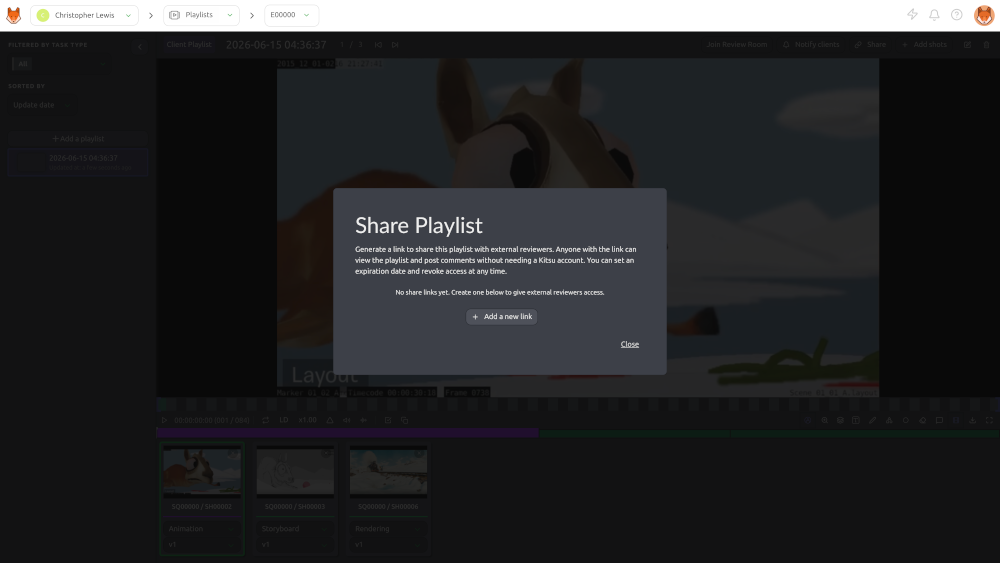
- Click
Add a new link:
- Select if you want to allow guest comments and optionally pick an expiration date for the link:
- Share the public link with your guests. Anyone with the link can view the playlist, so be careful not to leak outside your safe space.