
Updating Task Progress
Task statuses are indicators reflecting the current state or progress of a task.
Boards allow you to easily see the current status of a task at a glance and add comments to update team members when a status changes.
Once you've made progress on your task, you'll want to update your team on its status.
Updating a Task Status
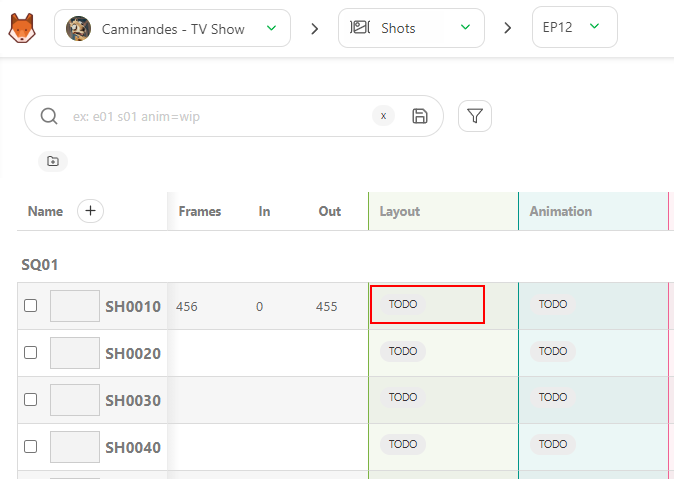
- Click the task's Status icon on the My Tasks page or the relevant asset page.
A panel will appear on the right where you can write a comment, change the status, and attach a file.
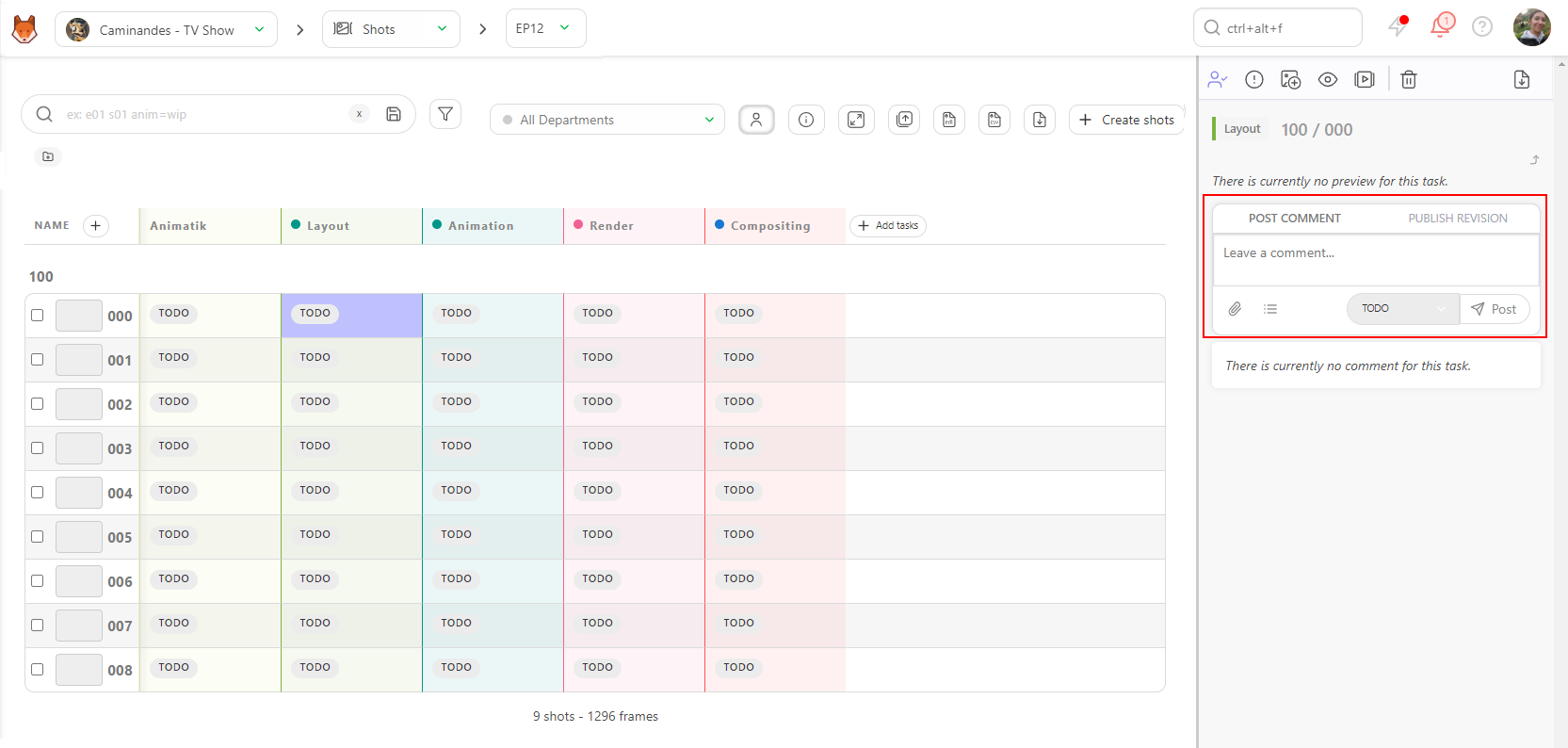
The Comment Panel is split into two tabs:
- POST COMMENT
- PUBLISH REVISION
Add comments to provide updates or ask questions. Comments support the use of Markdown, which is a markup language used for formatting plain text in a simple, readable way. It allows users to add basic formatting elements such as headings, lists, bold and italic text, links and much more. For specific syntax, you can refer to the markdown guide website: Markdown Guide.
Change the status (e.g., from "Ready" to "WIP") from the POST COMMENT tab.
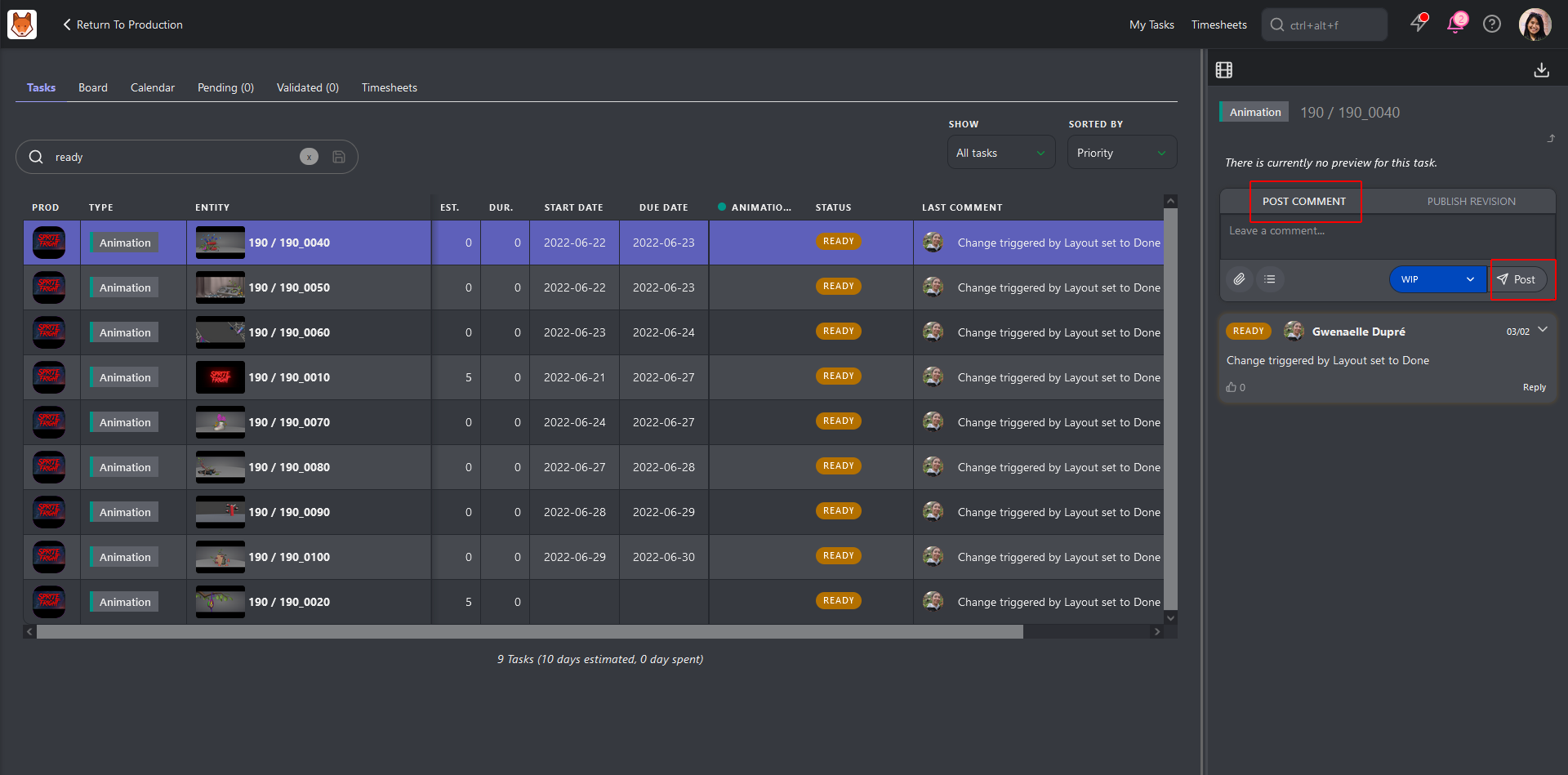
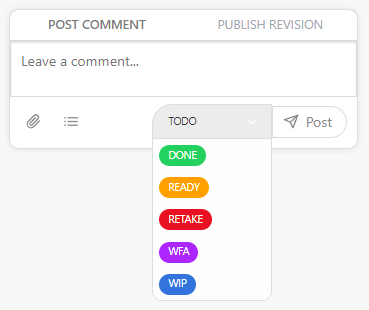
- Click Post to save changes.
You can edit your most recent comment by clicking the History button and selecting Edit.

Tagging Team Members
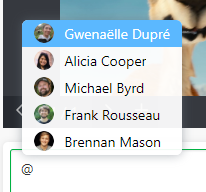
You can also tag a team member in the comments to notify them directly. To do this, type @, which will open a submenu with a list of team members. Select the person you wish to notify, and upon submitting your comment, they will receive a notification.
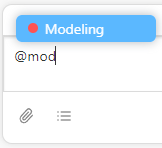
You can also tag an entire department by typing '@' followed by the department's name.
Adding Checklists
You can also add checklist items to keep track of miscellaneous items that don't warrant their own task. To add a checklist to your comments, click the Add checklist button. The first item of the checklist will appear.
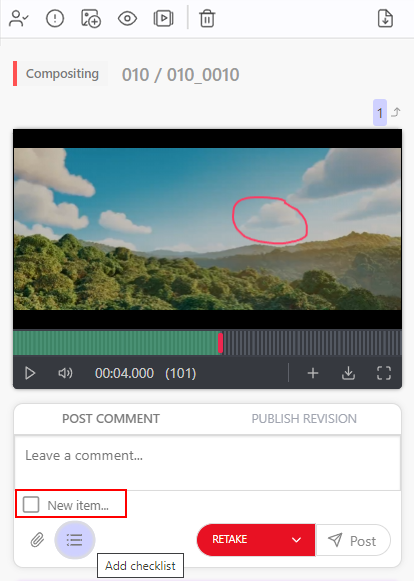
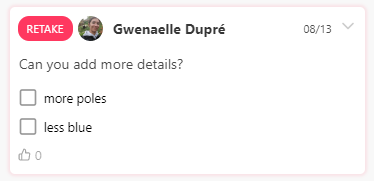
Hit Enter or click the button again to add more checklist items, and give each one a name.
Adding Attachments
To attach a file as a picture, click on the Add attachment button.
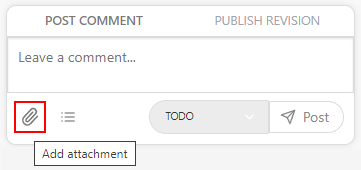
Select a file from your hard drive or paste a screenshot.
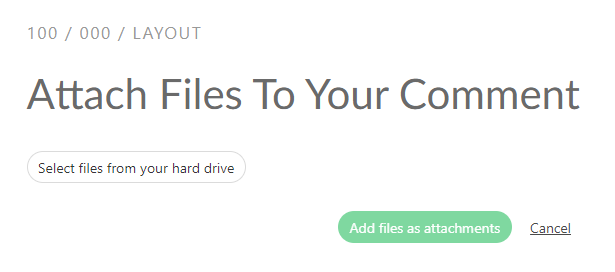
Validate the attachment by clicking on Add file as attachment.
Changing Statuses In Bulk
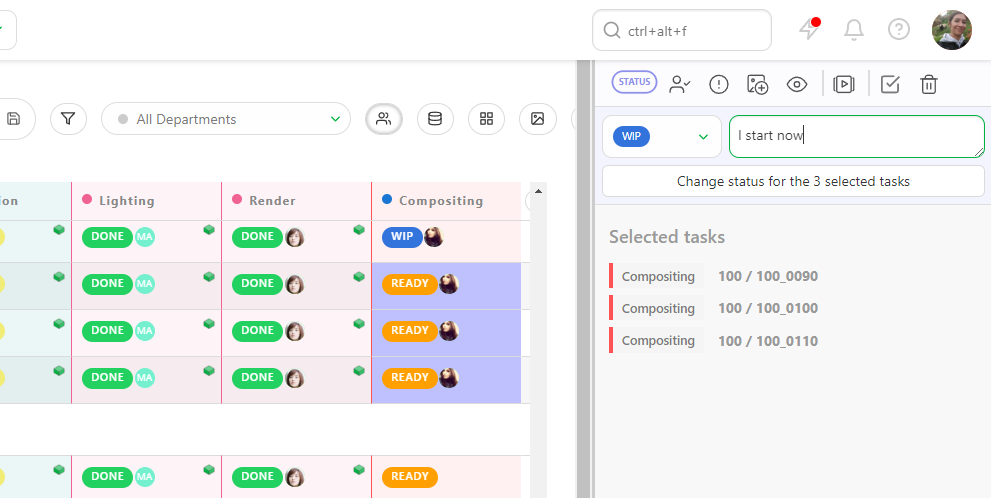
You can also change the status for multiple tasks at once.
Select multiple shots or assets by pressing Ctrl / Cmd or Shift and select the tasks you wish to include.
Then, go to the action menu's Change status section.
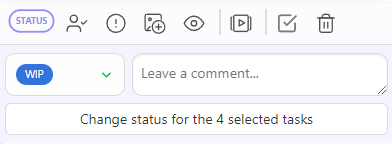
Choose the new status for your selected tasks (1). You can also add a comment for all the selected tasks (2). Save the new status with the Confirm button.
Delete Comments
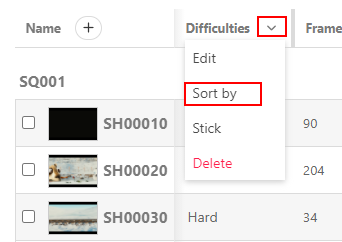
To delete a comment, click on the chevron icon in the top right corner and select Delete.