
Studio Resource Overview
As a Producer, you need to know everything.
Usually, this involves keeping track of numerous details, attending multiple meetings with your production team, and constantly verifying everything yourself. Alternatively, you could subscribe to all the tasks and be overwhelmed by notifications, which disrupt your focus every time you stop to read them.
The perfect solution is to have all the production stats in one page, always up-to-date.
The All Tasks Page
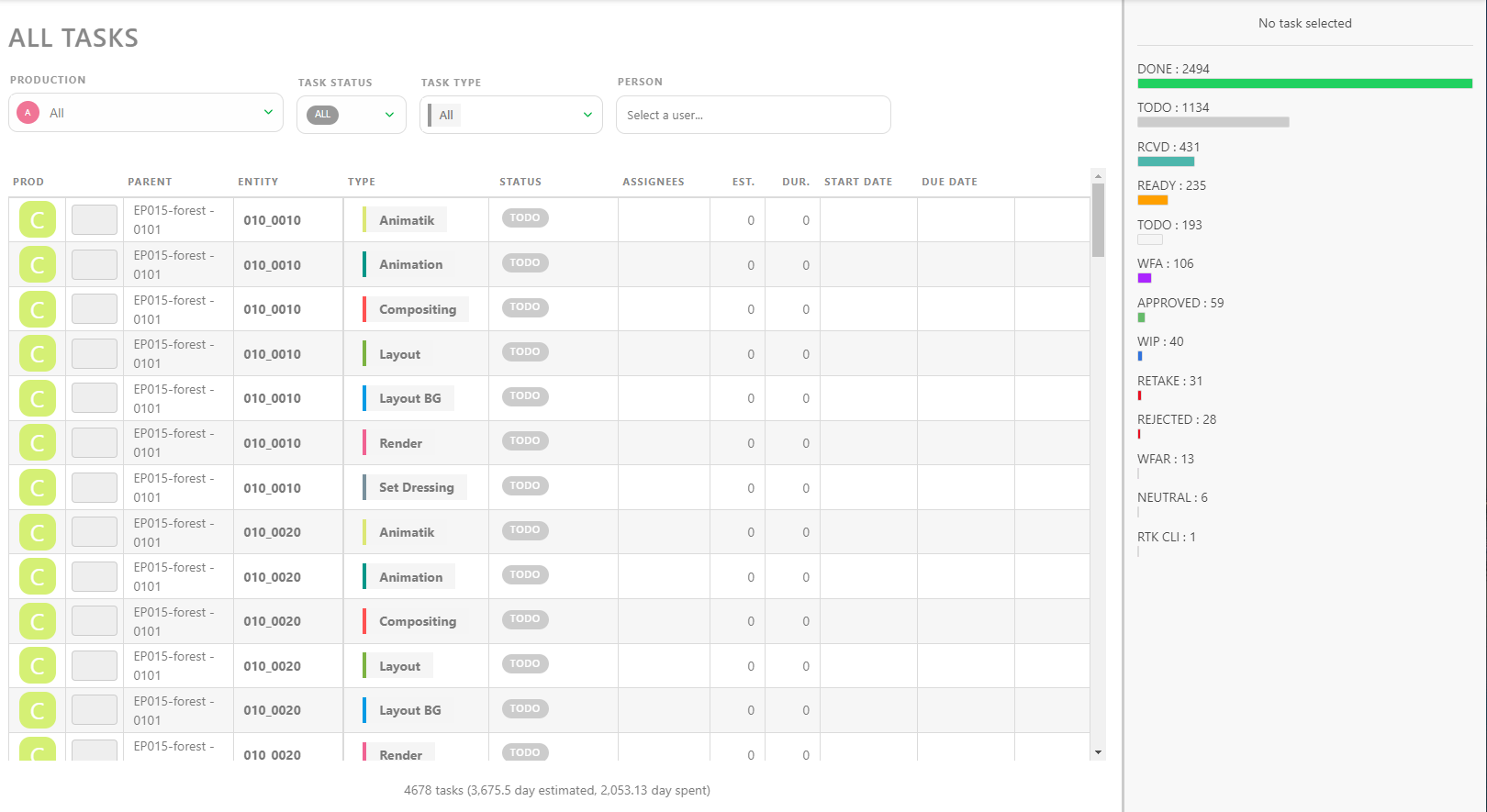
Here, you can see the status of all productions at once. You can filter the list by Production, Task Status, Task Type, and Person. Clicking on a line opens the comment panel on the right, providing all the information you need.
If you need more detailed information, especially about a specific timeframe, you can use the Studio > News Feed page.
With the Filters Builder button, you can define a specific time frame.
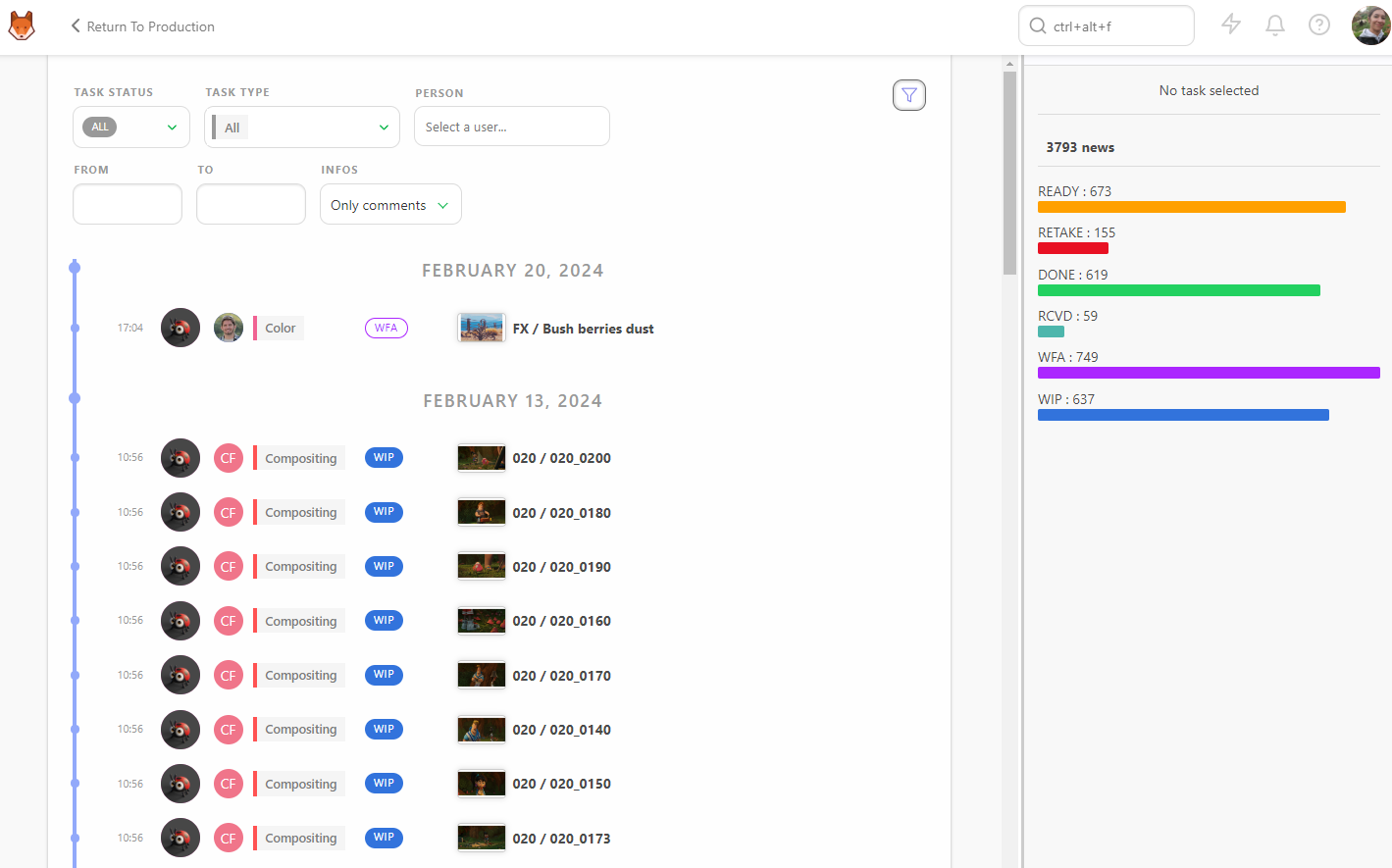
For example, if you want to focus on the workload a supervisor for a specific month, select their name and then pick a date in the From box.
Current State of All Productions
To ensure your studio functions smoothly, you need to stay on top of all ongoing productions. This is where the Productions section can help. Access it from the global menu under the Studio section.
From there, click on the Load stats button to see the current state of your productions.
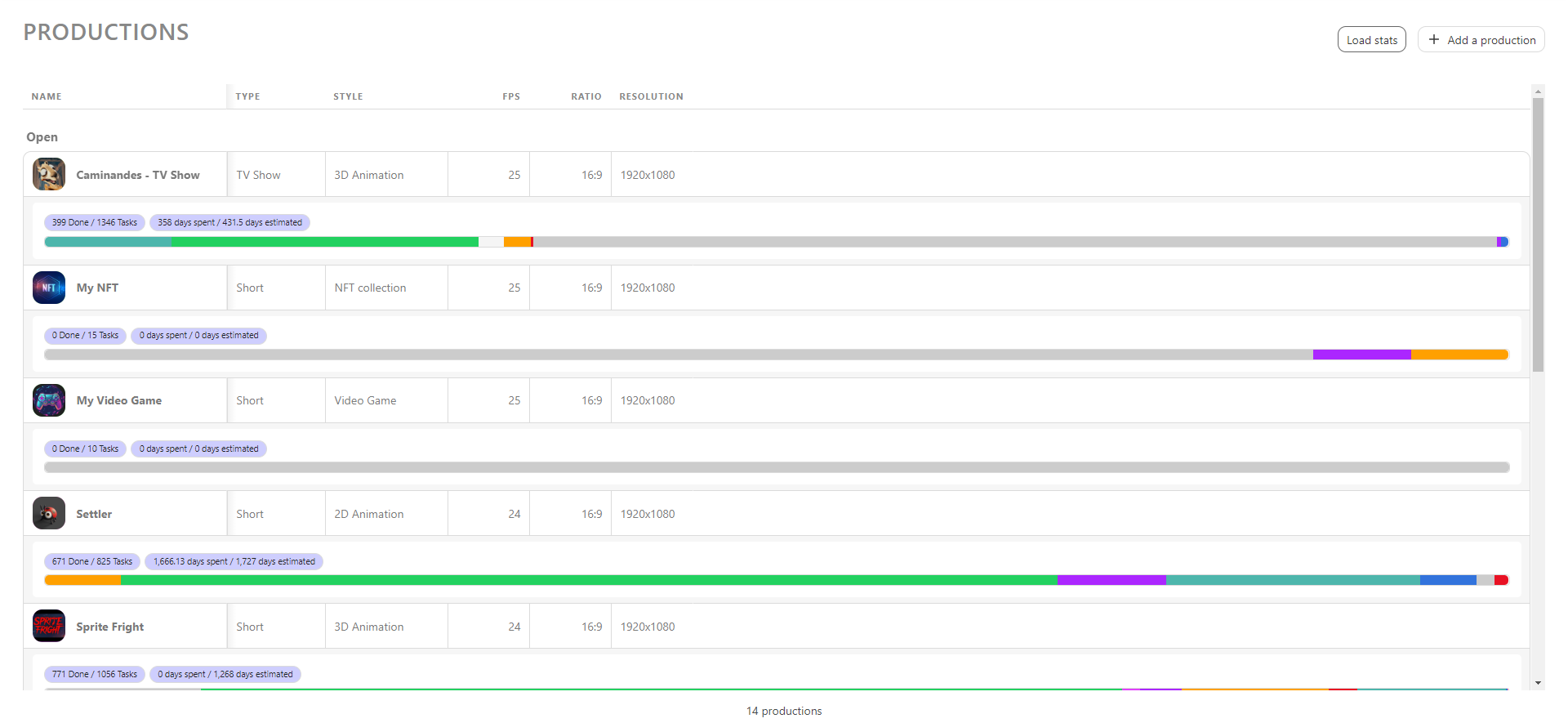
For more detailed information, visit the Sequence Stats and Asset Types Stats pages of all the productions.