
Advanced Search & Filters
Filtering involves selectively retrieving data based on specific criteria or conditions. It enables users to easily hone in information they want to focus on, or extract relevant subsets of data for analysis.
Kitsu provides a series of features that allow you to easily find what you are looking for.
The Search Bar
In Kitsu, filters are set through the search bar. It allows you to save your search query. Once done, you can rerun your query with a simple click (see Managing Saved Filters below).

You can find the Search Bar, Filter Builder and the Save option  in the following pages:
- Assets
- Shots
- Sequences
- Edits
- Episodes
NB: Only the Search Bar and pre-built filters are available on the following pages:
- My Production
- My Tasks
- People
- Sequence Stats
- Episodes Stats
- Asset Types Stats
- Quotas
- Team
- Detailed Task Type page
TIP
On the other pages of Kitsu, you will find pre-built filters.
The search bar query is applied every time a new character is typed. You don't need to type everything to get a quick result.
WARNING
The filter is instant except for the Feature Film type of production. Kitsu expects to have thousands of elements, so to speed up the process, you must type your Search and press enter to apply it.
Search Syntax & Examples
For example, on the assets page, type the letter Ot, and you get the result of all the assets starting with an Ot.
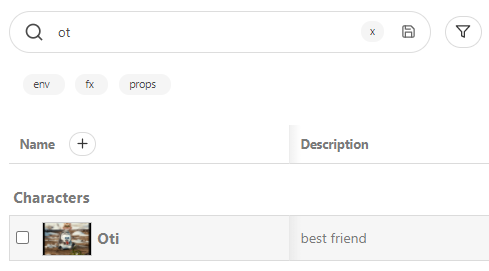
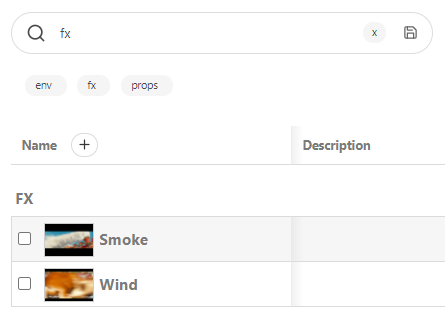
You can also search for some specific type of asset: Props, Character, Environment, Fx ... The result displays all the assets of this type.
For example, let's search all the FX assets.
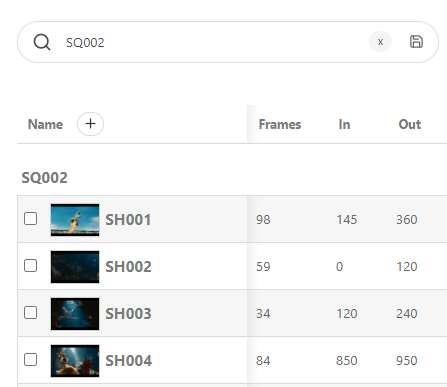
Another example gets the shots page of a specific sequence. For example, you can only see the shots of the second sequence of the first episode.
Select the first episode on the dropdown menu, then search sq002; the result gets all the shots of all the episodes from sequence SQ002.
In the same way, you can search for a specific status linked to a task.
TIP
You can create filters about entities on all the pages:
- Sequences:
se01,se02etc. or exclude:-se01,-se02etc. - Asset Type:
characters,environment,fxetc., or exclude-characters,-fx, etc.
You can also create filters about task status by following this syntax: task=status on the global entities page
Examples:
- Layout is a work in progress (wip):
layout=wip. - Concept is waiting for approval (wfa) only for the fx:
concept=wfa fx. - On sequence 2, Layout is wip:
se02 layout=wip - Animation is retaken, and Render is waiting for approval (wfa):
animation=retake render=wfa.
For the Detailed task type page, you can filter by typing only
- Status:
wipor exclude-done, several status[wfa] [retake]. - Name of an artist:
Aliciaor exclude-Paul
You can do a mix of all the filters:
[wfa] [retake] -alicia 020.
Creating Filters
Using the Filter Builder
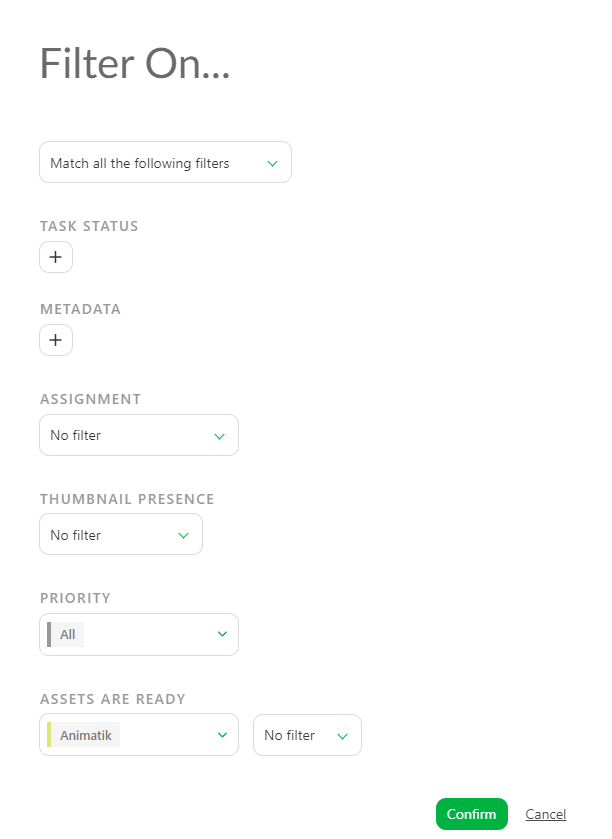
The easiest way to achieve more advanced filtering is to use the filter builder. Click on the Filter Builder icon shown below to get started.

You can then use the interactive filter builder dialogue to create your desired filter criteria.
WARNING
The first option, Match all the following filters, will use all the options you select on the filter builder for the filtering:
- Task Status
- Metadata
- Assignment
- Thumbnail Presence
- Priority
- Ready for / Assets are Ready
The second option, Match one of the following filters, will skip the unavailable filter option.
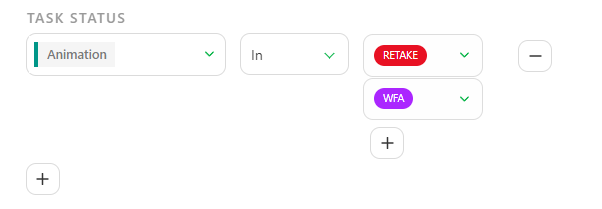
Task Status Filtering
Task Status helps you filter a task type by status.
- Equal will report all the tasks with this status on this task type
- Not Equal will report all the task except this status
- In report all the tasks with all the statuses you've selected
You can use the - button to remove one of the statuses selected.
You can use the + below the status to add more status.
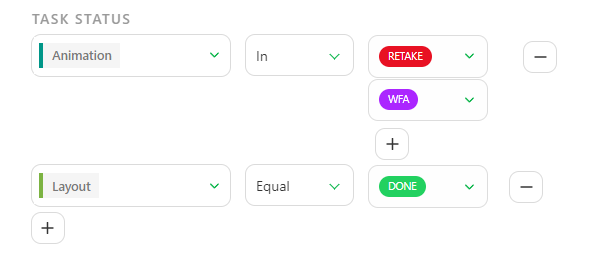
TIP
If you want to filter the status of several task types, click on the + below the task status option on the left part of the screen.
Metadata Filtering
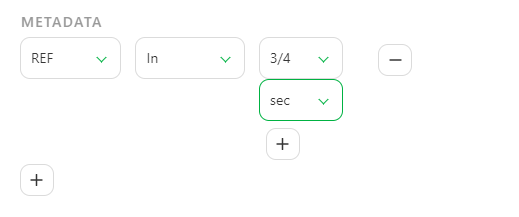
The Metadata filter allows you to filter your page based on the information of the extra columns.
- Equal will report all the tasks with this information on this Metadata column
- Not Equal will report all the task except this information
- In report all the tasks with all the information you've selected
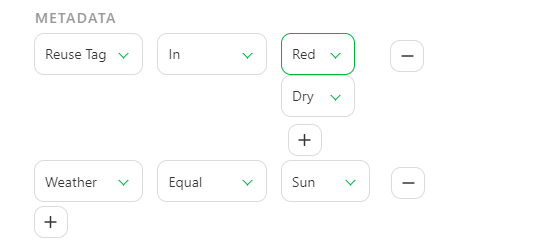
TIP
If you want to filter elements on several Metadata, you can click on the + below the Metadata option on the left part of the screen.
Assignment Filtering
This option is related to people and assignments.
- No filter: you don't look for people
- Assigned to: allows you to search for the task assigned to someone on a specific task type
- Not assigned to: allows you to search for the task not assigned to someone on a specific task type
- Assignments exist for: will report all the tasks of a specific task type with an assignation
- No assignment exists for: will report all the tasks of a specific task type with no assignation
WARNING
You can only filter assignation on ONE Task type for ONE person.
You can not add several assignment filters.
Thumbnail Filtering
By default, this filter is set to No filter, meaning Kitsu won't check whether a thumbnail is present.
Then you have the choice between:
- With thumbnail: display all the entities with a thumbnail
- Without thumbnail: display all the entities without a thumbnail
Priority Filtering
You can filter a task type with a specific level of priority.
TIP
To learn more about priorities, see Change Priorities
First, select your task type, then you can choose between
- Normal (the default level of priority)
- High
- Very High
- Emergency
WARNING
You can only filter priority on ONE Task type for ONE level of priority.
You can not add several priority filters.
Using the "Ready For" Status
Depending on whether you are filtering on the asset or shot global page, you can filter on the Ready For status.
- On the asset page, you will search for the Ready for column.
- On the shot page, you will check whether all the assets for these tasks are ready (see Create your production).
WARNING
You can only filter Ready for on ONE Task type.
You can not add several Ready For filters.
Managing Saved Filters
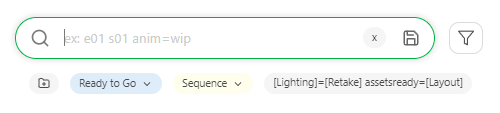
Kitsu allows you to save any filter query to be re-used later. Save a query by pressing Enter, or by clicking the Save button .
Once saved, your query appears as a button under the search bar.
TIP
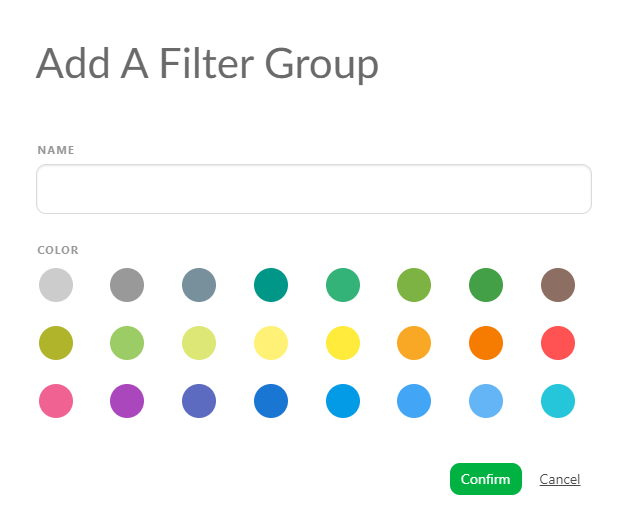
Notice the first icon on the left and the colored buttons.
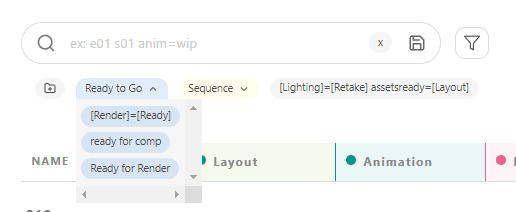
It allows you to Create a Filter Group. This way, you can keep your saved filters organized under a colored Group.
These buttons are there every time you return to this page. They help you run common queries faster.
Renaming a Saved Filter
The saved filter is quite long and hard to read. Hover your mouse over the saved filter to see two icons: one to edit and one to delete.

You can change the name displayed in the Name section of the pop-up window.
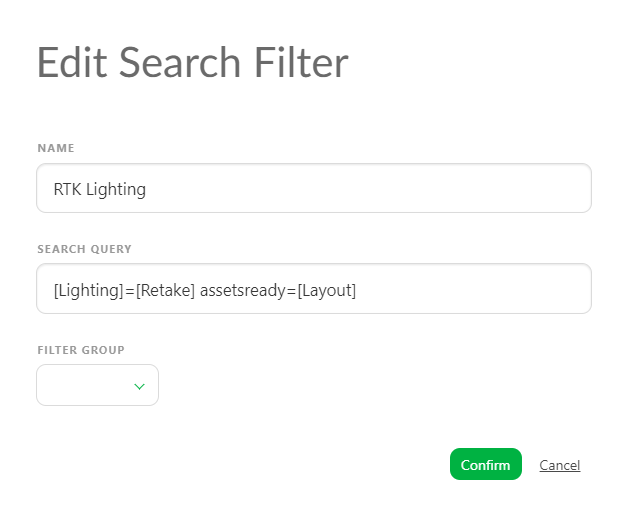
You can also choose whether to keep the saved query in or out of a Filtered Group.
Deleting a Filter
If you have created a filter button by mistake, click on the cross next to it  .
.
The result of the filter is displayed, but the button is not. Just cancel your research by deleting the text or use the cross next to the Search bar  .
.
Pre-built Filters
You can find pre-built Filters on the following pages:
- My Checks
- Timesheets
- Team Schedule
- All Tasks
- Newsfeeds
- Concepts
- Quotas
- Task Type detailed page (+search bar)
On these pages, select the option you want from the dropdown menu.