Budget
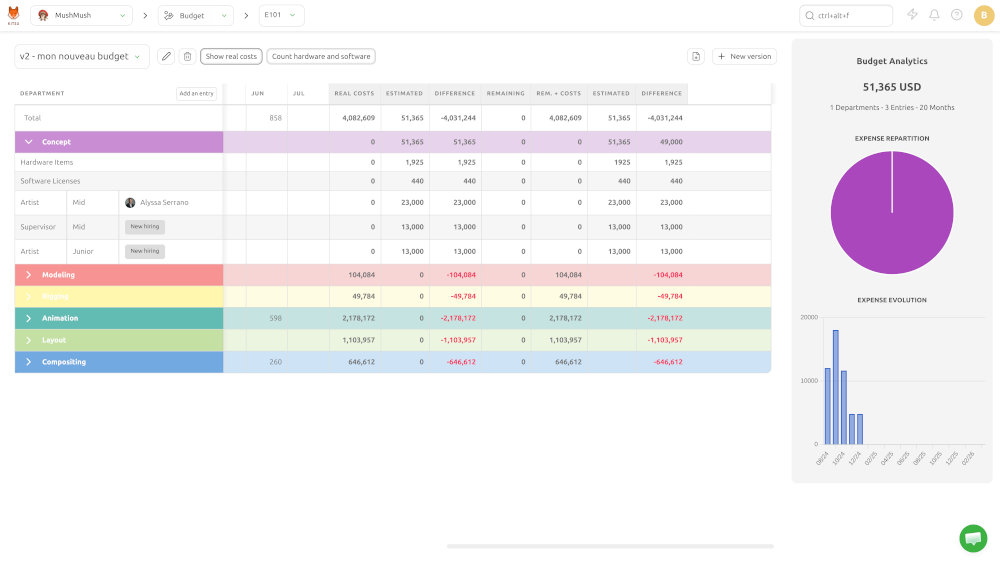
In your Production menu, go to Budget to find the Budget Forecasting page:
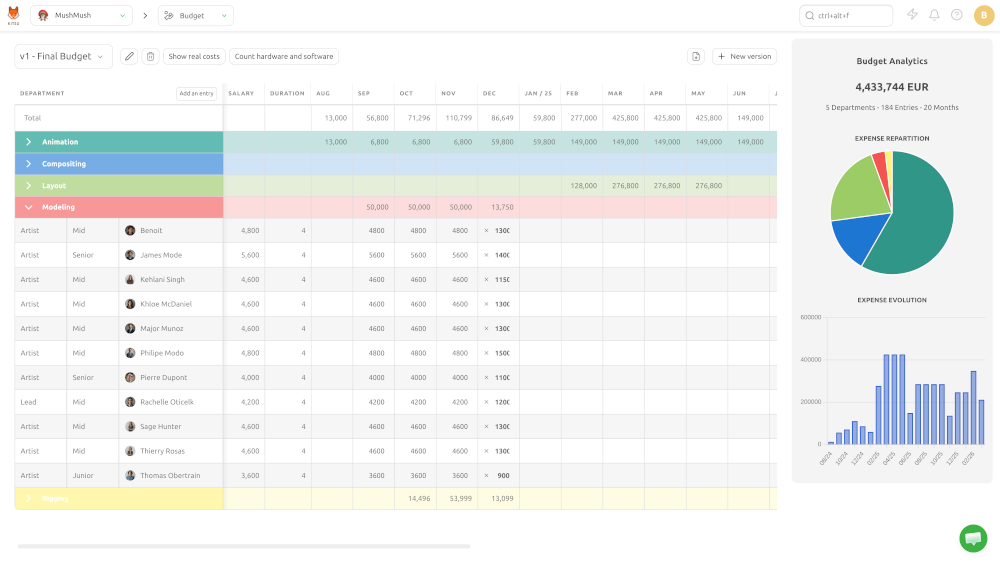
You can use this page to forecast, compare, and manage production costs with accuracy:
- Track expense distribution and monitor cost evolution over time for your hired crew
- Create multiple budget versions to plan for different scenarios
- Admins can enter daily rates at the person level, which are used when that person is assigned to a department role
- For predicted hires, you can use a seniority-based placeholder with a corresponding salary scale
- Automatically pulls cost data from your Software Licenses and Hardware Items lists
Create a new budget
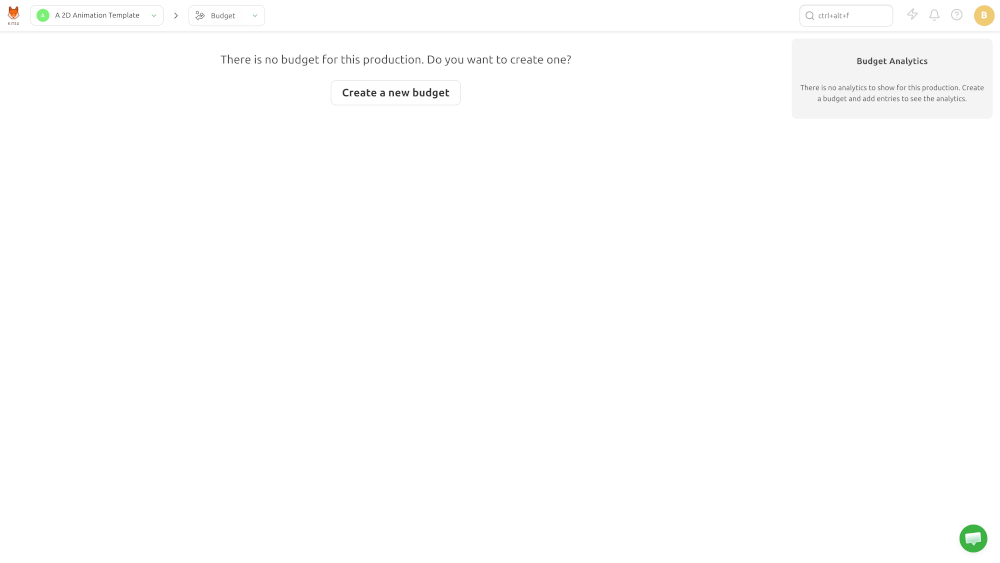
The first time you use the feature, click Create a new budget:
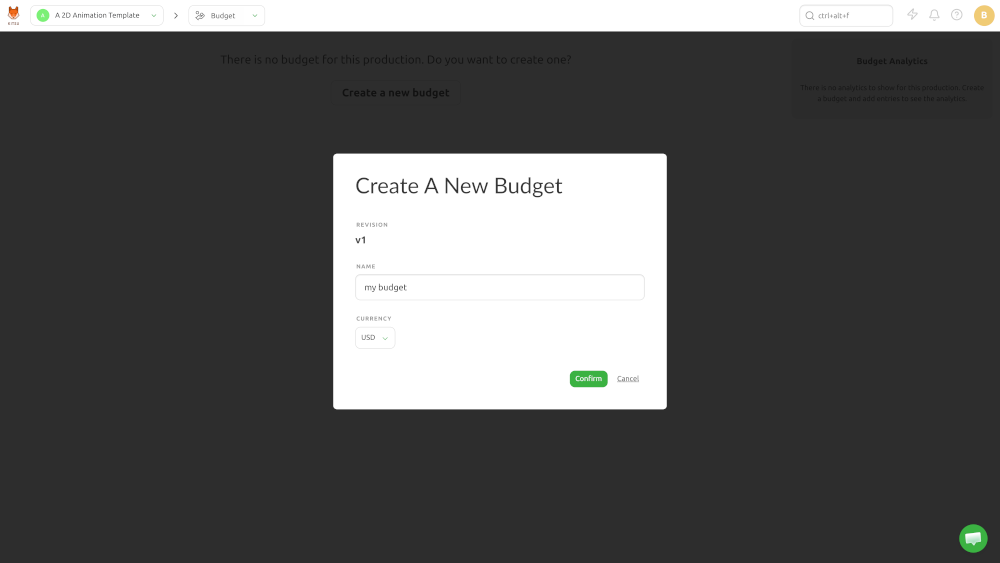
Pick a name and a currency:
Add a new budget entry
A budget entry represents one cost item you add to a production's budget plan. Things like a person's day rate for a task type, a piece of software/license cost, a hardware cost.
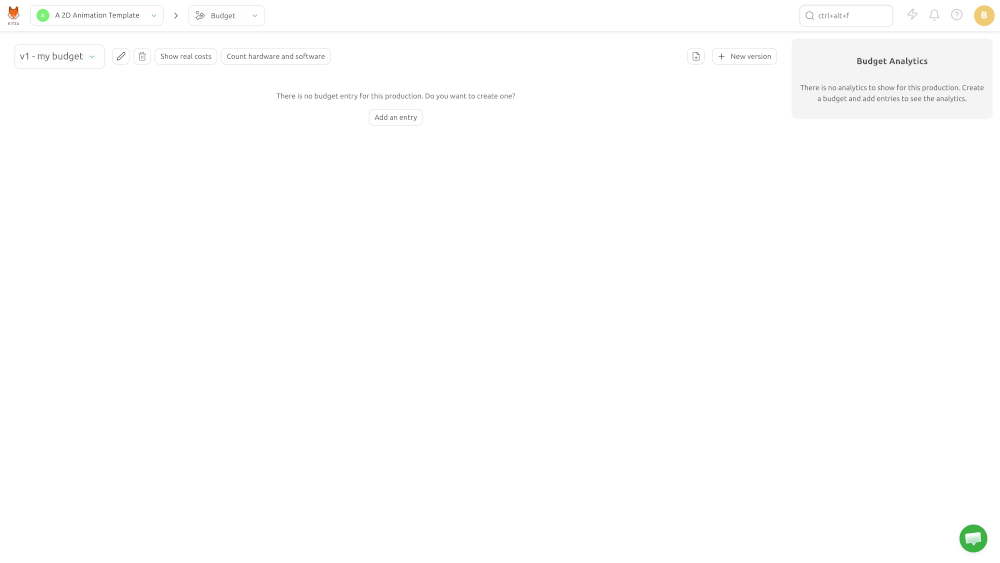
In the Budget page, you can add labor entries by clicking the Add an entry button:
Then fill up the form and click Confirm:
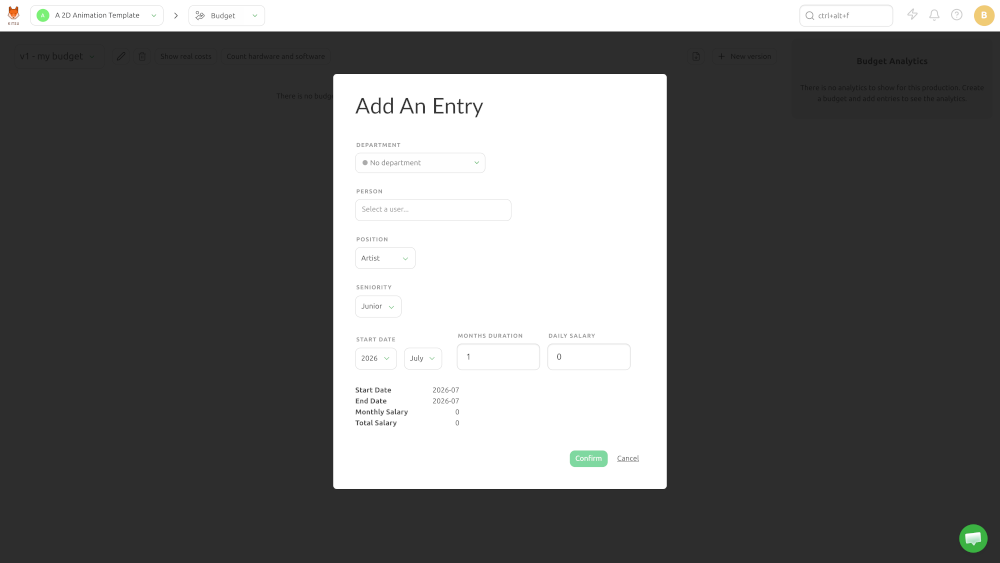
- Department: the department the person belongs to
- Person (optional): the person you're budgeting for
- Position: artist, supervisor, or lead
- Seniority: junior, mid, or senior
- Start date: when their work starts
- Months duration: how many months the work last
- Daily salary: how much they are paid per day in the budget currency
The monthly salary is calculated as Daily Salary X 20 Work Days per month. The total salary is just the monthly salary multiplied by the number of budgeted months.
To make budgeting easier, it's possible to define a salary scale that Kitsu will use to generate default daily salary based on department, position and seniority.
Define a salary scale
The salary scale page is accessed from Main Menu > Admin > Salary Scale:
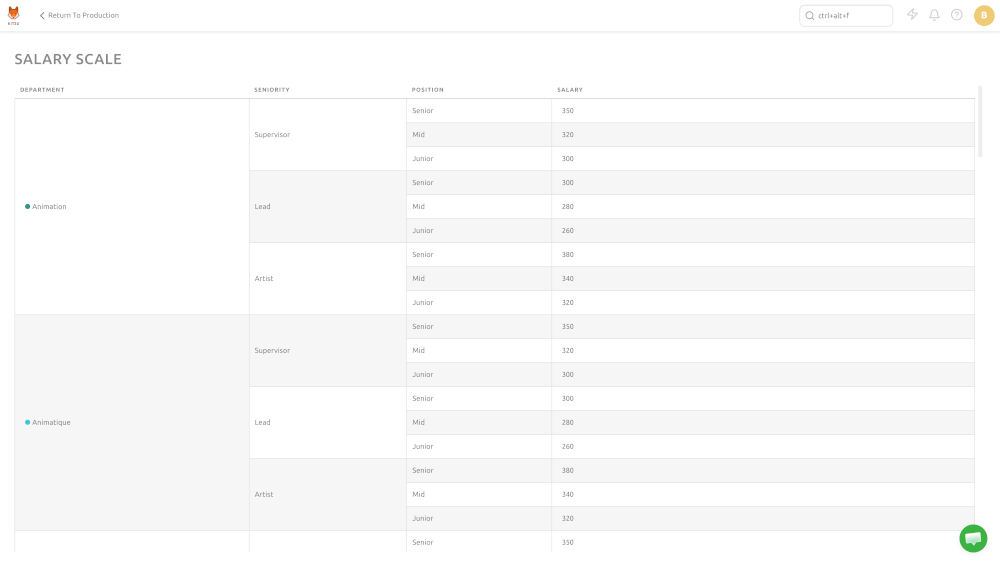
Studio managers can define default day rates depending on the person's department, position, and seniority.
Simply click the salary cell you wish to change and input your number. Kitsu autosaves any change.
Add a new budget version
Sometimes you need to forecast different budget scenarios to see how they would impact your production.
To do that, you can create a new budget version by clicking New version in the top right corner of your budget page.
Managing software licenses
To manage software license costs, head to Main Menu > Admin > Software Licences:
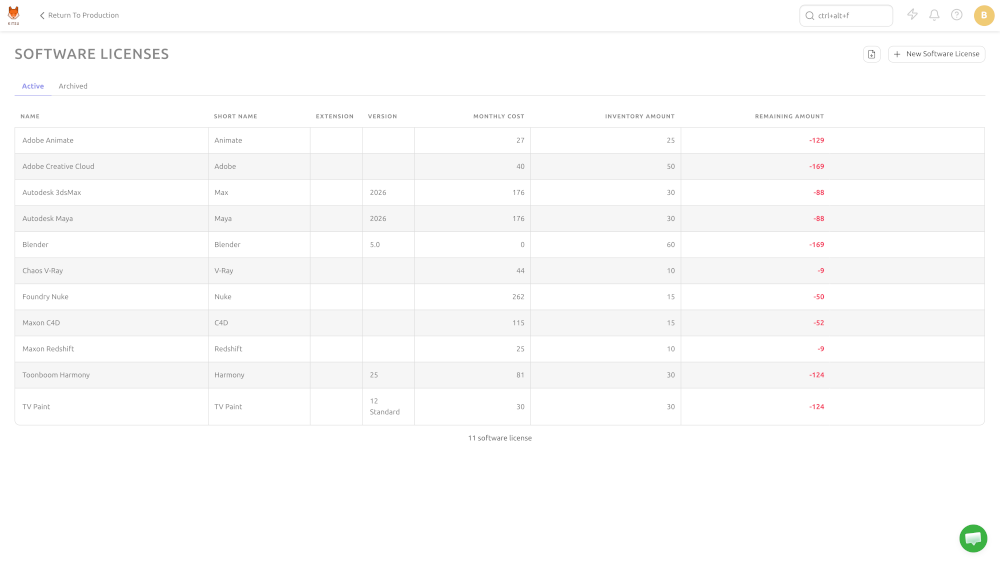
Each budget entry has the following properties:
- Name: the full software name
- Short name: a shorter name for reporting
- Extension: file extension if applicable (e.g .blend for Blender)
- Version: the software version number
- Monthly cost: how much the software costs per month
- Inventory amount: how many licenses have been purchased
- Remaining amount: how many licenses remain available
Accounting hardware items
To manage hardware item costs, head to Main Menu > Admin > Hardware Items:
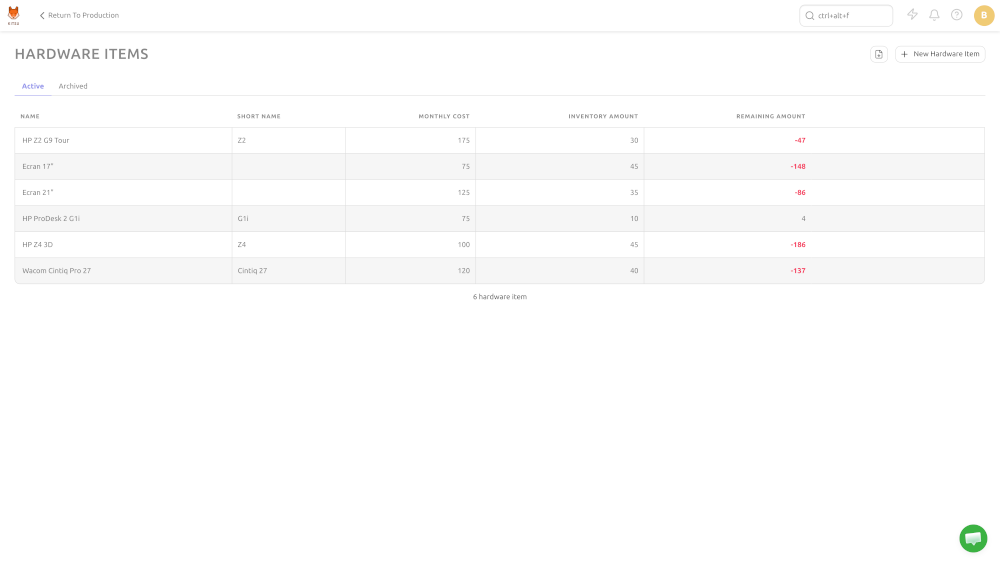
Each entry has the following properties:
- Name: the full product name
- Short name: a shorter name for reporting
- Monthly cost: how much the product costs per month
- Inventory amount: how many products have been purchased
- Remaining amount: how many products remain available
Linking software licenses and hardware items to departments
In the Departments page (Main Menu > Admin > Departments), you can navigate to the Linked Hardware and Linked Software tabs to assign costs to departments:
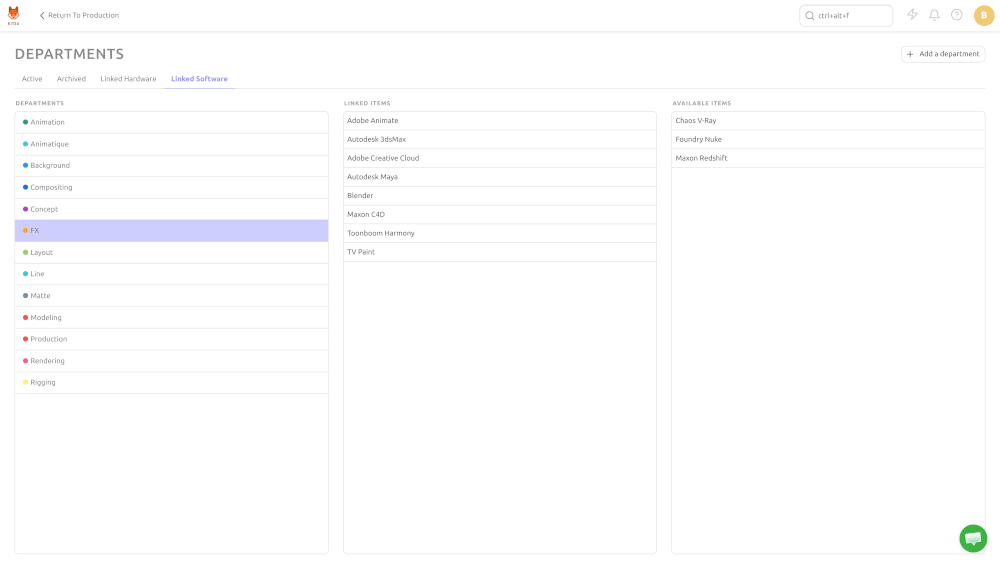
Simply click on the Linked Item to remove it, and click on an Available Item to add it to the department.
Kitsu automatically breaks down costs per department depending on the number of people in it. It also updates the Remaining Amount field of accounting entries.
Budget forecast vs real costs
Of course, reality isn't the same as planning. Kitsu accounts for that with a Show real costs button you can toggle to obtain a breakdown of how the budget forecast compares to the actual production budget: