
Ensure Tasks are On Time
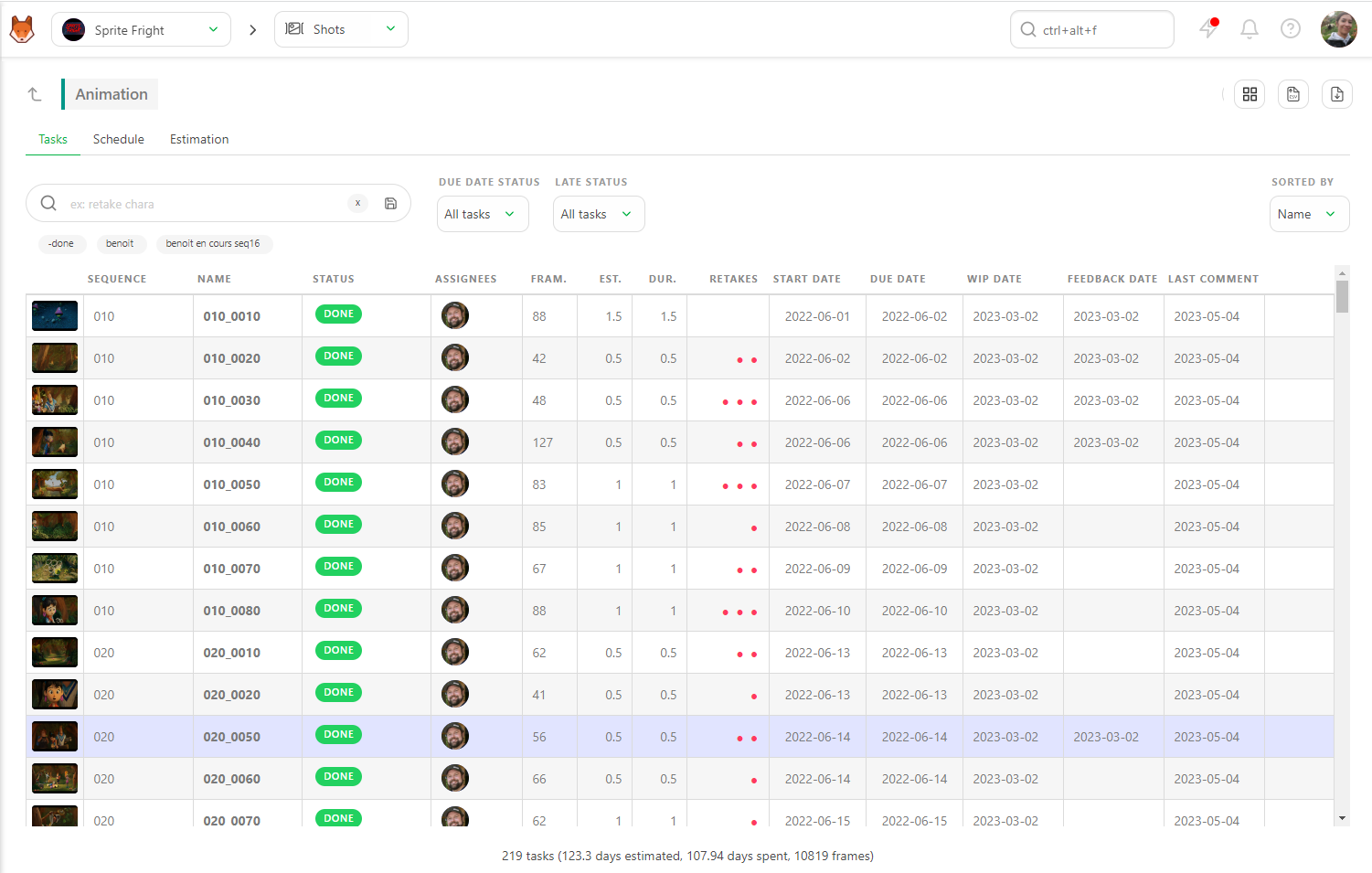
To know if a task is on time, you need two things:
- The Task Type of the task
- An Estimation (Bid) in days, along with an estimated Start date and Due date for the task.
Once this information is entered, you can compare estimation to reality on the Task Type page.
Methods to Compare Estimations and Actuals
There are two main ways to do this:
- Filtering by Due Date Status
- Using the Gantt Diagram
TIP
Kitsu automatically grabs the date and status of WIP (Work in Progress) and WFA (Waiting for Approval). You can compare your estimated start date versus when the Artist really starts, and compare the estimated due date to when the Artist asks for approval.
Filtering by Due Date Status
On the Tasks tab, the first filter you see is Due Date Status. Set it to Due before today to display all tasks with a Due date set Due Before Today.
Next, to determine what is finished and what still needs to be finished. Use the -Done filter to exclude completed tasks.
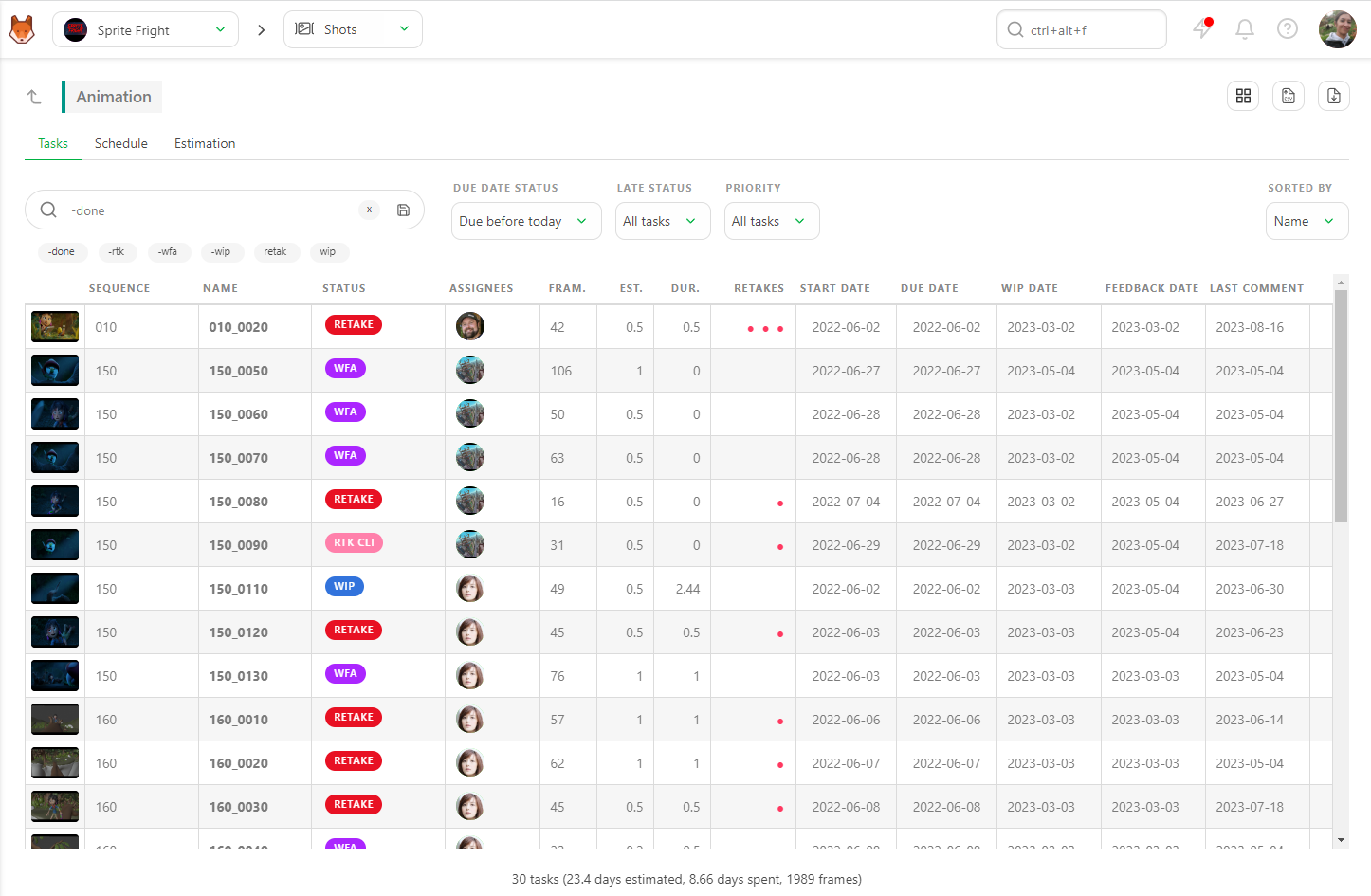
This will show you all the late tasks with the two filters applied, meaning they are only validated after the Estimated Due Date. The summary at the bottom of the page updates in real time based on the applied filters.
You can export this page as a CSV file and open it with spreadsheet software.
Using the Late Status Filter
The Late Status filter built into the page helps you immediately see which tasks took more time than estimated (Estimation over Duration).
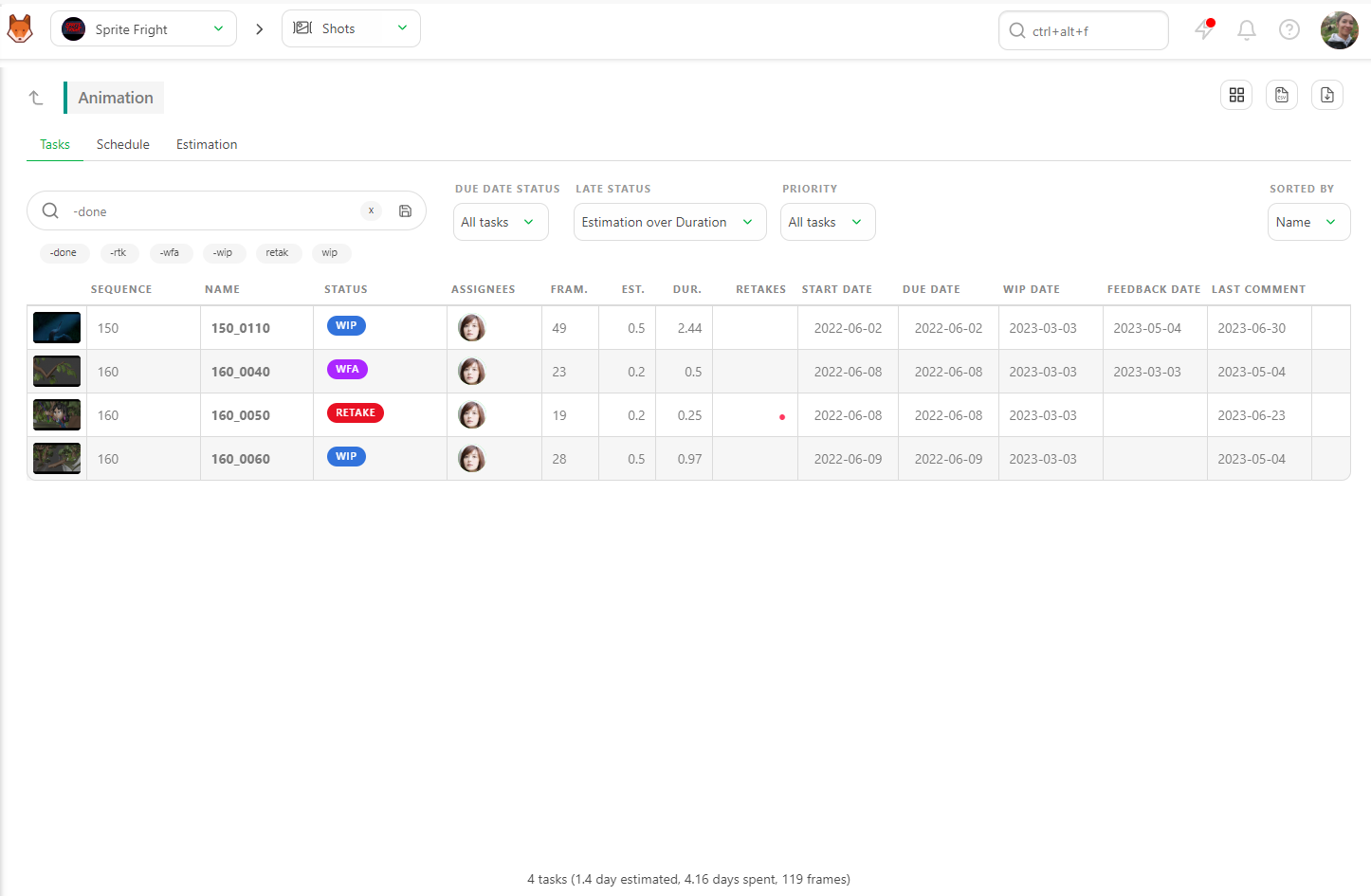
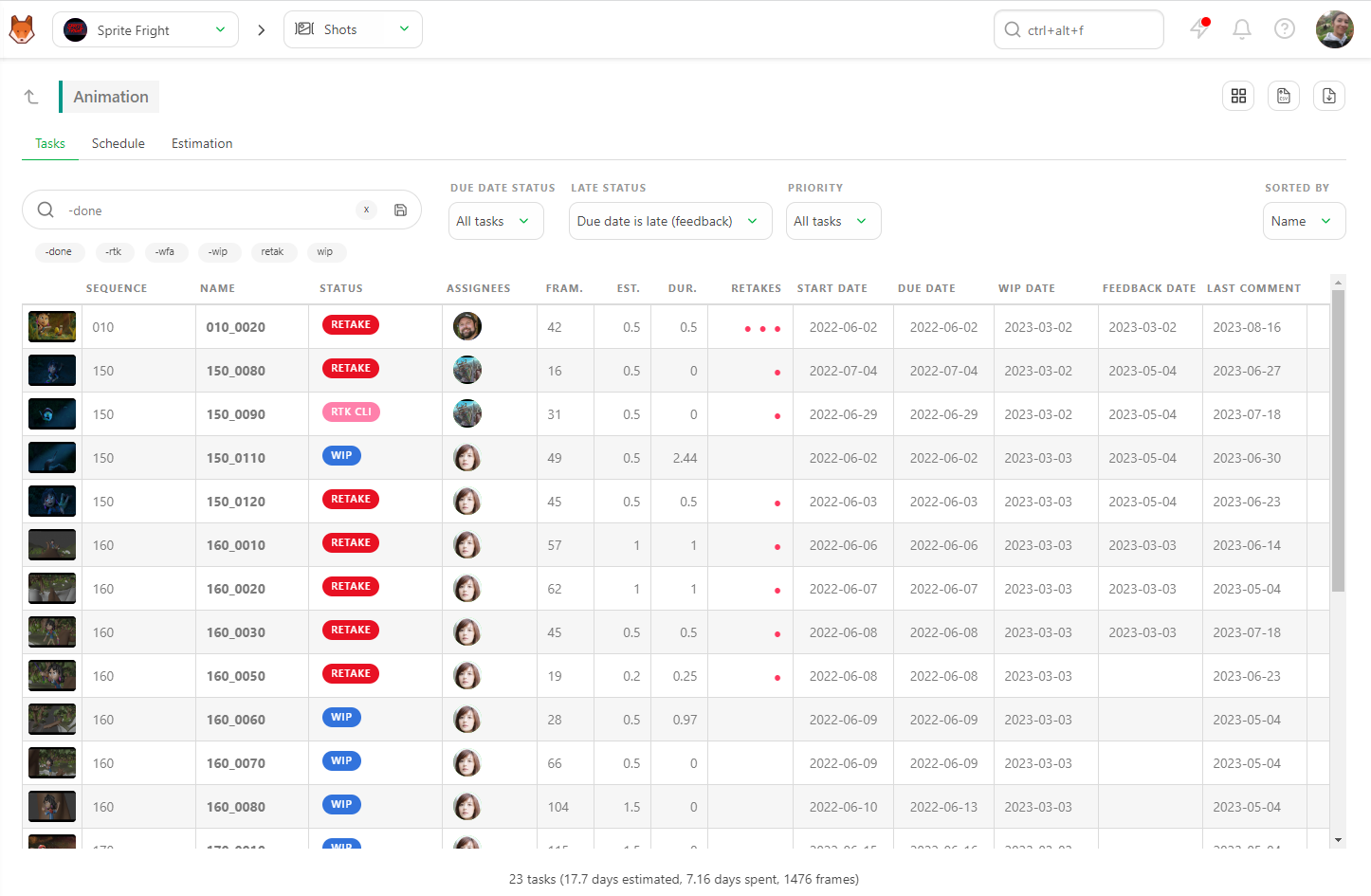
Filter the late tasks using the Due date late option. There are two ways to calculate if a task is late:
- Estimated due date versus Feedback
- Estimated due date versus Done
Depending on your studio's calculation method, Kitsu will provide the answer.
Using the Gantt Diagram
On the Task Type Page, go to the Schedule tab. The Start and End dates of this task type, as set on the production schedule, are visible at the top of the screen.
The Gantt Diagram will be dark grey before and after these dates, providing a visual cue for task timing.
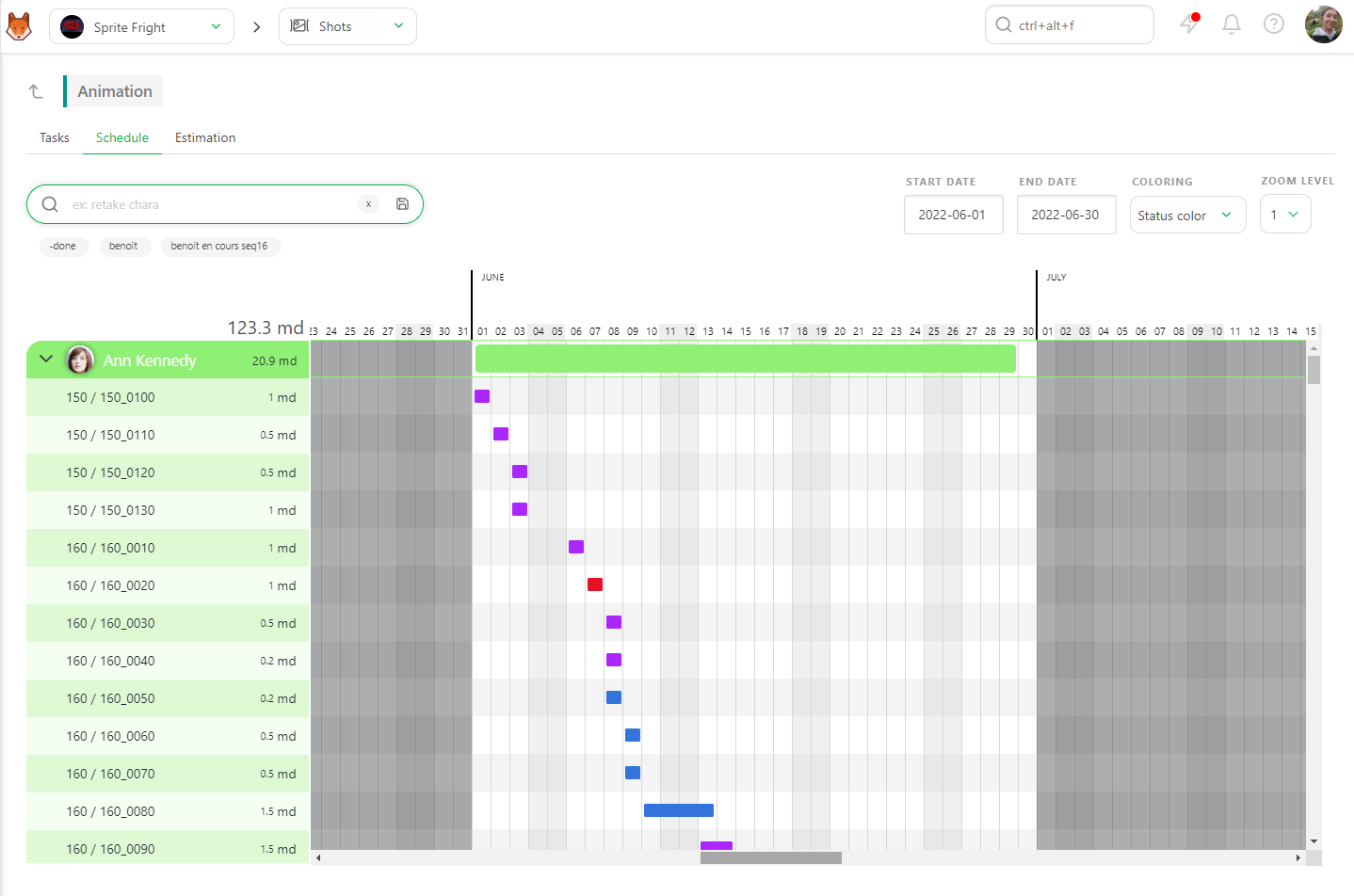
Change the Coloring from Status color to Late in Red. This will show tasks in Grey if they are on time and Red if they are late.
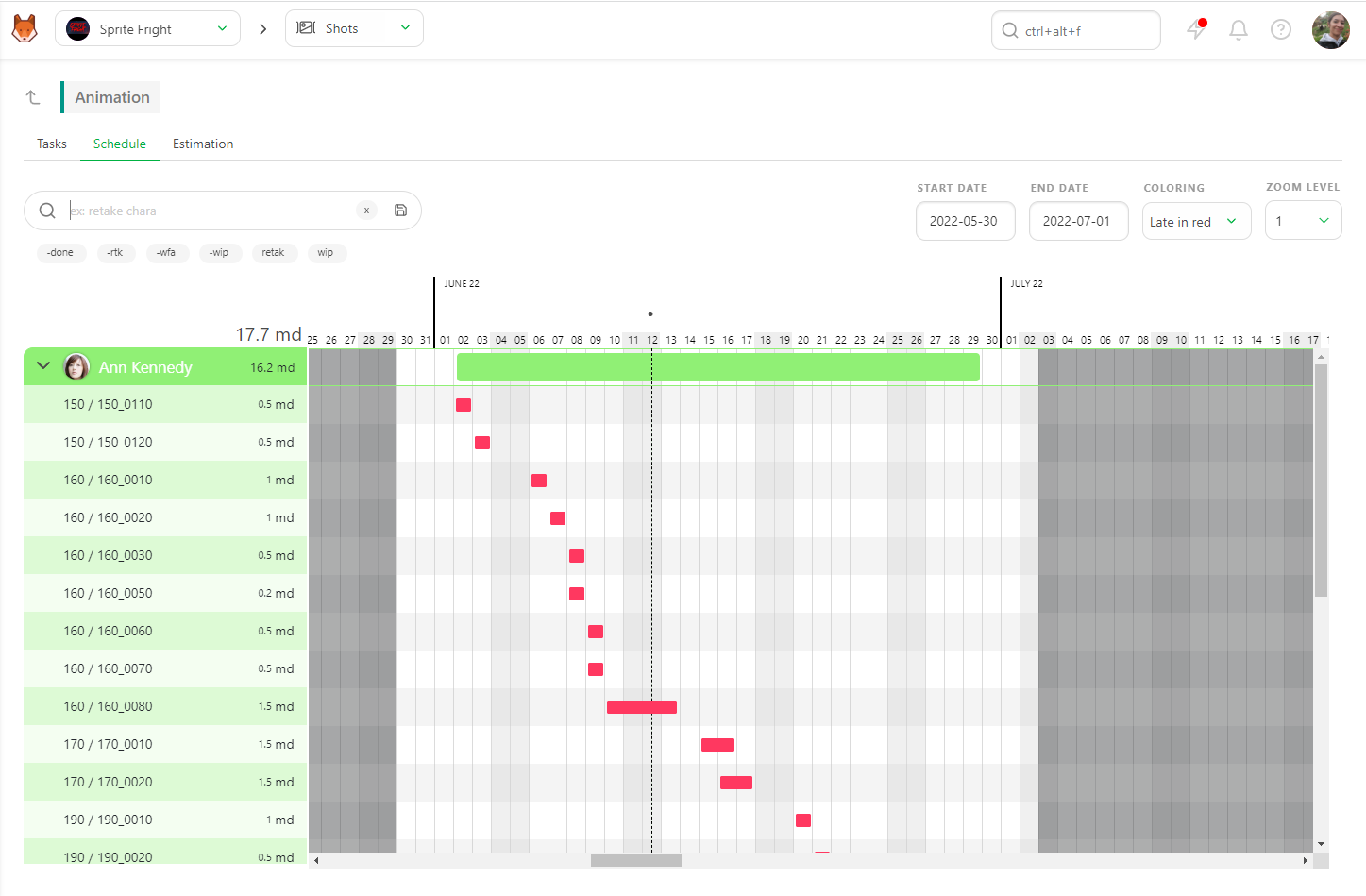
You can return to the Tasks tab for more details, and Kitsu will retain your filters from tab to tab.