
Publishing
In a pipeline, publishing means submitting a version of your work as a trackable deliverable tied to a specific task; so it can be reviewed, versioned, and referenced by the rest of the pipeline.
In Kitsu, publishing a revision is another way to update a task status. The difference with comments is that a publication is tied to a versioned preview file.
Publishing a Concept
To publish a Concept, navigate to the Concepts page from the project navigation menu.
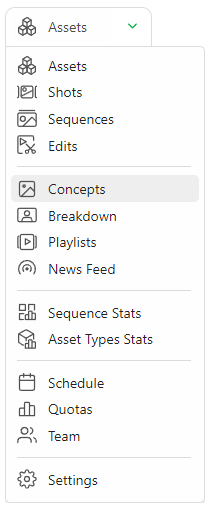
To upload a concept, click the Add a new reference to concepts button. You can upload one or several concepts simultaneously.
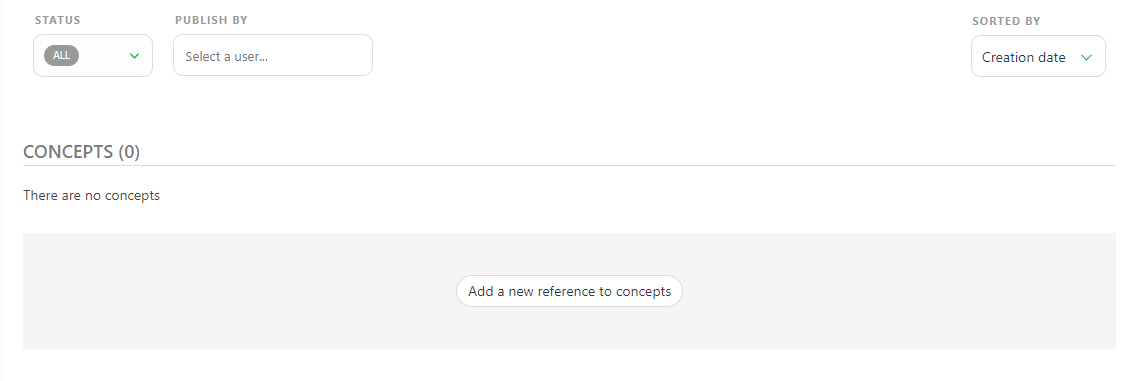
After the upload is complete, previews will be generated and visible from your concepts page.
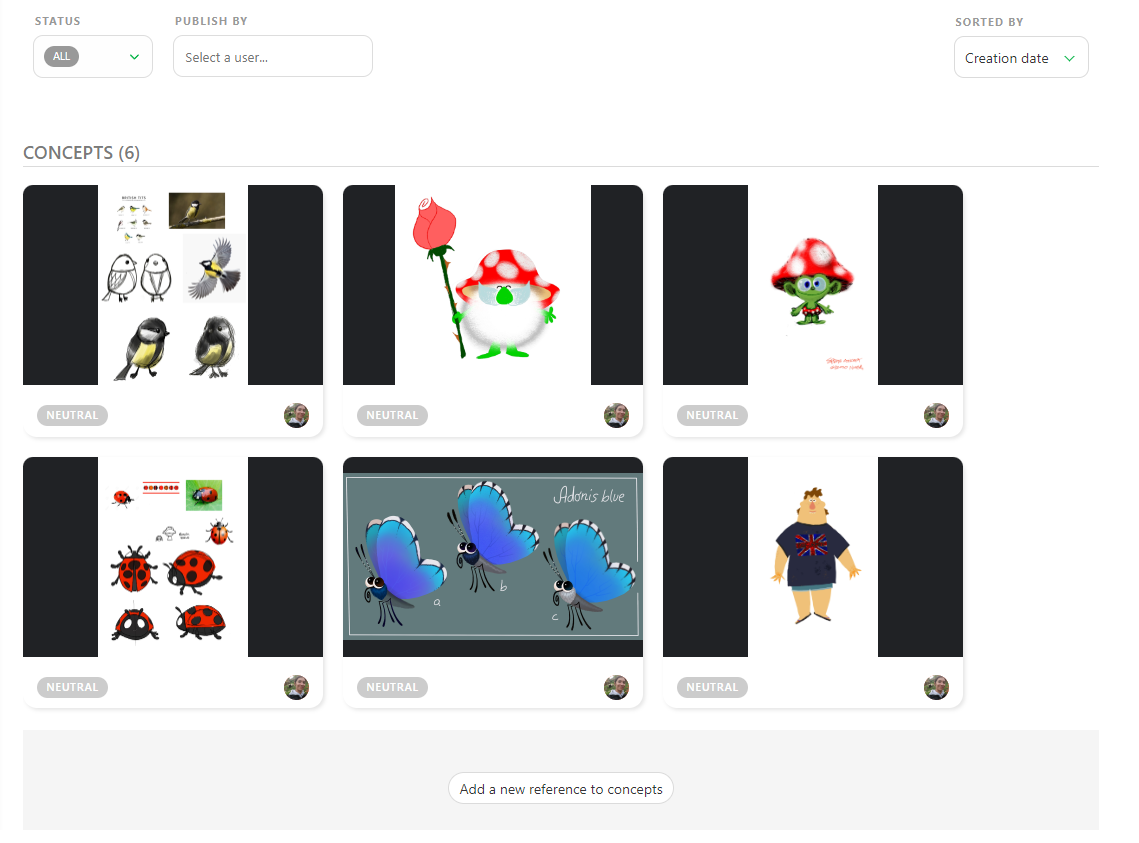
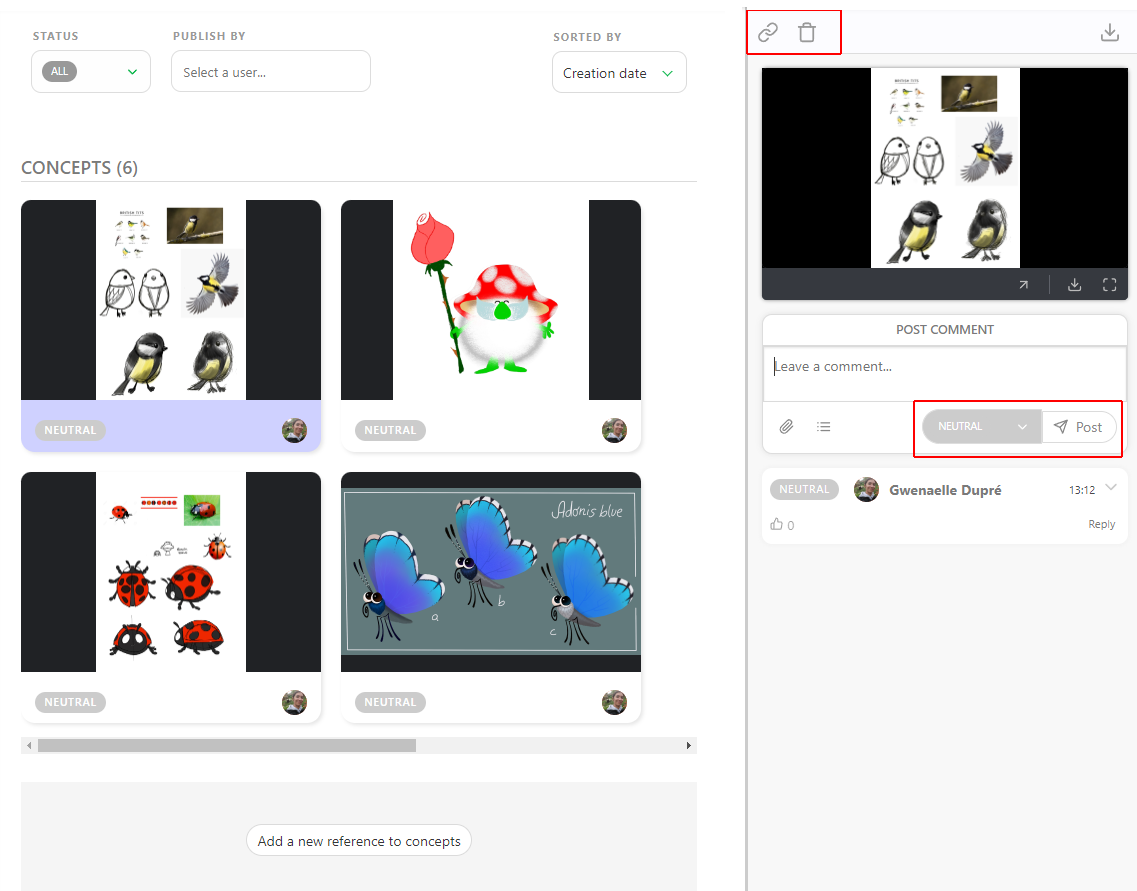
Click on the thumbnail to see an enlarged preview of your concept, or click on the status to open the Comment Panel on the right.
With the comment panel open, you have two options:
- You can link a concept with an existing asset / delete and existing link.
- You can comment and change the status of the concept.
It is good practice to only have one version per Concept. If the concept is not approved and requires additional changes, then it's better to version-up that concept.
Publish a Preview as a Version
To publish a preview, picture, or video, access the task's comment panel and select the PUBLISH REVISION tab.
Kitsu automatically switches to the Publish Revision tab when using a status with the IS FEEDBACK REQUEST option, such as the WFA Status.
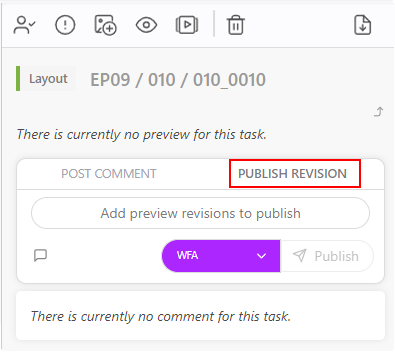
You can add one or several previews to any comments. These can be a picture (.png, .jpg, .jpeg, .gif), a video (.mp4, .mov, .wmv), or a .glb file. Additionally, you can review all the previews from the browser or mix everything.
You can also review a .glb file as a wireframe or add a .HDR file to check the lighting. See the Customization section for more details.
Other files like .pdf, .zip, .rar, .ma, or .mb cannot be viewed in the browser and need to be downloaded to be reviewed.
Then, click on the Add preview revision to publish button. The explorer opens, allowing you to choose your file or several files.
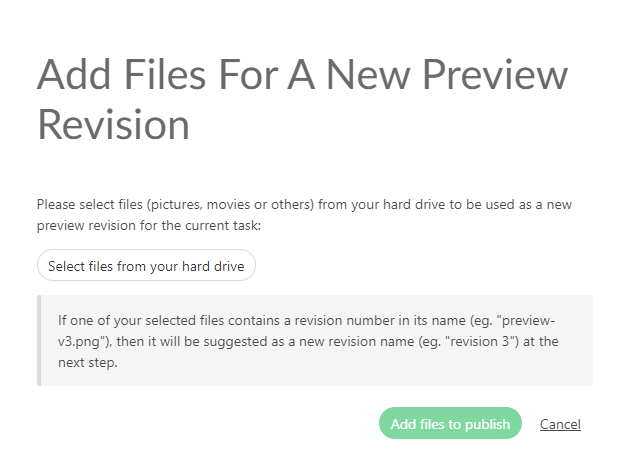
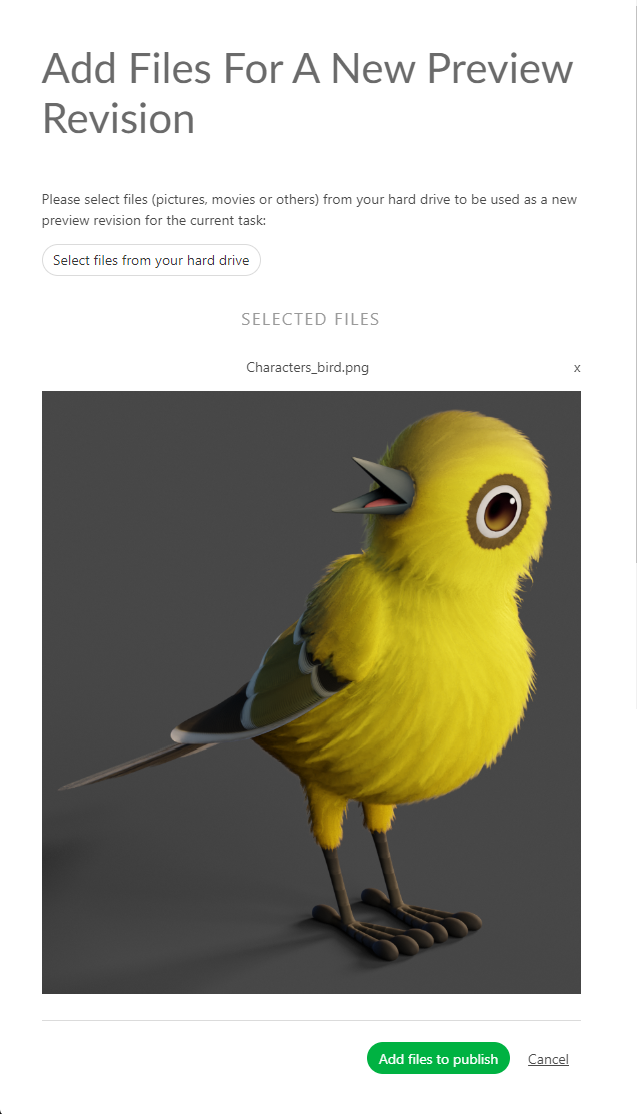
You can also copy-paste a screenshot from your clipboard into this upload dialogue, without needing to download it first. Once your file is selected, you will see its name near the Add files to publish button.
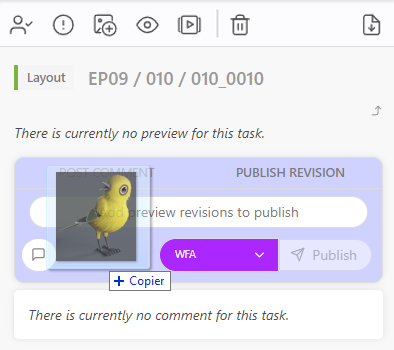
You can also drag & drop files that you wish to upload into the comment section to automatically start the upload process.
On top of your preview, you can add a Comment. Click the Leave a Comment button to unfold the comment section.
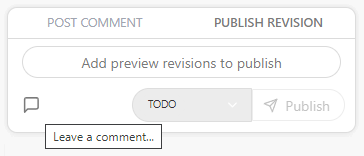
You can then select your status and publish your preview with the Post Button.
For more information on using publishes as thumbnails, see this section here on thumbnails.
Combining Previews Into a Version
You can add multiple images simultaneously, or once you have uploaded an image, you can add another one.
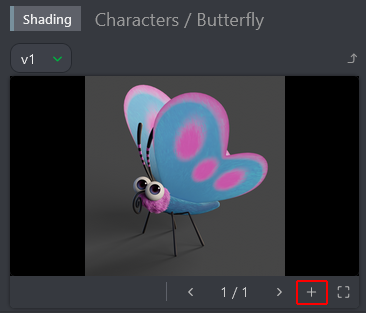
The Add preview pop-up asks you to choose a file. You can navigate through the pictures uploaded.
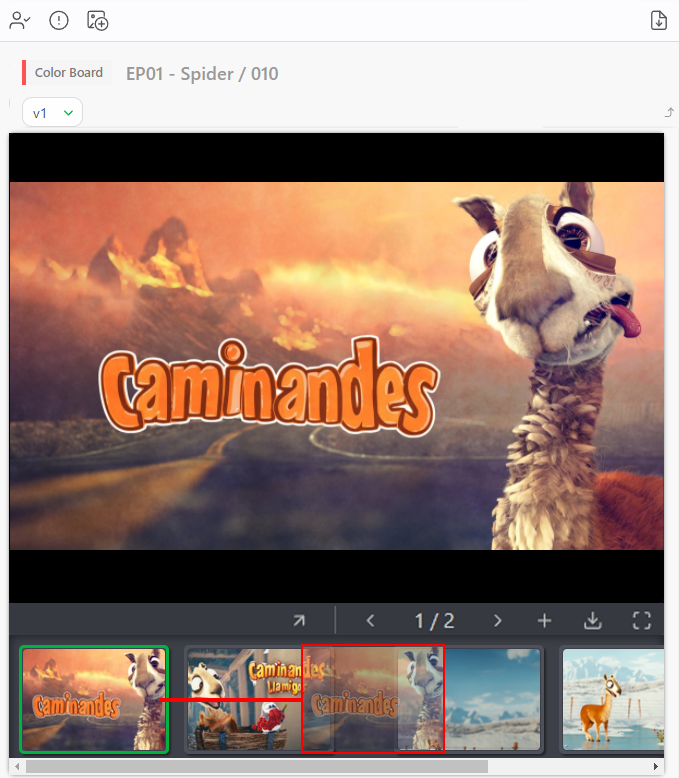
You can change the preview order by clicking the number and then dragging and dropping them.
To delete an additional preview, enlarge the comment panel, click on the number of versions, and then click on the  .
.
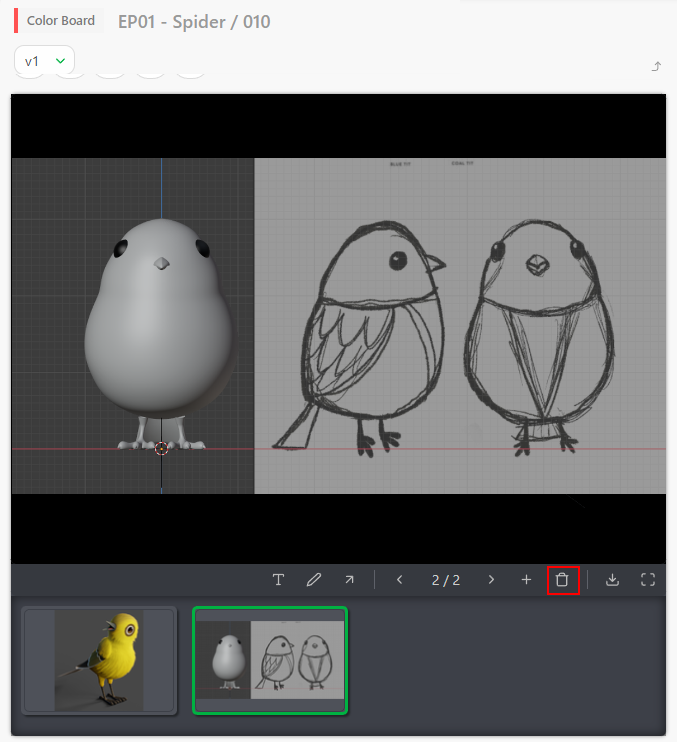
Remove a Preview
To remove a preview, simply delete the associated comment.