Managing Your Assignments
The "My Tasks" Page
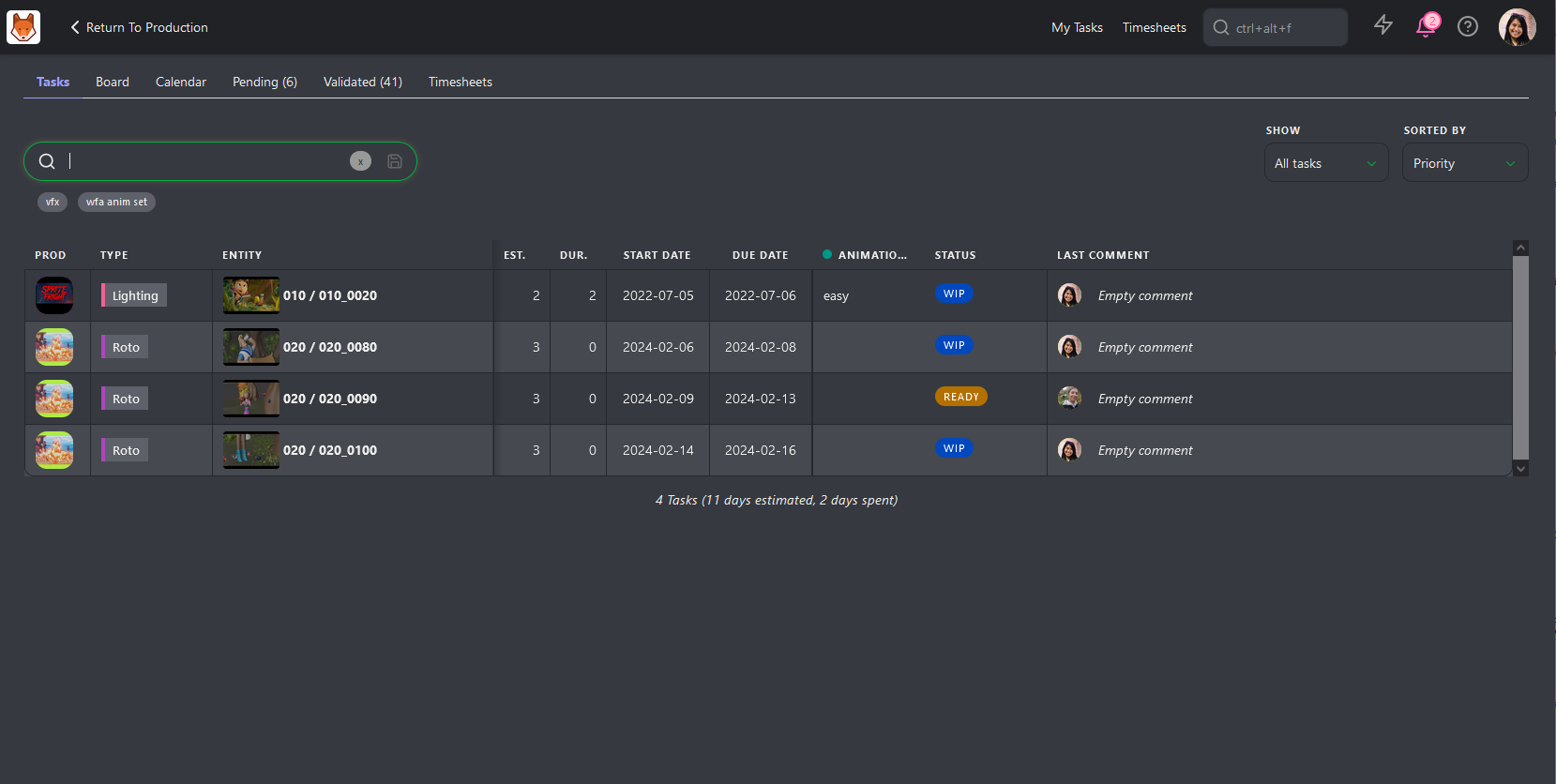
Your My Tasks page is your main hub for assignments and opens automatically upon login.
Here you can see a list of tasks you are assigned along with some key information. Think of it as a to-do list.
By default, the list is sorted by priority, so the tasks at the top are the ones recommended to address first.
Key Information Available:
- Production: The project your task is associated with.
- Entity: The specific asset or shot assigned to you.
- Estimates & Duration: Time-related information for your tasks.
- Due Date: The deadline for completing your task.
- Status and Priority: Key details to understand task urgency.
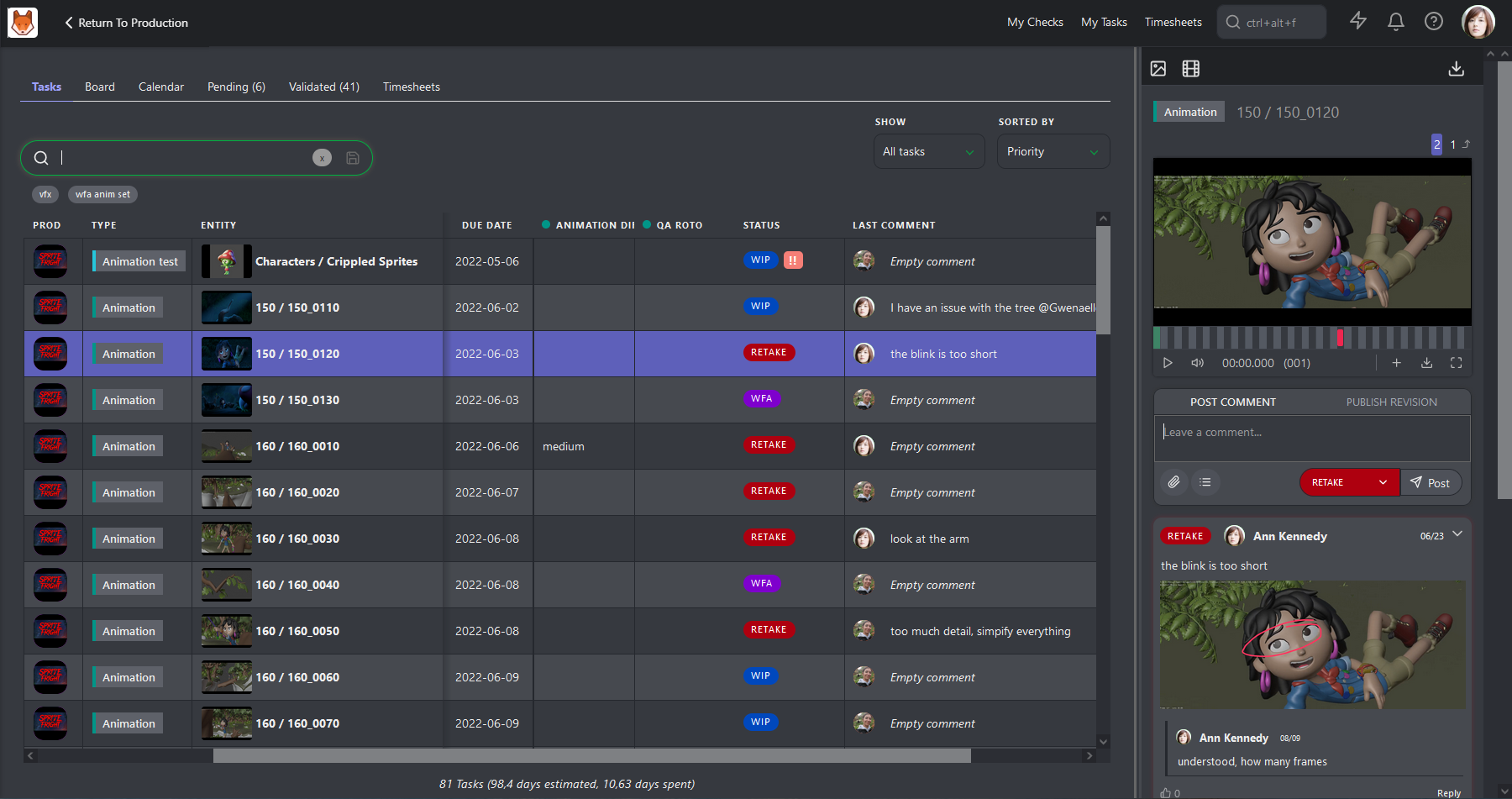
To view more details about a task, click on its Status to open the comment panel. Here, you can comment on the task and publish a new revision if needed.
Sorting and Filtering:
- Under the Show dropdown, you can choose to display All Tasks or focus on those Due This Week.
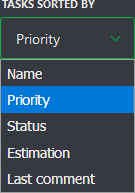
- Under the Sorted By dropdown, you can sort tasks by Name, Priority, Status, Estimation, or Last Comment.
- Use these filters, along with additional criteria like Production, Task Type, and Status, to narrow down your list of tasks, or use the search box to find a specific task.
Accessing My Tasks
You can access My Tasks via:
- The shortcut at the top of the screen.
- The User section of the main menu under MY TASKS.
- Clicking the Kitsu logo.

Board View
You can also use the Board view to quickly update the status of multiple tasks by dragging and dropping into each status column.
The Board Tab displays tasks organized in columns based on their status. Each task card includes:
- A Thumbnail
- Task type name
- Entity name
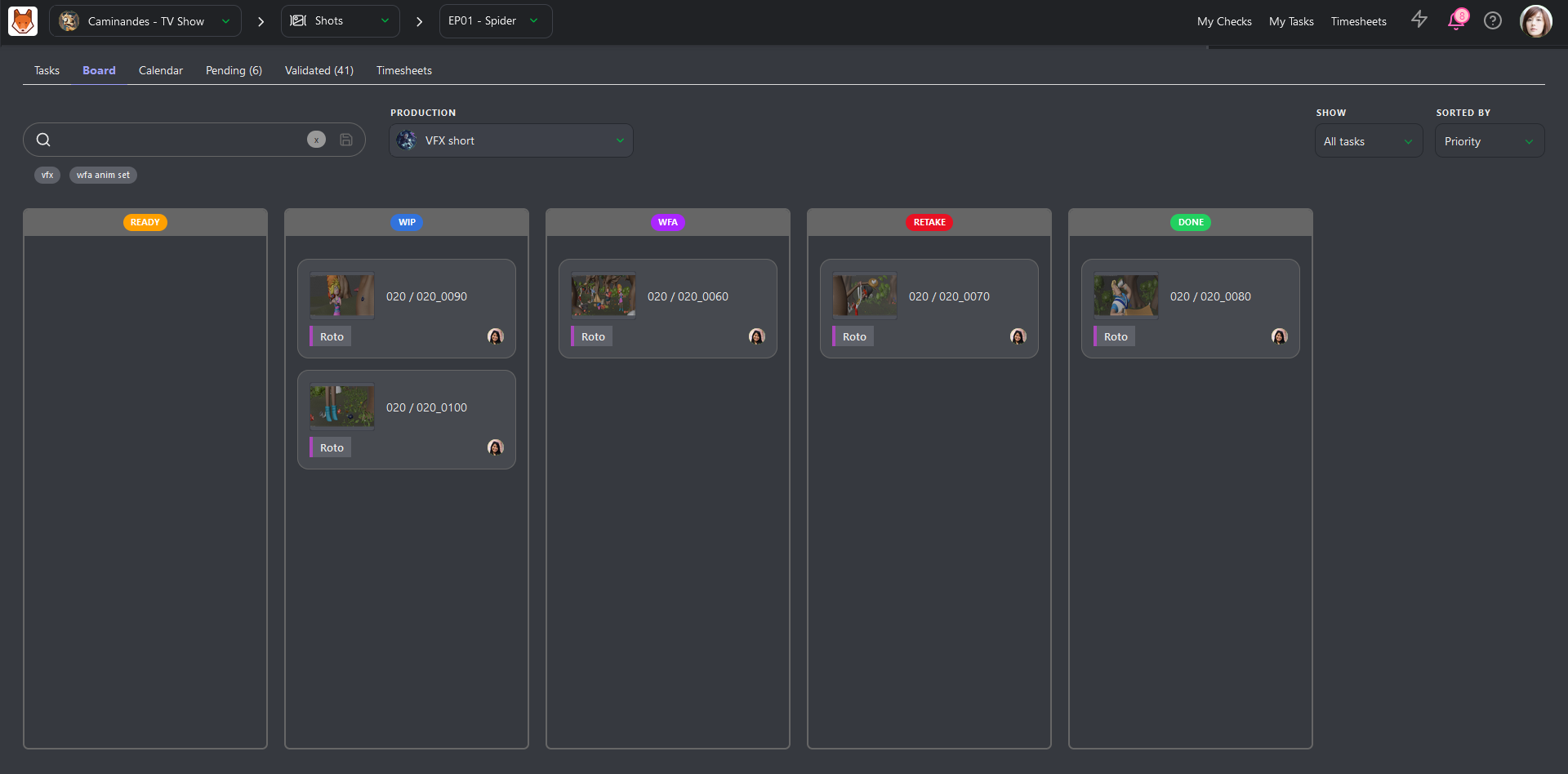
- Clicking a card opens a panel on the right to view or add comments.
- To update a task's status, drag it to the desired column.
Calendar View
The Calendar View displays tasks according to their Start and Due Dates. Tasks spanning multiple days are visually extended across the calendar.
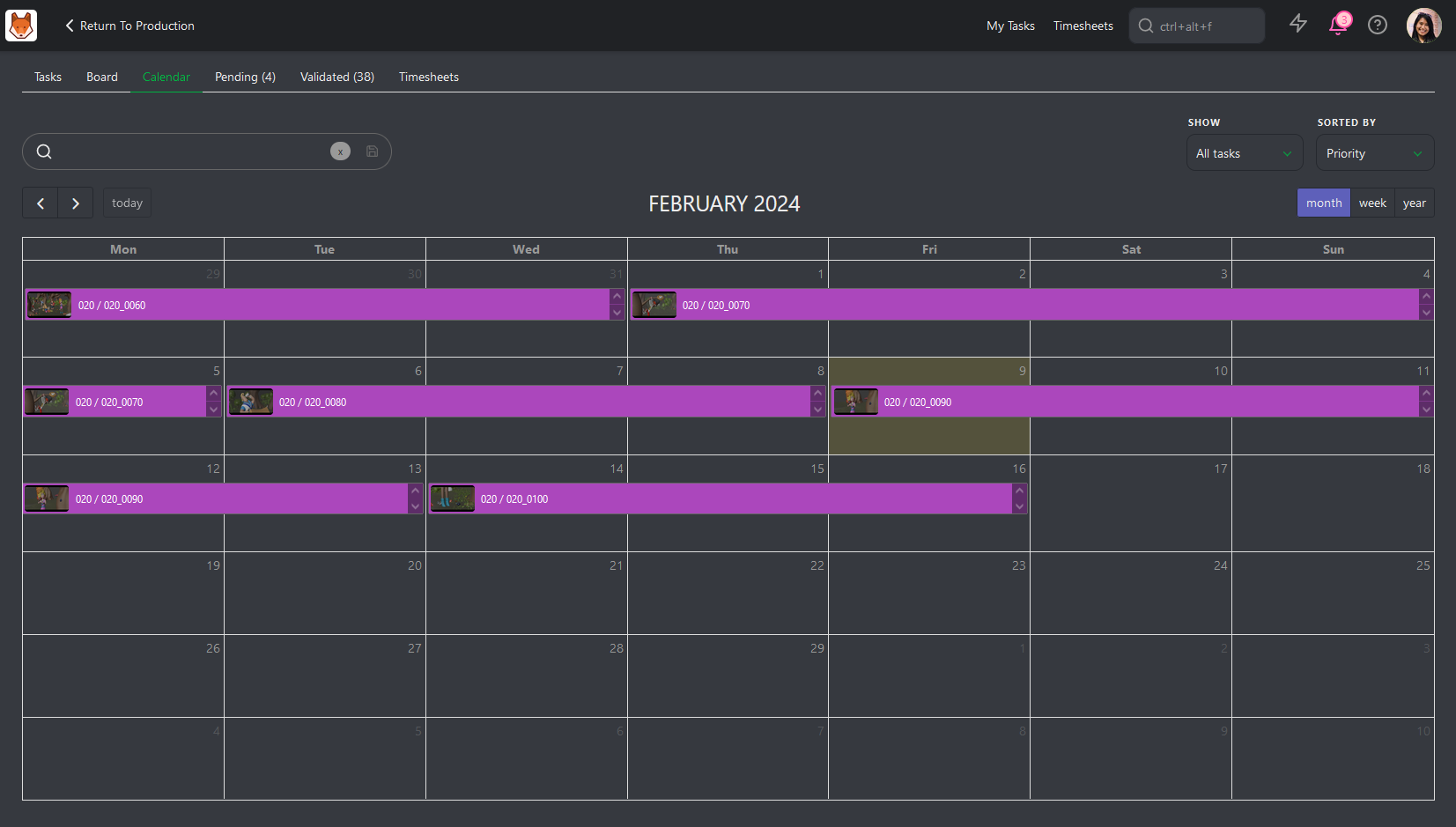
- Clicking a task opens the right-side panel for updates and comments.
- Like other views, you can sort and filter tasks here.
The "Task Type" Page
A supervisor will typically have tasks assigned to them in addition to supervising your department. You need to split your time between completing your work and managing your team.
Once the assignments and estimates are done, you can focus on the day-to-day operations. To easily see an overview of tasks from your department, you can click on your task type name from any page.
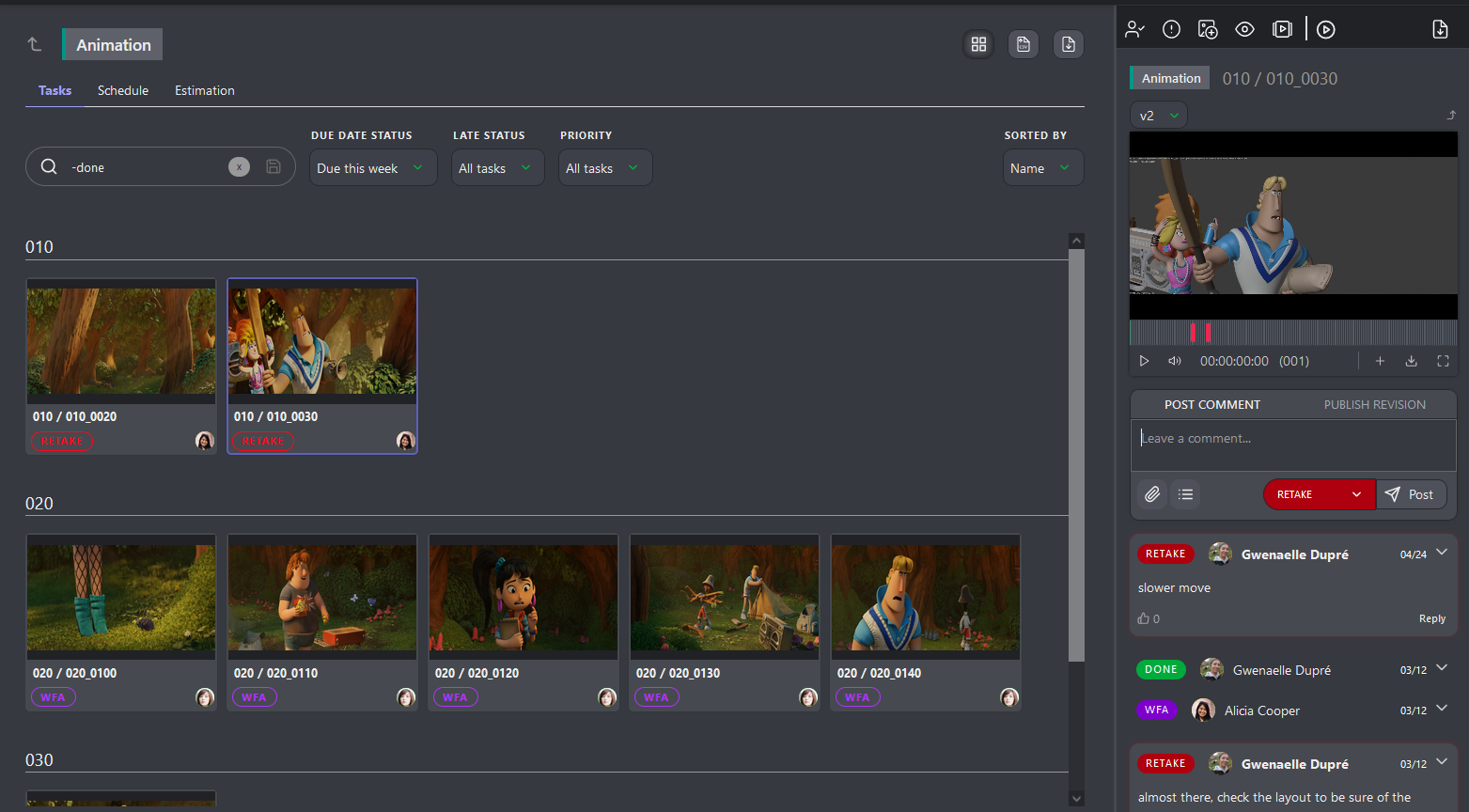
Once on the detail page, your first action is to click on the Display tasks as a contact sheet  button.
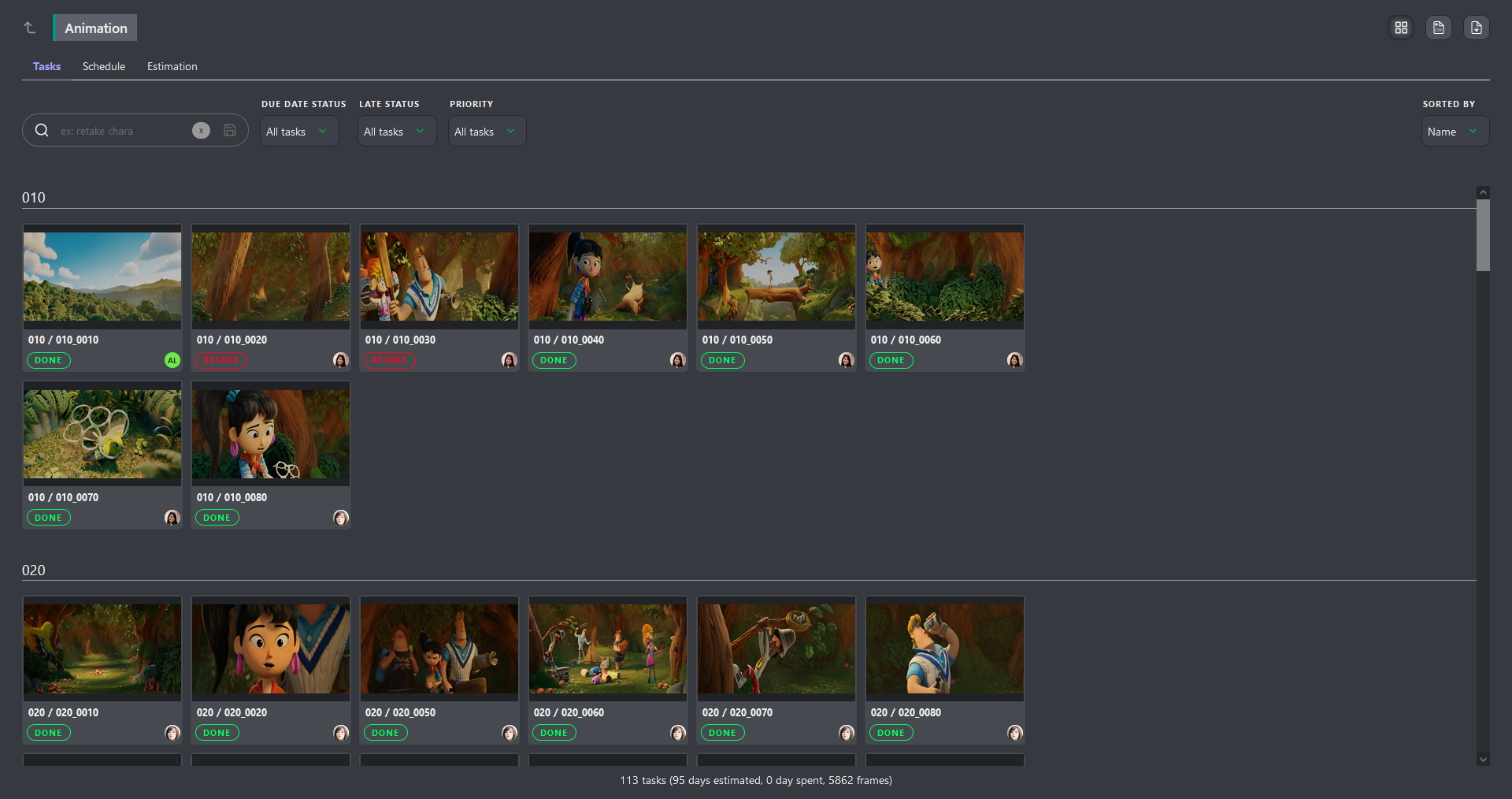
Now, you can easily hone in on tasks that require your attention using the built-in filters. For example, say you want to see only the tasks that are not done yet. In this case, you can filter tasks with the -done status, along with adding a Due Date Status filter, to show tasks that are Due This Week.
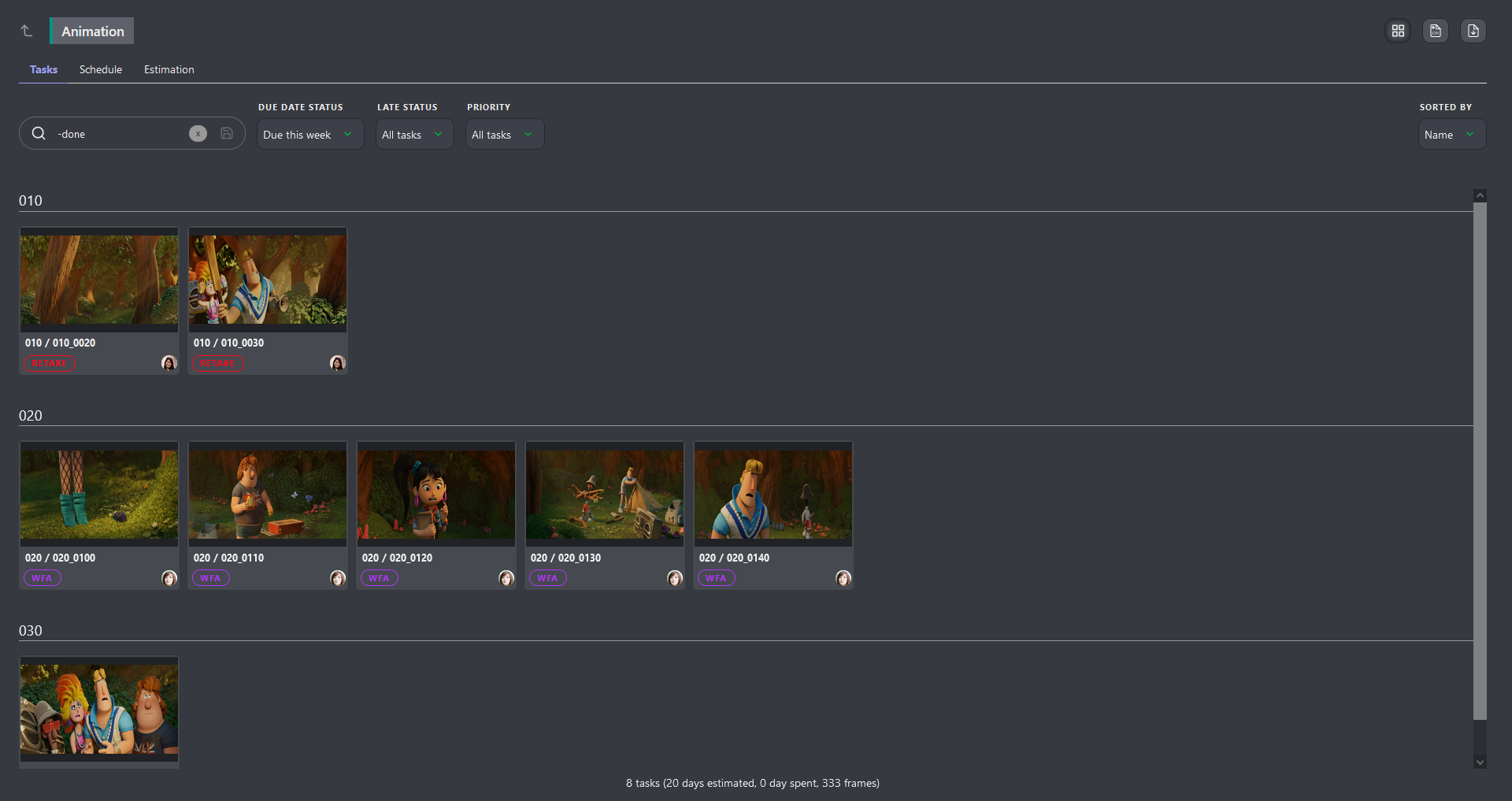
You can easily enable / disable filters to quickly hone in on the right information.
TIP
If you need more information about a task, click on it's name to open the comment panel on the right.