Authentication
Enable Two-Factor Authentication
Two-Factor Authentication provides an additional layer for security for users logging in to Kitsu. It can be enabled on a per-user basis, so you can decide for which users it is enforced.
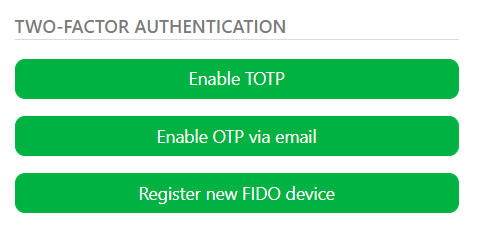
To enable this, click on their avatar at the top right of the screen, then select Profile. At the bottom of the page, they will find various Two-Factor Authentication options:
- TOTP: This lets you use a Two-Factors Authentication app as a secondary password for your account. Selecting this option will present you with a QR, that once scanned into your 2FA app of choice, will prompt you for a one-time code each time you login.
- OTP Via Email Similar to TOTP, but instead of using an app the 2FA code is sent to your email address
- FIDO Device A FIDO device refers to a hardware security key that supports the FIDO (Fast IDentity Online) standard for two-factor authentication (2FA). If you own one of these devices, you can input it's name here to be used for Two-Factor-Authentication
OpenID / SSO auth
Kitsu also supports OpenID Connect (OIDC).
Rather than creating and maintaining a separate password for Kitsu, team members can sign in with the same credentials they already use for everything else if the studio already relies on a centralized identity system like Google Workspace, Okta, Azure AD, or another OIDC-compatible provider.
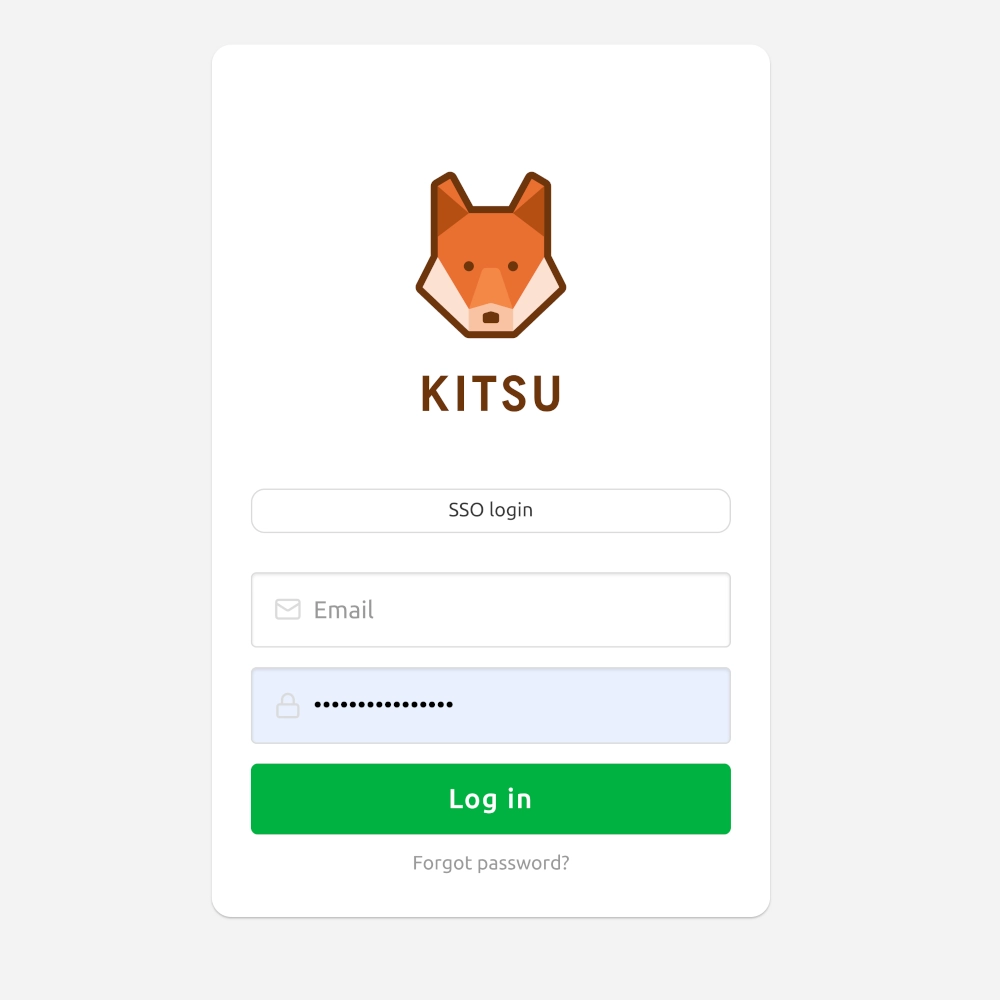
Once OIDC is enabled in your backend configuration, the login page automatically displays a "Login with [provider]" button alongside the standard login for: