
Task Assignments
In Kitsu, a task is a fundamental element used for planning, organizing, and tracking various aspects of your production.
Assigning a task to a user offers several benefits:
- You have a clear understanding of who is responsible for each task.
- Users are aware of their assigned tasks.
- Users can log time spent on each task.
- You can monitor individual workloads.
- Task groups by user are visible on the detailed task type page.
- The team schedule provides an overview of your studio.
- You can forecast team productivity.
- You can track the actual performance of your team.
Assign Tasks From the Global Page
Once you've added all your users to the production, it's now time to assign your first task!
Definition
In Kitsu, tasks from each task type are visually represented by the Status of the task cell, as shown below.

Click the status on the task that you want to assign.
You'll then see the comment panel appear on the right side of the screen, containing various options for configuring that task.
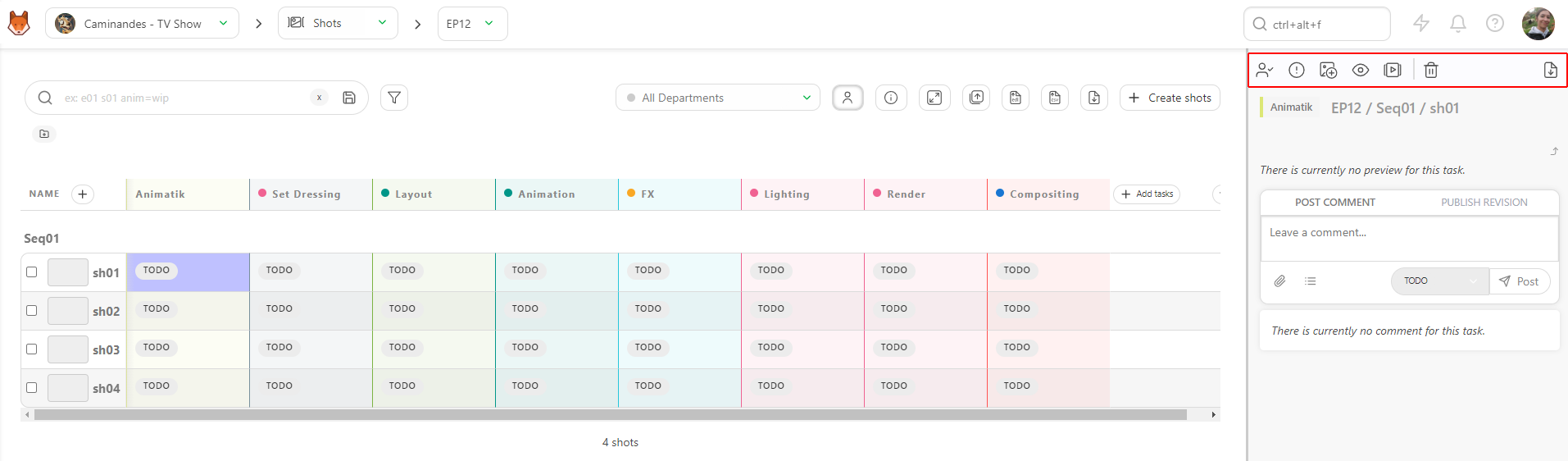
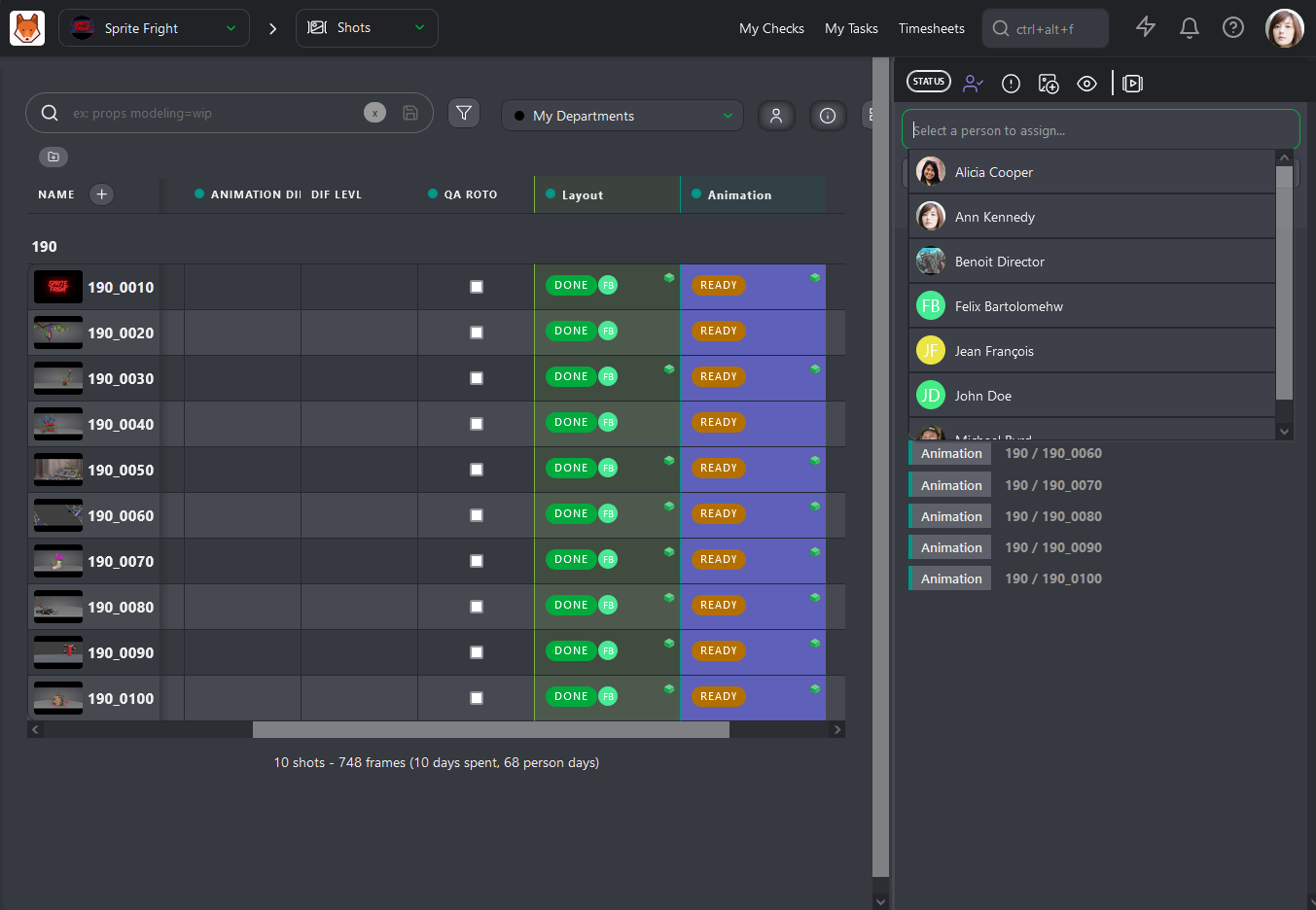
Then, click on the assignee button to open the assignment dialogue
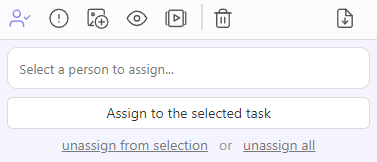
This is where you can assign users to the task. Click into the box to reveal a popup with available users. Alternatively you can start typing the users name to quickly narrow a specific user. Select the user you want to assign, and click on the assign to selected task button to complete the assignment.
Note
You can assign more than 1 user to a single task
You can also assign a user to multiple tasks simultaneously. First, you'll need to select the tasks you want to assign. You can do this by holding Ctrl / Cmd on your keyboard and clicking on the tasks you want to select. Alternatively, you can use the Shift key to select a range of tasks. You'll notice that the selected tasks are highlighted in blue.
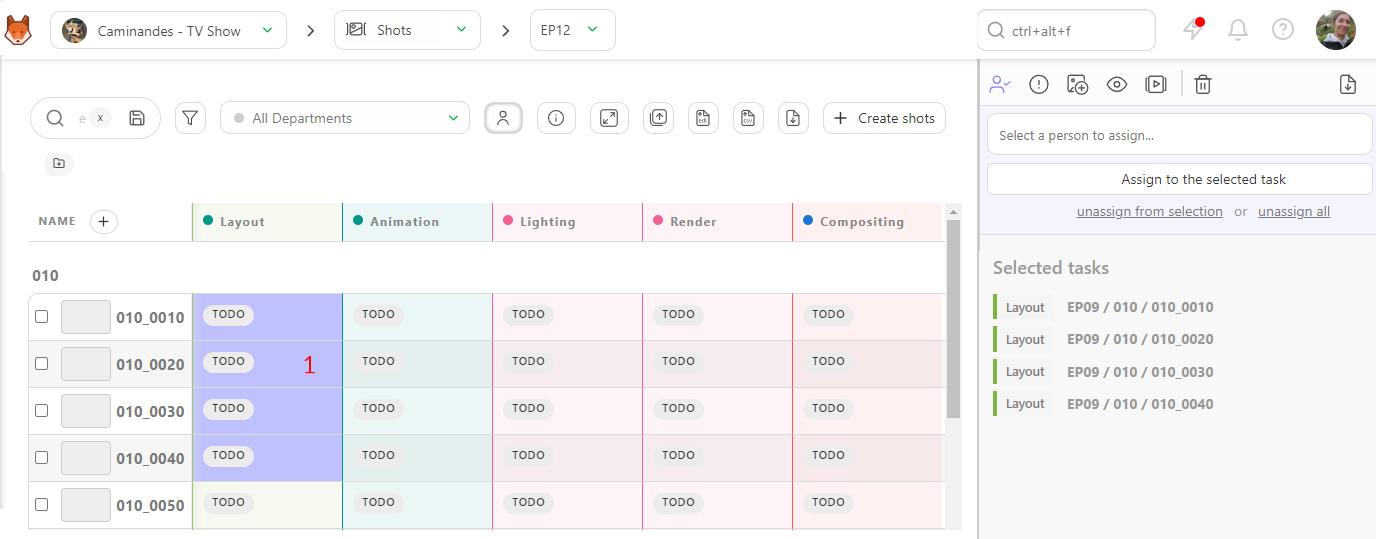
Once you have your tasks highlighted, select a user to assign and confirm your selection by clicking the Confirm button. Similarly, you can use the unassign from selection option to remove these assignments.
Now, you can see the artist's avatar next to each of the task's status.
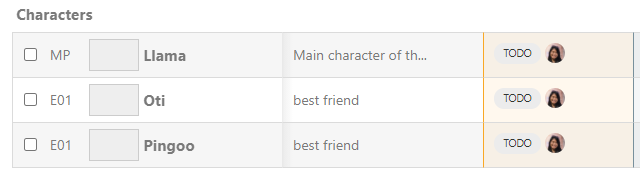
You can toggle the visibility of task assignments on or off by using the Show/Hide Assignments button located at the top of the spreadsheet  .
.
Keep in mind that task assignments can determine what a user sees, depending on their role (for instance, vendors need to be assigned to a task before they can view anything).
With your assignments completed, everyone knows their tasks and responsibilities!
Assign Tasks From the Detailed Task Type Page
You also have the option to assign tasks from the detailed task type page. To access this, click on the column header of the task type.
Next simply click on a status to open the comment panel. From there, you'll have the same options available as on the global page. You can select one or multiple tasks simultaneously to assign a user.
Assign Tasks as a Department Supervisor
From the global shots / asset page, your view is automatically filtered by My Department. This shows you tasks from your departments Task Type and the Custom Columns linked to your department.
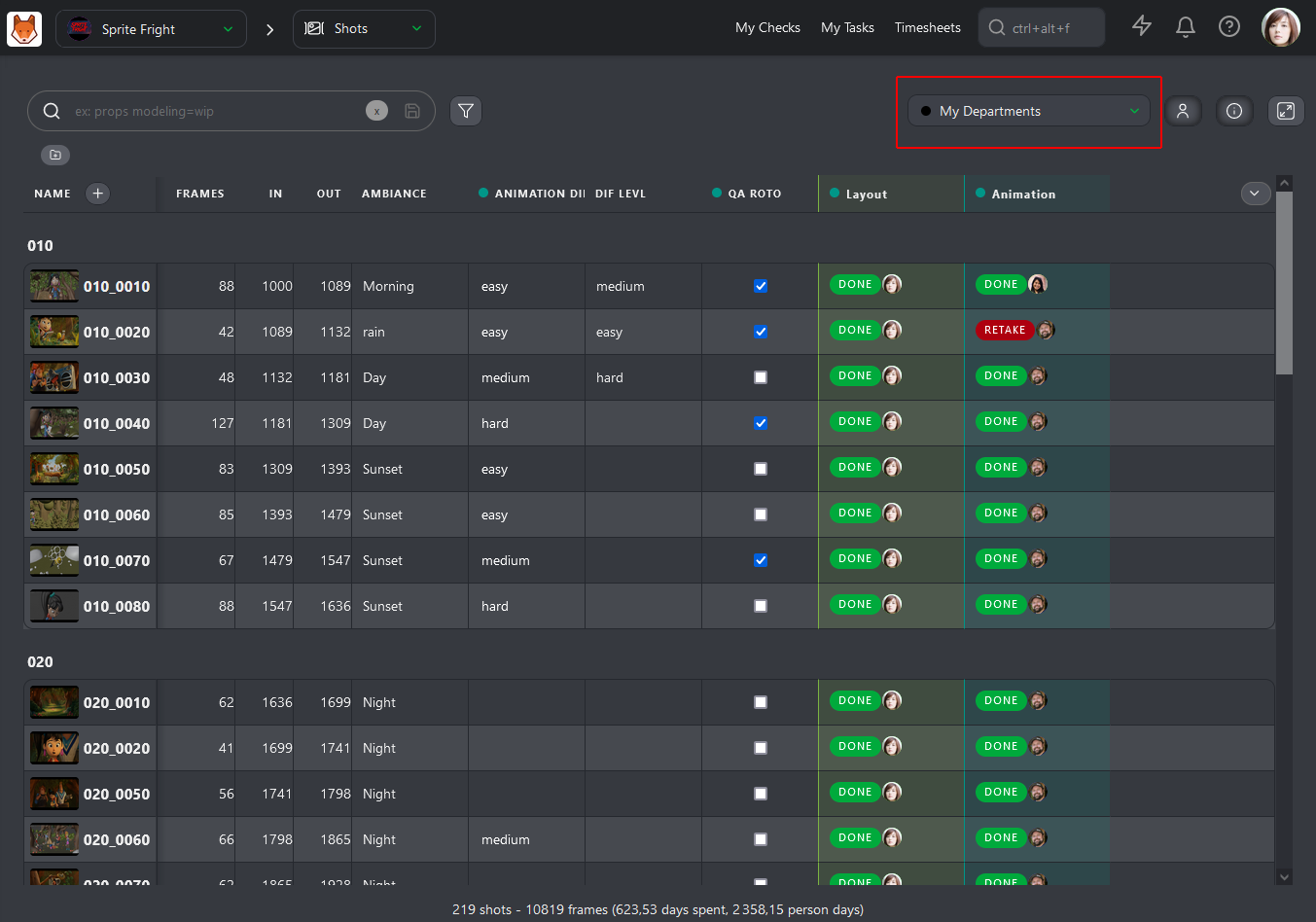
When you assign one or several tasks to someone, you will notice that you only have access to people from your department. This makes it faster to find the right artist for the task.
Assign Tasks from the Production Schedule
In Production Menu > Schedule, you can click the button Assign Tasks to assign tasks in batch to your team by task or asset type.
It's much faster than hand-picking each task to assign manually.