User Profile Settings
On your first connection, we encourage you to fill in your contact information into your profile. Setting this up helps your team recognize you and lets you tailor notifications and settings to fit your workflow.
Access Your Profile
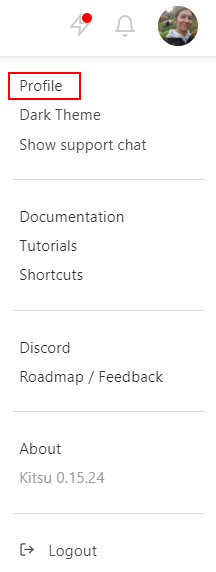
Click on your name/avatar on the top right of the screen (1), then on Profile (2).
NB: This menu also gives you quick access to helpful resources at any time: a link to this Documentation (4), our Tutorials, our Slack/Discord community (5), our YouTube channel, and our public Roadmap (6). You can also toggle the Dark Theme/Theme color (3) and show or hide the Support Chat widget from here.
Customize Your Details
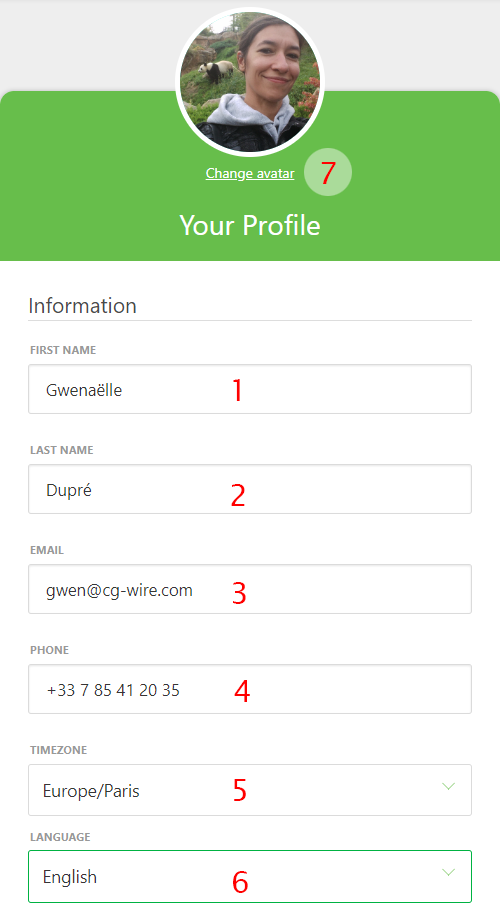
On this new page, you can check your name (1) (2) and email (3), fill in your phone number (4), change your timezone (5) and the language of the website (6), and post a pic of yourself as your avatar (7). It helps to recognize who is doing what!
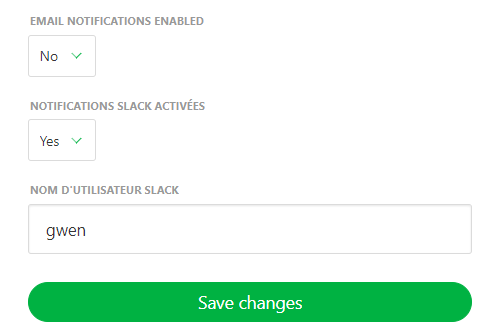
You can also define what kind of notification you want: email or Slack.
Change Your Password
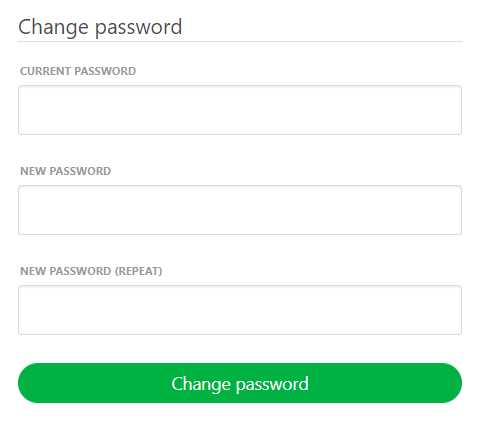
If you keep scrolling, you can also change your password.
For security purposes, it's highly recommended to replace the default password with a strong and unique one of your own.