
Managing Edits
Create an Edit
You can track tasks at the Edit Level in Kitsu.
It's especially useful when you have several edits to track through several validation steps. For example, you can track your whole movie, several trailers, and the First Edit, Fine Edit, Mix, etc.
WARNING
Per default, the Edit page will not be displayed until you have task types for it on your production library (setting page)
To use this page, you need to first create a dedicated task type on your Global Library with the Edit attribute.
See the Creating a New Task Type Section to create a new Task Type.
Once you have created your Task Types on your Global Library, add them to your Production Library, you will see the Edit displayed on the navigation drop-down menu.
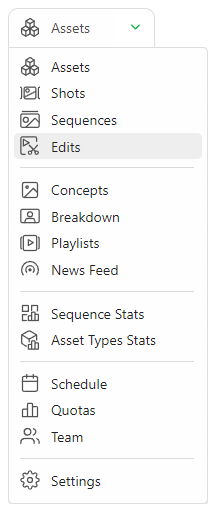
This new page behaves like the asset and shot global page. You can add your edits with the + New edit button.
You can assign tasks, do the review, change status, etc.
You can add a metadata column, fill in the description, etc.
TIP
Depending on your deliveries, you can also change the resolution per Edit.
WARNING
The detail page is different from the other entities.
As Edit focuses on a specific long video, the detail page looks more like the comment detail page.
You can Rename and Delete the Edit entity on this page for the asset and shot entity.