
Studio Occupancy Rate
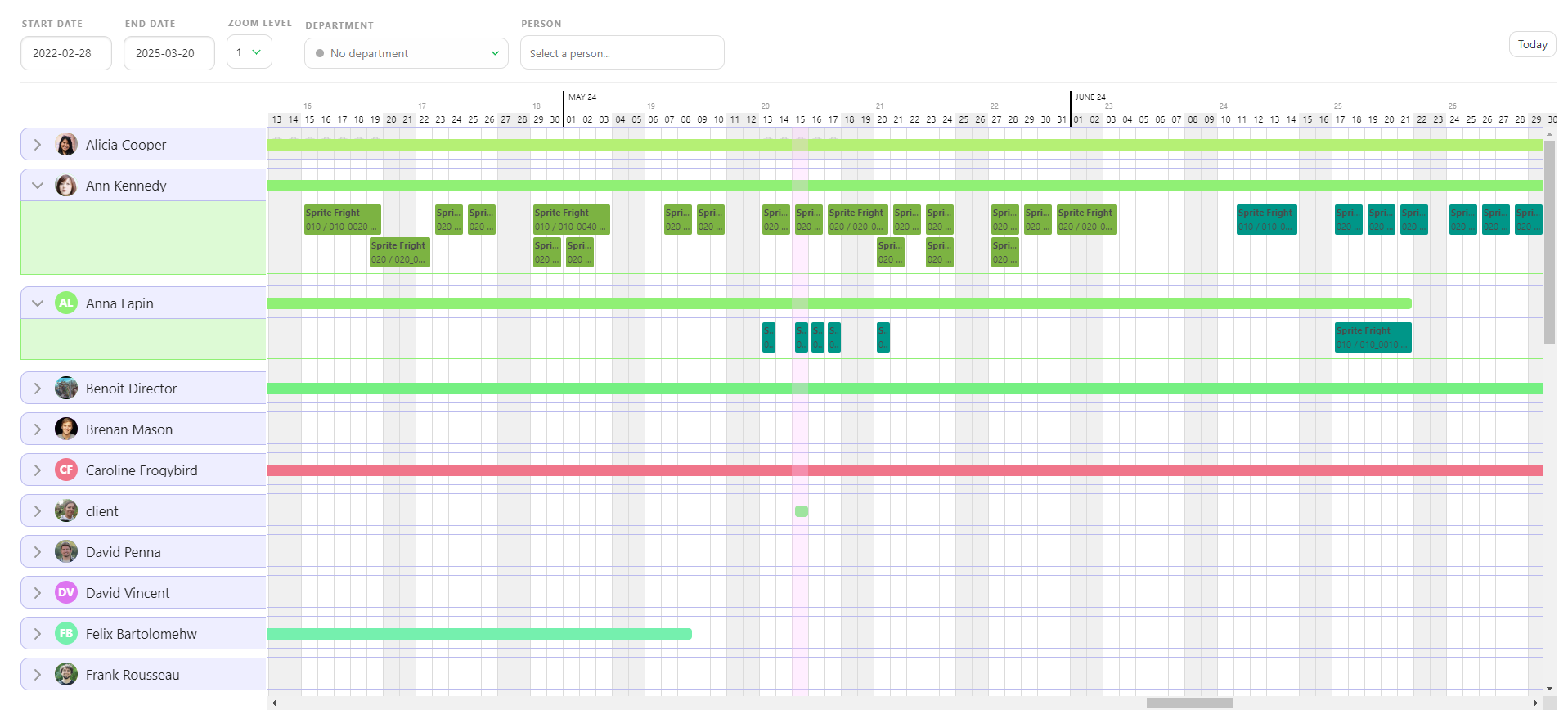
The Team Schedule allows you to see all artists with assigned tasks. Each row represents an artist, and unfolding an artist's row will show the details of their tasks.
Focusing on Specific Timeframes
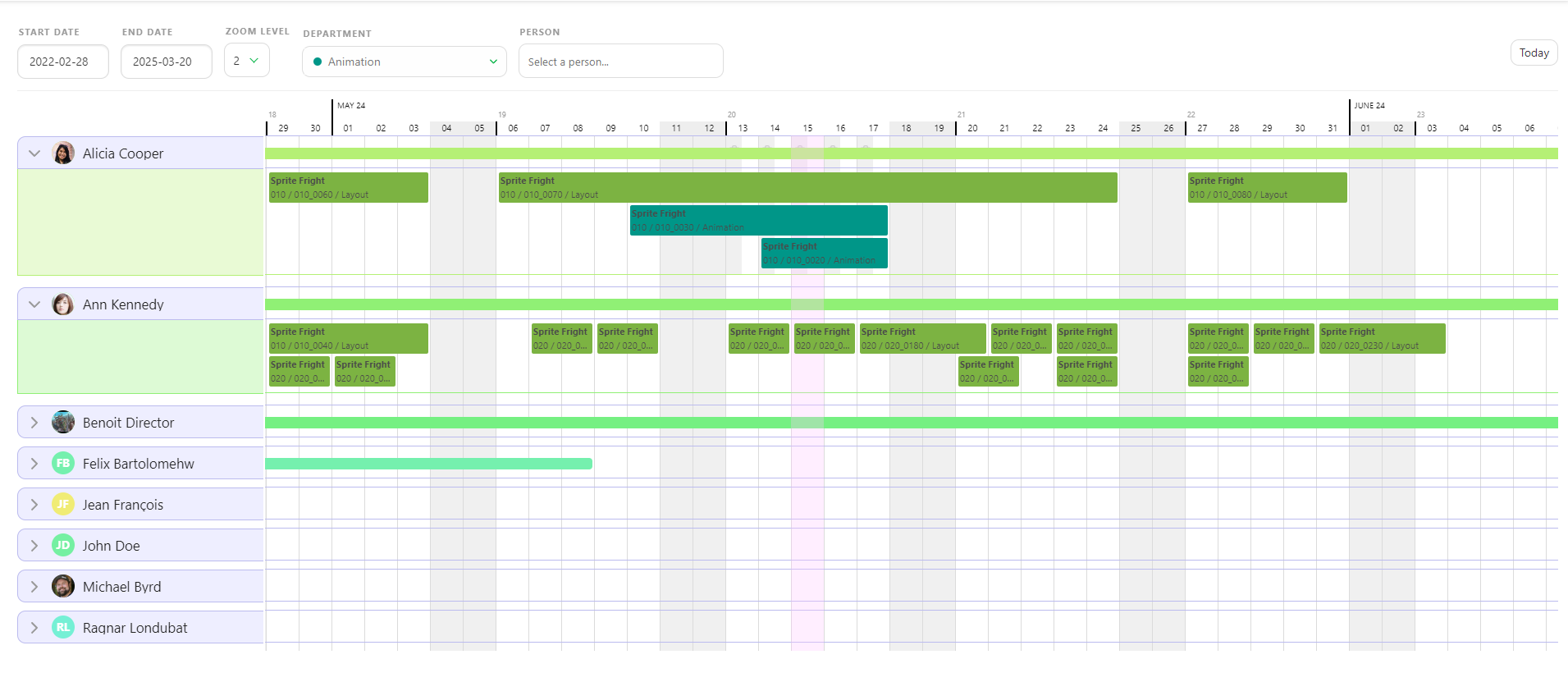
You can focus on a specific timeframe by setting the Start and End Date. Adjust the zoom level to get more detailed information on the assigned tasks. You can choose to see all Departments or only a specific one and focus on a single Person.
If an artist has several tasks on the same day, the tasks will be piled up, with one line for each task.
Modifying the Schedule
You can move tasks around by grabbing them and placing them on another day. Any changes you make on the Team Schedule will be applied to the task type schedule.
If an artist has a break between two tasks, the sum-up line will not break to show it. Instead, it shows the first and last tasks assigned to the artist.