
Managing Task Types
Creating a New Task Type
Next, let's create all the Task Types needed to manage and track our production. Task types could be associated with multiple entities such as assets, shots, sequences, episodes, or edits.
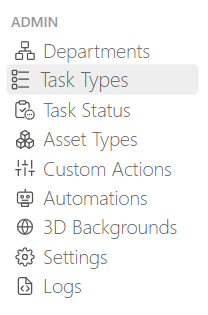
From the main menu  select the Task Types page under the Admin section.
TIP
By default, Kitsu provides some example task types that can be used for a CGI production. You can rename or remove any that are not relevant to your production.
You will notice that these Task Types are already linked to a department.
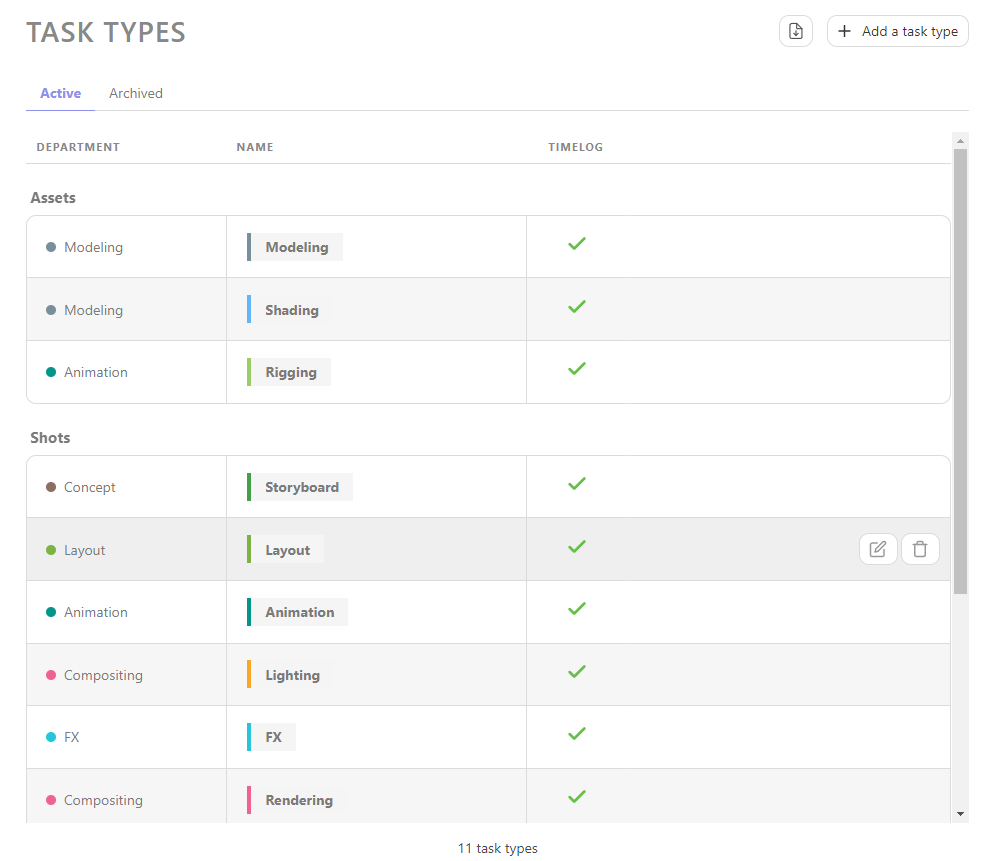
You can click on the  button to create new Task Type.
Next, you will need to supply some information about your task type, including:
- The name of the task type
- If team members need to time log their work for tasks with this task type
- For which entity it will be used
- To which department it should be linked
- The color (this will be reflect in the background color on the main spreadsheet page)
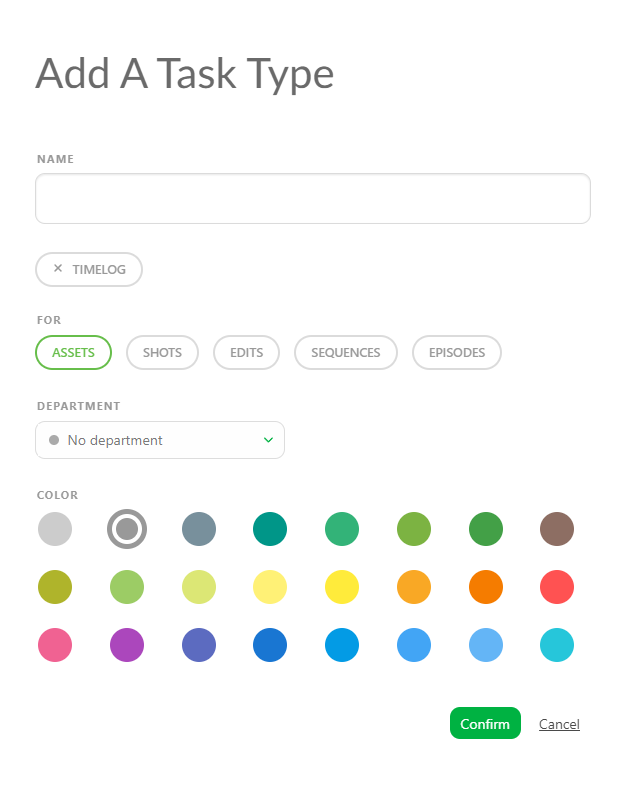
You'll notice that the Departments we created previously are available as an option to link task types to. Connecting a department to a specific task type can help your team stay organized.
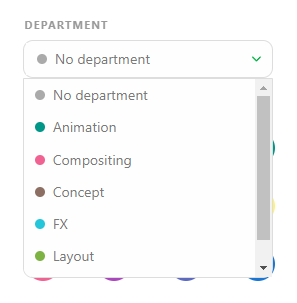
Click on Confirm to save your changes.
WARNING
Newly created task types will appear at the bottom of the list
To adjust the order, simply click on the Task Type and drag it to its appropriate position in the list.
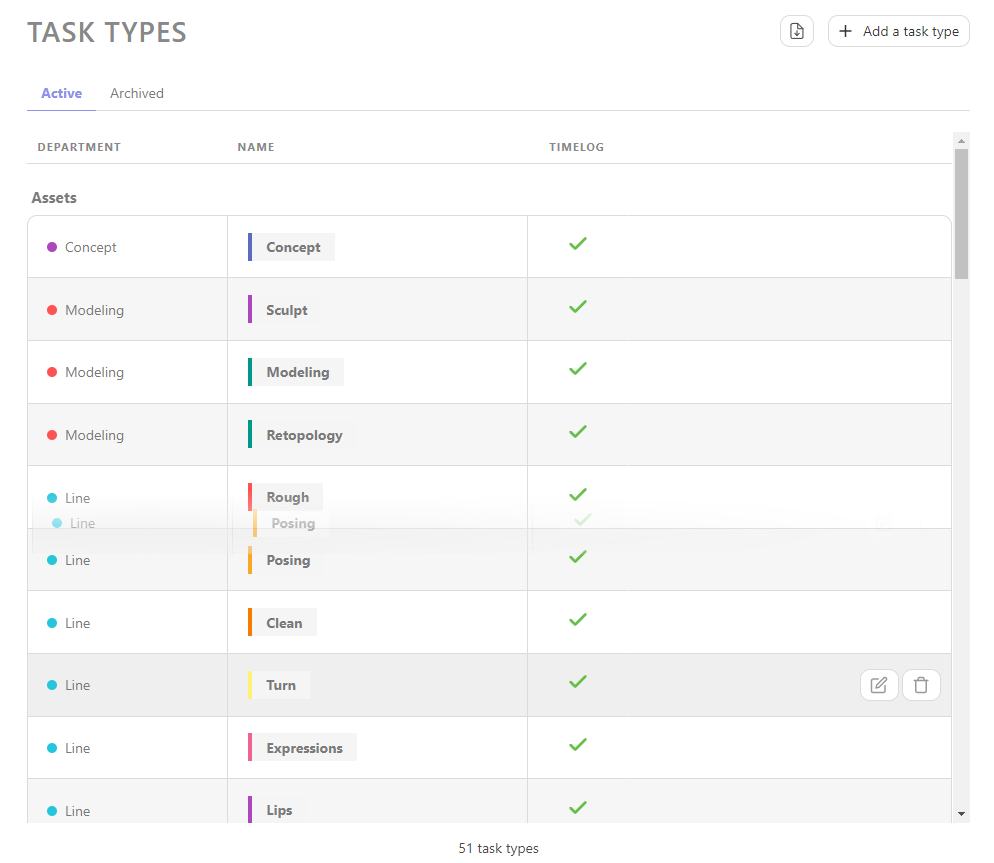
Congratulations, your task type has now be created in your Global Library.
WARNING
Once you have created your production, you need to add the Sequence, Episode, and Edit task types to your Production Library.
TIP
At any point during production, you can revisit this section to create additional Task Types as necessary and add them into your workflow.
Enabling Specific Task Types for a Production
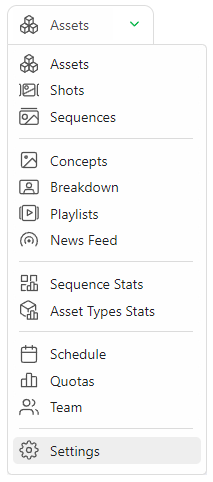
On the Navigation Menu, choose on the dropdown menu the Setting.
By default, Kitsu will add the Task Types you have chosen when creating the production.
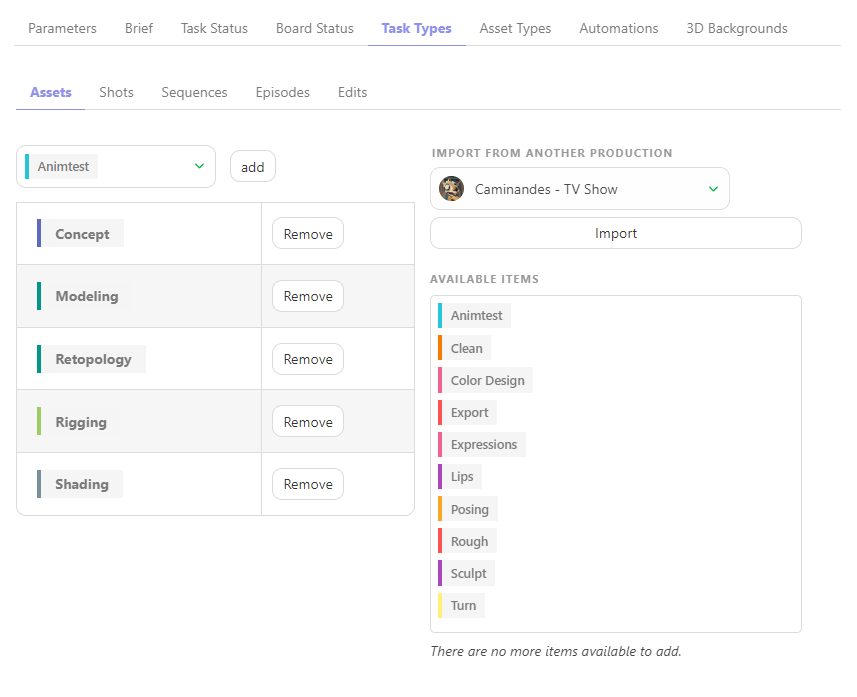
However, you can add or remove specific Task Types if they are created on the Global Library first.
For example, you can import the task workflow from another production in your library.
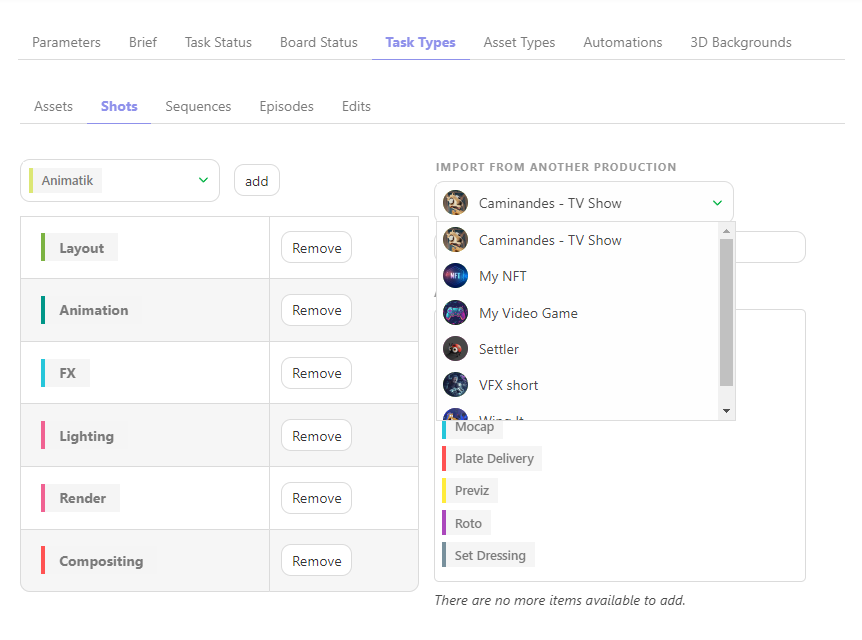
On the Task Types tab, you can choose which production or task type you want to import or remove on this production, validate your choice with the Import button.
WARNING
If you had a new task type AFTER creating an asset or shot, here is the DELIVERY task type.
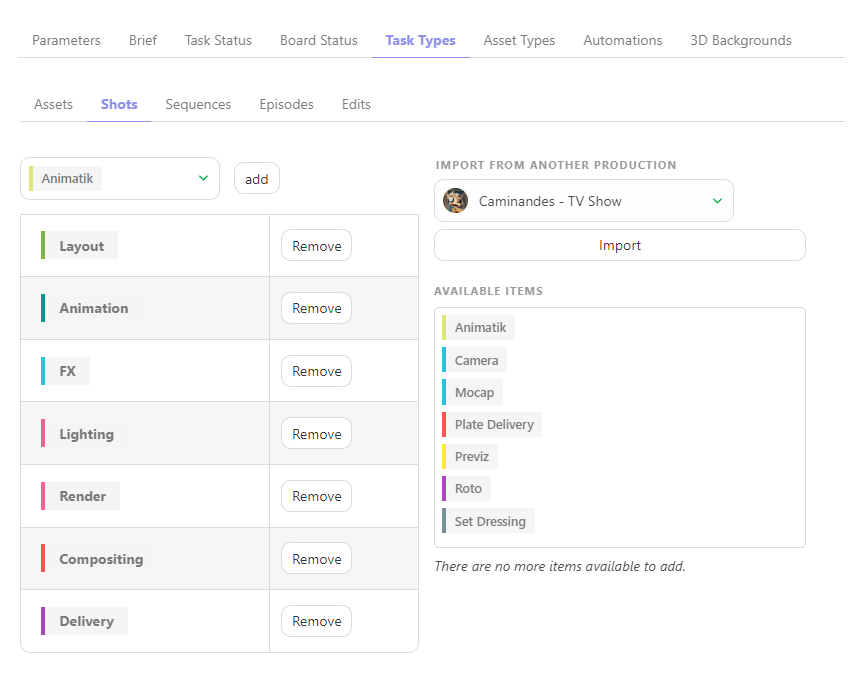
You need to add this task type on the global page.
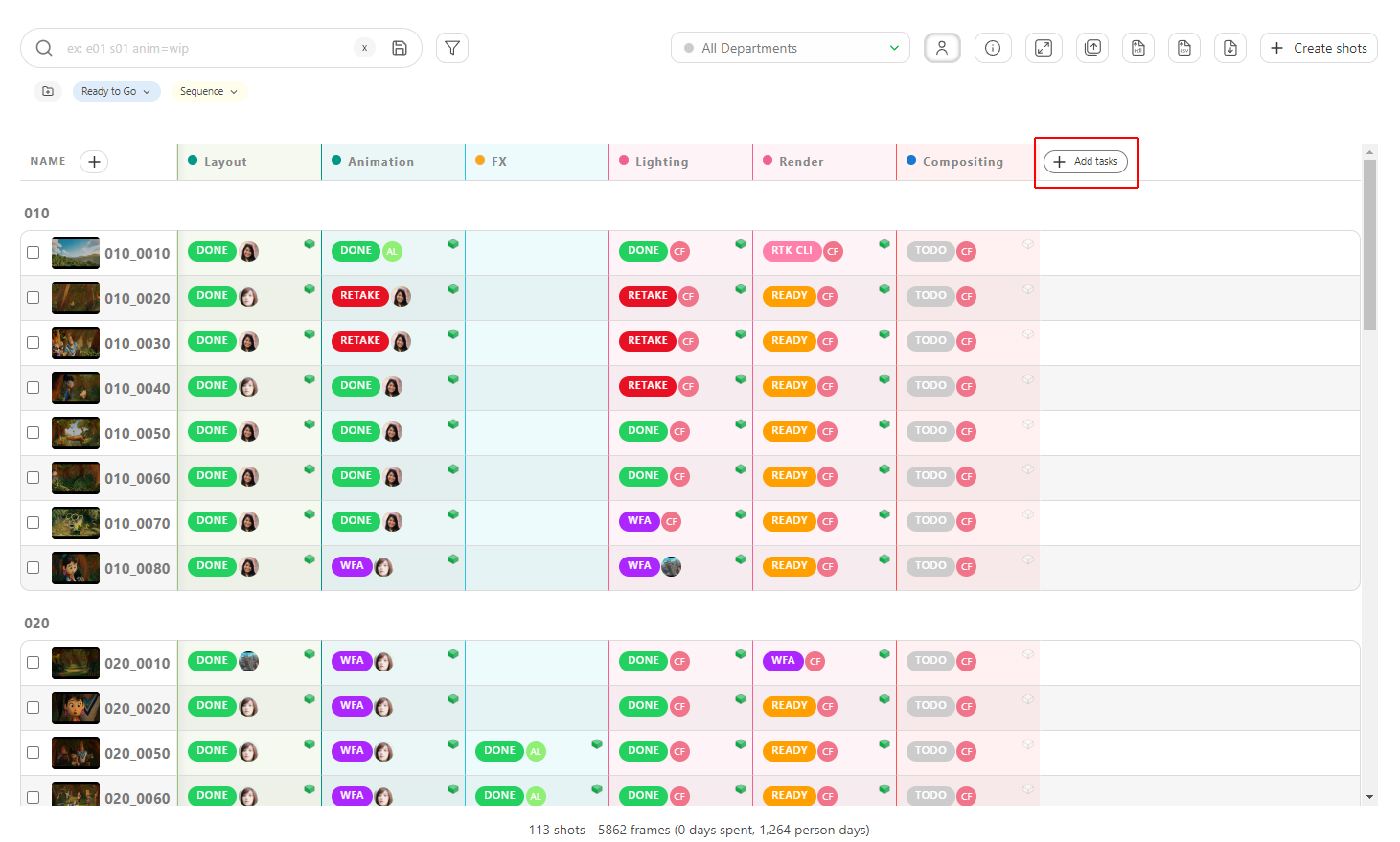
A pop-in will appear, and you must select the new task type on the dropdown menu.
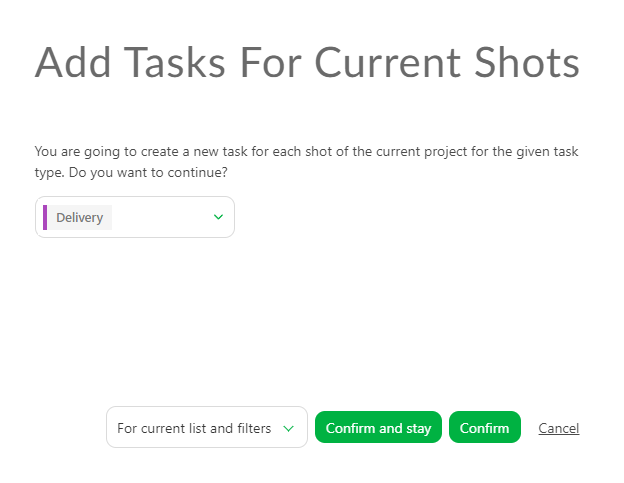
Validate with Confirm.
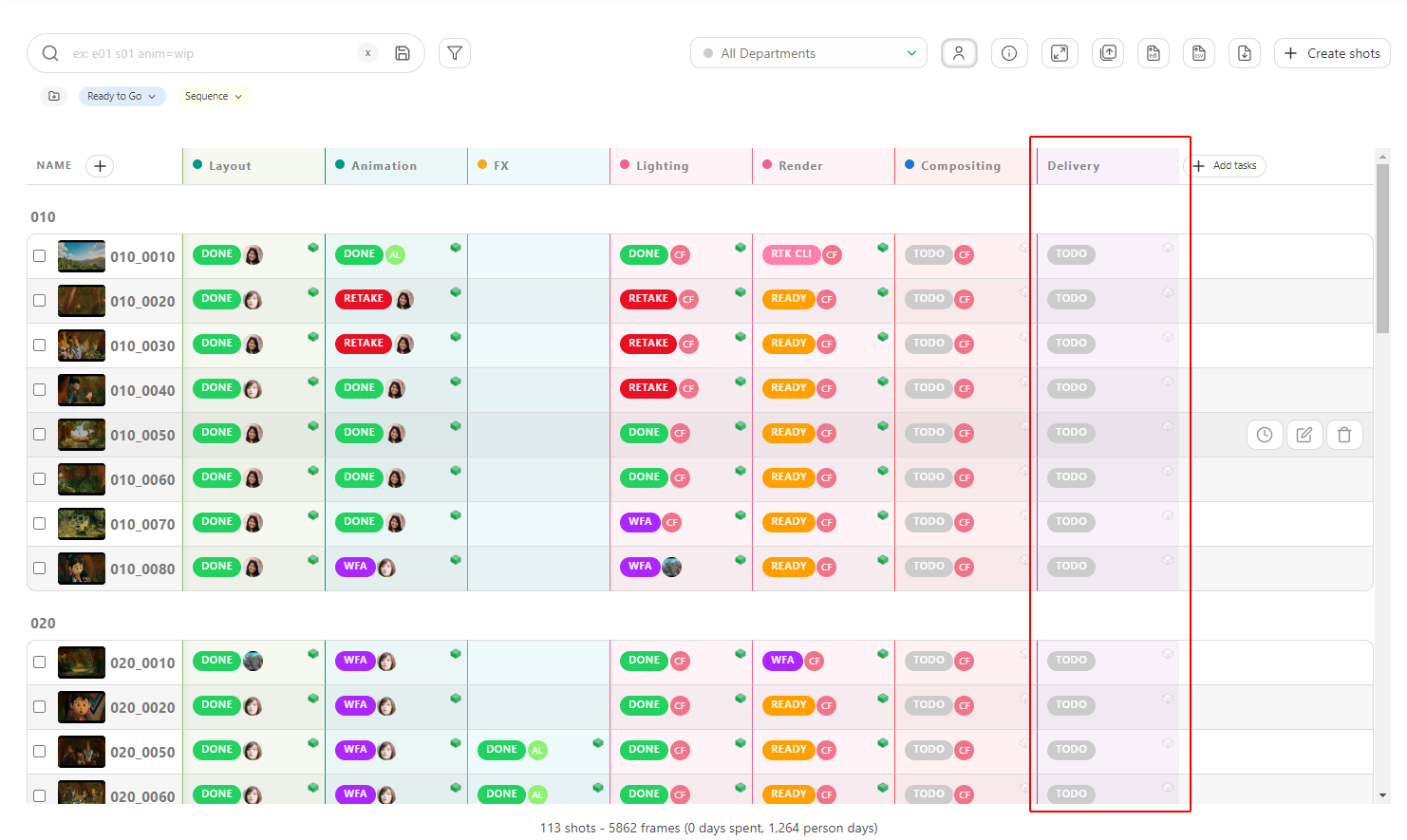
Update a Task Type
TODO
Remove a Task Type
TODO