Managing Concepts
Create a Concept / Upload
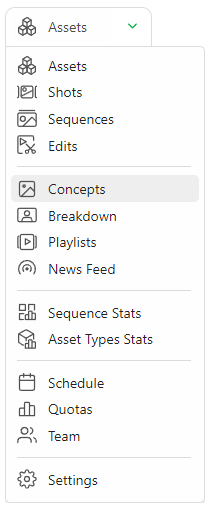
To create a Concept, go to the Concept page with the navigation menu.
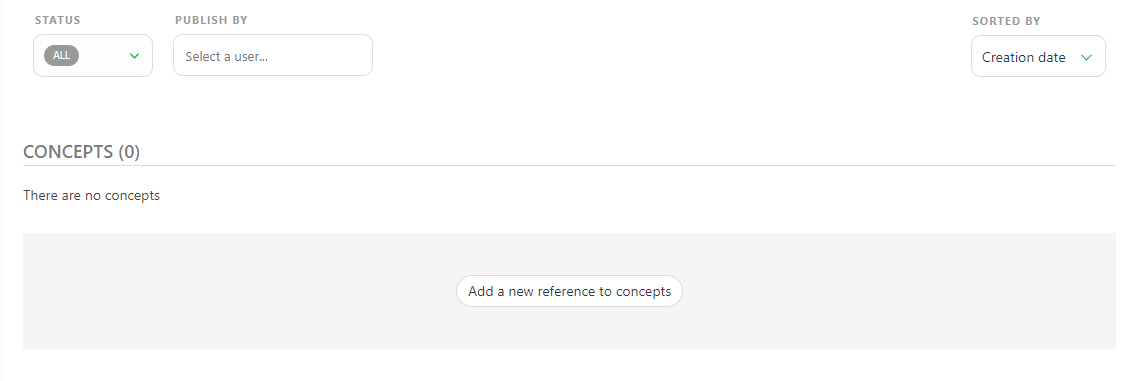
To upload a concept, click the Add a new reference to concepts button.
You can upload one or several concepts at the same time.
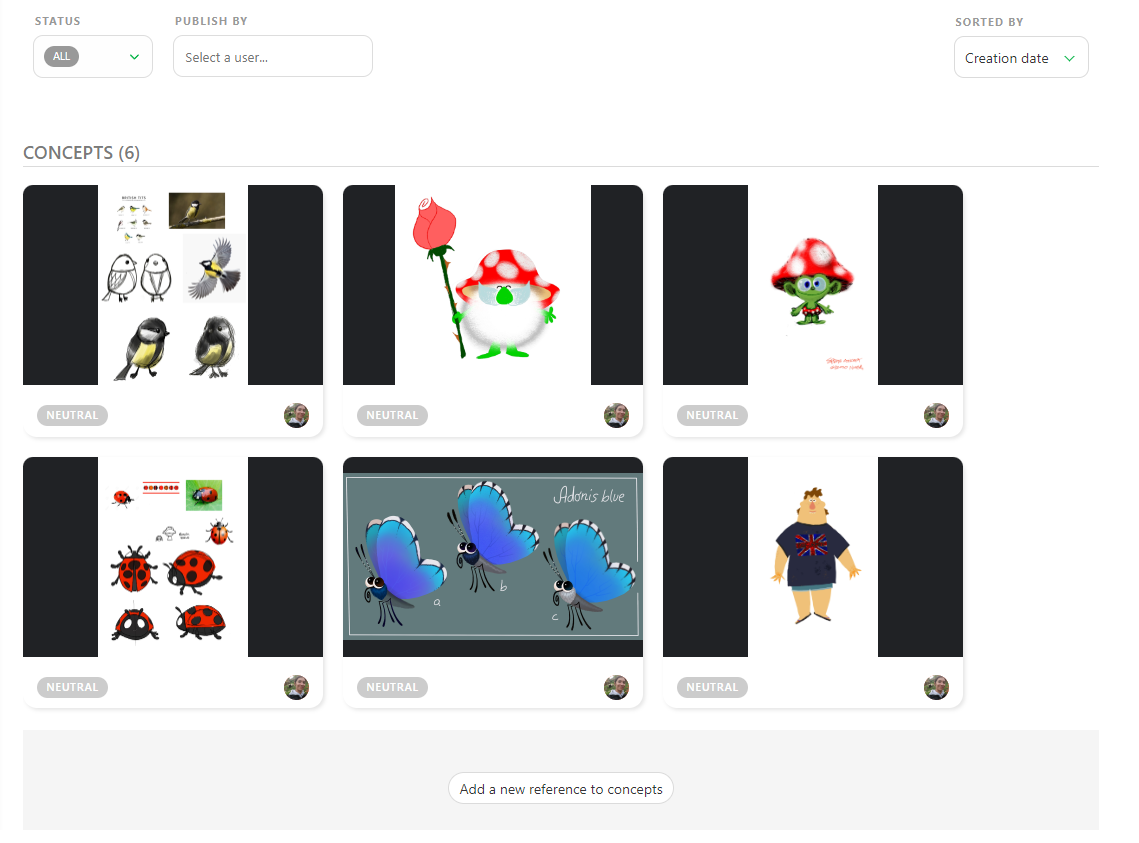
Once you upload your previews, the concept page will look like this.
Alternatively, if you're coming from the Todo Page:
- Click Return to Production to access the dashboard.
- Navigate to the Concepts page via the main menu.
- Click Add a new reference to concepts and upload your files.
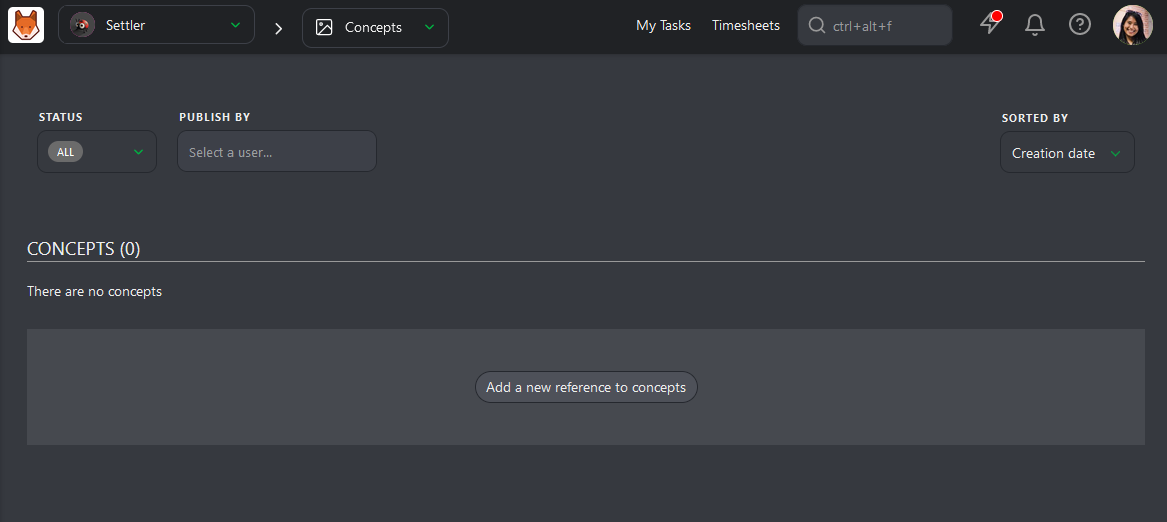
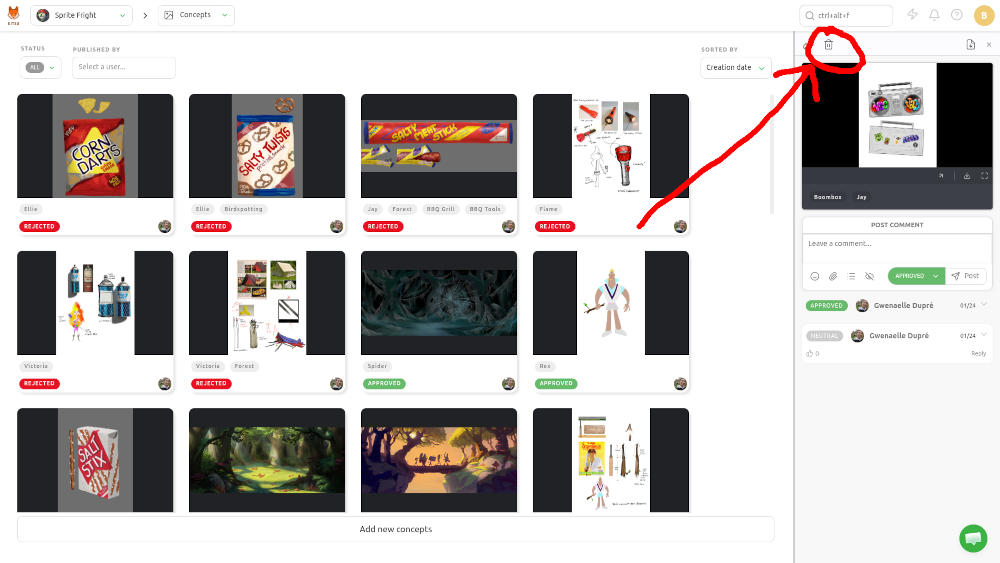
You can interact with the concept in two ways: click on the picture to see an enlarged view. The second is to click on the status part to open the Comment Panel on the right.
On the comment panel, you have two options: link a concept to an existing asset or delete it. You can also comment and change the status of the asset.
The idea is to have one version per Concept. If it's not approved, you need to upload a new concept, not to have multiple versions of the same concept.
One concept is one task.
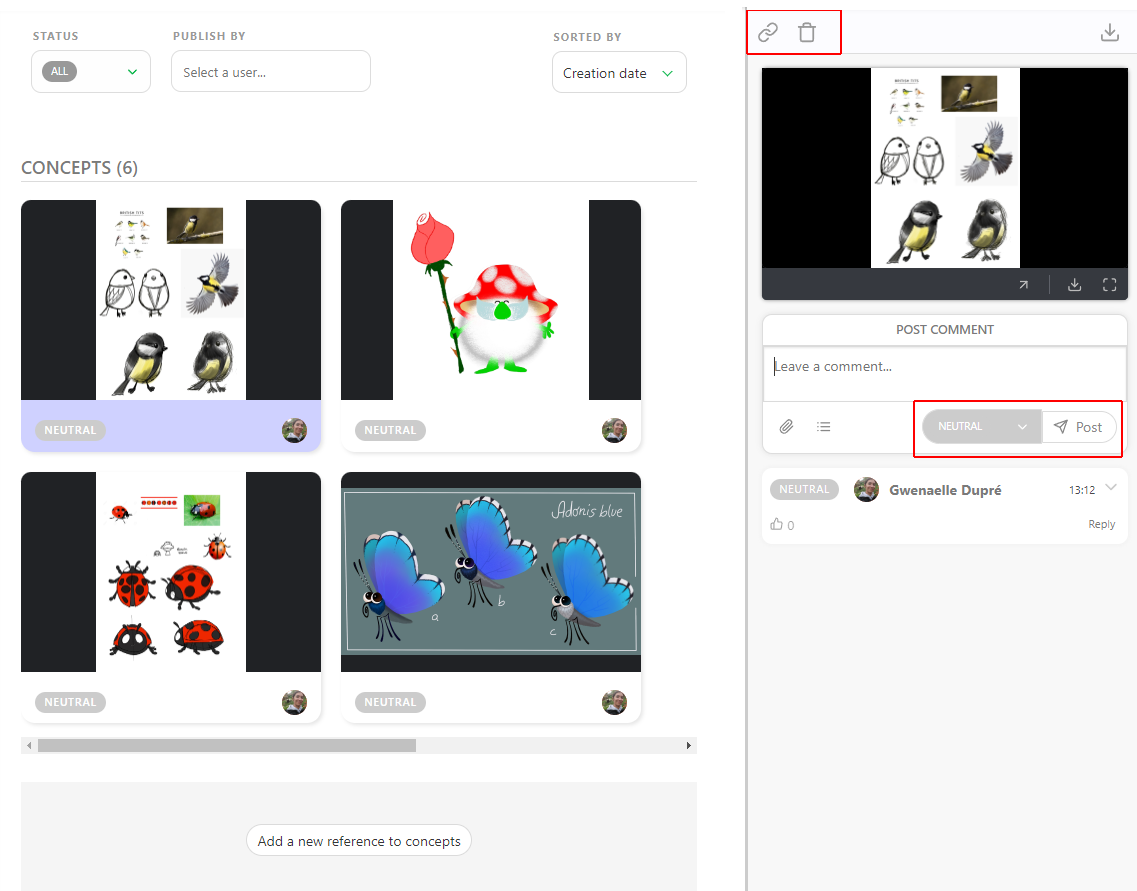
Link a Concept to an Asset
Once a concept has been uploaded, you'll want to link it to an asset to ensure it is associated with the correct production element, making it easier for your team to reference and provide feedback within the proper context.
You can see the links on the status part of the assets.
Click on the status part of the concept; it will open the comment panel on the right.
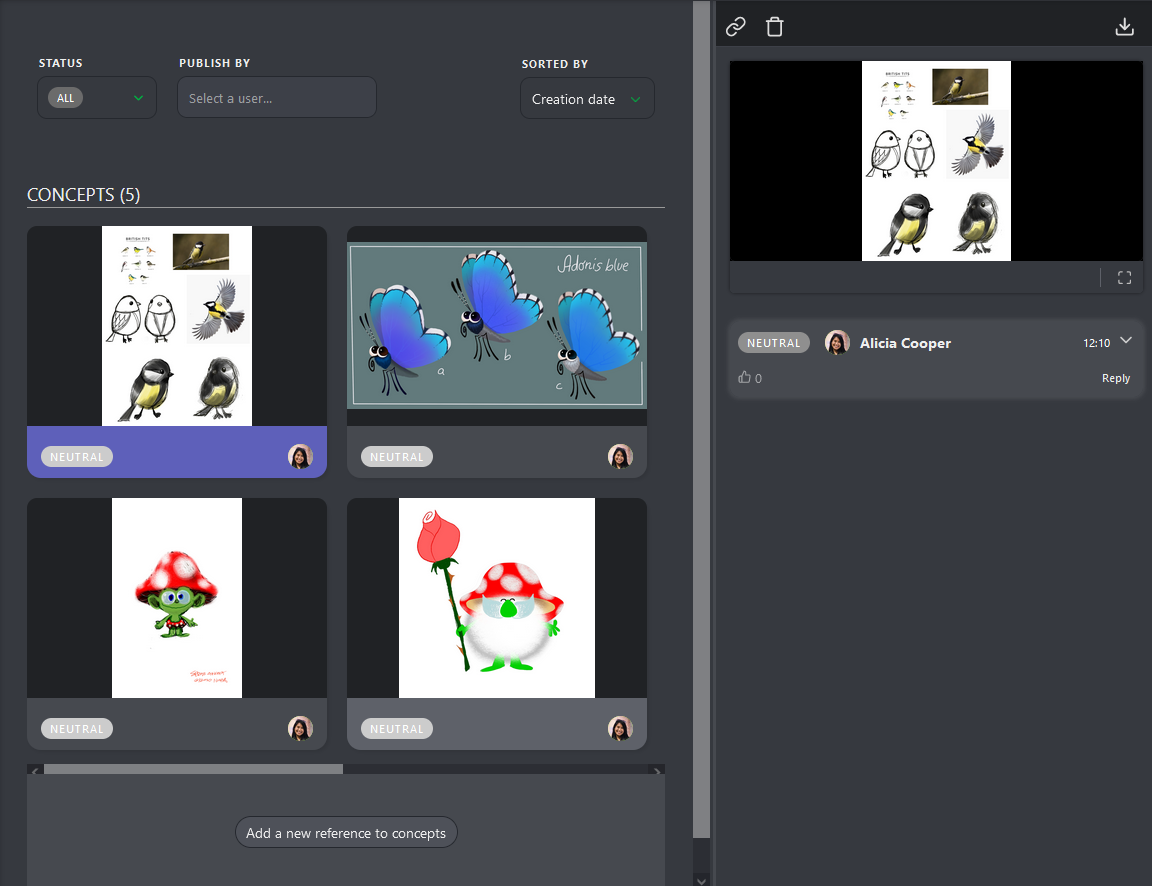
At the top of the comment panel, you have two options: Link a concept to an asset and delete the concept.
To link an asset, click on the Link  button.
Kitsu will display all the Assets available to link with the concept uploaded.
Kitsu will list the linked assets at the top of the comment panel. For now, there are No Links.
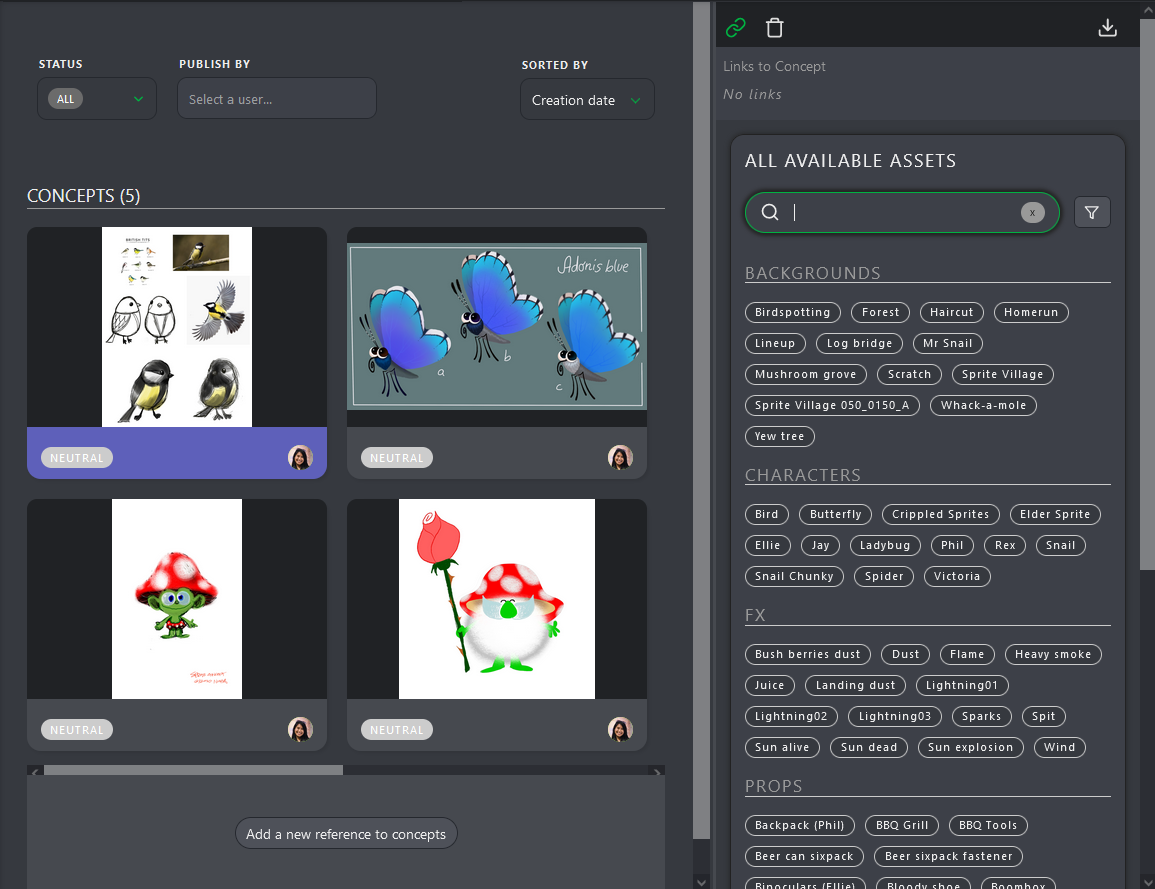
To link an asset, click on it. The names of the linked assets will appear at the top of the screen under the preview of the concept.
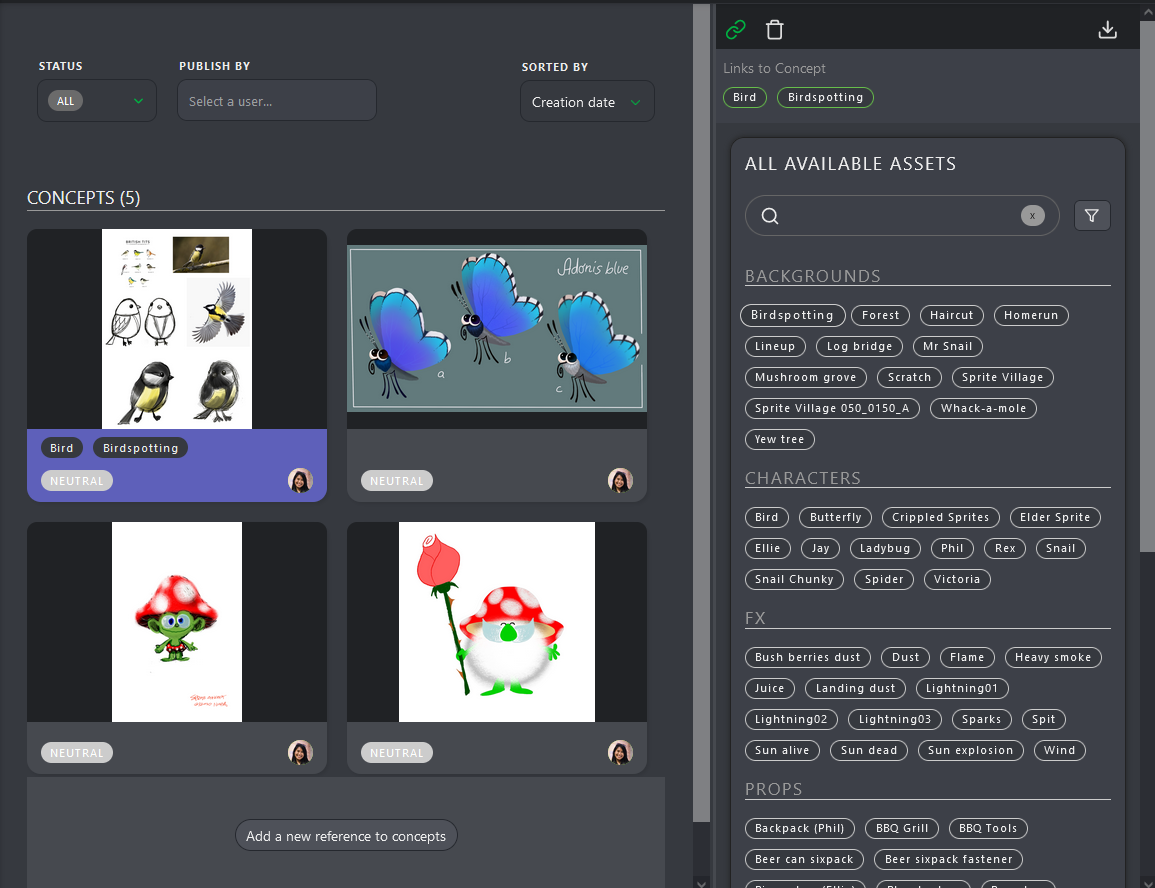
Once a concept is linked to an asset, it can be seen on the asset's detail page.
Return to the asset page, and click on the asset name you want to see the concept.
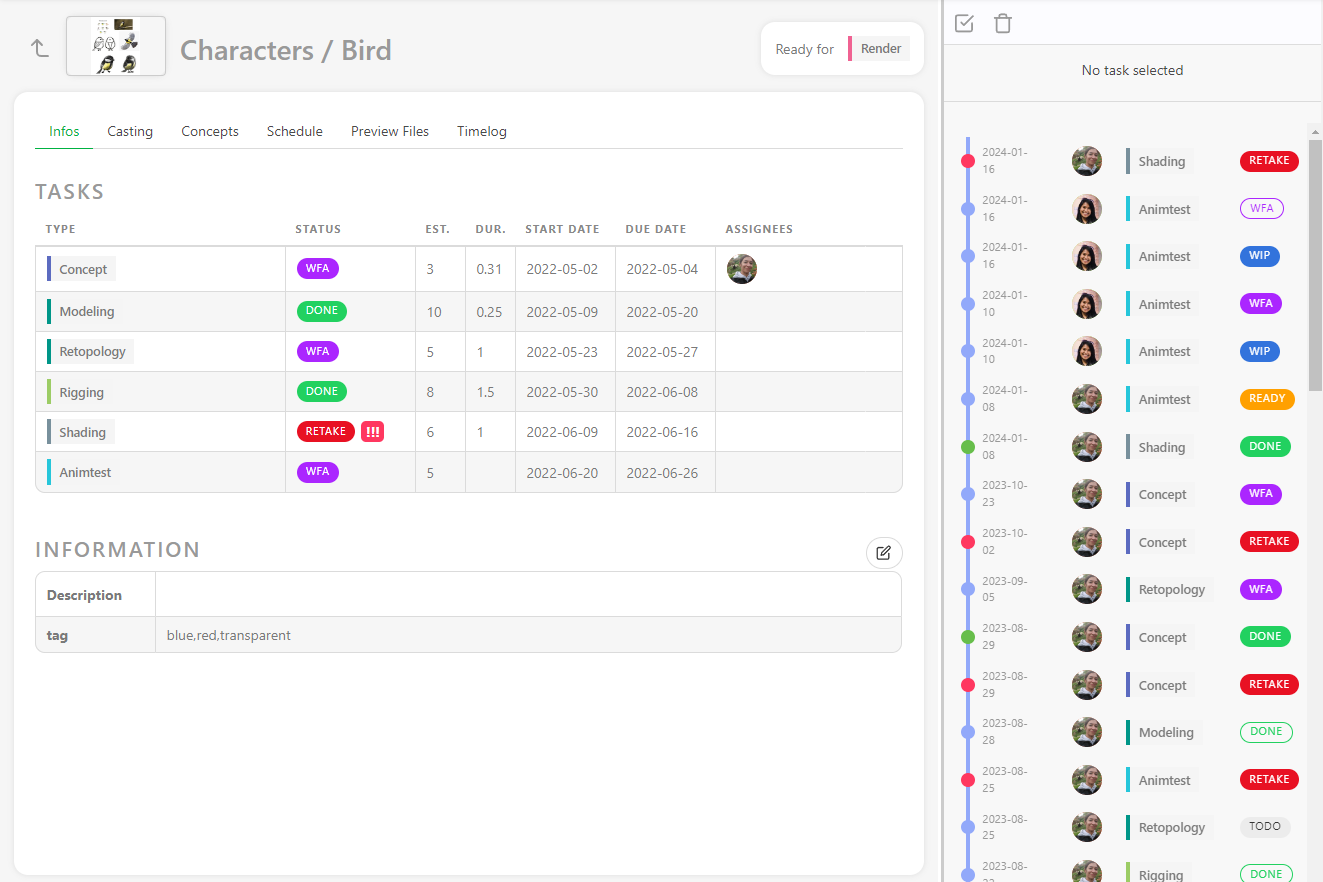
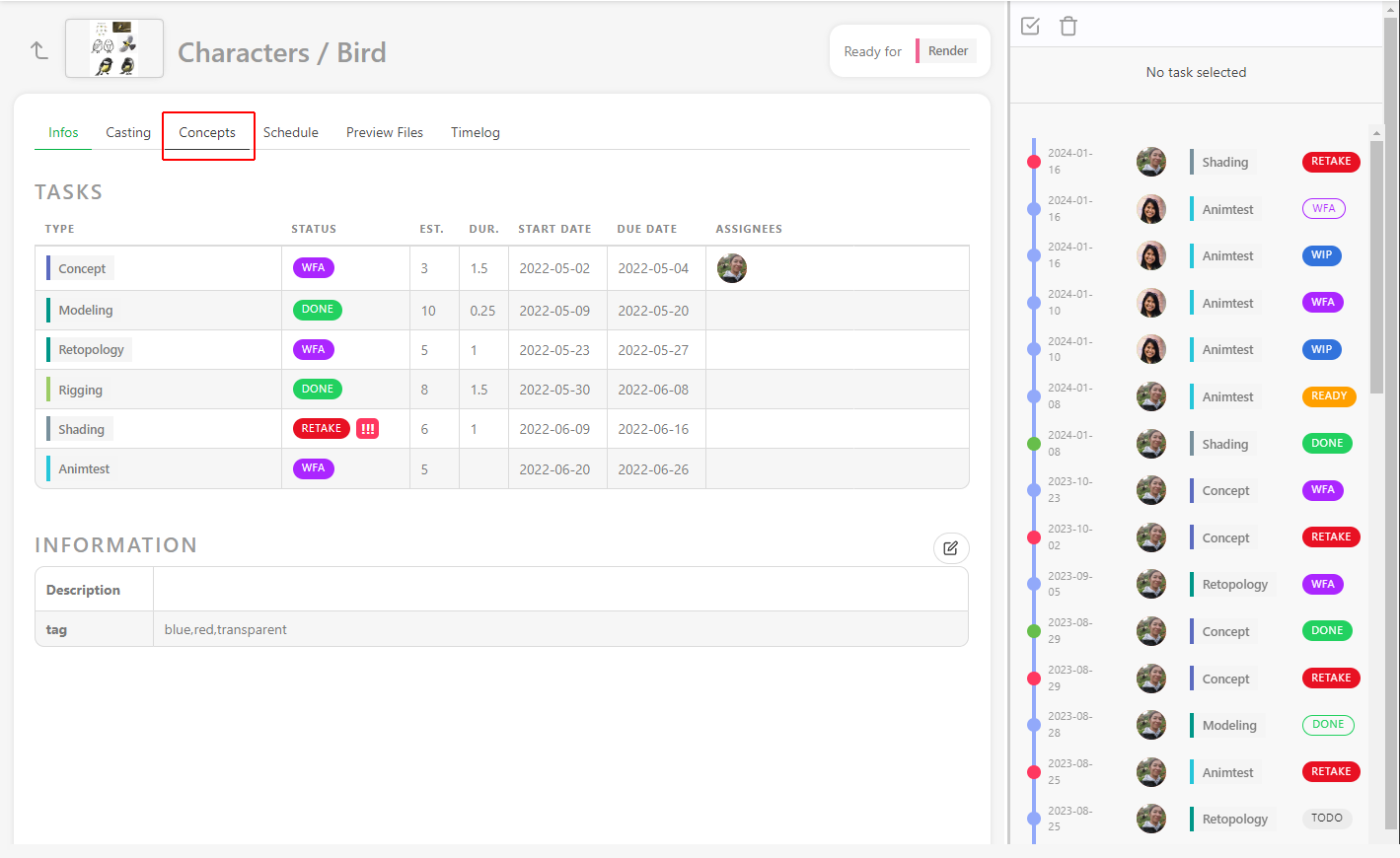
Per default, the casting detail is displayed on the second part of the screen. Use the dropdown menu to choose the concept.
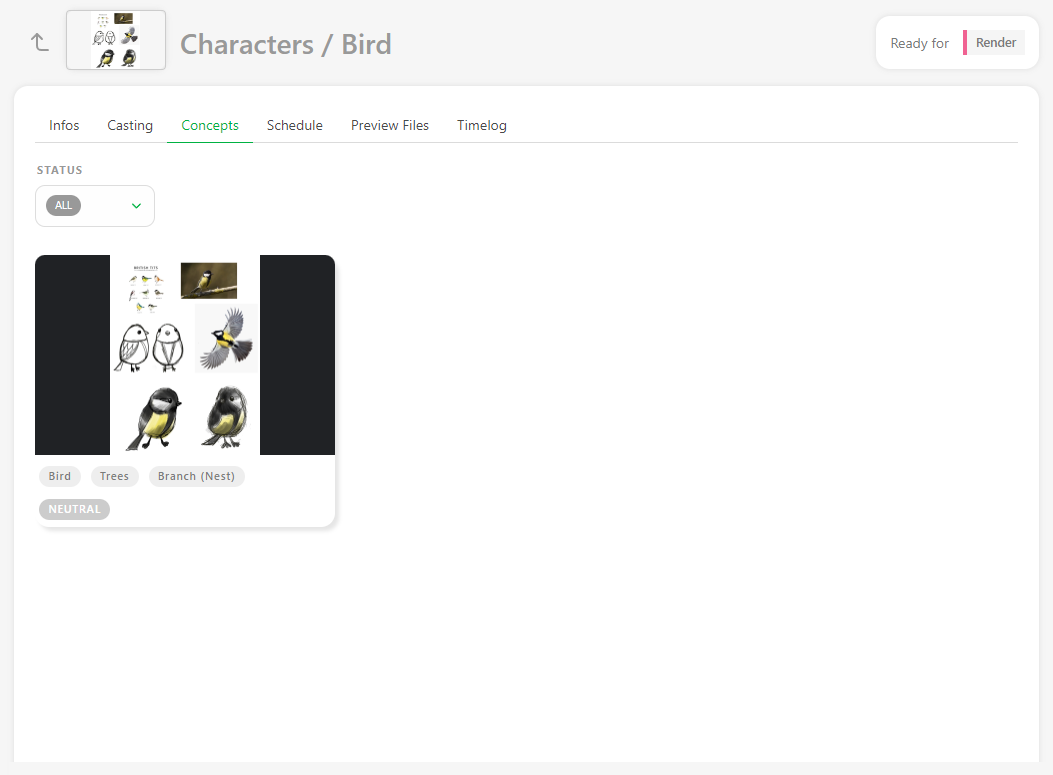
Once in the concept section, you will see all the concepts created for this asset. You can filter them per status.
Delete Concepts
To remove a concept, click on the corresponding card to open the concept menu and click the Delete icon: